
Track daily Qaidah lessons
The Qaidah tracker records what each student covered in their Qāʿidah lesson every day. Unlike Hifz — where the unit of work is a passage of Qur'an — a Qāʿidah lesson is written differently in every school, so the tracker lets you record it in whichever notation you already use, and you type into an empty box rather than choosing from a list.
Why there are no dropdowns
Noorani, Baghdadi, Ahsanul Qawaid and a locally printed booklet all number their pages differently. Any fixed list would be wrong for most schools, so every lesson field is a free-text box. Type what you would have written in the register.
Step 1 — Create a Qaidah class
If Qaidah Tracking is not in the sidebar, first open Settings → Qaidah, enable tracking for this school, and save. The setting is per school.
- In the left sidebar, open Classes → Qaidah Tracking.
- Click New Qaidah Class (administrators only).
- Give it a name, pick a Level, and optionally assign teachers.
- Click Create class. You land straight on the tracker.
A Qaidah class is a normal class
Unlike a Hifz class, turning on Qaidah tracking does not remove the class from your gradebooks, averages or attendance. It stays an ordinary class that also keeps a daily lesson log — so you can run it with a gradebook, or with no grades at all.
Step 2 — Add students
- On the tracker, open the Manage menu (top right) and choose Add students.
- Search by name, tick the students you want, and click Add selected.
- To take a student out later, use the icon on their card.
Only students in this school appear in the picker. Removing a student deletes their Qaidah history for this class — their grades and attendance are untouched.
Step 3 — Record a lesson
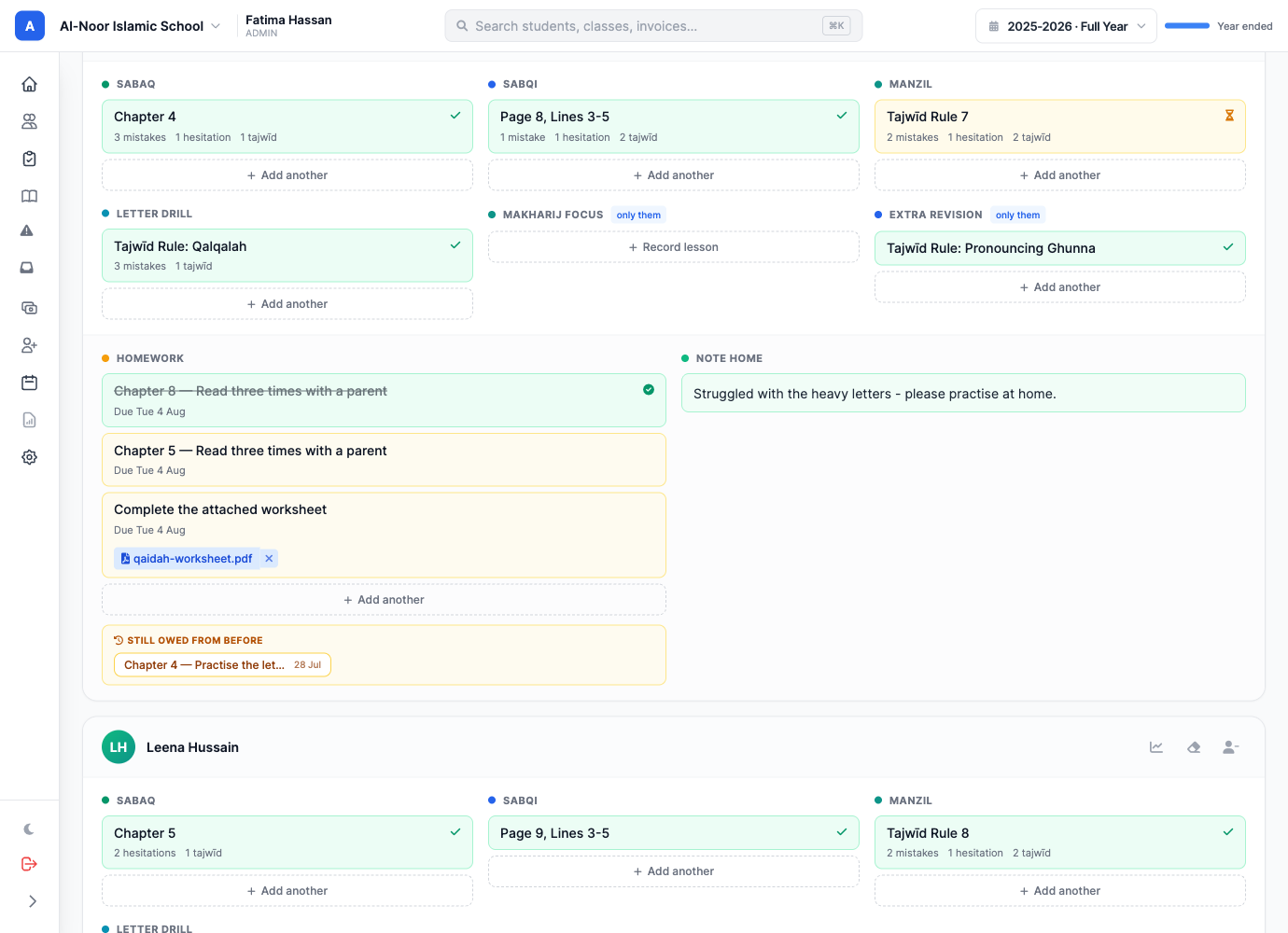
- Check the date at the top. Use ‹ and › to move a day, or the date box to jump.
- Under a column, click Record lesson.
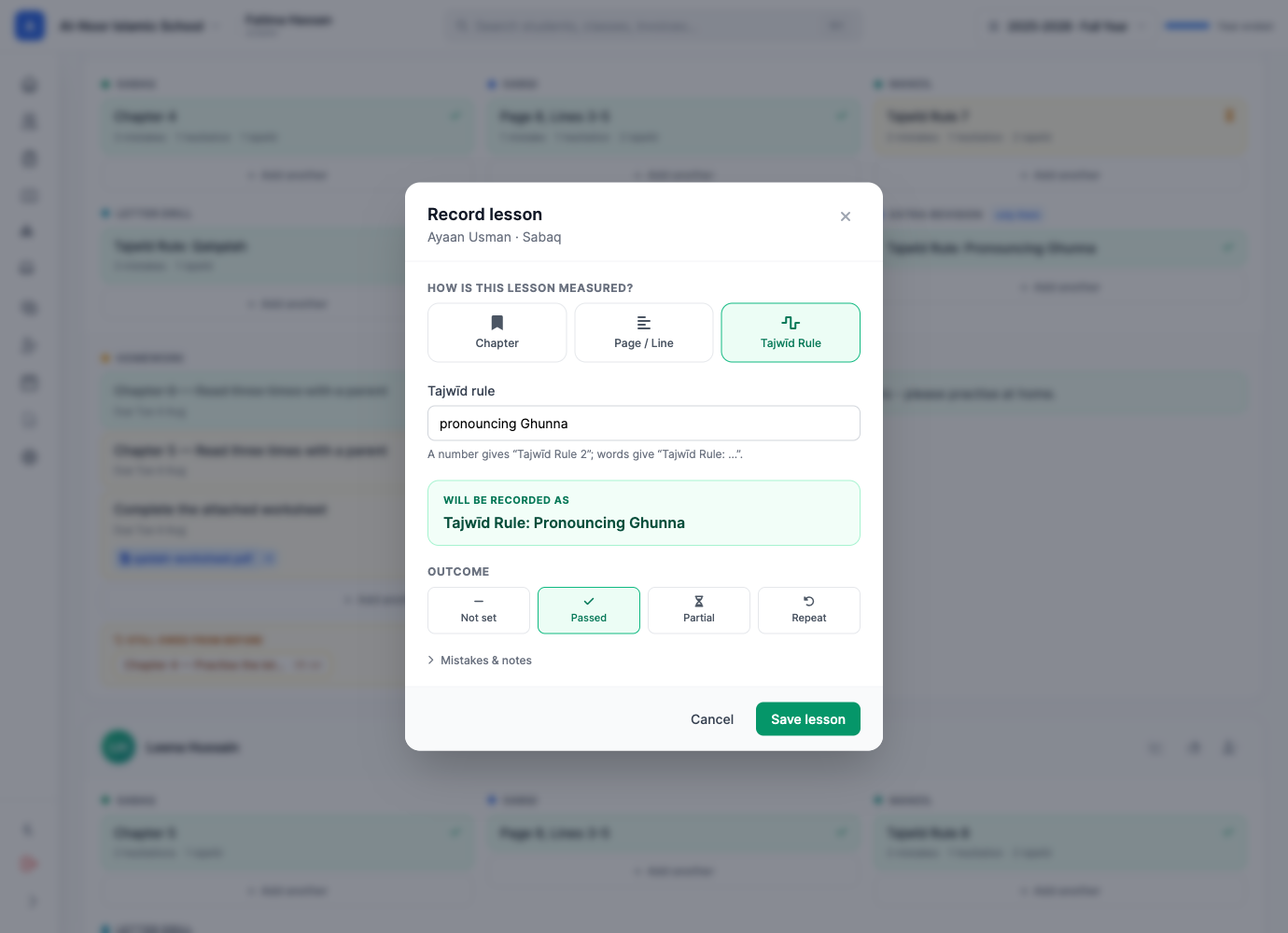
- Choose the notation: Chapter, Page / Line, or Tajwīd Rule.
- Type the lesson. Watch the green Will be recorded as panel — that is exactly what gets saved.
- Pick the outcome: Passed, Partial, Repeat, or leave it Not set.
- Click Save lesson.
How each notation is written out
| You type | It records |
|---|---|
| Chapter · 2 | Chapter 2 |
| Chapter · introduction | Chapter: Introduction |
| Page 12, lines 3 to 5 | Page 12, Lines 3-5 |
| Page 12, line 3 only | Page 12, Line 3 |
| Tajwīd Rule · 2 | Tajwīd Rule 2 |
| Tajwīd Rule · pronouncing Ghunna | Tajwīd Rule: Pronouncing Ghunna |
The rule is simple: a number reads inline ("Chapter 2"), words read after a colon ("Chapter: Introduction"). You never have to think about it — the preview shows you.
Mistakes and notes
Open Mistakes & notes inside the lesson dialog to record counts of mistakes, hesitations and tajwīd slips, plus a private note for yourself. Counts appear under the lesson on the grid and feed the student's progress page.
Step 4 — Save time with Repeat
Most students continue where they left off. When a student's day is still empty, a Repeat button appears on their card. One click copies their last recorded day's lessons onto today, ready for you to adjust.
Repeat copies the lesson, not the verdict
It brings across which chapter, page or rule they were on. It does not copy the outcome, the mistake counts, the note home, or the homework — those are judgements about today and must be made today.
Step 5 — Write the note home
The Note home box on each card is what the parent reads that evening, word for word, in the portal and the app. Click it, set how the day went, type the note, and save.
Fixing mistakes
- Change a lesson — click it, edit, save.
- Delete one lesson — click it and use Delete.
- Clear a whole day — the icon on the student's card removes that day's lessons, homework and note in one action.
Things the tracker will not let you do
- Record for an absent student. If attendance marks them absent, their card says so and the fields are hidden.
- Edit a locked past date, if your organization locks past records.
- Write into a closed term or a concluded academic year.
Next: Qaidah lesson columns, homework, and parent check-ins.
More in Classes & Grades
Still stuck?
Our team is happy to walk you through it.