
Build your class structure: Subjects, Levels, and classes
Every class in MarkTrack is built from three layers stacked on top of each other: a Subject (the broad area, like "Quran" or "Fiqh"), a Level (the wider grouping the subject sits under, like "Year 1" or "Beginner"), and the actual class the level and subject combine to make — internally called a SubjectLevel, but on screen it just shows as a class like "Year 1 Fiqh." This guide explains the three layers, shows you how to create each one, and points out the two surprises that trip up new admins: how flexible the naming is, and which classes automatically get a gradebook.
The simplest way to think about it: a Level is a row, a Subject is a column, and every place they cross is one real class. "Year 1" crossed with "Fiqh" makes the class "Year 1 Fiqh." "Year 1" crossed with "Arabic" makes "Year 1 Arabic." The same Subject can sit under many Levels, which is why you usually create a Subject once and let MarkTrack spin up a class for each Level you tick.
One important difference between Levels and Subjects
A Level is shared across your whole organization — every school sees the same list of Levels. A Subject belongs to one school, so the same subject name can exist separately in two of your schools. This matters when you rename or delete a Level, covered at the end of this guide.
Step 1 — Open the Classes page
- In the left sidebar, open Classes and click All Classes.
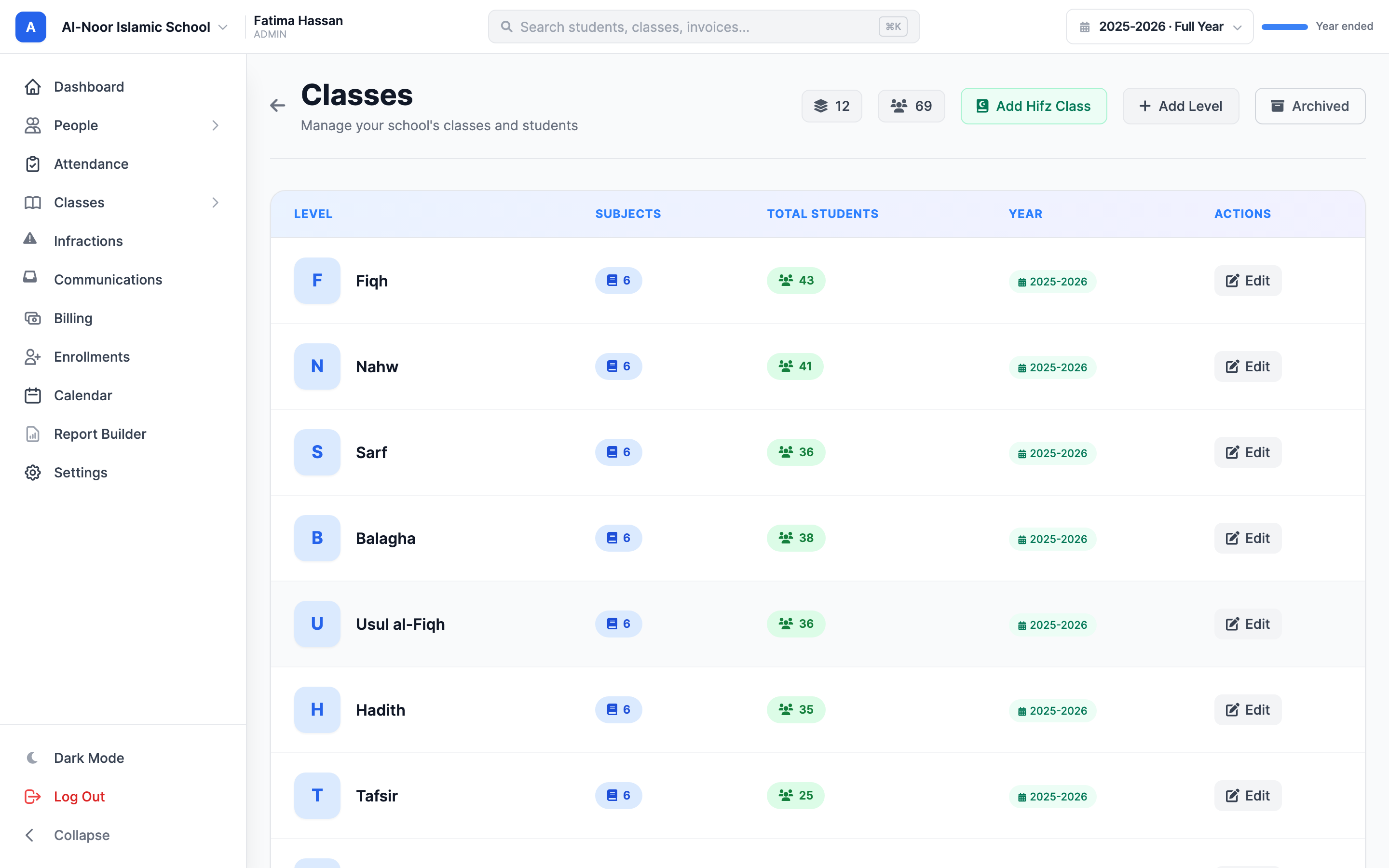
- You land on a page titled Classes with the subtitle "Manage your school's classes and students."
- The main table lists your Levels, with columns for the level name, how many subjects it has, and its total students. The header has three controls: Add Hifz Class, Add Level, and a small archive icon.
Starting from scratch? Let MarkTrack build it for you
If you have no classes yet, the page shows a "Set Up Your School Structure" screen with two shortcuts. AI Autofill lets you describe your school in plain English and previews a full set of levels and subjects to create. Template Setup gives you ready-made templates (including a madrasah template). Both create everything in one go and skip anything that already exists, so they're safe to run on a partly-built school.
Step 2 — Create a Level
A Level is the wider grouping. Create it first, because Subjects and classes hang off it.
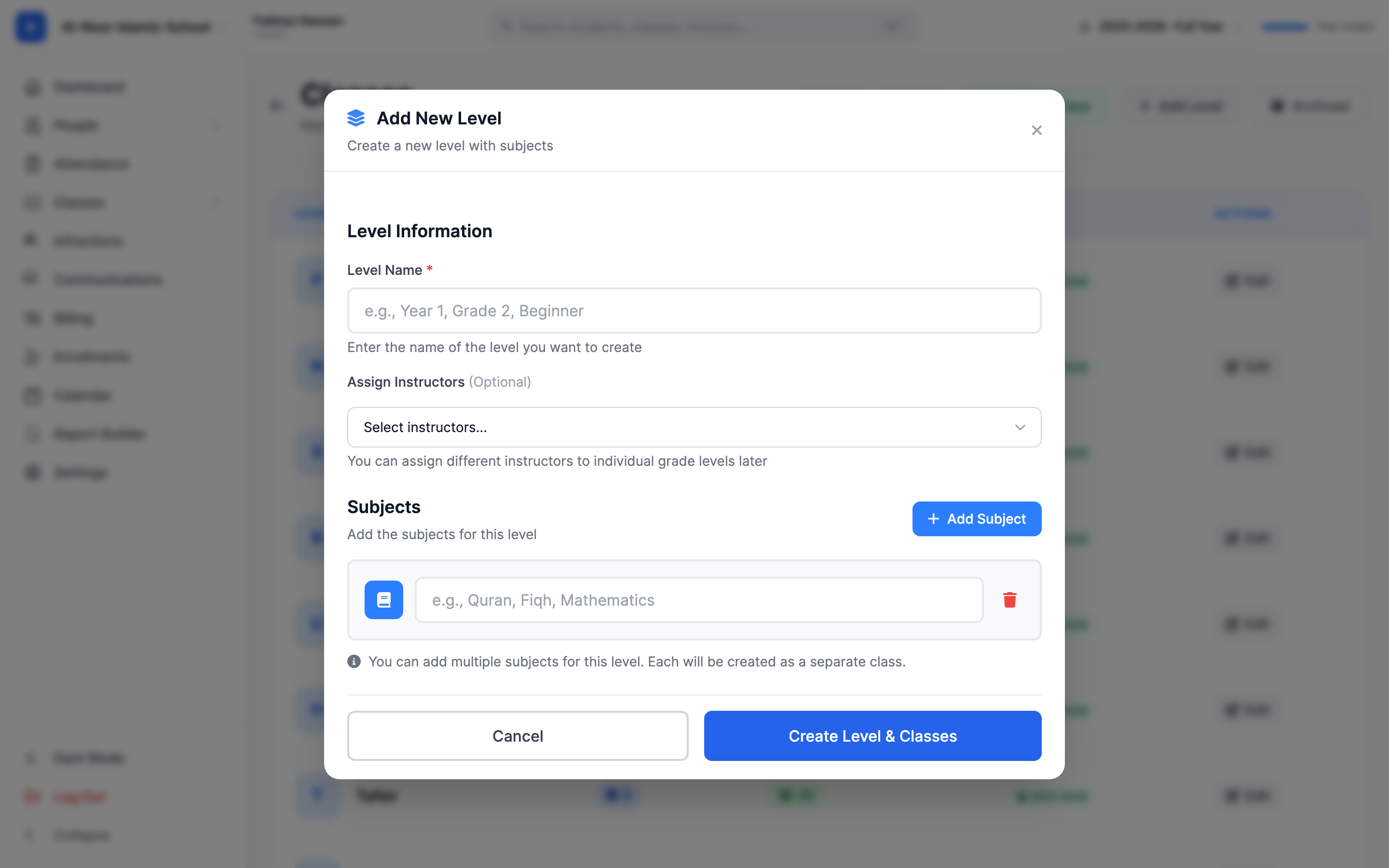
- Click Add Level. The Add New Level window opens.
- Type the Level Name — anything that fits your school, such as "Year 1," "Grade 2," or "Beginner." There are no fixed level names; you name them however you like.
- Optionally pick one or more instructors now, or leave it blank — you can assign different instructors to individual classes later.
- In the Subjects section, click Add Subject for each subject you want under this level. Each one you add becomes its own separate class.
- Click Create Level & Classes.
It's fine to create a Level with no subjects — MarkTrack tells you "Level 'X' created! You can add subjects later." You'll add them from the level's own page (Step 4).
Step 3 — Create a Subject across several Levels at once
If you want the same subject in many levels — say "Arabic" in Year 1, Year 2, and Year 3 — create the Subject once and tick the levels it belongs to. MarkTrack makes one class per ticked level.
- On the Classes page, open the Add New Subject window (the new-subject option on the Classes page).
- Type the Subject Name — for example "Quran," "Islamic Studies," or "Mathematics." Again, you choose the names; nothing is fixed.
- Optionally add teachers, start/end dates, and start/end times now (you can also set these per class later).
- Under Select Levels, tick every level this subject should appear in. MarkTrack reminds you: "A class will be created for each selected level."
- Click Create Subject & Classes.
You need a Level before you can make a Subject
If no levels exist yet, the new-subject window tells you "No levels available — Please create a Year/Level first before creating a subject." Create at least one Level (Step 2) first.
Step 4 — Add one Subject to a single Level
To add just one subject to one level, work from the level's own page instead:
- On the Classes page, click the row for the level you want. Its detail page opens, showing a card for each class in that level.
- Click Add Subject. The Add Subject to [Level] window opens.
- Type the Subject Name (for example "Fiqh," "Quran," or "Arabic") and click Add Subject.
If a subject with that name already exists in this school, MarkTrack reuses it rather than making a duplicate. And if that exact subject already exists in this level, it quietly skips it and tells you "Subject already exists in 'X'."
Every regular class gets a Gradebook — except Hifz
The moment a regular class is created, MarkTrack automatically builds it a Gradebook. You don't make it yourself. The new gradebook starts with four grade categories — Assignment, Quiz, Test, and Final Exam — each weighted 25%, which you can change later. From the class card you'll see a Gradebook button to open it.
Hifz classes work a little differently. Memorization is tracked by daily Sabaq, Sabqi, and Manzil — with mistake counts and pass/fail — in the Hifz Tracking workspace. A Hifz class can also carry a normal gradebook (on by default at creation, toggleable later), in which case its class card shows both a Hifz Tracking button and a Gradebook button.
Creating a Hifz class
- On the Classes page, click Add Hifz Class.
- Set the Class Name (it defaults to "Hifz"), choose a Level (required), and optionally pick a teacher.
- Click Create Hifz Class. MarkTrack takes you straight to the Hifz Tracking page for that class.
Hifz vs. regular is decided once, at creation
Whether a class is a Hifz class is chosen when you create it, and there's no switch to convert it later. A regular class always has a gradebook; a Hifz class's gradebook is optional (on by default, and an admin can enable or disable it later from the class's Edit dialog — disabling requires the gradebook to be empty). If you picked the wrong type, you'll need to create a new class of the right type. Renaming a Hifz class is also done from its Hifz Tracking page, not the normal class editor.
How customizable is the naming?
Very. You invent every Level name and every Subject name — MarkTrack ships no fixed list, so "Year 1 / Fiqh," "Grade 3 / Mathematics," and "Beginner / Tajwid" are all equally valid. The class's display name normally reads as "Level Subject" (for example "Year 1 Fiqh"), but you can override an individual class's display name when you edit it.
Editing and deleting a Level — read this before you do
From a level's row on the Classes page you can Edit it. The Edit Level window lets you rename the level and, in a Danger Zone, delete it. Both actions reach further than they look:
- Renaming a Level renames it for every school in your organization, because Levels are organization-wide. Other schools using the same level will see the new name.
- Deleting a Level is permanent and wide-reaching. MarkTrack warns you: it removes every class under that level, along with all of their gradebooks, assignments, grades, and student enrollment data — across every school that uses the level. There is no undo.
Only admins can build the class structure
Creating, renaming, archiving, and deleting Levels, Subjects, and classes is admin-only. Teachers see just the classes they teach and can't change the structure.
Once your classes exist, the next steps are setting their schedules and teachers, and enrolling students. See the other guides in Classes & Grades.
More in Classes & Grades
Still stuck?
Our team is happy to walk you through it.