
Create quizzes and file-upload assignments
MarkTrack has three kinds of assignment. An Interactive Quiz is taken online and graded automatically. A File Upload asks students to turn in files (a PDF, a photo of their worksheet). A standard assignment is just a column in the gradebook — there is nothing for the student to do online. This guide shows you how to create all three and explains every setting on the form.
Separate from its kind, every assignment also has a Type: Quiz, Test, Final Exam, Assignment, or Misc. The Type is a grading category. It decides which weight bucket the score counts toward when MarkTrack calculates the final grade. (More on weights in the grading guide.)
Who can do this
Assignments are controlled by the Grades permission — there is no separate "Assignments" permission. Anyone with Grades view access can see them, editing needs Grades edit, and deleting needs Grades delete. Teachers can only create or change assignments for classes they teach; admins can manage any class in their school.
Two different places to create assignments
This trips up almost everyone, so let's get it out of the way first:
- Quizzes and file uploads are created from the Assignments hub (sidebar: Classes → Assignments).
- Standard gradebook columns are created from the class's Gradebook page.
The two lists never mix. A standard column will not appear on the Assignments hub or on a student's assignments page — there is nothing for the student to open. And you will not find a quiz option inside the gradebook's add-assignment window. If you "lost" an assignment, you are probably looking in the other place.
Step 1 — Open the Assignments hub
- In the sidebar, click Classes to expand it, then click Assignments.
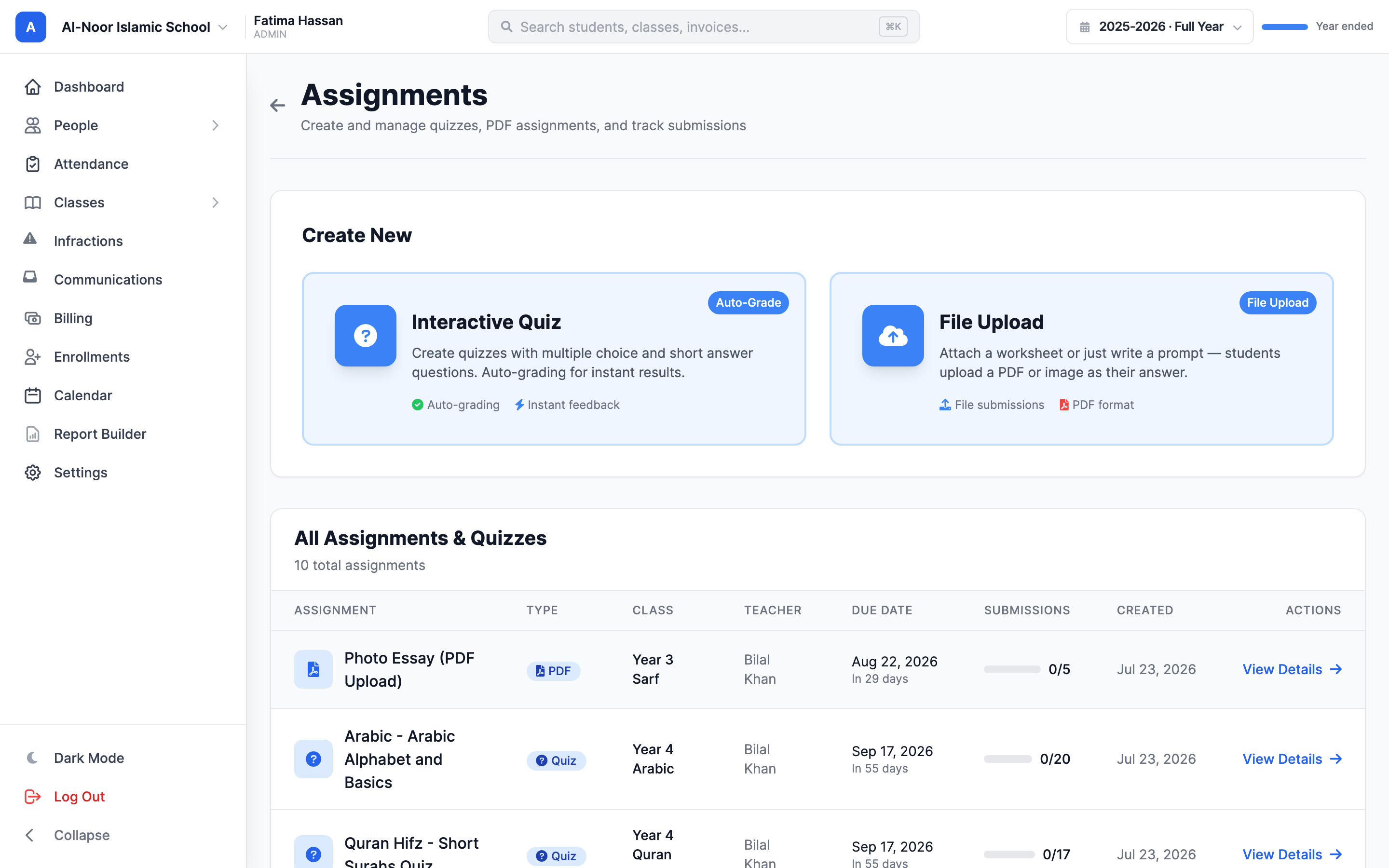
- You'll see the page titled Assignments ("Create and manage quizzes, PDF assignments, and track submissions").
The Create New section has two big cards: Interactive Quiz (with an Auto-Grade badge) and File Upload. Below them, the All Assignments & Quizzes table lists every quiz and file upload in the school — columns for Assignment, Type, Class, Due Date, Submissions, and Created (admins also see a Teacher column), 10 per page.
Step 2 — Pick the kind and the class
- Click Interactive Quiz or File Upload.
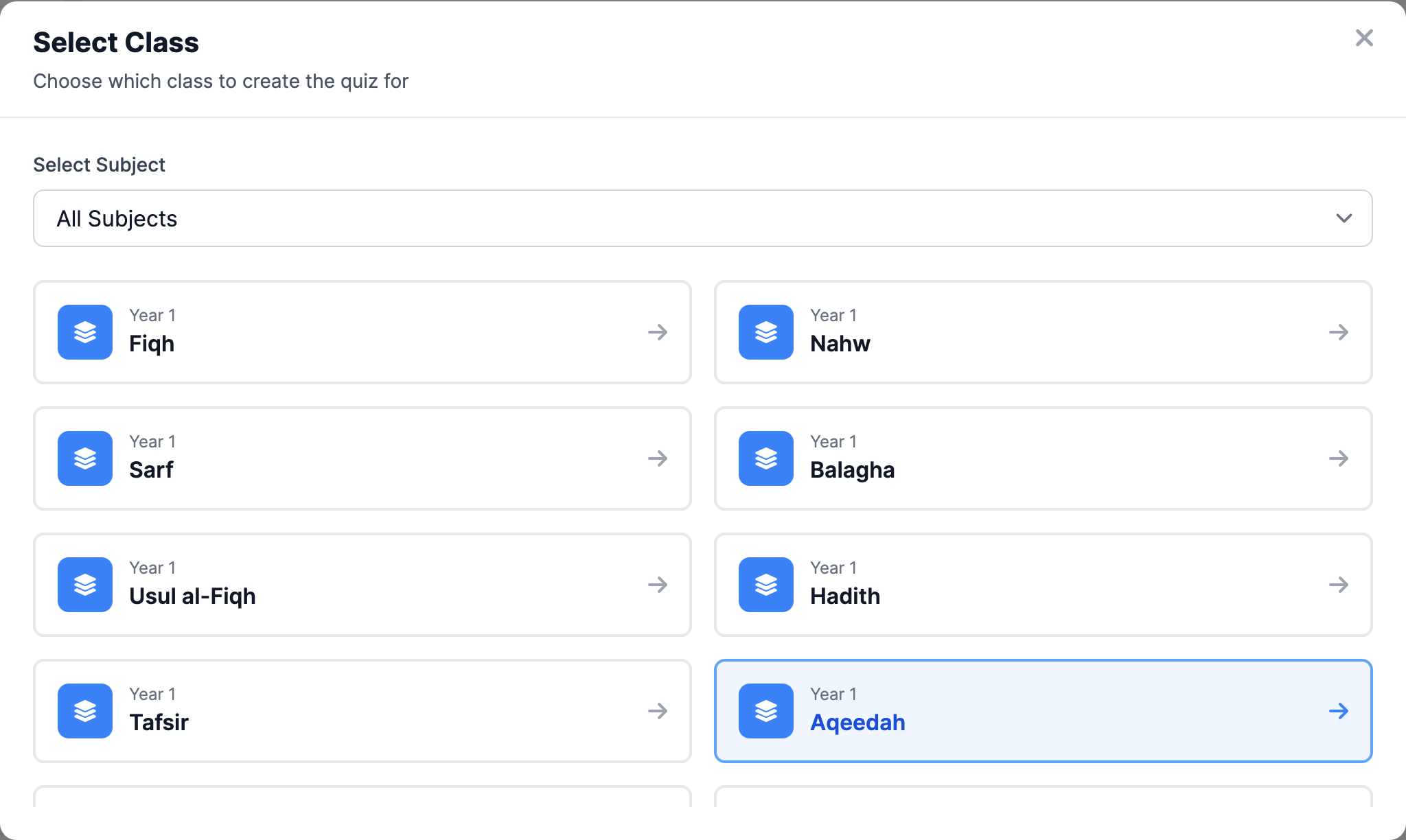
- A Select Class window opens ("Choose which class to create the quiz for"). Click the class this assignment belongs to.
Step 3 — Fill in the basics
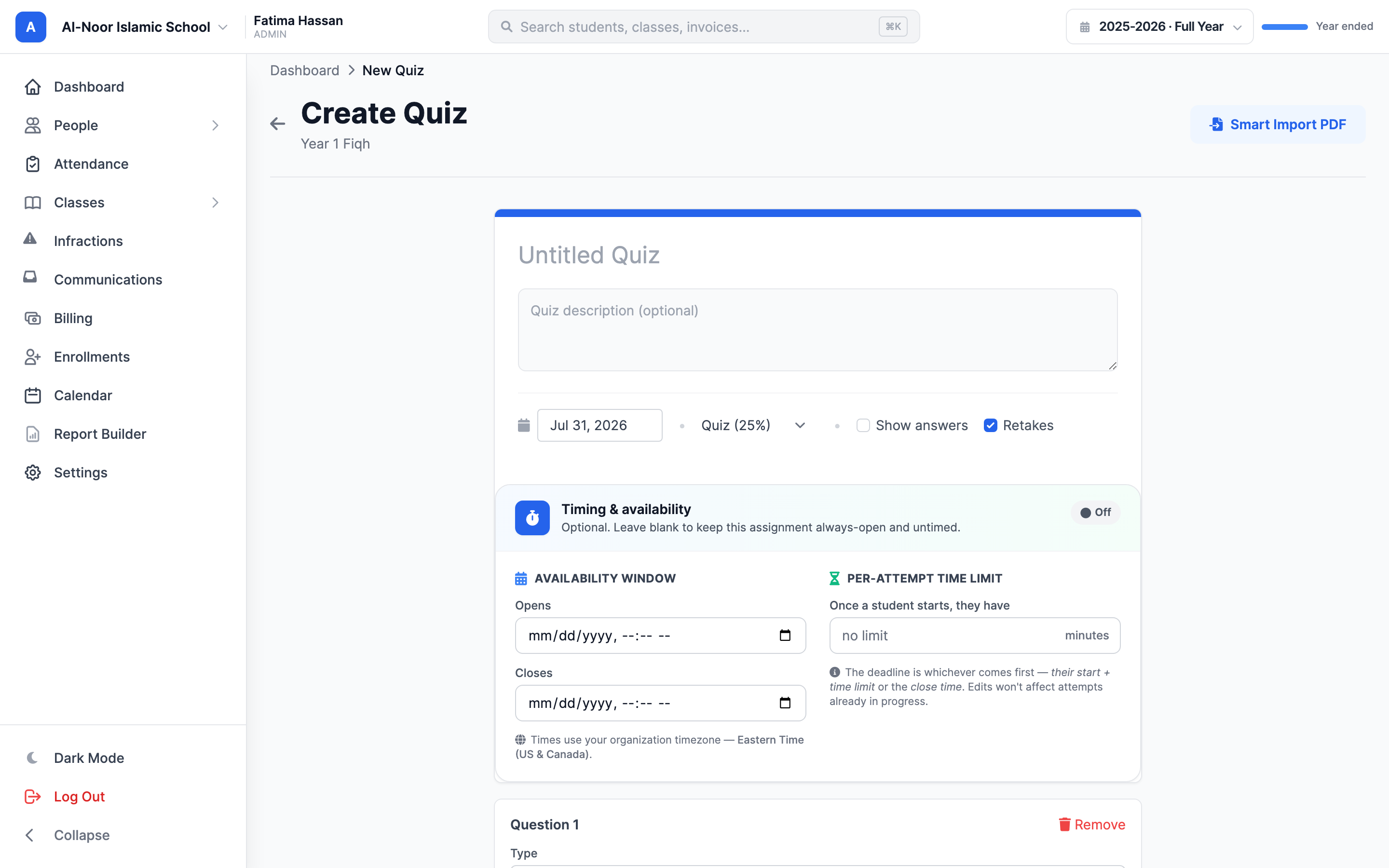
Quizzes and file uploads share the same top fields:
- Title — required, and it must be unique within the class. Reusing a title (a second "Quiz 1" in the same class) fails with "already exists for this class."
- Description — optional. For file uploads this is the prompt students read, e.g. "Read p. 8 of the textbook and answer the questions."
- Due Date — the form pre-fills one week from today. It cannot be in the past (judged in your school's local timezone) and cannot be more than two years ahead. If you clear it, MarkTrack saves it as today.
- Type — Quiz, Test, Final Exam, Assignment, or Misc. This is the grading category used for weighting.
Step 4 — Build the quiz questions
For an Interactive Quiz, add the questions next:
- Click Add question.
- Pick the question type: Multiple choice, True / False, or Short answer.
- For multiple choice, fill in the options (Option 1, Option 2, …) and Select the correct answer.
- Set the points for the question. Each question has its own point value.
- Use Delete on a question to remove it. A quiz must keep at least one question or it won't save ("must have at least one question").
The quiz's total points are always the sum of the question points. You cannot type a total directly — it recalculates automatically every time you add, change, or remove a question.
Two quiz checkboxes control the student experience:
- Show answers — when on, students see the correct answers on their results page right after submitting. When off, answers stay hidden — but note: once you finish grading a submission, the student sees the correct answers anyway. "Show answers off" hides answers only while grading is incomplete.
- Retakes — when on, students get a Retake Quiz button after submitting and can try again. When off, one submission is final.
Smart Import: turn a PDF into questions
On a new quiz (the button doesn't appear when editing), you can let AI draft the questions from a file:
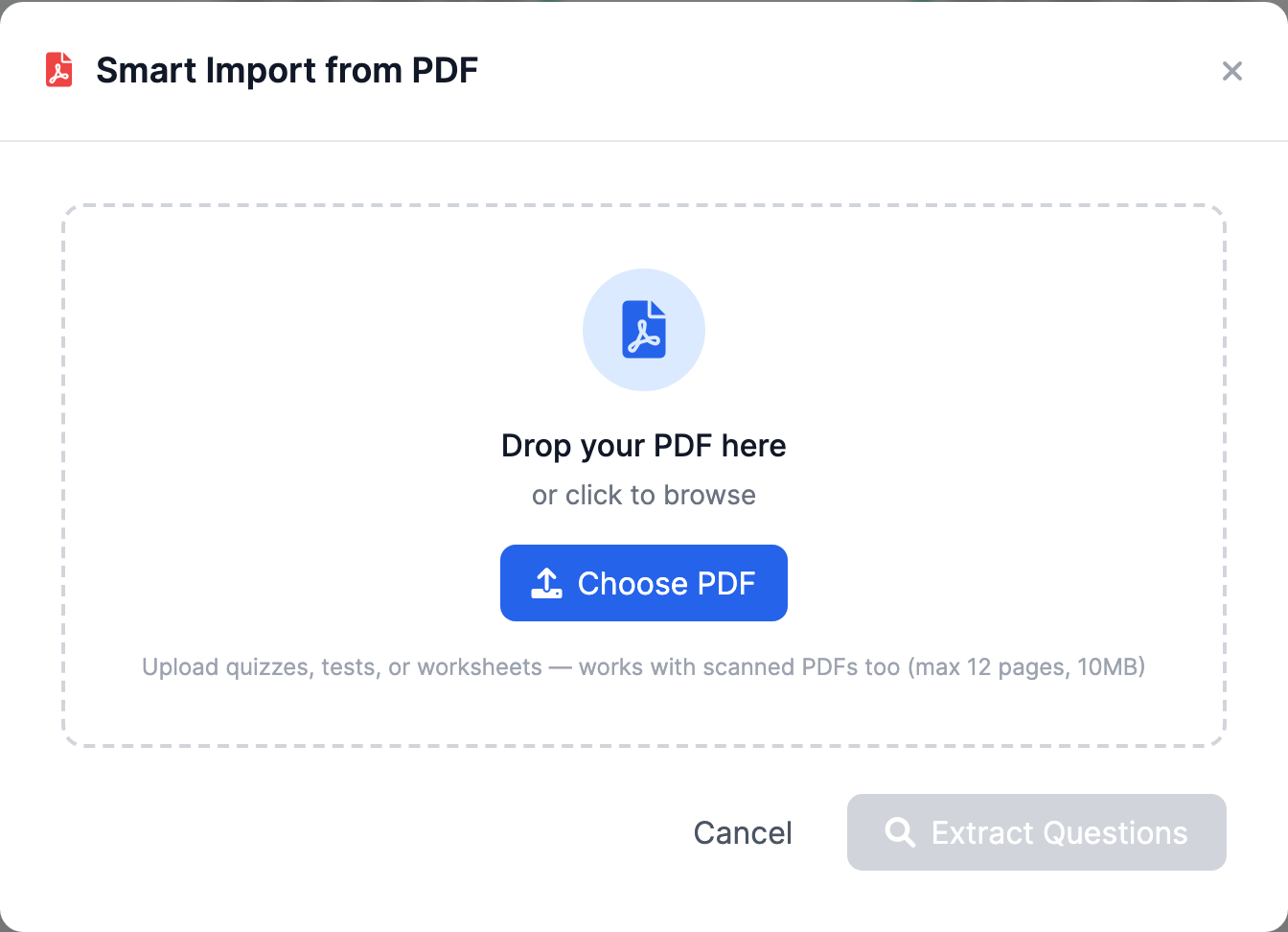
- Click Smart Import PDF. The Smart Import from PDF window opens.
- Click Choose PDF and pick your file. It works with scanned PDFs too, up to 12 pages and 10 MB.
- Click Extract Questions and wait for the preview.
- Review the drafted questions, then click Import Questions to drop them into the builder. You can edit every question afterwards.
If the AI can't read the file you'll see Generation Failed — try a clearer scan or fewer pages.
Step 5 — File-upload settings
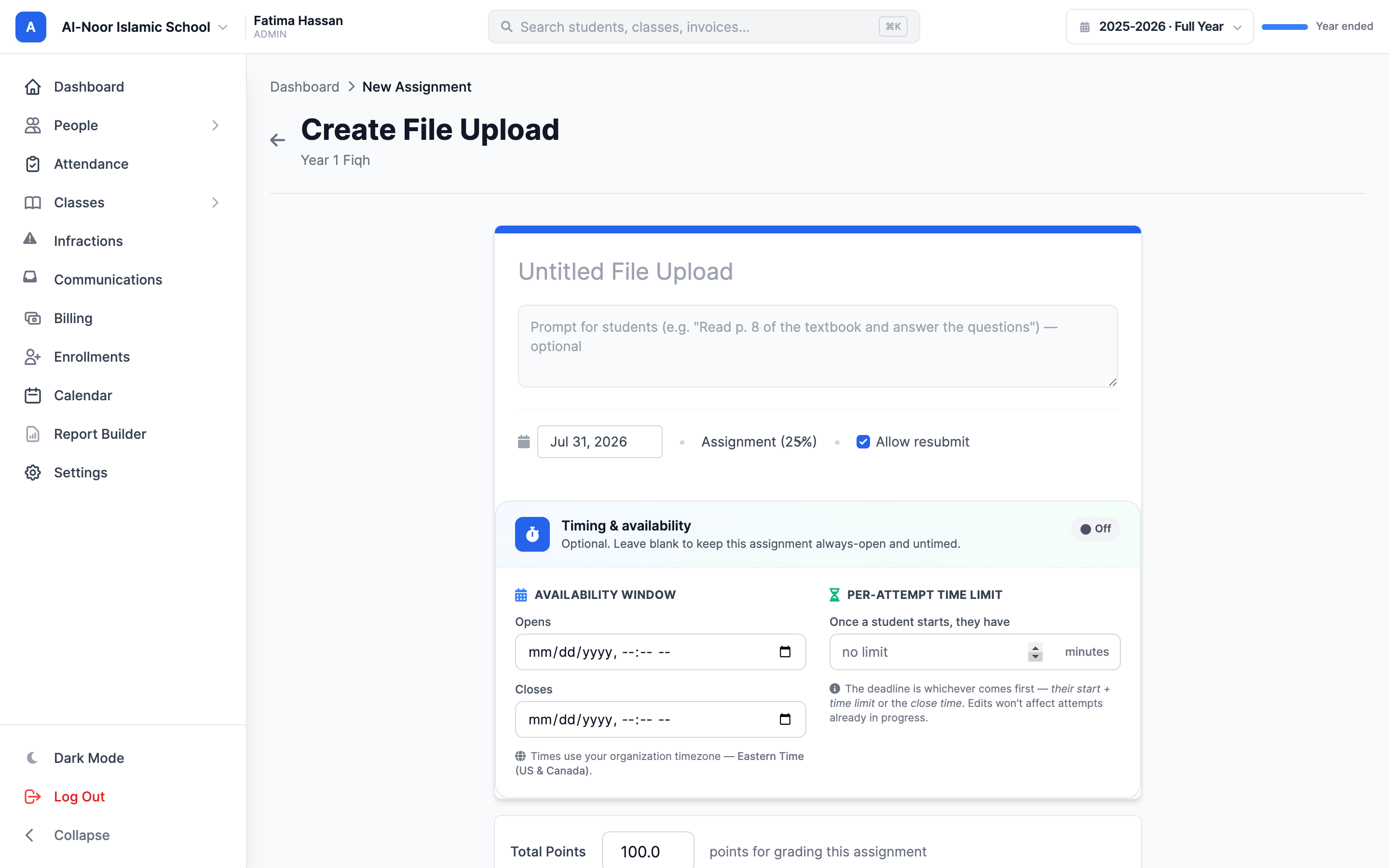
If you picked File Upload, the form is titled Create File Upload and has these extras instead of questions:
- Total Points — what the submission is worth in the gradebook. Defaults to 100.
- Reference file — optional: attach a PDF or image (JPG, PNG, GIF, WebP, up to 50 MB) for students to read, like a worksheet. Leave it empty for a text-only prompt in the Description.
- Allow resubmit — when on, students can replace their submission after turning it in.
Students can attach up to 10 files per submission (PDF, JPG, PNG, GIF, or WebP), each up to 50 MB, 200 MB total.
Total Points locks after the first submission
Once any student has submitted, a file upload's Total Points can no longer be changed. Edits to it are silently ignored — the form saves, but the points snap back with no error message. Double-check the points before students start.
Step 6 — Timing & availability (optional)
Both quizzes and file uploads have a Timing & availability card: "Optional. Leave blank to keep this assignment always-open and untimed." A status pill shows Active or Off so you can tell at a glance whether any timing is set.
- Availability window — set Opens and/or Closes. Before "Opens," students see a locked page: "This assignment is not yet available" with the open time. After "Closes," they see "This assignment is closed." The times use your school timezone (shown right on the card), not the student's device timezone.
- Per-attempt time limit — "Once a student starts, they have ___ minutes" (minimum 1; leave blank for no limit). While working, students see a sticky Time remaining countdown.
The real deadline for each student is whichever comes first: their start time plus the time limit, or the close time. When time runs out, MarkTrack auto-submits whatever is there (a sweep runs every minute, with a short ~30-second grace period). Quiz answers saved so far are auto-graded, and the work is marked with an amber Auto-submitted at deadline badge so you know it wasn't turned in by hand.
Timing edits and attempts already in progress
A student's personal deadline is fixed the moment they start — extending the time limit later won't give in-progress attempts more time. But window changes do bite: moving Opens into the future locks students out of drafts they already started, and once Closes passes, saving, submitting, and file changes are blocked even on a page the student still has open.
Per-student extensions are mobile-only (for now)
Teachers can grant an individual student a deadline extension from the MarkTrack mobile app. There is no button for this on the web yet — if a student is locked out and needs more time, use the mobile app or reopen the window for everyone.
When everything looks right, click Create quiz (or the matching create button for a file upload). To change it later, open it from the hub and click Edit — the save button reads Save changes.
Standard gradebook columns
For homework or classwork you grade on paper, create a plain column instead:
- In the sidebar, click Classes → Gradebooks and open the class's gradebook.
- Use the gradebook's add-assignment button. A window opens with Assignment Title, Description, Due Date, Type, and Total Points (defaults to 100 if left blank).
- Save. MarkTrack immediately adds an ungraded placeholder row for every enrolled student, ready for you to fill in scores.
Remember: this column lives only in the gradebook. Students never see it on their assignments page, and it won't appear on the Assignments hub.
Deleting an assignment deletes its grades and submissions
Deleting any assignment — quiz, file upload, or standard column — permanently deletes every grade and every student submission attached to it. Export the gradebook first if you need the scores. Also note: if the assignment's due date falls inside a closed academic term, MarkTrack blocks creating, editing, or deleting it until the term is reopened.
Next up: how submissions get graded and reach the final grade — see Grade student work and understand the gradebook, or browse the rest of Classes & Grades.
More in Classes & Grades
Still stuck?
Our team is happy to walk you through it.