
Qaidah lesson columns, homework, and parent check-ins
This guide covers the parts of the Qaidah tracker you set up once and then mostly leave alone: the lesson columns each day is divided into, homework including attached worksheets, and the parent check-in board.
For the day-to-day work of recording lessons, see Track daily Qaidah lessons.
If the Qaidah tools are not visible, open Settings → Qaidah, enable tracking for the school, and save. Qaidah tracking is enabled separately for each school.
Lesson columns
Every school gets three columns to start — Sabaq (today's new lesson), Sabqi (recent revision) and Manzil (older revision). These are only a starting point. Rename them, recolour them, add your own, or retire ones you do not use.
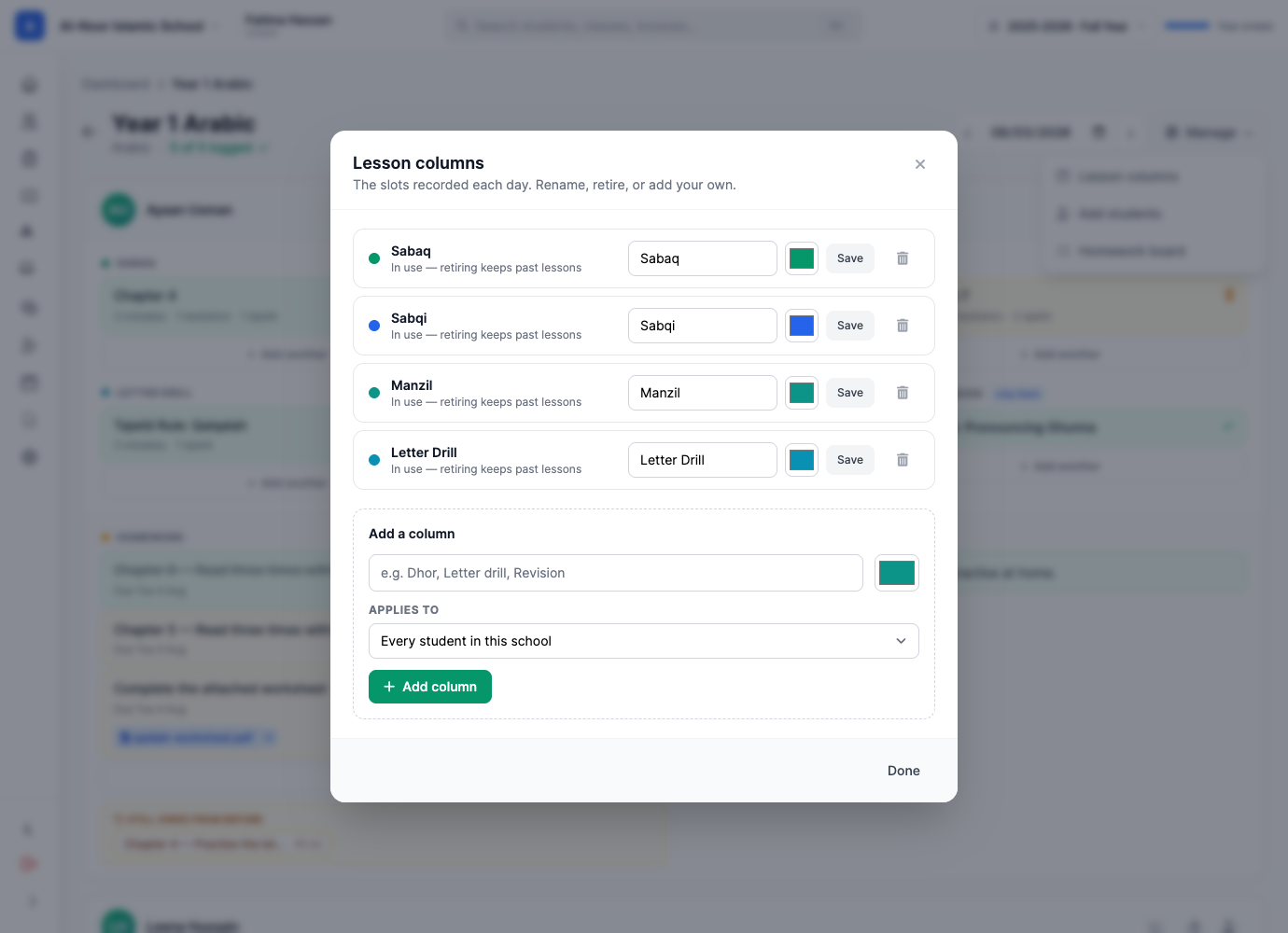
Rename or recolour
- On the tracker, open Manage → Lesson columns.
- Edit the name in the text box, or click the colour swatch.
- Click Save on that row.
Add a column for everyone
- In Add a column, type a name — "Dhor", "Letter Drill", "Revision".
- Pick a colour.
- Leave Applies to on Every student in this school.
- Click Add column.
Add a column for one student
Sometimes one child needs something nobody else does — a makharij drill, extra revision.
- Type the name and pick a colour as above.
- Set Applies to to Only followed by the student's name.
- A When dropdown appears: choose Every day, or Only plus today's date for a one-off.
- Click Add column.
The column appears on that student's card only, tagged only them (or today for a dated one). Nobody else's card changes.
Removing a column
Retiring a column never deletes its history
If a column already holds lessons, the delete icon retires it: it disappears from tomorrow's grid, but every lesson already recorded in it stays on the student's record and still prints on reports. Only a column that was never used is actually deleted. Removing a slot from your routine is not the same as erasing a term of a child's work.
Homework
Homework in a Qāʿidah class is set per student, because it genuinely differs per student. Use the Homework panel on any student's card.
- Click Assign homework.
- Optionally pick a lesson reference — the same three notations as a lesson.
- Type the instructions ("read three times with a parent").
- Optionally attach files — a worksheet, a scan of the page, a recording.
- Set the Due date (defaults to the next day).
- Click Assign.
The amber preview panel shows exactly what the parent will see. Any one of a lesson reference, instructions, or a file is enough — a worksheet with no words is still homework.
Files open inside MarkTrack
Attachments open in the same in-app viewer as assignment files — PDFs page and zoom, images and audio play — so parents are not downloading something they then have to find again. Up to 5 files per homework, 25 MB each. To remove one, click the small × on the file chip.
Marking homework off
The next morning, anything still outstanding from earlier days appears on the student's card under Still owed from before — on the same screen you are already using. Click it, set the status to Completed, Not done or Excused, and save.
The homework board
For a school-wide view, open Homework from the Qaidah page header. It lists every assignment across your Qaidah classes with three filters — Open, Overdue, Completed — each showing a count. Teachers see only their own classes; administrators see the school.
Parent check-ins
Each day a parent can mark as seen is a read receipt. If you write "please practise the ghunna at home", the receipt tells you whether anyone read it.
On the tracker, a student whose guardian has seen today shows a green Seen badge. For the school-wide picture, open Parent check-ins from the Qaidah page header. Filter by 3+, 7+, 14+ or 30+ days behind; families who have never checked in are flagged separately.
Reports
- Per student — the icon on a card opens their progress page: most recent lesson, days recorded, lessons, passes, repeats, mistakes, tajwīd slips, homework completion, and a week-by-week log.
- PDF — the Report button on that page produces a printable record for a parent meeting.
- Report cards — where the child reached and their standing print automatically on the card alongside everything else.
Figures are scoped to the academic year
While you are inside the class's academic year, the totals cover that year only — so a student repeating a year does not carry last year's lessons into this year's numbers. Outside the year (for example teaching through the summer) the totals fall back to all-time rather than showing zero.
Permissions
- Qaidah · view — see the tracker and reports.
- Qaidah · create — create classes, add students, add columns.
- Qaidah · edit — record and change lessons, homework and notes.
- Qaidah · delete — delete lessons and homework, clear a day, remove columns and students.
Teachers get all four by default and see only their own classes. Creating, renaming and removing a class, and adding or removing students, are administrator-only.
More in Classes & Grades
Still stuck?
Our team is happy to walk you through it.