
Add and remove students in a class
Enrolling a student in a class is quick. Removing one is also quick — but it permanently deletes their grades for that class, and that part surprises people. This guide shows how to add students one class at a time and in bulk across a whole level, and then explains, in plain terms, exactly what removing a student does and does not erase.
Add students to one class
- From the Classes page, click a level to open its detail page.
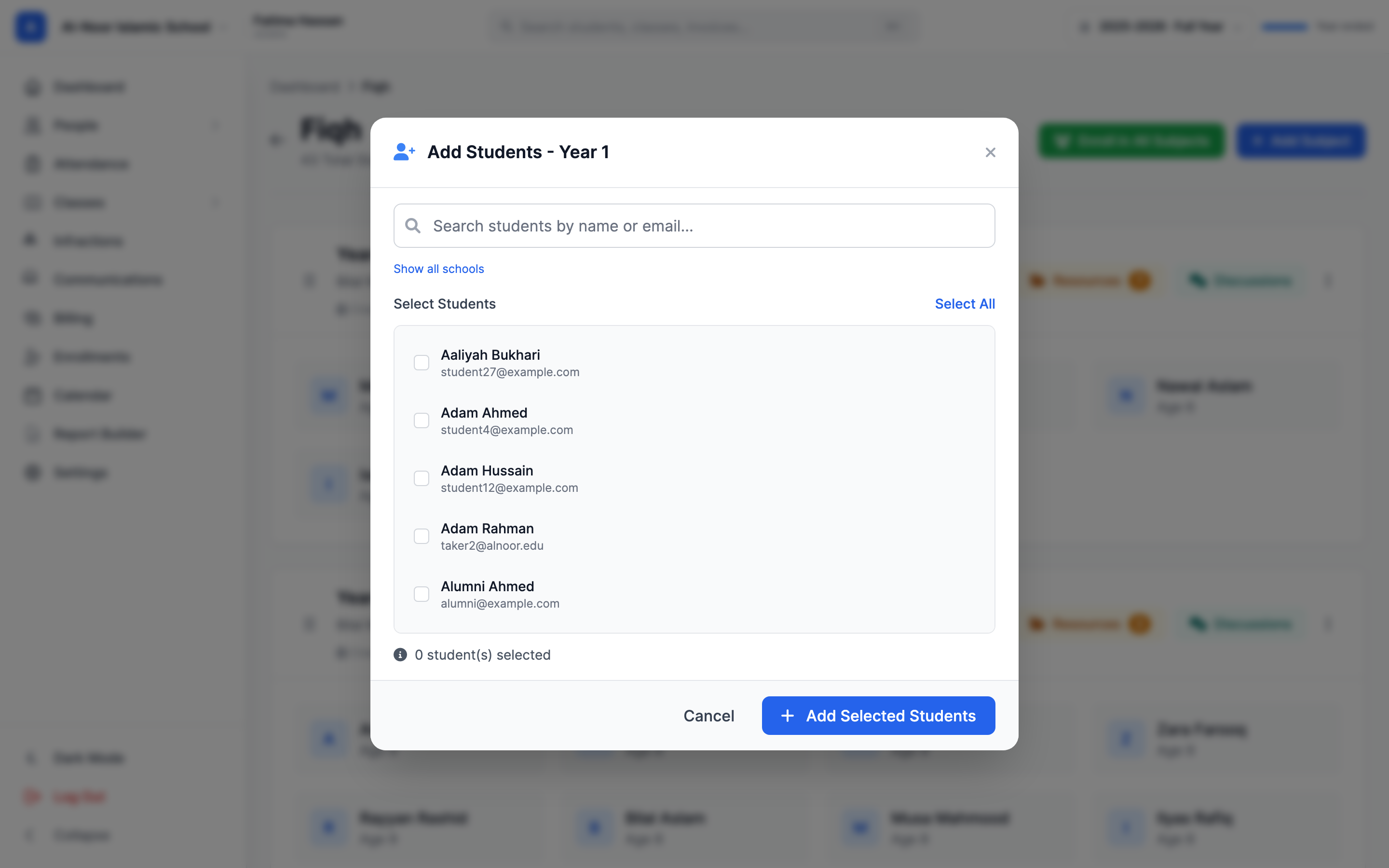
- On the class card, open the ⋯ More menu and click Add Students. The Add Students - [class] window opens.
- Use the search box ("Search students by name or email...") to find students. By default it shows students in the school you're currently in.
- Need someone from another school? Turn on the Show all schools toggle.
- Tick each student (or use Select All), then click Add Selected Students.
Students already in the class don't appear in the list, so you can't add the same person twice. If everyone you picked is already enrolled, MarkTrack tells you "All selected students are already in this level."
Enroll students into every class in a level at once
If a group of students takes every subject in a level, enroll them all in one move:
- On the level's detail page, click Enroll in All Subjects (the green button).
- The window confirms: "Selected students will be enrolled in N subject(s) within [Level]."
- Pick your students and confirm.
This enrolls each chosen student into every class in that level. It only touches the current academic year's classes, so it never accidentally writes students into last year's concluded classes.
Manual enrollment ignores the gender setting
Adding students by hand does not filter by a class's gender restriction — you can add any student to any class. The gender setting is only enforced when students enroll automatically through an online enrollment form. So a "Male" class won't stop you from manually adding a female student.
Remove a student — and what it permanently deletes
To remove a student from a regular class, click the trash icon on their row. MarkTrack asks you to confirm ("Are you sure you want to remove NAME from SUBJECT?"). When you confirm, all in one step, MarkTrack:
- Permanently deletes every grade the student has in this class, plus any grade comments on those grades. There is no undo.
- Permanently deletes their report-card term grades for this class (the component grades that roll up into a report card).
- Removes the enrollment, so the student is no longer in the class.
Afterward you'll see "NAME was removed from the class. All grades have been deleted."
Removing a student is not a "pause" — the grades are gone
If a student was graded in this class, removing them erases that grade history permanently. Don't use removal to temporarily take someone out and re-add them later, because their old scores won't come back. If you only want to stop a class running, archive the class instead — that keeps everyone enrolled and keeps the grades.
Attendance records are kept
One thing removal does not delete: the student's attendance. Attendance is recorded per day for the whole school, not tied to a single class enrollment, so a student's attendance history survives even after you remove them from the class.
Removing a student from a Hifz class is different
Removing a student from a Hifz class deletes their Hifz history for that class — their recorded Sabaq, Sabqi, and Manzil entries and values — and, if the class has a gradebook, their grades and term grades in it, then unenrolls them. Attendance history is kept. As with regular classes, this can't be undone, so be sure before you confirm.
What happens to grades when a class itself is deleted
Removing a student is one thing; deleting an entire class is another. You can't delete a class outright — you must archive it first (which hides it but keeps every student and grade). Only from the Archived list can you permanently delete it, and MarkTrack warns you that this removes all enrollments, assignments, grades, and attendance for the class and cannot be undone. Announcements and any infraction records tied to the class are kept (just unlinked), not deleted.
Only admins manage class rosters
Adding and removing students, and archiving or deleting classes, is admin-only. Teachers can see and grade their own classes but can't change who's enrolled.
That covers the full enrollment lifecycle. For the rest of the class setup, see the other guides in Classes & Grades.
More in Classes & Grades
Still stuck?
Our team is happy to walk you through it.