
Hifz categories, reports, and parent updates
The Hifz tracker lets you record what each student memorizes and revises every day, then turn that record into reports for parents. This guide covers the setup and reporting side: defining the categories you track (like Sabaq, Sabqi, and Manzil), looking at a single student's history and statistics over time, printing a polished PDF report, and using the Parent Engagement tools to see which families have fallen behind on acknowledging their child's daily progress.
For the day-to-day work of marking pass/fail and entering recitation details, see Track daily Hifz memorization. This guide picks up where that one leaves off: configuring what you track, and reading the data back out.
A "category" is a row you track each day
In Hifz, a category is one type of memorization work — for example Sabaq (new lesson), Sabqi (recent revision), or Manzil (older revision). Each category becomes its own row on a student's weekly grid and gets its own color. Categories are shared across every Hifz class in the school.
Step 1 — Open a Hifz class
- In the left sidebar, open Hifz (or Hifz Tracking). You'll see a list of every Hifz class in the school, with its teacher, student count, and a Parent Engagement link.
- Click any class row to open its daily tracker.
No Hifz classes showing?
A class appears here only if it was created as a Hifz class — use the Create Hifz Class button on the Hifz page (or the Add Hifz Class option on the Classes page). Existing regular classes can't be converted.
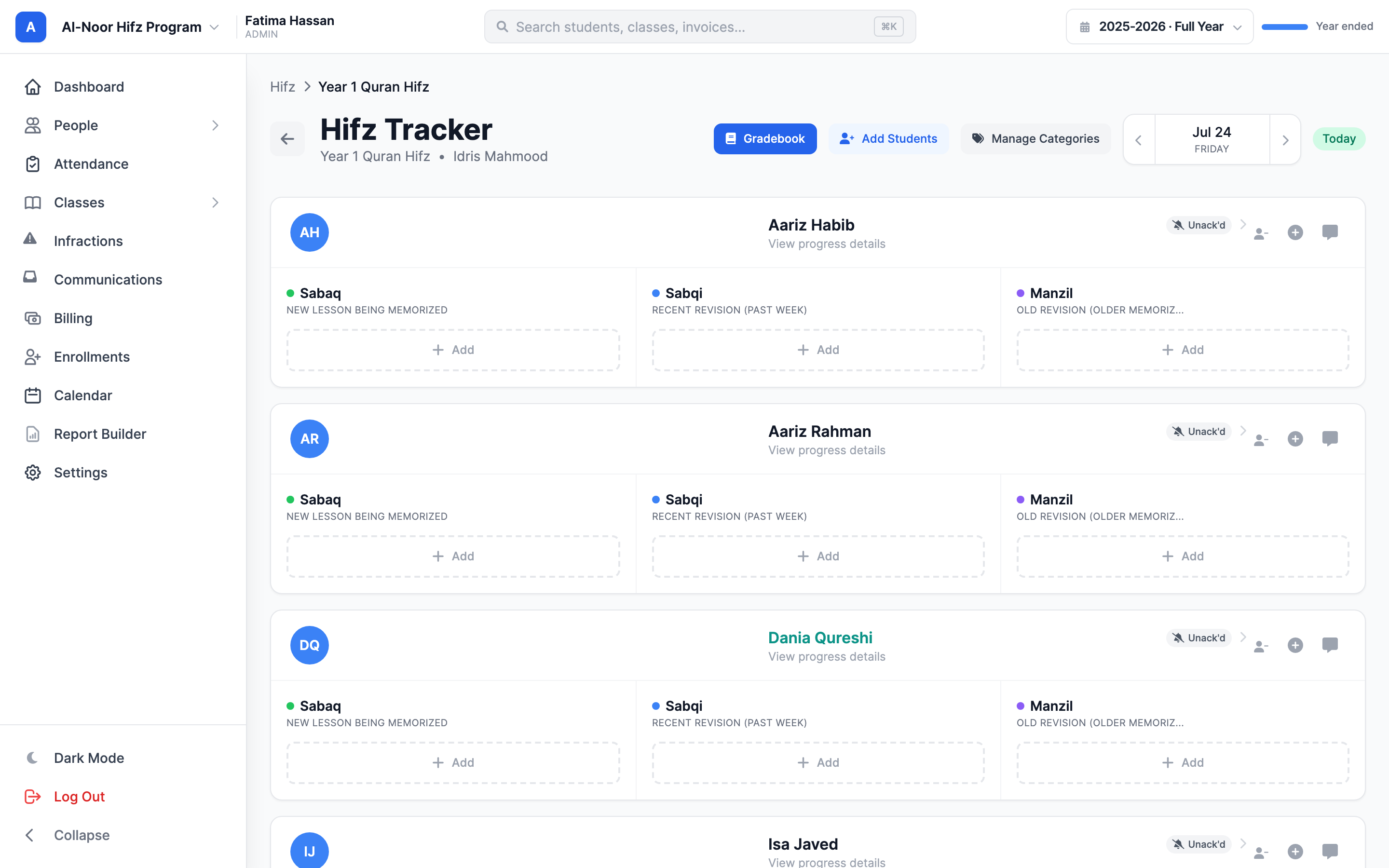
Step 2 — Create and edit categories
Categories are managed from inside the tracker. This is an admin-only control — teachers can record entries but cannot add or remove categories.
- In the top-right of the tracker, click Manage Categories. The Manage Categories window opens and lists your current categories, each with its color dot.
- To add one, type a name in the Category name box at the bottom (for example
Sabaq,Juz, orAyah). - Click the small color swatch next to it to pick a color. The color is how this category is labeled everywhere — on the weekly grid, in stats, and in the PDF report.
- Click Add. The category appears in the list immediately.
- To change a category, click the pencil icon on its row, edit the name or color, and click Save.
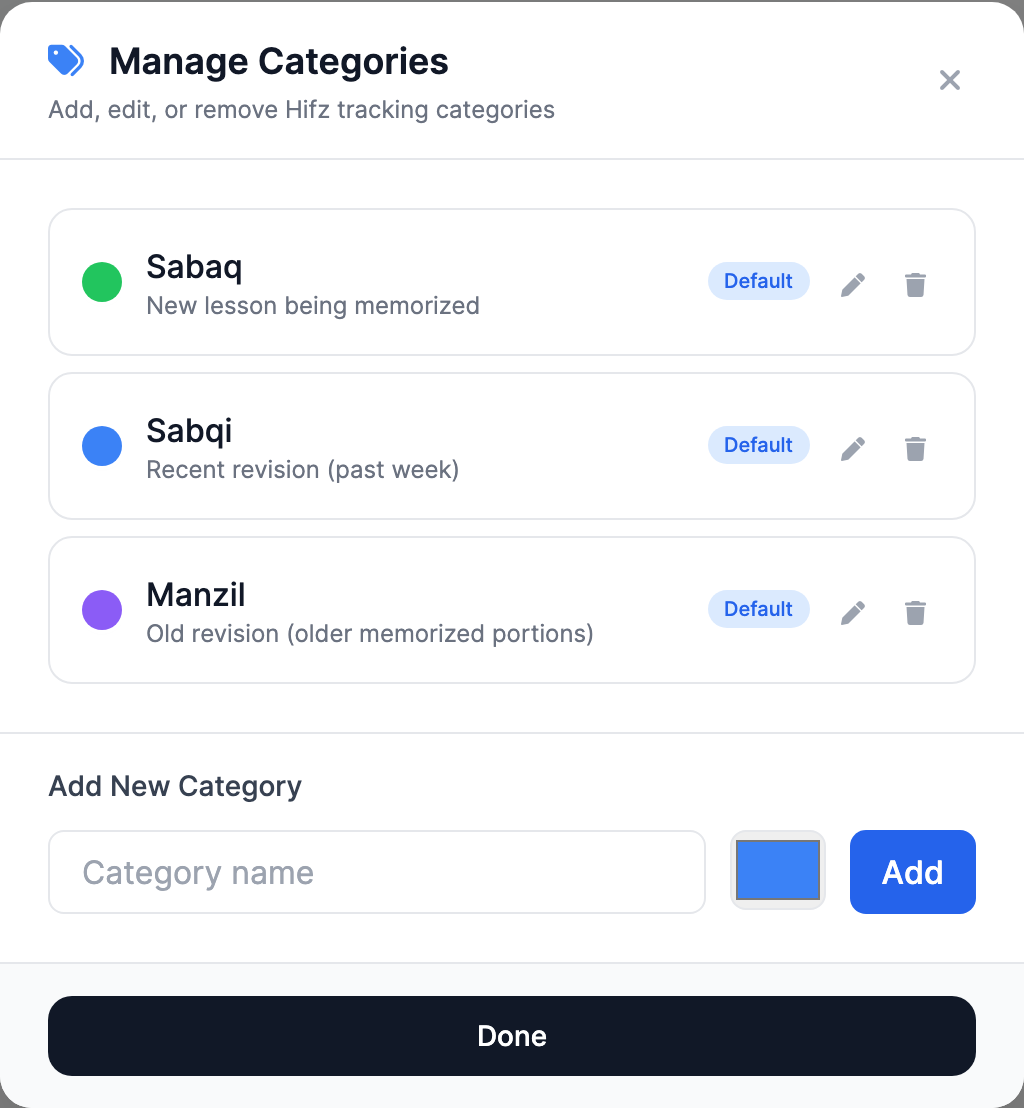
Changes apply school-wide
Categories belong to the school, not to one class. Add "Sabaq" once and every Hifz class in this school can use it. When you close the window after making changes, the tracker reloads so the new rows appear.
A category in use can't be deleted
If any student has ever recorded an entry under a category, the trash icon is replaced by a lock. This protects the history — deleting the category would orphan those records. You can still rename it or change its color. To stop using it going forward, just leave it; only empty categories can be removed.
Reorder categories
The order categories appear in the list is the order their rows show on every student's grid. Categories carry a position, so the first one you'd want teachers to fill in (usually Sabaq) should sit at the top. New categories are added to the end of the list.
A one-off category for a single student
Sometimes a single student needs something the rest of the class doesn't — a makeup test, a special exam, or a custom revision goal for one day. You can add a category that only appears for that student.
- On the student's card in the tracker, use the option to add a category for this student. The Add Category for [student] window opens.
- Type the Category Name and pick a color.
- Decide whether it repeats. Leave Make this category for everyday unchecked to show it on the current day only; check it to show it every day for that student going forward.
- Click Add Category.
Student categories stay private to that student
A student-specific category never appears on anyone else's card. A one-day category shows only on its date; on the weekly view it appears only in the week that contains that date.
Step 3 — View a student's history and stats
Click a student's name (or their card) in the tracker to open their weekly view. This is the single-student picture of progress over time.
- The weekly grid shows one column per day (Monday to Sunday) and one row per category, color-coded by pass/fail/incomplete/pending. Use the arrows to move week to week, or Today to jump back to the current week.
- At the top sits a row of stat cards covering the student's entire history in this class: Days recorded, Passed, Failed, Incomplete, total Mistakes, Tajwid mistakes, and Hesitations.
- Each stat card is clickable. Click Passed, for example, to open a list of every entry counted in that number, newest first — so the totals are always traceable to the actual records behind them.
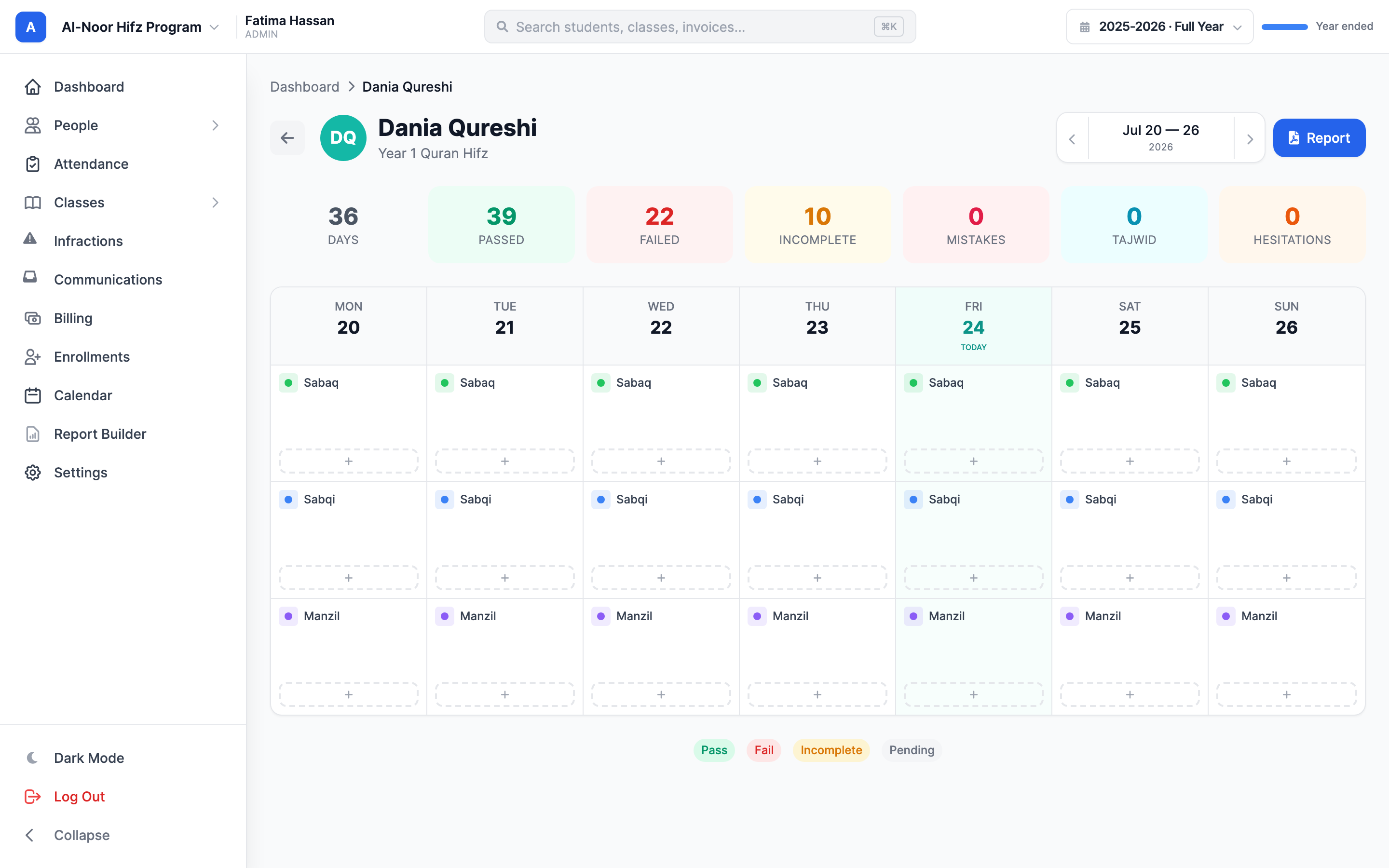
What the totals count
Days counts how many days this student has any entry in this class. The pass/fail/incomplete numbers count individual recitation values, so a single day with both a Sabaq pass and a Sabqi fail adds to both columns. Stats are per class — a student in two Hifz classes has separate stats in each.
Step 4 — Generate a Hifz report (PDF)
From the same student weekly view, you can produce a printable PDF report covering any date range — ideal for parent-teacher meetings, term reports, or a memorization certificate.
- On the student's weekly view, click the blue Report button (top-right).
- The Generate Hifz Report window opens. Set a Start Date and End Date, or tap a quick option: Last Month, Last 3 Months, Last 6 Months, Last Year, or All Time.
- Click Generate PDF. The report opens in a new tab and downloads.
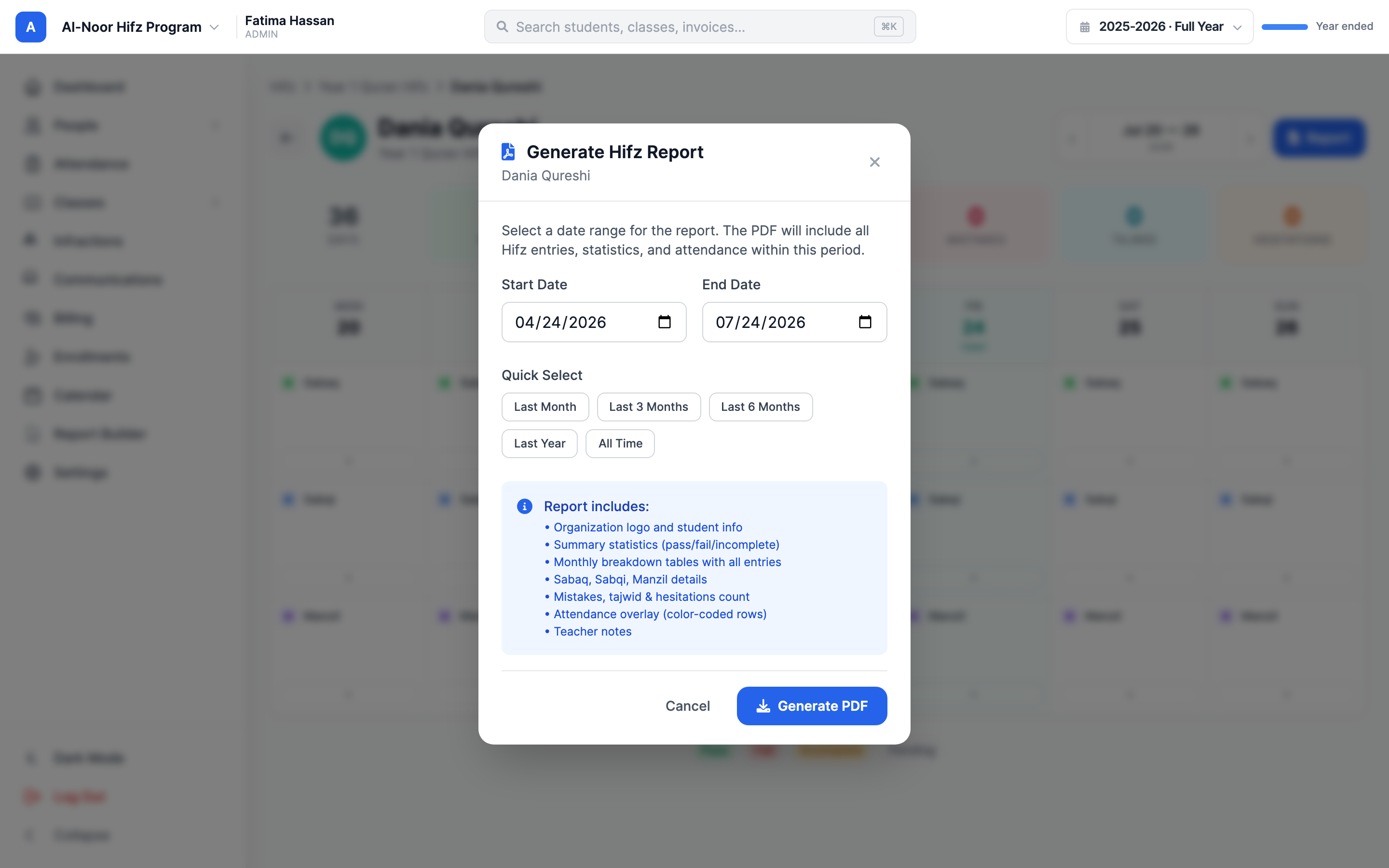
The PDF includes, for the range you chose:
- Your organization's logo and the student's name.
- An overall progress bar with pass/fail/incomplete percentages.
- A daily progress log — every recorded day with its Sabaq, Sabqi, and Manzil details.
- Mistakes, tajwid mistakes, and hesitation counts.
- An attendance overlay — absent and tardy days are color-coded and marked, so the report shows whether a gap in entries was an absence.
- Teacher notes left on entries.
Choosing "All Time"
All Time starts from the day the student account was created and runs to today. If a report looks empty, the student likely has no entries in the chosen range — widen the dates or confirm you're on the right class.
Step 5 — Parent acknowledgments and engagement
MarkTrack lets a parent acknowledge their child's daily Hifz — a single tap in the MarkTrack parent mobile app that confirms "I've seen today's progress." This is how schools keep families looped in on memorization without chasing them. As an admin or teacher, your job is to watch the engagement and follow up with families who go quiet.
Acknowledging happens in the parent app
Parents acknowledge a day from the MarkTrack mobile app, not from the website. There's one acknowledgment per child per day, and once made it can't be edited or undone. If two parents are linked to the same child, the first one to acknowledge counts for that day. Parents can also catch up on missed days within a 30-day window. MarkTrack sends a reminder push at 7:00 PM in the school's local time for any child not yet acknowledged that day.
The acknowledgment badge on each student
On the daily class tracker, every student with a linked parent shows a small badge next to their name:
- A green Ack'd by [parent] badge means a parent has confirmed that day's progress.
- An amber badge appears after 1–2 days with no acknowledgment.
- A red [N]d unack'd badge appears once a family is 3 or more days behind.
- Click any badge to jump straight to that parent's profile to call or message them.
The Parent Engagement report
- From the main Hifz list, click Parent Engagement on a class row to scope the report to that class — or open it without a class to see the whole school.
- The report lists every student whose parents haven't acknowledged for a run of consecutive days, worst offenders first.
- Use the Threshold chips (1 day, 3 days, 7 days, 14 days) to set how far behind a family must be before they show up. The default is 3 days.
- Each row shows the student, their class, their linked parents (click a name to open the parent's profile), the days unacknowledged streak, and the date of their last acknowledgment.
An empty report is the goal
When no family is behind your threshold, the report shows a green "No students need attention" state. Teachers see only their own Hifz classes here; admins see the whole school.
That's the full loop: set up the categories you track, watch each student's progress and stats, print a report when you need one, and use the engagement tools to keep parents involved. For the daily entry workflow that feeds all of this, see Track daily Hifz memorization. Still stuck? Contact us and we'll help.
More in Classes & Grades
Still stuck?
Our team is happy to walk you through it.