
Roll over to a new year
When one school year ends and the next begins, you don't rebuild everything from scratch. Rollover creates the new year and copies your class setup forward in one click. It can also promote students into the next grade and archive graduates. This guide explains the promotion option, Bulk Enroll, and what happens when you conclude a year — including when grading becomes locked.
Review the grade order before promoting students
Move students up one grade and archive final-grade students is selected by default. Each student enters all classes in the next grade, following the school's grade order shown on the page. Year 1 receives no returning students. Students in the final grade graduate and are archived without deleting their records. If a student still attends another school, their account stays active there and their completed enrollment here is preserved.
Step 1 — Start the rollover
- Open the year you're ending: Settings → Academic Years & Terms → Manage on that year's card.
- Click Start New Year in the header.
- The rollover page shows a "What will happen" preview. Read it — it spells out the copy/skip behavior for your exact data.
Step 2 — Choose the year to copy into
- If the next year already exists (for example, you set up
2026-2027early), it is listed under Copy into and picked for you. Its dates and terms are kept. - To create a year that doesn't exist yet, pick A new year. Year Name is pre-filled with the next name that isn't taken (for example,
2027-2028), and the Start and End dates default to one year later. Typing the name of a year that already exists is refused — pick that year under Copy into instead. - Keep Move students up one grade and archive final-grade students checked to migrate the rosters. Uncheck it to copy classes and teachers only, then enroll separately.
- Leave the terms option checked to copy your semesters/quarters, one year later, into a year that has no terms yet.
- The button names the year you picked — for example Copy classes into 2026-2027. Click it and confirm "Copy 12 classes into 2026-2027 and conclude 2025-2026?"
What rollover copies — and what it doesn't
This is the heart of the feature. Everything in the first list is carried into the new year; everything in the second list starts fresh.
Copied into the new year
Every class (its subject, level, schedule, days, times, room, and Hifz setting); the teacher assignment on each class; each class's grade-category weights and term weights; and the whole term structure with every date shifted forward by a year. Your setup work moves over intact.
Not copied — starts empty on purpose
Grades, attendance, Hifz entries, typed report-card grades, and the actual assignments stay in the previous year. Historical class membership also stays intact. With promotion selected, students receive new class placements and enrollment records; otherwise the copied classes start empty.
Rollover completes together or makes no changes
Missing destination classes, full grades, students without a grade, or conflicting placements stop the entire rollover with an explanation. Correct the issue and try again. Existing classes and matching enrollments are reused; new admissions are kept. If the target year already exists, its saved dates are used. A successful rollover concludes the source year, makes the target current, and switches your view to it. Once a newer year holds your classes, an older year can't be copied again — MarkTrack tells you which year to start from instead.
Step 3 — Review the new rosters
Review the school's grade order before starting. Schools can use numbered year groups (such as Year 1 containing Fiqh and Nahw) or ordered grade levels (such as Mathematics containing Year 1 and Year 2). If both contain numbered grades, choose the structure used for progression. Numbered grades must be consecutive; custom grade levels need a unique order. Each student joins every class in the next grade's curriculum.
Check the new year's classes: Year 1 has no returning students, each continuing student has moved up one grade, and graduates have no new-year class placement. Any new admissions already placed in Year 1 stay there. Archived graduates remain available under Former Students. Repeat the rollover separately for each school.
Optional — Fill rosters with Bulk Enroll
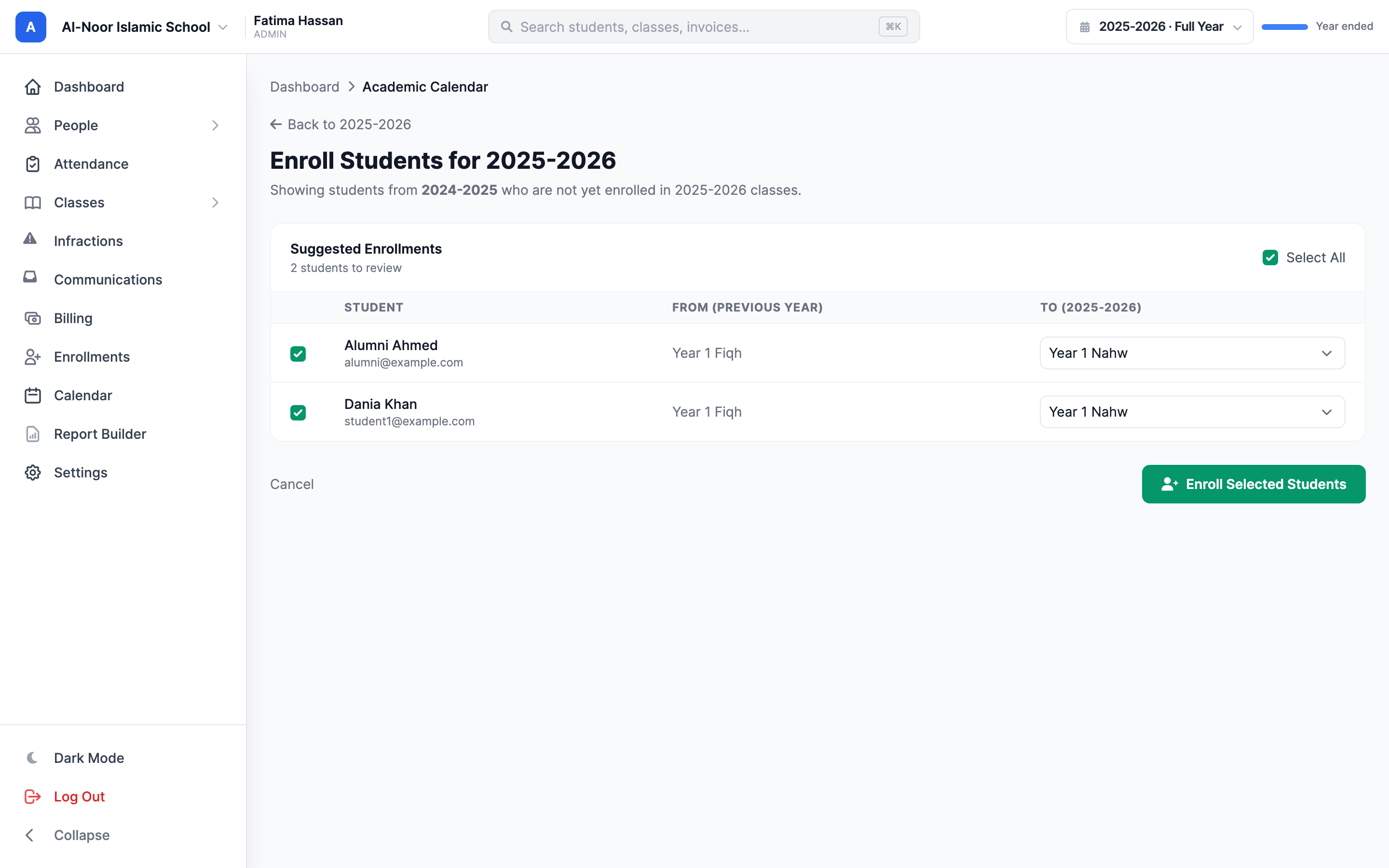
If you unchecked student promotion, use Bulk Enroll to choose placements manually:
- On the new year's detail page, click Bulk Enroll.
- You land on Enroll Students for [new year] with a Suggested Enrollments table. MarkTrack looks at last year and proposes each student's next level in the same subject (so a Year 1 Fiqh student is suggested for Year 2 Fiqh). If there's no next level, it suggests the same level again (retention).
- Use the per-row dropdown to change any suggestion, the select-all checkbox to grab everyone, then click Enroll Selected Students.
- The result says how many were enrolled and how many were skipped (already enrolled, or no match found).
Concluding a year (and what locks)
Rollover concludes the old year for you automatically, but you can also conclude a year on its own: open the year and click Conclude Year. You'll confirm "Conclude '[year]'? All N classes will become read-only."
Conclude Year copies nothing. If there is no next year yet, or the next year has none of this year's classes, a Before you conclude window explains what would happen and offers Start New Year instead. Use that button unless you really only want to lock the year.
Concluded before starting the new year?
Nothing is lost. The new year's page, Classes and the dashboard show "[new year] has no classes yet" with a Copy classes from [old year] button. It copies the classes and teachers into the new year and can move students up a grade; the old year stays concluded. If you built a few classes by hand first, the button copies only the missing ones. If the year that has no classes was concluded too, click Reopen on it first. A year shared by several schools can't be copied from one school — MarkTrack says so and asks you to contact support.
Concluding does three things at once:
- The year's status becomes Concluded.
- All of its active classes turn read-only (classes you'd already archived are left as-is).
- Every typed report-card grade is locked, freezing the report cards.
A concluded year shows an amber banner: "This academic year has been concluded. All classes and grades are read-only." Made a mistake? Click Reopen to undo all of the above and make everything editable again.
Concluding is immediate and total
There's no grace period on a concluded year — the moment you conclude it, grades, attendance, and report cards across all its classes are locked. Because rollover concludes the old year as part of its work, the old year goes read-only the instant you confirm the copy. Finish any last grading before you roll over.
The grace period — finishing a term's grading
Locking doesn't only happen when you conclude a whole year. MarkTrack also locks each term a short while after it ends, so old grading periods can't be quietly changed months later. But teachers need a little runway to finish entering a term's final grades — that's the grace period.
- By default, a term stays editable for 7 days after its end date.
- After that window, writing a grade or attendance record dated inside that term is blocked, even though you can still view it. The message reads "This term is locked. Grades and attendance from this period are read-only."
Locking goes by the record's date, not the picker
A grade or attendance record is locked based on its own date, not on which term you're viewing in the top bar. So viewing an old term doesn't stop you from editing this week's work, and switching the picker to the current term won't let you back-edit a past, locked term. The default 7-day window has no settings screen — if you need it changed, contact MarkTrack support.
To set up your terms and weights before rolling over, see Set up academic years and terms and How grades and report cards are calculated, or browse all guides in Classes & Grades.
More in Classes & Grades
Still stuck?
Our team is happy to walk you through it.