
Track daily Quran memorization (Hifz)
Hifz tracking is MarkTrack's tool for recording a student's Quran memorization, day by day. Each school day a teacher opens the class, and for every student logs what they recited, whether they passed, and how many mistakes they made. This guide covers the whole flow: creating a Hifz class, enrolling students, recording a daily entry, and adding recitation values with the different range types (Full Juz, Ayah Range, Multi-Select Hizbs, Page Range, and Lines) along with mistake counts.
A Hifz class reuses the same class system as the rest of MarkTrack. Memorization progress is tracked through daily entries and the values inside them — and since 2026, a Hifz class can also carry a normal gradebook (on by default when you create one; toggleable from the class's Edit dialog) for assignments and grades alongside the memorization record. Hifz grades stay out of GPAs and transcripts — Hifz has its own reporting. If you're new to how classes work in general, read Build your class structure first.
How the data is shaped
For each student on each date, MarkTrack stores one daily entry. An entry holds one or more values — each value is a single recitation (for example "Juz 5" or "Al-Baqarah 1-7") grouped under a category like Sabaq (new lesson), Sabqi (recent review), or Manzil (old review). Each value carries its own pass/fail status and its own mistake counts.
Step 1 — Create a Hifz class
Only an admin can create a Hifz class. There are two doors into it, and both create the same thing — a class with Hifz mode turned on, plus an optional gradebook (the Also create a gradebook checkbox, ticked by default).
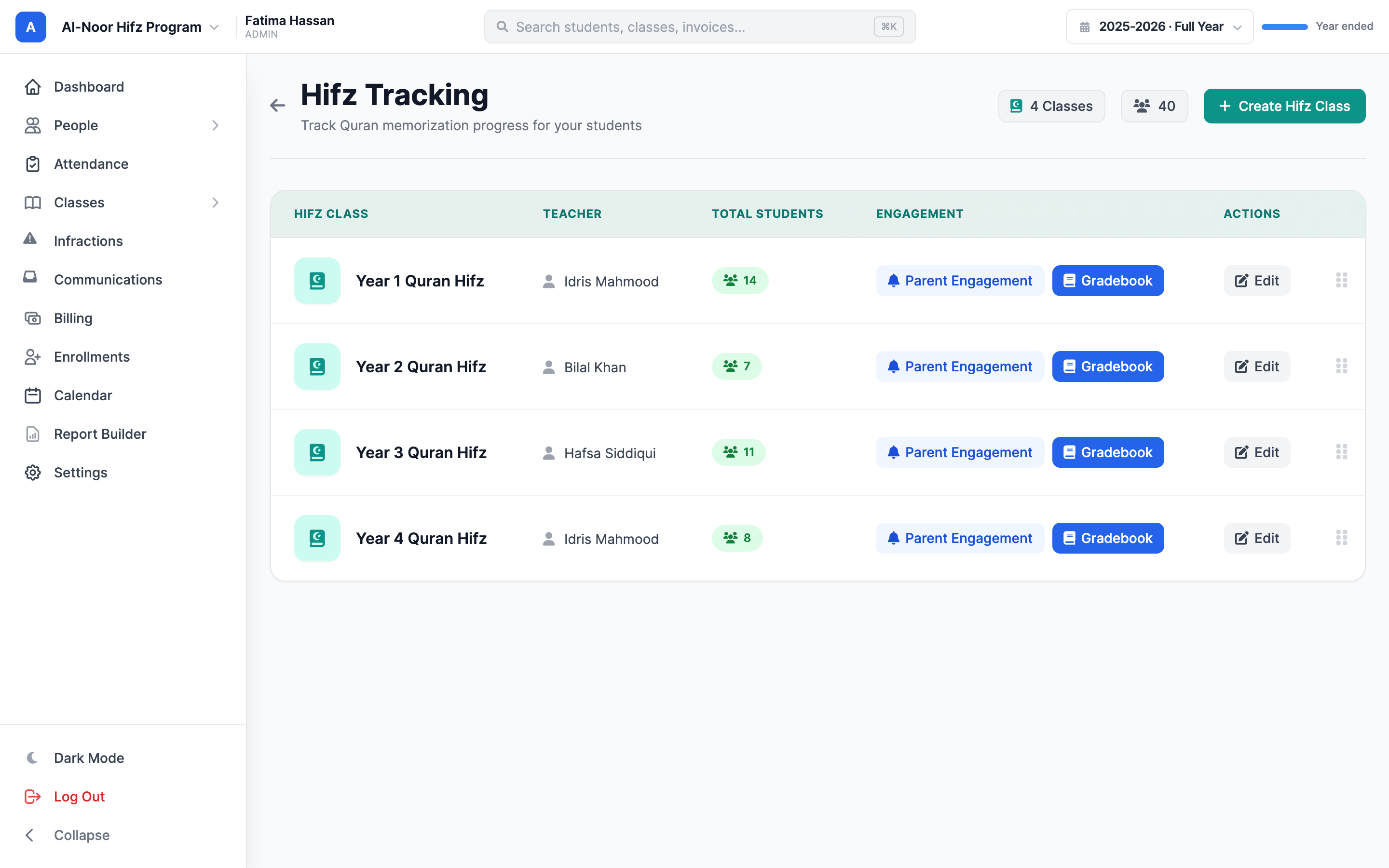
- From the school's left menu, open Hifz Tracking. This is the home page for all your Hifz classes.
- Click Create Hifz Class in the top-right corner. The Create Hifz Class dialog opens.
- Type a Class Name (required) — for example "Hifz Beginners" or "Juz Amma Class".
- Optionally pick one or more teachers under Assign Teachers (hold to multi-select). Teachers you assign here will see this class on their own Hifz Tracking page.
- If your organization has more than one school, pick the School this class belongs to.
- Click Create Class.
The other door: the Classes page
You can also create one from your main Classes page using the Add Hifz Class option. It opens an "Add Hifz Class — Create a new Quran memorization class" dialog asking for a Class Name, Level / Grade, and Teachers. Either path produces a Hifz class; the dedicated Hifz Tracking button is the quickest.
Back on the Hifz Tracking page, your new class appears as a row showing its name, assigned teacher, student count, and a Parent Engagement link. Admins can drag the grip handle on the right of a row to reorder classes, and click Edit to rename a class or delete it.
Deleting a Hifz class erases its history
Open Edit and use Delete Hifz Class only when you mean it. It permanently removes every memorization entry, every recitation value, and the student enrollment for that class — and, if the class has an (empty) gradebook, that too. A Hifz class whose gradebook contains assignments or grades can't be deleted here at all: archive and delete it from the Classes page, where the grade data is listed. There is no undo. Renaming, by contrast, is safe and keeps all history.
Step 2 — Enroll students
A brand-new Hifz class is empty. Add the students whose recitation you want to track.
- From the Hifz Tracking page, click the class row to open its daily tracker.
- Click Add Students in the top-right. The Add Students dialog opens with a searchable list.
- Type in the Search students... box to narrow the list, or use Select All. Students already in the class show an Enrolled tag and can't be picked again.
- By default the list shows students in this school. Click Include other schools to widen the search across your whole organization.
- Tick the students you want, then click Add Selected.
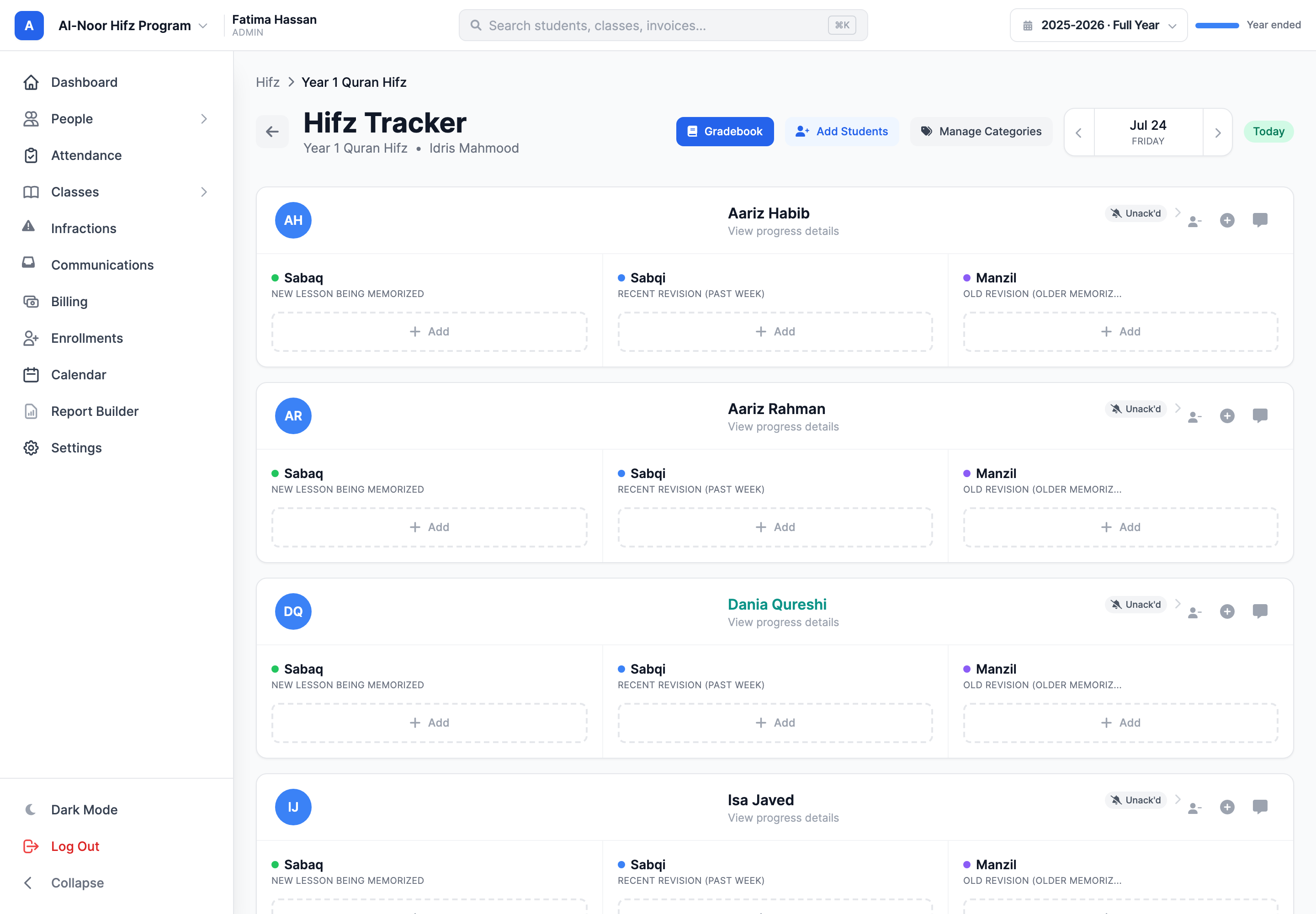
Only admins can add or remove students. To remove someone, click the small remove (person-minus) icon on their card and confirm. Removing a student permanently deletes all of their Hifz entries and values in this class — plus, if the class has a gradebook, their grades and term grades in it (attendance is kept) — their data in other classes is untouched.
Step 3 — Pick the day
The tracker always shows one day at a time. The date control sits at the top of the page.
- Use the ‹ and › arrows to step back or forward a day.
- Click the date itself to open a calendar and jump to any day.
- Click Today to snap back to the current date. When you're already on today, you'll see a green Today badge instead.
Everything you record — statuses, values, mistakes, notes — is saved against the day shown. Switching days swaps the whole page to that day's record.
Step 4 — Record a daily recitation (add a value)
Each student card is divided into category columns (such as Sabaq, Sabqi, and Manzil). Under each category is a dashed Add button. That button is how you log a recitation.
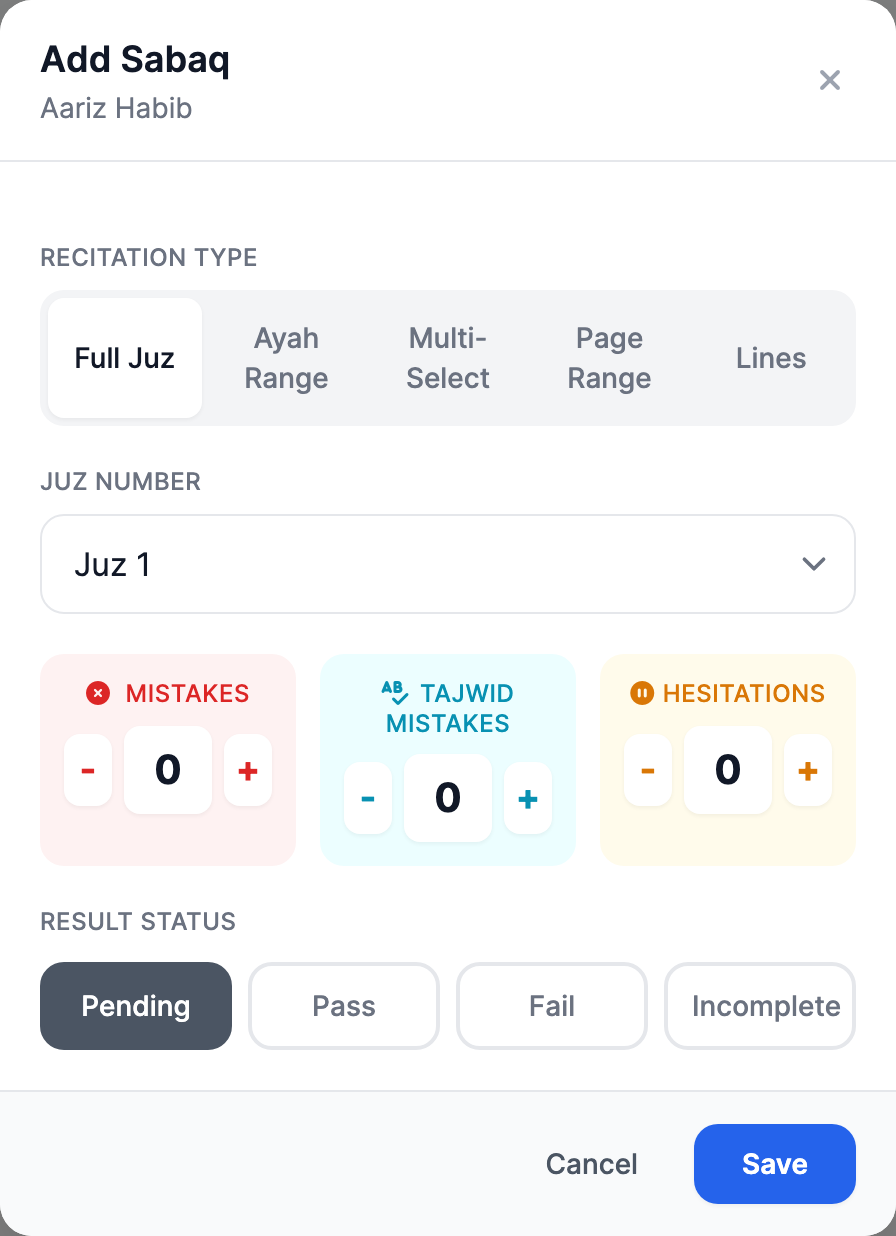
- On a student's card, find the right category column and click Add (it reads Add Another once at least one value exists). The Add Recitation dialog opens, with the student's name and the category shown at the top.
- Pick a Recitation Type (see the next section), then fill in the range.
- Set the mistake counters and a Result Status.
- Click Save. The value appears in that category column with its range, status, and any mistake badges.
The recitation range types
The Recitation Type row at the top of the dialog lets you describe exactly what the student recited. Pick the one that matches how the teacher thinks about the portion:
- Full Juz — a single whole Juz. Pick the Juz Number (1–30) from the dropdown. Saved as, for example, "Juz 5".
- Ayah Range — a range of verses within one Surah. Pick the Surah, then enter the From and To ayah numbers. Saved as, for example, "Al-Baqarah 1-7". From must be less than or equal to To, or the save is rejected.
- Multi-Select — one or more Hizbs across one or more Juz. Tap a Juz to expand it, then tap the Hizb buttons (1–4) you want; repeat for other Juz. Saved as, for example, "Juz 1 (Hizb 1, 2)".
- Page Range — a span of mushaf pages within a Juz. Pick the Juz, then enter From Page and To Page (1–604). Saved as "Juz 3, Pages 41-45", or "Juz 3, Page 41" when both pages match.
- Lines — a precise slice of a single page. Pick the Juz Number, enter the Page Number, then the From Line and To Line. Saved as "Juz 1, Page 2, Lines 3-9".
Custom Juz ranges and the mushaf picker
A few range formats — a custom span of Juz (for example "Juz 1 - 3") and the page-by-page mushaf picker that records a Surah:Ayah range with its pages — come from the MarkTrack mobile app rather than the web dialog. They display correctly in the web tracker when a teacher recorded them on a phone; the web dialog itself offers the five types above.
Mistake counts
Below the range, three counters let the teacher record the quality of the recitation. Use the − and + buttons (or type a number). Each defaults to 0:
- Mistakes — outright errors (a wrong or forgotten word).
- Tajwid Mistakes — pronunciation and rule-of-recitation errors.
- Hesitations — pauses or stumbles where the student needed prompting.
Any counter above zero shows as a small colored badge under the saved value (red for mistakes, cyan for tajwid, amber for hesitations). All three roll up into the student's all-time totals on their detail page.
Result status
Finally, set the Result Status for this recitation. Each value carries its own status — a student can pass their Sabaq but fail their Manzil on the same day:
- Pending — logged but not yet judged (the default).
- Pass — recited to standard.
- Fail — did not meet the standard.
- Incomplete — only partly recited.
Step 5 — Edit or delete a value
Mistakes happen. Fixing a recorded value is quick:
- To edit: click the value itself (the row showing the range and status). The Add Recitation dialog reopens pre-filled with everything you saved. Change the range, counters, or status and click Save.
- To delete: hover the value and click the trash icon that appears, or open the value and use Remove at the bottom-left of the dialog. The value disappears from the category immediately.
Deleting one value never touches the others in that category or the student's notes — it only removes that single recitation.
Step 6 — Add a comment or email the parent
Each student card has a comment (speech-bubble) button. It opens a Comments dialog with a Teacher Notes box — a free-text note for that student on that day (a blue dot on the card means a note exists).
- Type the note and click Save to attach it to today's entry.
- Tick Send daily report to parent before saving to email the family a summary of the day's recitation. The email only goes out if the student has a contact email on file.
The absent marker
Hifz tracking respects attendance. If a student is marked absent for this class on this date (in the attendance system), their card is outlined in red, shows an Absent tag, and the Add buttons are replaced with a Student absent notice. You can't add, edit, or delete that student's values for a day they were absent — clear the absence in attendance first if it was a mistake. See Take daily attendance.
The lock-past-entries policy
An organization setting, Lock Past Hifz Entries, controls whether older days can be edited. When it's on, teachers and admins cannot add, change, or remove values on any date before today — the tracker shows a "Hifz entries for past dates are locked" banner and a Locked notice in place of the Add buttons. Today's entries are always editable. An admin can flip this under Settings → Lock Past Hifz Entries. (A separate term-level lock can also block edits on dates inside a closed academic term, even when the org-wide lock is off.)
Where this data shows up
Everything you record flows to a few other places:
- The student detail page (click a student's name on the tracker) shows their week-by-week recitation and all-time totals: total days, pass/fail/incomplete counts, and total mistakes, tajwid mistakes, and hesitations. From there you can export a full PDF history report.
- Parents see each child's recent recitation in the parent portal, and can acknowledge it. The Parent Engagement link on the Hifz Tracking page shows which families haven't checked in recently.
- Categories (Sabaq, Sabqi, Manzil, and any custom ones) are managed from the Manage Categories button on the tracker.
For setting up your own categories and getting the most out of parent updates and reports, see Hifz categories, reports, and parent updates. If anything here doesn't match what you see, contact us and we'll help.
More in Classes & Grades
Still stuck?
Our team is happy to walk you through it.