
Grade statuses and comments
Not every grade is a number. Sometimes a student didn't turn work in, was legitimately absent, or the assignment simply doesn't apply to them. MarkTrack handles these with grade statuses — short labels you put on a cell instead of a score. Each status does something specific to the student's Final Grade, and getting them right is the difference between a fair average and an unfairly low one. This guide explains every status and shows how to leave written feedback comments on a grade.
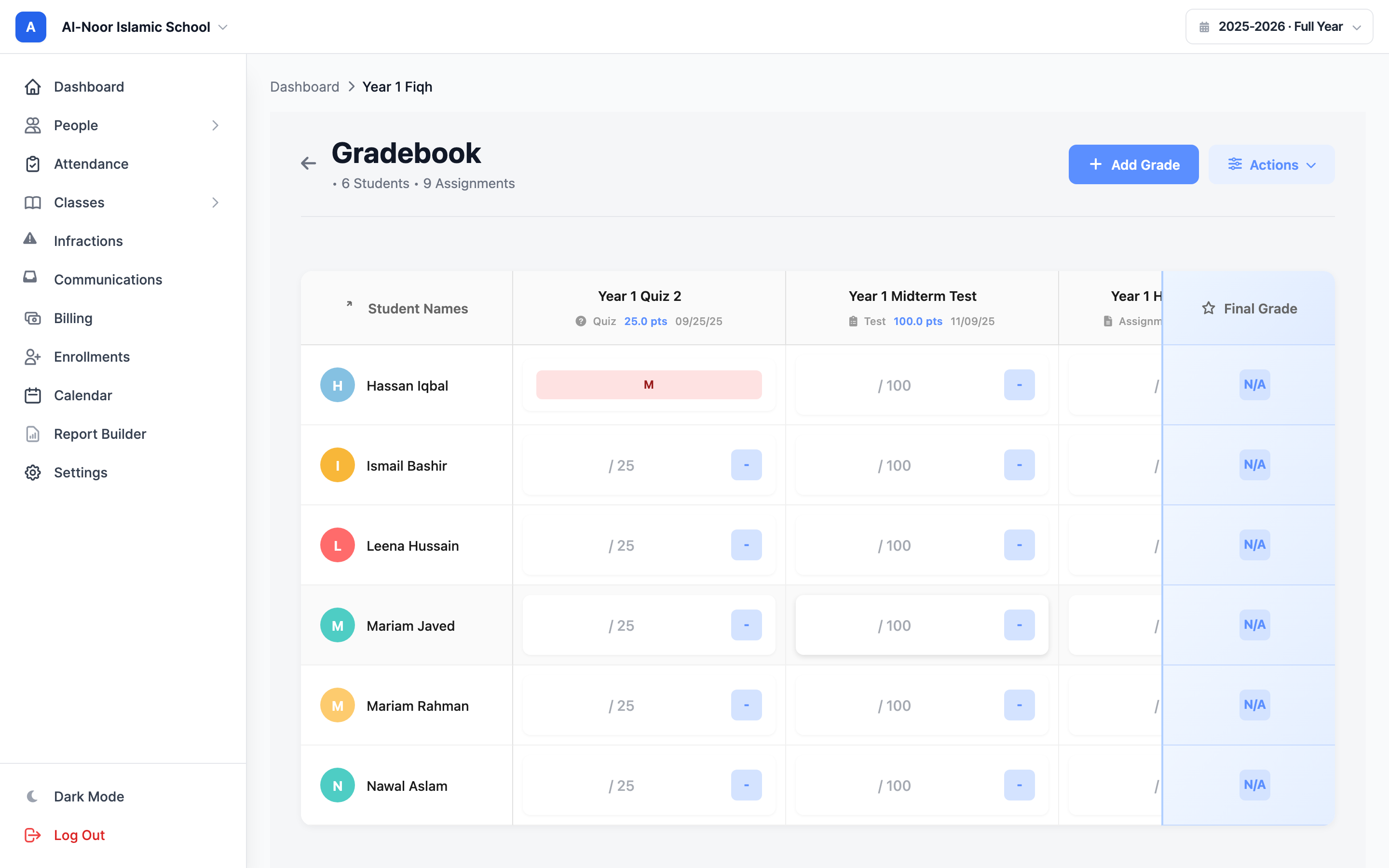
Statuses live on the gradebook grid (students as rows, assignments as columns) covered in Use the gradebook. The big idea to hold onto: Missing counts as a zero, while Excused, Exempt, and Incomplete are pulled out of the average entirely. That single distinction drives everything below.
Step 1 — The five statuses and what each does
A status replaces the score in a cell with a small colored badge. Here's the full list, what the badge says, and exactly how it affects the Final Grade:
- M — Missing (red badge): the student didn't do the work. It counts as 0% in the average. This is the only status that penalizes a student — use it when work is genuinely owed and not turned in.
- EXC — Excused (grey badge): the assignment is excused for this student. It's left out of the average completely — it neither helps nor hurts. Use it for an authorized absence or a one-off pass.
- EXM — Exempt (grey badge): the student is exempt from this assignment. Like Excused, it's excluded from the average. Use it when an assignment doesn't apply to a particular student.
- L — Late (amber badge): the work came in late but it still counts. A late grade is included in the average using its actual score, exactly like a normal grade. The badge is just a flag for your records, not a penalty.
- INC — Incomplete (blue badge): the work is unfinished. It's excluded from the average while it's incomplete, so it doesn't drag the grade down. Swap it for a real score once the student finishes.
Excluded vs. zero, in plain terms
An excluded grade (Excused, Exempt, Incomplete) is treated as if the assignment never existed for that student — their average is computed from their other work. A Missing grade is the opposite: it's a real 0% that gets averaged in. So "Excused" protects a grade and "Missing" lowers it.
A truly empty cell is not a zero
Leaving a cell blank (ungraded) is not the same as Missing. A blank cell is ignored in the average — it doesn't count for or against the student. If a student owes you work and you want it to count against them, you must set Missing, not just leave the cell empty.
Step 2 — Set a status on a cell
You set most statuses with a single keystroke right in the grid:
- Click into the cell so it's focused, and make sure it's empty (clear any number first).
- Press the status's shortcut key: M for Missing, X for Excused, E for Exempt, or I for Incomplete.
- The cell's number input is replaced by the colored status badge, and the student's Final Grade recalculates instantly to reflect the rule above.
About the Late status
Late (the amber L badge) is a status MarkTrack recognizes and includes in the average at its real score, but there isn't a one-key shortcut for it in the grid the way there is for M, X, E, and I. In practice you record the late work by simply entering its score; the L flag is used by the system and shown where a late grade already exists.
Step 3 — Change or clear a status
- To replace a status with a real grade, click the badge or the cell and type a score. The number takes over and the cell becomes a normal graded cell.
- To clear a status back to an empty (ungraded) cell, click the badge. It disappears and the score input returns, ready for you to type.
- To switch from one status to another, clear it first, then press the new shortcut key.
Every change recalculates the Final Grade on the spot, so you can see the effect immediately — set Missing and watch the average drop, clear it and watch it come back.
Step 4 — Add a feedback comment to a grade
Each cell also carries an optional comment — a note to the student about that one grade. A small speech-bubble icon sits in every cell; it turns green once a comment exists.
- Click the comment icon in the cell. The Add Comment window opens, showing the student's name and the grade's percentage so you know exactly which grade you're commenting on.
- Type your feedback in the Comment box (for example, "Great improvement on the essay structure — watch your conclusion next time").
- Optionally tick Email this comment to the student and their parents to send the feedback out (more on who receives it below).
- Click Save. The icon turns green to show the cell now has a comment.

Edit or delete a comment
- Edit: click the green comment icon again, change the text, and click Save.
- Delete: open the comment and click Delete. The note is removed and the icon goes back to grey.
Who gets the email
If you tick Email this comment to the student and their parents, MarkTrack emails the student (if they have their own email) and every parent or guardian on the student's record who has an email. For a child student with no email of their own, only the parents are emailed. Each parent's copy is written to them and names the child. Leave the box unticked to save the comment quietly without notifying anyone.
Comments are feedback, not grades
A comment never changes the score or the Final Grade — it's purely a written note attached to that grade. It does not appear on the class report card PDF; its job is the per-grade feedback and the optional email.
Used together, statuses keep the math fair and comments keep families informed. For the rest of the grid — entering scores, class averages, filtering, and CSV export — see Use the gradebook. To control how categories are weighted into the Final Grade, see Grading scheme and weights. Assignments themselves come from quizzes and file assignments. Need a hand? Contact us.
More in Classes & Grades
Still stuck?
Our team is happy to walk you through it.