
How grades and report cards are calculated
A report card grade in MarkTrack is built in layers. At the bottom, individual grades roll up into a class grade using category weights. Then class grades for each term roll up into a year grade using term weights. This guide walks the whole chain from a single assignment to a finished report card, with worked examples at each step so the numbers make sense.
There are three weighting layers in total. They sound similar but live in different places and do different jobs, so we'll name them clearly as we go: category weights (inside one class), term weights (how terms combine into the year), and a school-wide version of term weights called Report Card Components.
Before you start
This guide assumes you already have an academic year with terms. If you don't, set those up first in Set up academic years and terms.
Layer 1 — One class grade from category weights
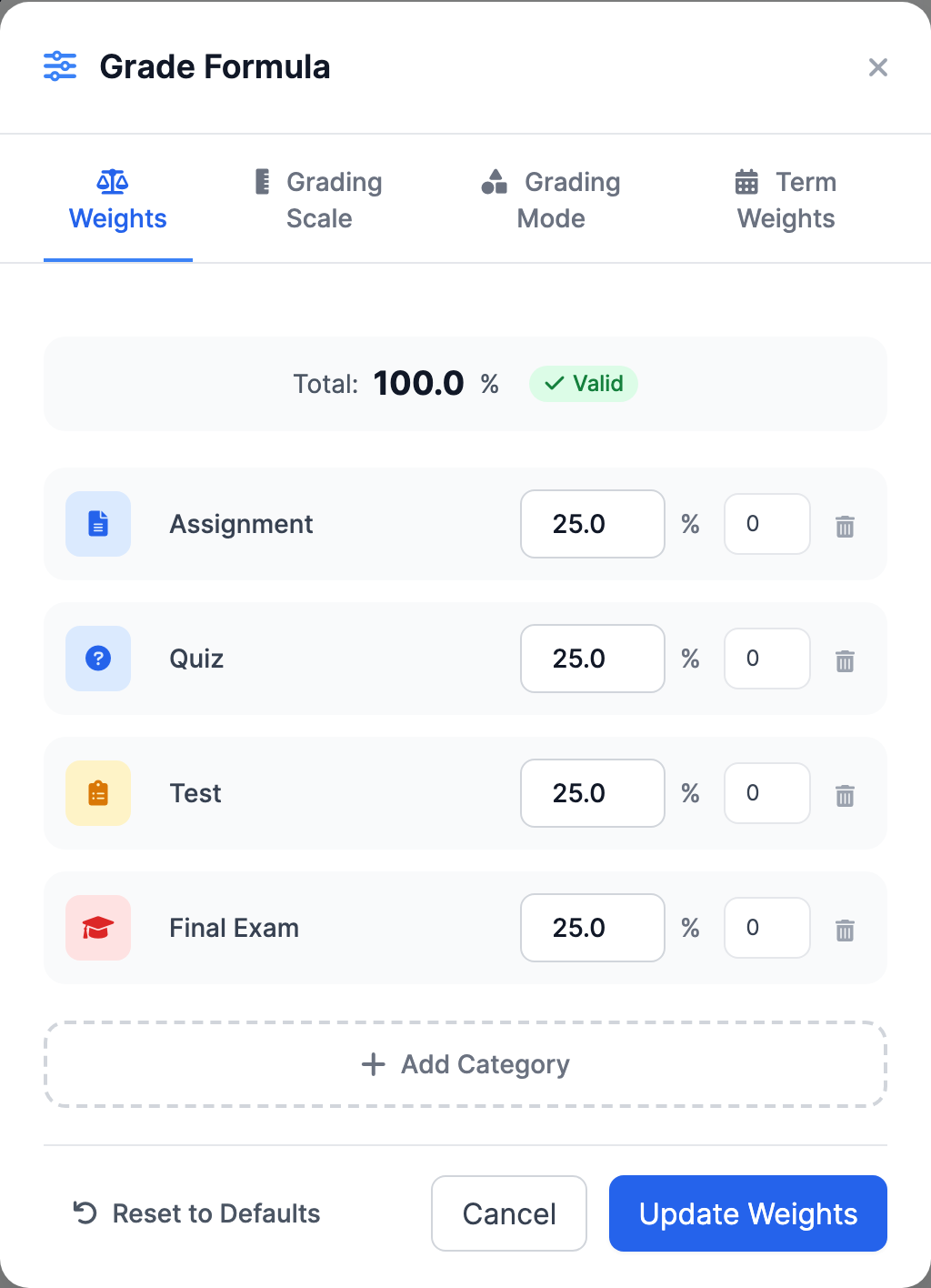
Every class has a gradebook, and every gradebook divides its assignments into categories. By default there are four, each worth 25%: Assignment, Quiz, Test, and Final Exam. The class grade is the weighted average of those categories.
How each assignment is counted
An assignment's percentage is its score divided by its maximum points, times 100. But the grade's status changes whether it counts at all:
- Graded or Late — counts at its actual percentage.
- Missing — counts as 0%.
- Ungraded, Excused, Exempt, Incomplete — not counted at all (they neither help nor hurt).
Worked example — one category
Say the Quiz category has three quizzes for a student:
- Quiz 1: 18 out of 20 → 90%
- Quiz 2: 15 out of 20 → 75%
- Quiz 3: marked Excused → ignored
The Quiz category average is (90 + 75) ÷ 2 = 82.5%. The excused quiz simply drops out of the math — it doesn't count as a zero.
Worked example — the whole class
Now combine all four categories using their weights. Suppose this student has:
- Assignment (25%): 88%
- Quiz (25%): 82.5%
- Test (25%): 91%
- Final Exam (25%): 79%
Class grade = (88 × 0.25) + (82.5 × 0.25) + (91 × 0.25) + (79 × 0.25) = 22 + 20.625 + 22.75 + 19.75 = 85.1% (rounded to one decimal).
Empty categories never drag a grade down
If a category has no graded work yet — say there's no Final Exam in October — MarkTrack skips it and rescales the remaining categories back up to 100%. So early in the term a student isn't punished for exams that haven't happened. The grade reads "N/A" only when nothing at all has been graded.
Adjusting the category weights — "Grade Formula"
- Open a class and go to its Gradebook.
- Click Grade Formula.
- On the Weights tab, change each category's value, optionally set Drop lowest to ignore a student's worst score in that category, then click Update Weights.
The weights must add up to exactly 100%, or you'll see "must add up to 100% (currently N%)." The Grading Scale tab on the same window sets the letter-grade bands (the default is A ≥ 90, B ≥ 80, and so on) — letters come from your school's grading scheme, so the same percentage always becomes the same letter everywhere.
Layer 2 — A year grade from term weights
Each class grade above is calculated per term — MarkTrack only counts the assignments whose due date falls inside that term. So a class produces a Semester 1 grade, a Semester 2 grade, and so on. The year grade is a weighted average of those term grades.
Worked example — combining terms
Imagine a year with these components and weights: Semester 1 = 35%, Midterm (an item you type) = 10%, Semester 2 = 35%, Final Exam (an item) = 20%. A student earns:
- Semester 1: 85.1% (auto, from Layer 1)
- Midterm: 88% (typed)
- Semester 2: 90% (auto, from Layer 1)
- Final Exam: 82% (typed)
Year grade = (85.1 × 0.35) + (88 × 0.10) + (90 × 0.35) + (82 × 0.20) = 29.785 + 8.8 + 31.5 + 16.4 = 86.5% → a B on the default scale.
Not-yet-graded terms are skipped too
Just like empty categories, a term with no grade yet is left out and the remaining term weights are rescaled to 100%. Mid-year, the year grade reflects only the terms that have actually happened, so it never reads artificially low because Semester 2 hasn't started.
Where term weights come from (two places)
Term weights can be set in two spots. They look almost identical but have very different reach, so this is worth getting right.
The school-wide recipe — "Report Card Components & Weights"
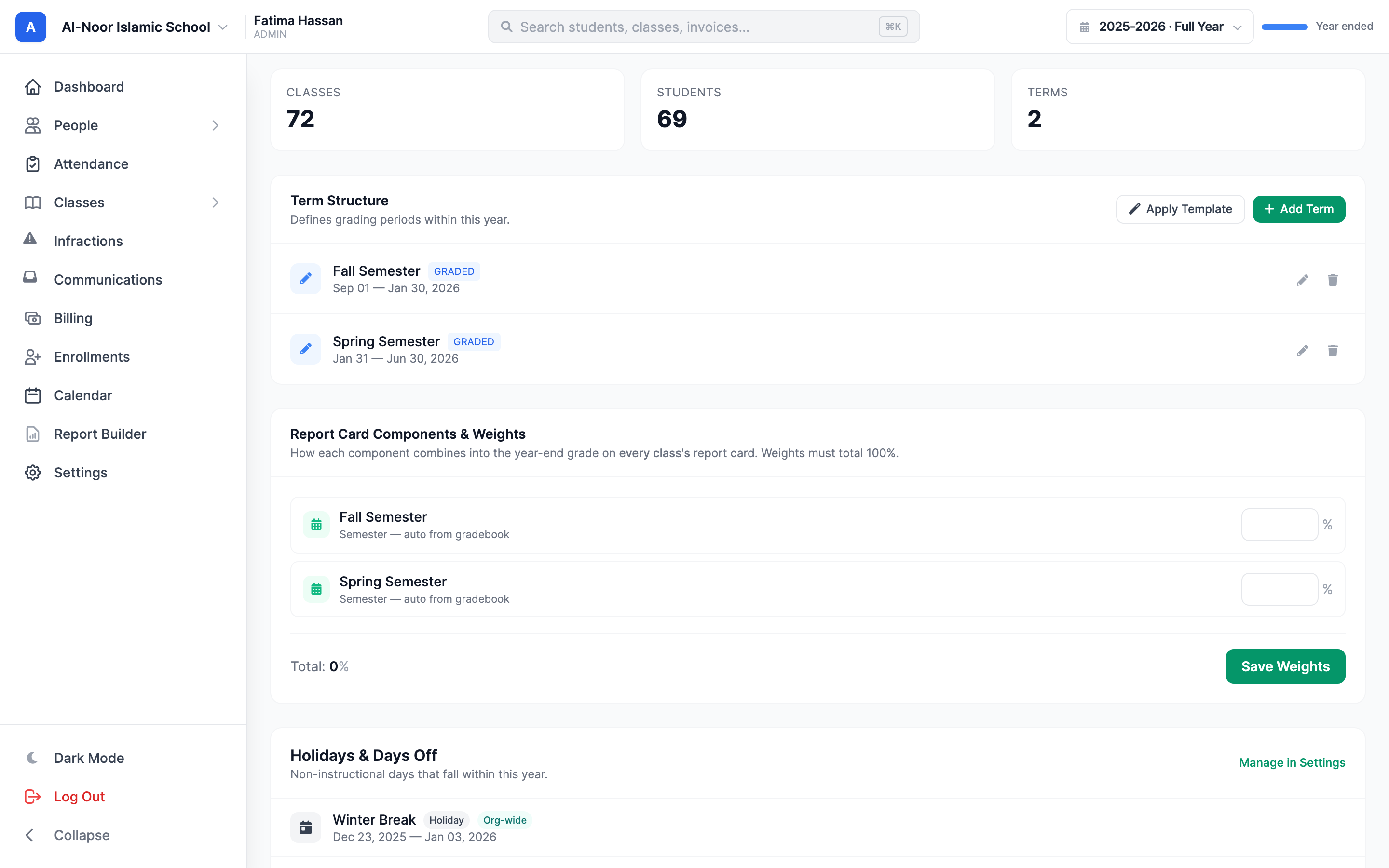
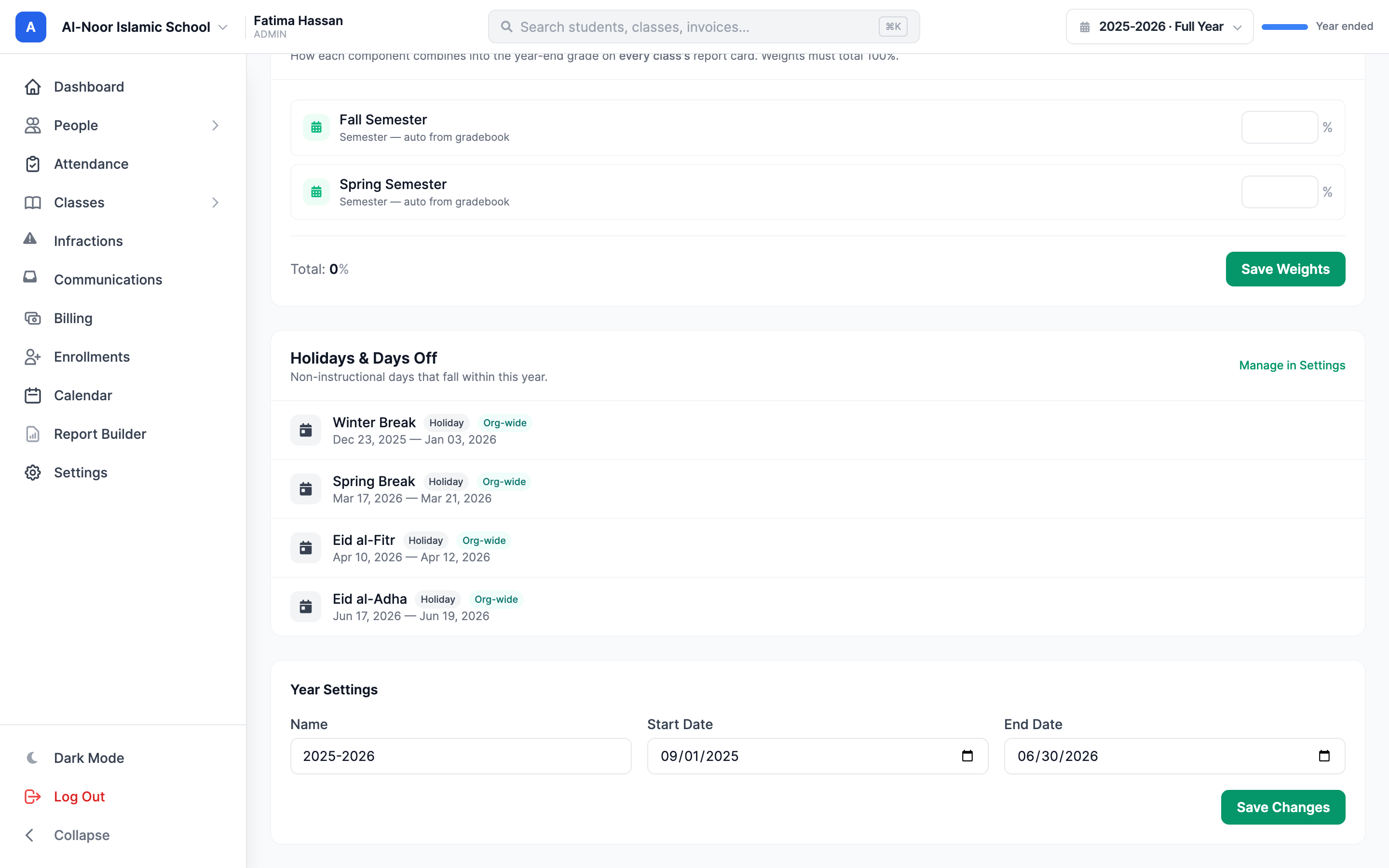
This is the recommended one. On a year's detail page (open it with Manage), find Report Card Components & Weights ("How each component combines into the year-end grade on every class's report card.").
- Each top-level term is listed with a weight input, labeled either "Semester — auto from gradebook" or "Item — typed per student."
- Set each weight; the live total must equal 100%.
- Click Save Weights.
These weights apply to every class's report card in the school at once — set them once and you're done.
The per-class fallback — gradebook "Term Weights"
Inside a class's Grade Formula window there's a Term Weights tab (it only appears when the year has graded semester terms). This sets term weights for that one class only, and MarkTrack uses it only when the school-wide recipe above is empty. Think of it as a per-class override for unusual classes.
Three weight layers — don't confuse them
Category weights (Assignment/Quiz/Test/Final Exam) combine assignments inside one class. Term weights combine terms into the year grade. The year page's Report Card Components is the school-wide version of term weights; the gradebook's Term Weights tab is a per-class fallback used only when the school-wide one is blank. All three must total exactly 100%.
Semester terms vs item terms on the report card
- A Semester term shows up on the report card as a read-only, auto-computed number — it's Layer 1's class grade for that date range. Teachers don't type it.
- An Item term (Final, Midterm, Capstone) is typed per student. Teachers enter it by hand.
Entering item grades — the "Report Card" button
- Open a class's Gradebook and click Report Card (it only appears when the year has report-card components).
- You'll see a grid of students down the side and components across the top. Semester columns are read-only and show "auto" with their weight; item columns are typed inputs.
- The Year column recalculates live as you type.
- Click Save Report Card Grades.
Generating the printed report cards
When you're ready to produce PDFs:
- Go to Reports and open the Report Cards tab on the Report Builder.
- Pick a Template (you build these under Manage Templates — they control the layout and whether attendance, teacher comments, the grading scale, and signatures appear).
- Choose a Scope: Student, Class, Year, or Email.
- Pick the student or class, then click Generate PDF. A single student gives a Download PDF; a class or year gives a Download ZIP; the email scope sends report cards straight to parents.
Two report-card buttons that look alike
The working report-card generator is the Report Cards tab on the Report Builder page (and the gradebook's Report Card / Class Report Card buttons). The plain Reports catalog also lists "Report Cards," but that entry just opens a "Coming Soon" message — use the Report Builder.
Hifz classes get a pass/fail section
A Hifz class whose gradebook is off (or has no published assignments yet) appears in a separate section showing Pass, Needs Improvement, or the latest status for the year. A Hifz class with an active gradebook instead gets a normal numeric row plus its Hifz status printed under the class name — and either way, Hifz grades never count toward the GPA, averages, or the official transcript.
When you're ready to close out the year and move on, see Roll over to a new year, or browse all guides in Classes & Grades.
More in Classes & Grades
Still stuck?
Our team is happy to walk you through it.