
Set up a class: teachers, schedule, gender, and academic year
Once a class exists, you set it up: who teaches it, when it meets, whether it's restricted to boys or girls, where it's held, and which academic year it belongs to. This guide walks through each setting, and — because settings in MarkTrack often reach into other parts of the app — it explains exactly what each one connects to and changes.
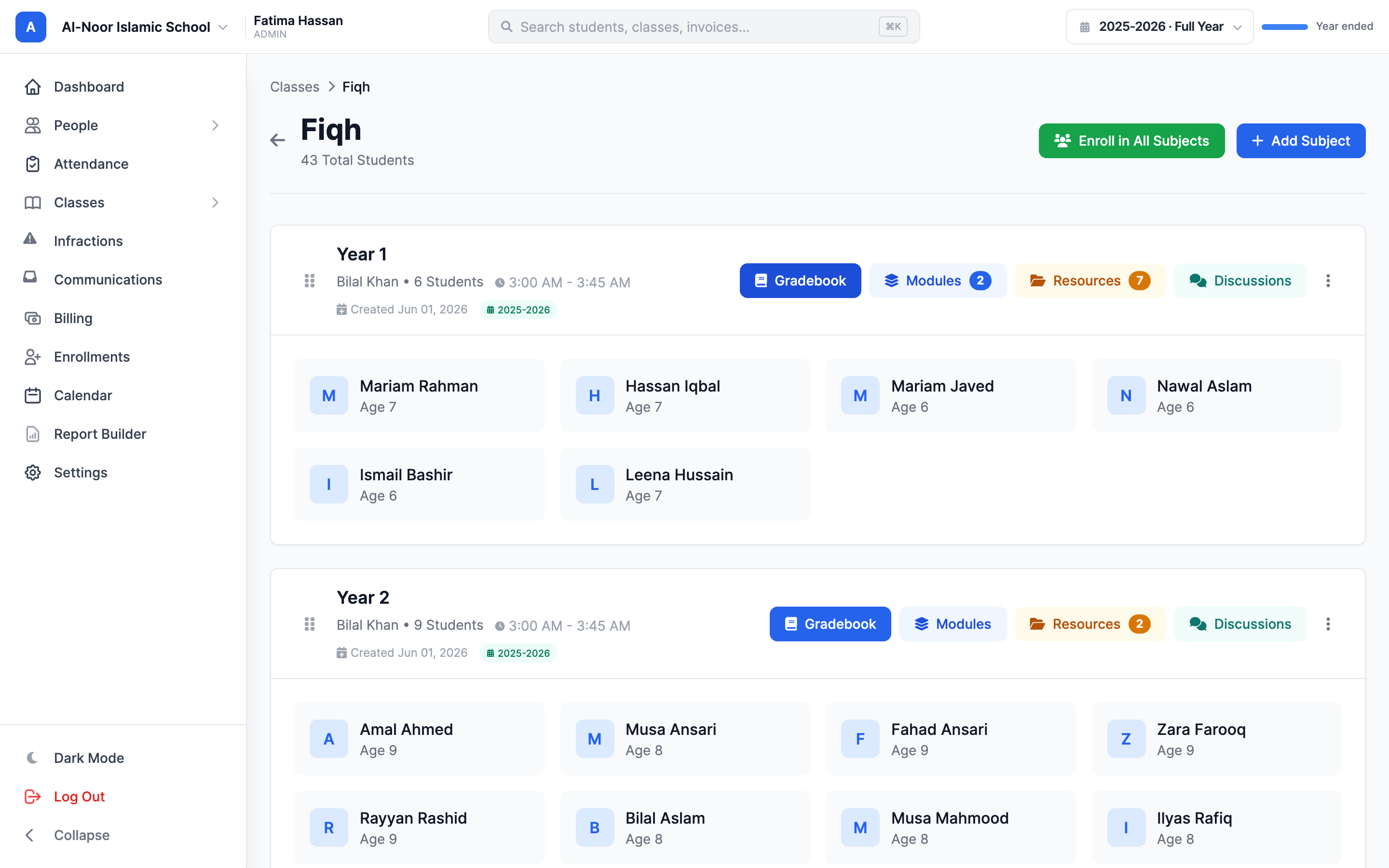
Most of these settings live on the class card. From the Classes page, click a level to open its detail page, find the class you want, and use its ⋯ More menu.
Assign teachers (you can have more than one)
A class can have several teachers, not just one. From the class card's ⋯ More menu, choose Edit Teachers (or Add Teacher if none are assigned yet) and pick one or more people.
- Both teachers and admins can be assigned as a class teacher — the picker shows both.
- Each person can only be added to a class once; trying again shows "is already assigned to this class."
Assigning a teacher quietly gives them access to the school
When you add a teacher to a class, MarkTrack automatically adds them to that class's school too. This is on purpose: without school access they couldn't open the class. So assigning a teacher to a class in a school they didn't belong to before will let them switch into that school. Keep this in mind when assigning across multiple schools.
Set the time, dates, location, and gender
From the class card's ⋯ More menu, choose Edit details. The Edit window lets you change:
- Subject Name — the class's display name (see the warning below).
- Teachers — same multi-select as above.
- Start Date and End Date — the end date must be on or after the start date.
- Start Time and End Time — the end time must be after the start time.
- Gender (Optional) — choose No restriction, Male, Female, or Joint (mixed). Leaving it as no restriction means anyone can be in the class.
A fuller Edit Class window (reached from a class's edit page) adds a Location / Room field — for example "Room 101, Building A" — and lets you change the class's Subject, Level, and School. Click Update Class (or Save Changes) when done.
"Subject Name" here renames only this one class
Editing the Subject Name in a class's Edit-details window changes the display name of that single class only. The shared Subject record — and any sibling classes that use the same subject in other levels — keep the old name. If you meant to rename the subject everywhere, that's a different action.
What the Gender setting actually does
The gender setting puts a badge on the class card (Male, Female, or Joint), but it is not a hard lock on who you can add.
- When students enroll automatically from an online enrollment form, the gender restriction is enforced — a male-only class is skipped for female applicants and vice versa (unless the class has no restriction).
- When you add students by hand using the Add Students window, the gender setting does not filter or block anyone — you can still add any student. It's a label and an auto-enroll guard, not a manual barrier.
Limit how many students a level takes — Student Capacity
Each level can carry an optional Student Capacity: open the level list on the Classes page, click Edit on a level, and set a number (leave it blank or 0 for unlimited). The cap counts distinct students across all of that level's classes — a student enrolled in three subjects within the level uses one seat — and it is counted per school and per academic year, so last year's roster never blocks this year's enrollment.
- When a level is full, no new student can be added to any of its classes — not from the Add Students windows, bulk enroll, CSV import, year-rollover promotion, or an enrollment form. You'll see a clear "Level is full (50/50)" message instead.
- On public enrollment forms, classes in a full level show a red Full badge, can't be ticked, and a notice at the top of the form names them. Submissions that race past this are refused server-side — applicants are never charged for a full level.
- Removing a student frees the seat immediately — counts are live. The level list shows capped levels as "12/50", turning red with a Full tag at capacity.
- Students already in the level are never blocked from joining its other classes, and lowering a cap below the current roster is allowed — existing students stay; the level simply reads full until seats free up.
- To make room in a hurry, raise or clear the cap in the Edit Level window.
Set which days the class meets — on the Attendance page
This is the setting admins hunt for in the wrong place most often. A class's meeting days are not in any class-edit window. They're set on the Attendance page.
- Open Attendance for the class.
- Find the Class Days panel — a checkbox for each day, Sunday through Saturday.
- Tick the days the class meets and click Save Changes.
The days you pick decide which date columns show up on the attendance grid and on parents' attendance views. A brand-new class defaults to meeting every day until you narrow it down here, so this is worth setting early. Admins can edit class days; so can the class's own assigned teachers.
Schedule conflicts warn you — they never block you
If you put the same teacher in two classes whose days and times overlap, MarkTrack shows a "Schedule conflict" warning. It's a heads-up only — the class still saves. MarkTrack won't stop you from double-booking a teacher.
Academic year — what links a class to a year
If your organization uses academic years, every class you create is automatically tied to the current academic year, and a year badge appears on the class card (sometimes with the matching semester name when the class dates fall inside a term). Class lists then show that year's classes, plus any older classes that have no year set.
At the end of a year, the year rollover tool copies every class into the new year. The copy keeps the subject, level, school, meeting days, times, location, gender, Hifz setting, teacher assignments, and gradebook weights. The one thing it does not copy is the student roster — the new year's classes start empty, so you enroll students fresh. Existing grades, attendance, and Hifz records from the old year are left untouched, and the old year is marked concluded.
The same class can repeat across years
MarkTrack blocks two identical classes (same subject + level) in the same school and same academic year, but the same combination is perfectly fine in a different year. That's how a class carries forward year to year without clashing.
With teachers, schedule, and settings in place, you're ready to enroll students — and to understand what happens when you later remove one. See Add and remove students in a class, or browse all guides in Classes & Grades.
More in Classes & Grades
Still stuck?
Our team is happy to walk you through it.