
Take daily attendance
In MarkTrack, attendance is taken per class, per day. Every student gets one mark for each class they are enrolled in: Present, Absent, Tardy, or Excused — plus any custom statuses your school has added, like "Online" or "Left Early." This guide shows you where to take attendance, how clicking a cell works, how to attach a note to a mark, how to mark a whole class at once, which days a class meets, the three rules that lock attendance, and how to run the class report. It covers the standard per-class mode; a school can instead be switched to day-based attendance (one "School Day" mark per student per day) in its attendance settings — see daily vs. per-class attendance modes — and the grid there works the same way.
Before you start: set your timezone
Your organization's timezone decides what counts as "today" for attendance. If it's wrong, evening attendance can be rejected as a future date. Set it first — see Set your timezone (and why it controls attendance).
Step 1 — Open the Attendance page and pick a class
- From the dashboard, go to Attendance.
- Use the class picker at the top. It works in two steps: pick a level (year group) first, then the class inside it. A Back button returns you to the level list.
- MarkTrack remembers your choice. The same class loads the next time you open the page.
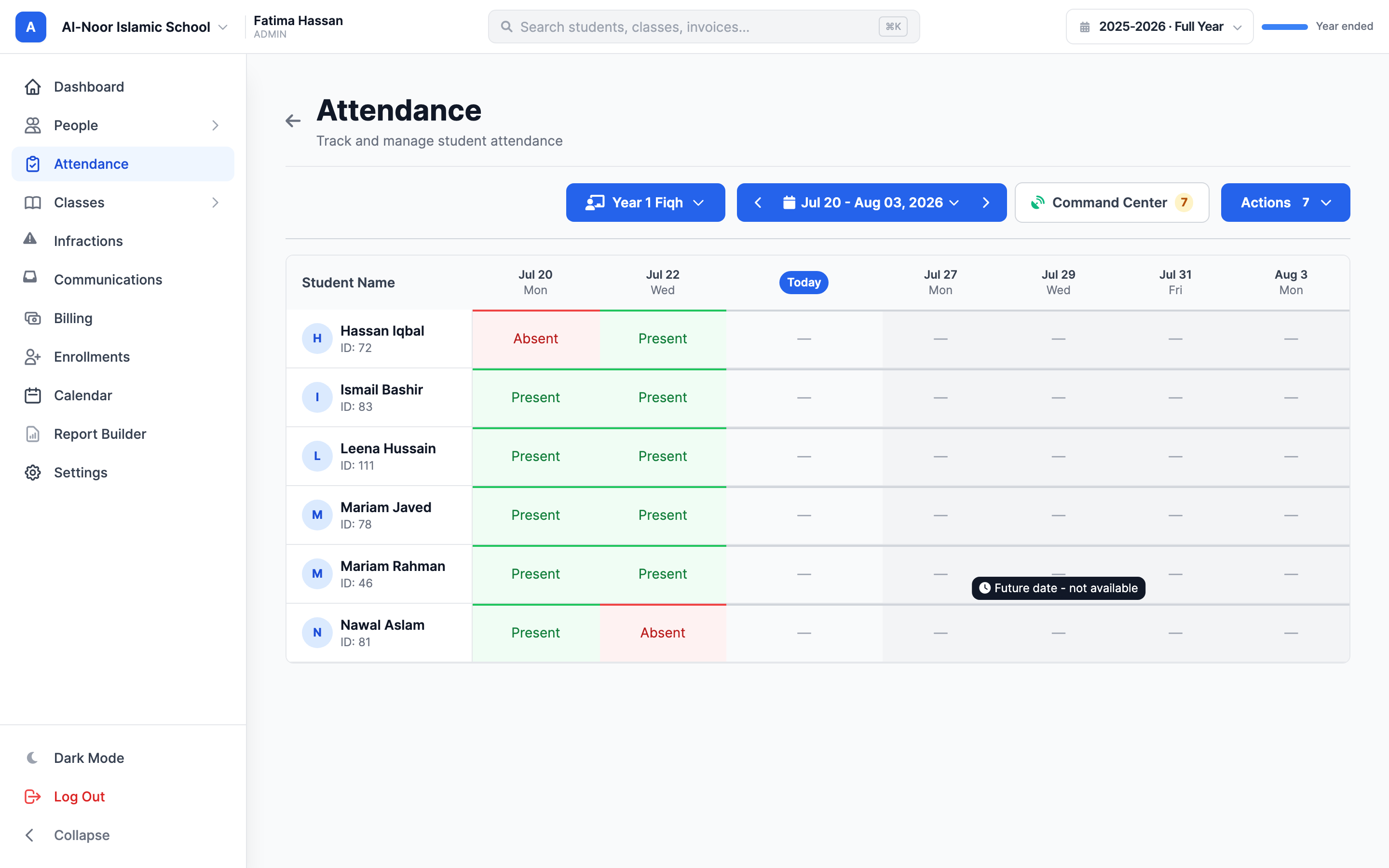
Admins also get a Command Center button next to Actions. It opens the attendance Command Center — the admin home for pending absence requests (the amber badge is the pending count) and the whole-school daily report on its Teachers tab.
Step 2 — Read the grid
The page shows a grid: one row per student, one column per date the class meets.
- Green means Present, red means Absent, yellow means Tardy, orange means Excused. A gray — means the day hasn't been marked yet.
- Custom statuses render right in the cell with the label and color your admin chose — for example a blue "Online" or an amber "Left Early." Manage them in Settings; see custom statuses, self-marking, and attendance takers.
- A small dot in the corner of a cell tells you a mark didn't come from staff: teal = the student marked themselves in, blue = an appointed student attendance taker marked it, and a hollow green ring = staff later corrected a non-staff mark. Click the dot for the details.
- Future dates are grayed out and can't be clicked yet.
- Holidays show as disabled — cells. You can't mark attendance on a holiday. Holidays can apply to the whole organization or to one school.
- Days from before the class existed are not shown.
- The grid can show a standard week (Monday to Sunday) or weekend-focused views. Sunday schools get the Friday/Saturday/Sunday weekend view automatically. Your view choice is remembered.
Step 3 — Mark students by clicking
Click a student's cell to mark them. Clicks cycle through your school's status list:
- The first click on an unmarked cell sets Present (your school's first Present-type status) — not Absent.
- After that, every click moves to the next status in the list, in the order they appear in your school's attendance-status settings. With the standard list that's Present → Absent → Tardy → Excused → back to Present; any custom statuses take their turn in the same rotation.
There is no "unmark"
Once a cell has a status, you can only cycle it to a different status — you can't clear it back to the gray dash. If you mis-click, keep clicking until the right status comes back around. Every mark records who made it.
Attendance is per class
A student who is out for the whole day must be marked absent in each of their classes separately. The one exception: an approved absence request marks Excused in every class at once.
Step 4 — Add an optional note to a mark
Hover over any marked cell and a small comment icon appears in its corner. Click it to open the cell's details popover, which shows the student, the status, and who recorded the mark. Type a one-line reason — "Doctor's note received," "Bus was late" — and click Save reason (or press Enter). The note is optional and goes into the attendance audit trail; it never changes the mark itself or re-sends any notifications.
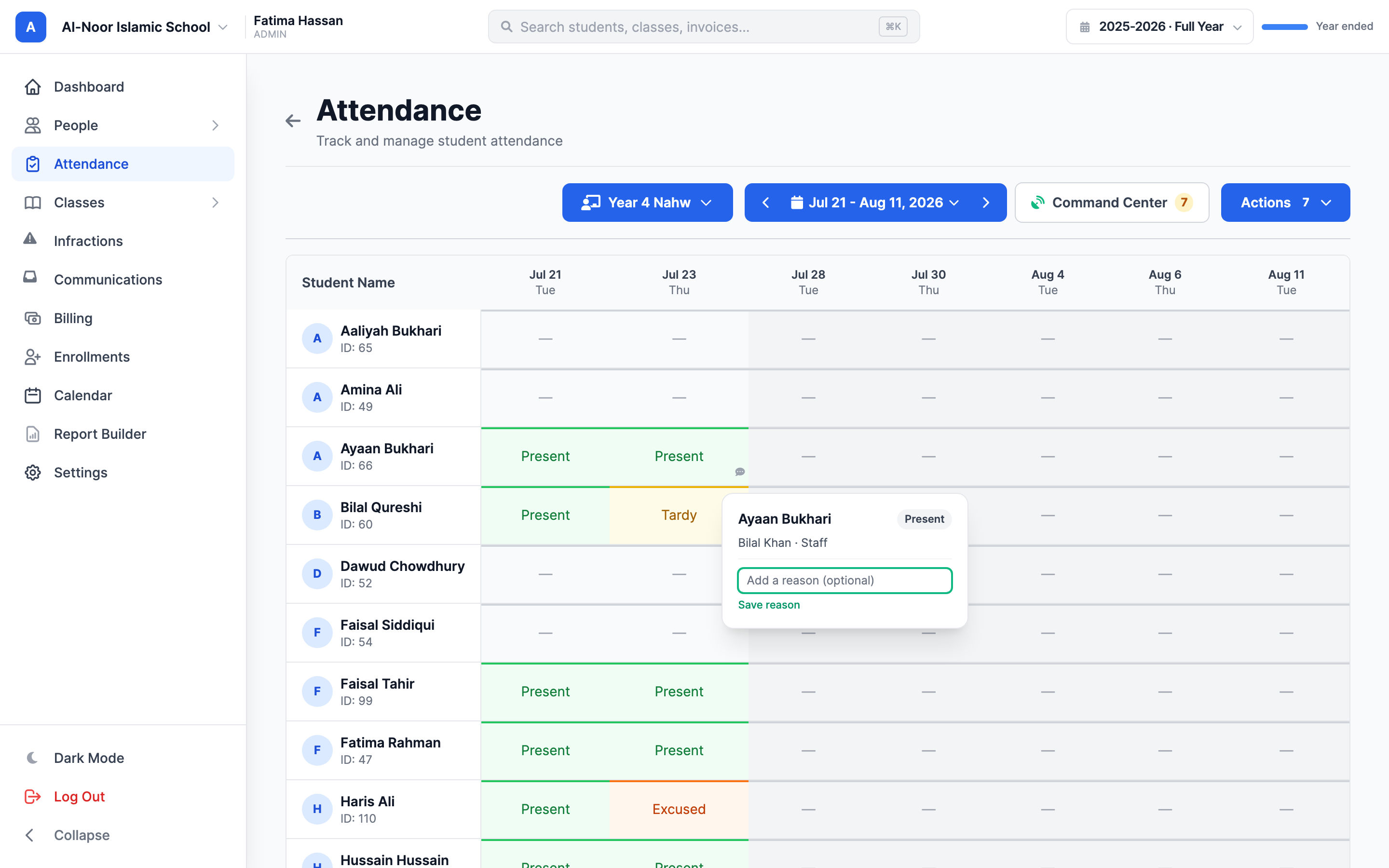
The same popover opens when you click the corner dot on a self-marked or helper-marked cell — there it also names the student or attendance taker who recorded the mark and when.
The Actions menu
The blue Actions button in the top-right holds the bulk and reporting tools. When absence requests are waiting, the button itself carries the pending count.
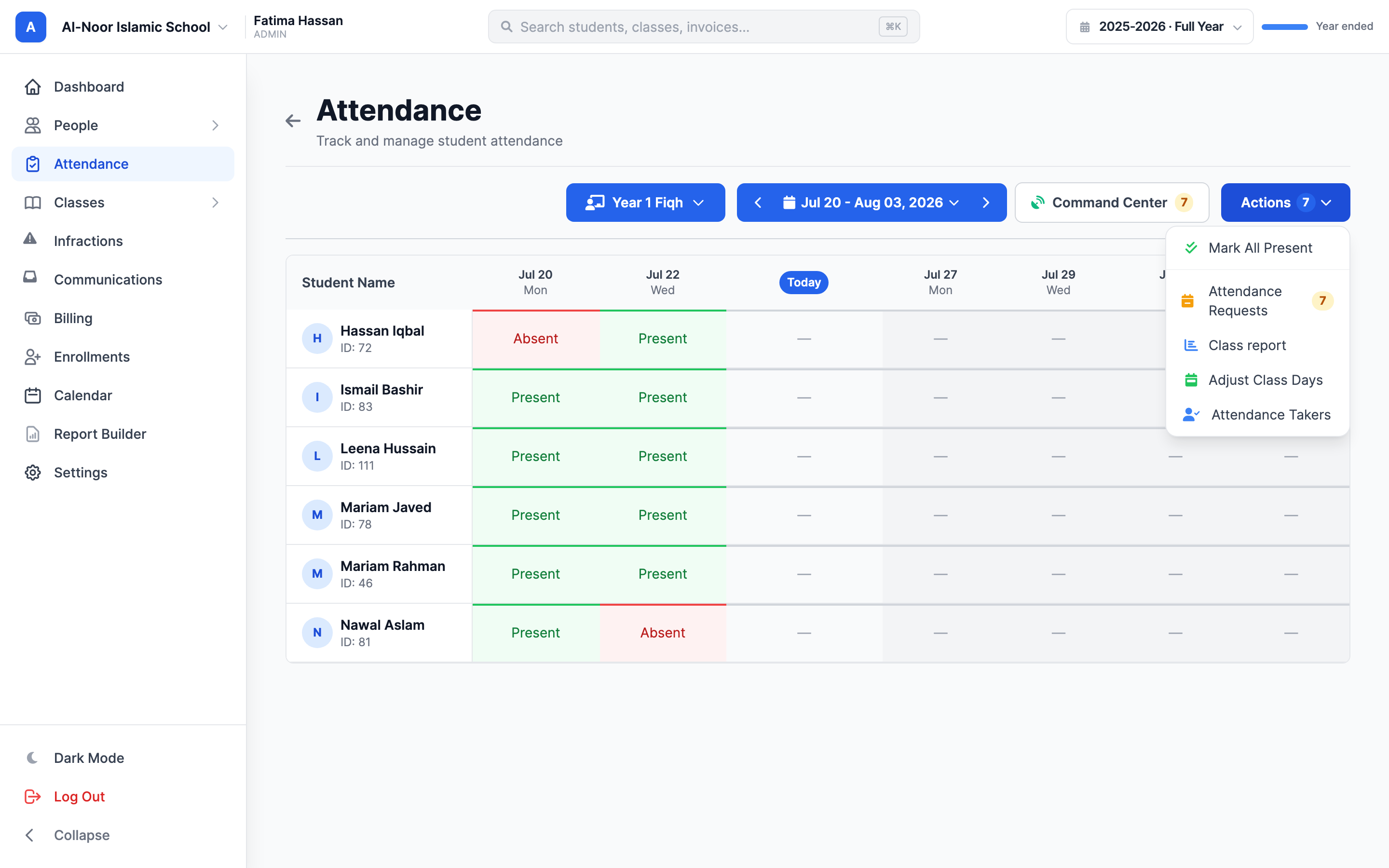
- Mark All Present — bulk-mark today (next section).
- Attendance Requests (admins only) — opens the Command Center's Requests tab, where pending absence requests are reviewed. The amber badge is the school's pending count.
- Class report — attendance statistics and exports for this class (see Class report and exports).
- Adjust Class Days — set which weekdays this class meets.
- Attendance Takers — appears when your school has enabled student attendance takers; the badge counts active takers for this class. See the delegation guide.
Looking for the whole-school daily report?
The single-day, all-classes report moved out of this menu. Admins now find it in the Command Center, on the Teachers tab, alongside per-teacher attendance-taking compliance.
Mark everyone present at once
- Click Actions → Mark All Present.
- A confirmation dialog names the class and today's date. Click Mark All Present to confirm.
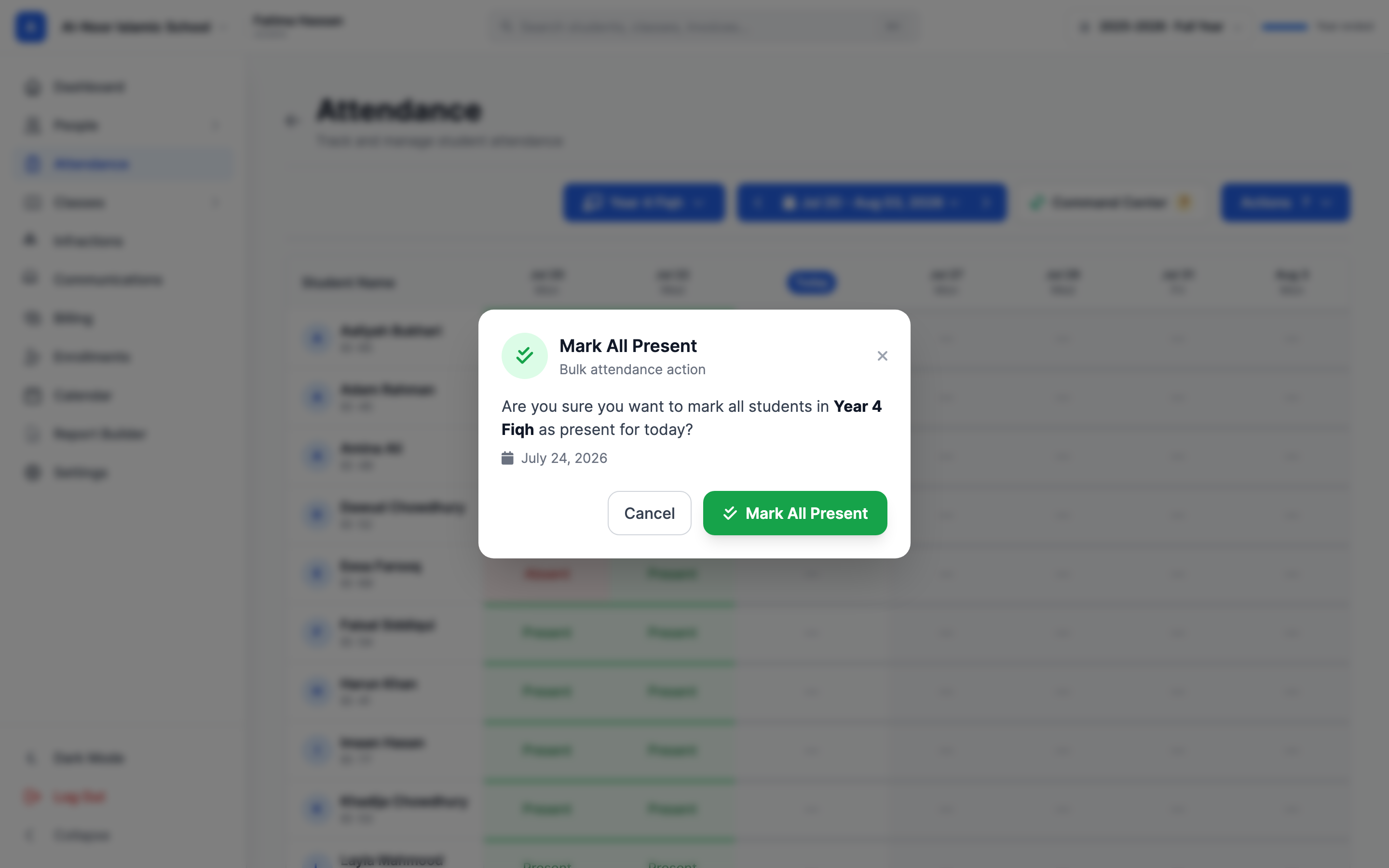
Every student in the selected class is marked Present for today only — including students who already had a different mark, so use it before hand-marking the exceptions. It doesn't touch other days or other classes, and cells tied to an approved absence request are protected and keep their Excused mark. If any student had a pending absence text queued, flipping them to Present cancels that text.
Set which days the class meets
- Click Actions → Adjust Class Days ("Select which days this class meets").
- Tick the weekdays the class actually meets and click Save Changes. You'll see "Class days updated successfully."
The grid then shows columns only for those weekdays. Only an admin or the class's assigned teacher can change this.
You can also set a class's meeting days without leaving the class itself: open the class and click Edit, then tick the days under Meeting Days. That is the place to use when your school takes attendance once a day (see below), because the attendance page's editor then belongs to the whole school rather than to any one class.
If your school takes attendance once a day
In Daily attendance mode the attendance page covers the whole school at once, so the same control becomes Actions → Adjust School Days ("Select which days the school is in session") and saving it reports "School days updated successfully." It sets the days the school is open — it applies to every student even when you have the roster filtered down to one class. To change a single class's own schedule in this mode, edit that class instead.
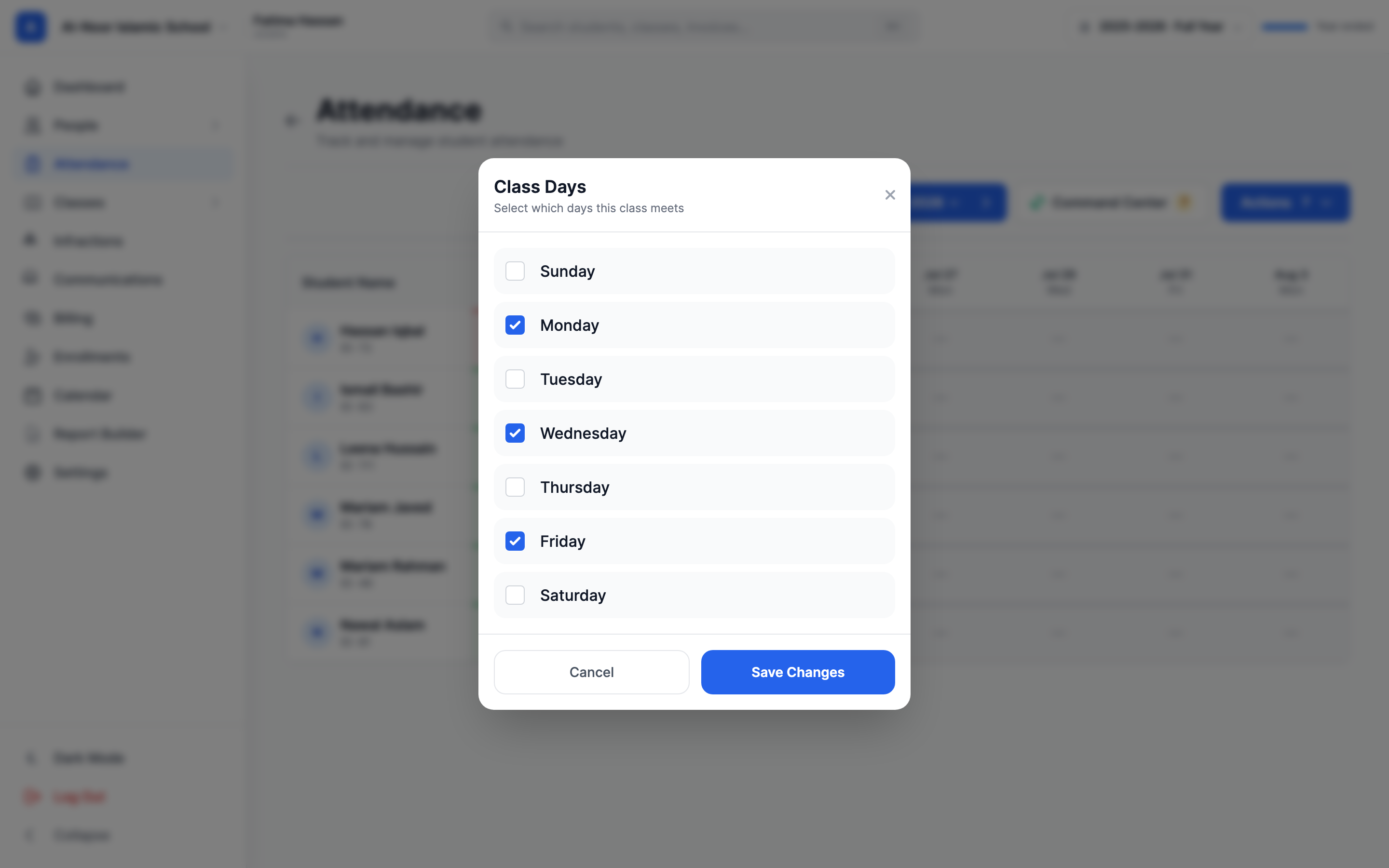
Don't leave all seven days ticked
If class days are left at the default (all 7 days), reports treat the class as unconfigured and fall back to a generic schedule based on your school type. Set the real meeting days so the "School Days" count in reports is accurate.
Who can do what
- Admins can mark attendance for any class in the school, review absence requests, and open the Command Center.
- Teachers can only mark classes they are assigned to. Trying another class shows "Not authorized to manage attendance for this class".
- Student attendance takers — a student your school appoints for one class — can mark that class; their marks carry a blue corner dot so staff always know the source.
- Parents and students can view attendance but never change it. Parents see the tooltip "View only - parents cannot modify attendance".
- If a teacher sees "You don't have permission to access this resource", an admin needs to grant them attendance permissions. Teachers have attendance view and edit access by default.
The three locks
Three separate rules can stop a cell from being changed:
- Future dates are always locked. No one — not even an admin — can mark a day that hasn't happened yet. There is no setting to override this. The error reads "Cannot update attendance for future dates", and the cell tooltip says "Future date - not available".
- Lock Past Attendance (optional). Go to Settings, open the Attendance settings, and find the Edit Permissions section. When Lock Past Attendance is on, teachers and admins can't change attendance for past dates: locked cells show a small lock icon with the tooltip "Date passed - locked", and edits are refused with "Attendance for past dates is locked. Contact your administrator to unlock." A matching Lock Past Hifz Entries toggle sits right below it — that one is a separate setting and only affects Hifz entries.
- Concluded years and locked terms. Once an academic year is concluded, everything in it is read-only ("[Year name] has been concluded. All data is read-only."). And if a date falls inside a term that has been locked, edits are refused with "This term is locked. Grades and attendance from this period are read-only."
"Past" and "future" follow your timezone
Both locks measure days against your organization's timezone. If marks are being rejected at odd hours, check your timezone setting before anything else.
Class report and exports
- Click Actions → Class report.
- Pick a Date Range and click Apply. The report opens on the current month.
The report shows summary cards — School Days, Attendance Rate, Total Present, Total Absent, Tardy, Excused, and Students — and a per-student table with each student's counts and rate. Use the PDF, XLS, or CSV buttons next to Export: to download it. A per-student version of the same report is also available from the student's profile page.
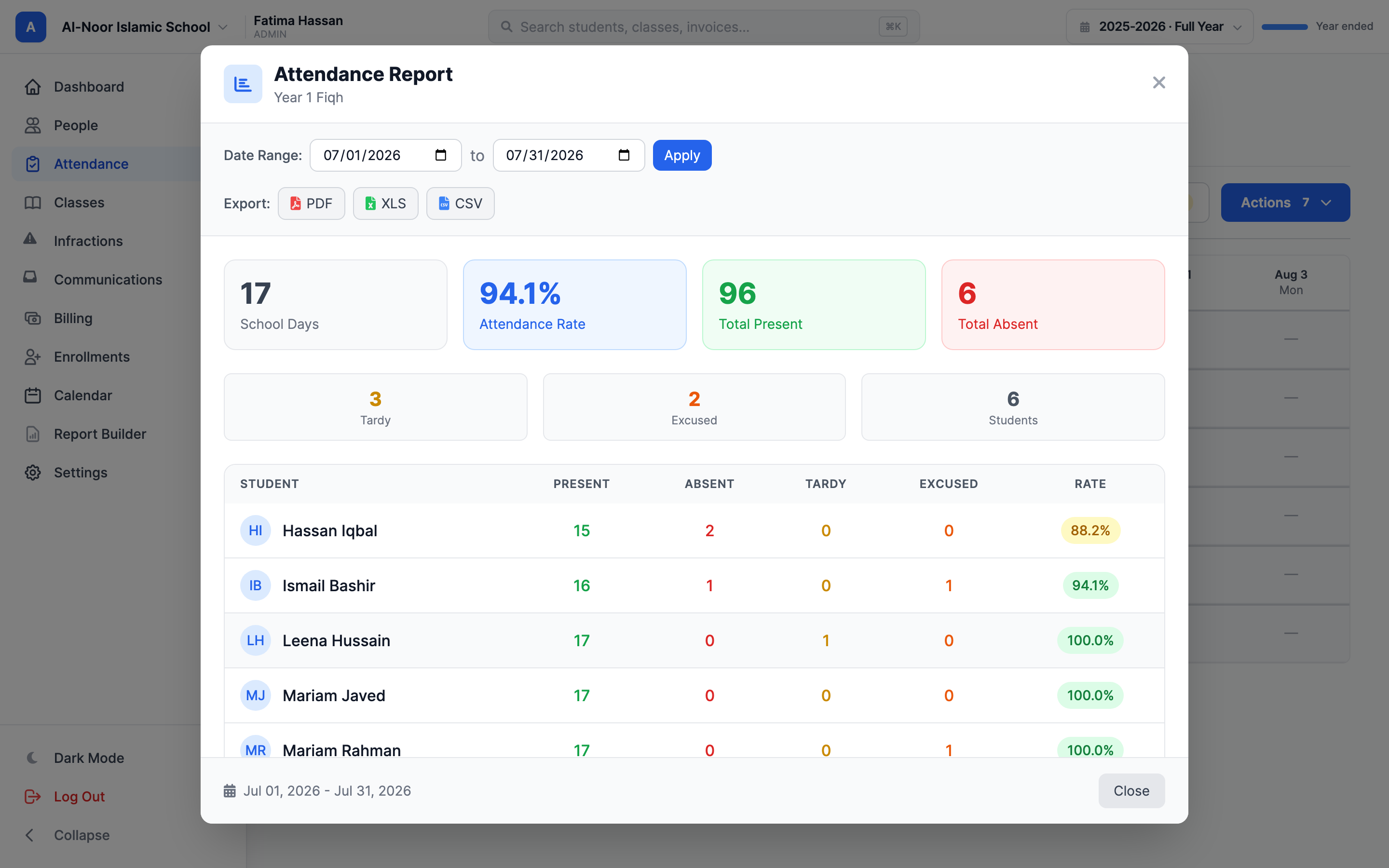
How the attendance rate is calculated, in plain terms:
- A student with no mark on a class day counts as present. Unmarked days never hurt the rate.
- Tardy and Excused also count as present for the rate. Only Absent lowers it.
- Holidays are skipped completely — they don't count for or against anyone.
- Only days between the class's start and today are counted. If the range has no class days at all, the rate shows "—" instead of a misleading 100%.
The raw data export is CSV only
The separate Export Attendance Data option (with Start Date, End Date, File Format, status filter, and File Title fields) always downloads a CSV file — the PDF choice and the File Title are currently ignored. If you need a PDF, use Class report and its PDF button instead.
Students see a slightly different rate
Students have their own attendance calendar in their account. The rate shown there counts only Present days as attended, so it can read lower than the class report's rate. That's expected — the formulas differ.
Next up: handle parent requests with the absence requests guide, set up custom statuses, self-marking, and attendance takers, or browse the other guides in Attendance.
More in Attendance
Still stuck?
Our team is happy to walk you through it.