
The live board, the log, and pickup analytics
Once Sign In / Sign Out is live, everything the kiosk records lands in one place: Sign In / Out in the sidebar. This guide covers the Live Board, By Day, Kiosks, Log and Analytics tabs — the Live Board you watch during dismissal, the Log you search when someone asks a question, and the Analytics that turn pickup times into a number you can act on.
Step 1 — The Live Board
The Live Board answers "where is everyone right now". It refreshes on its own — leave it open on the front desk — and opens on the current school day.
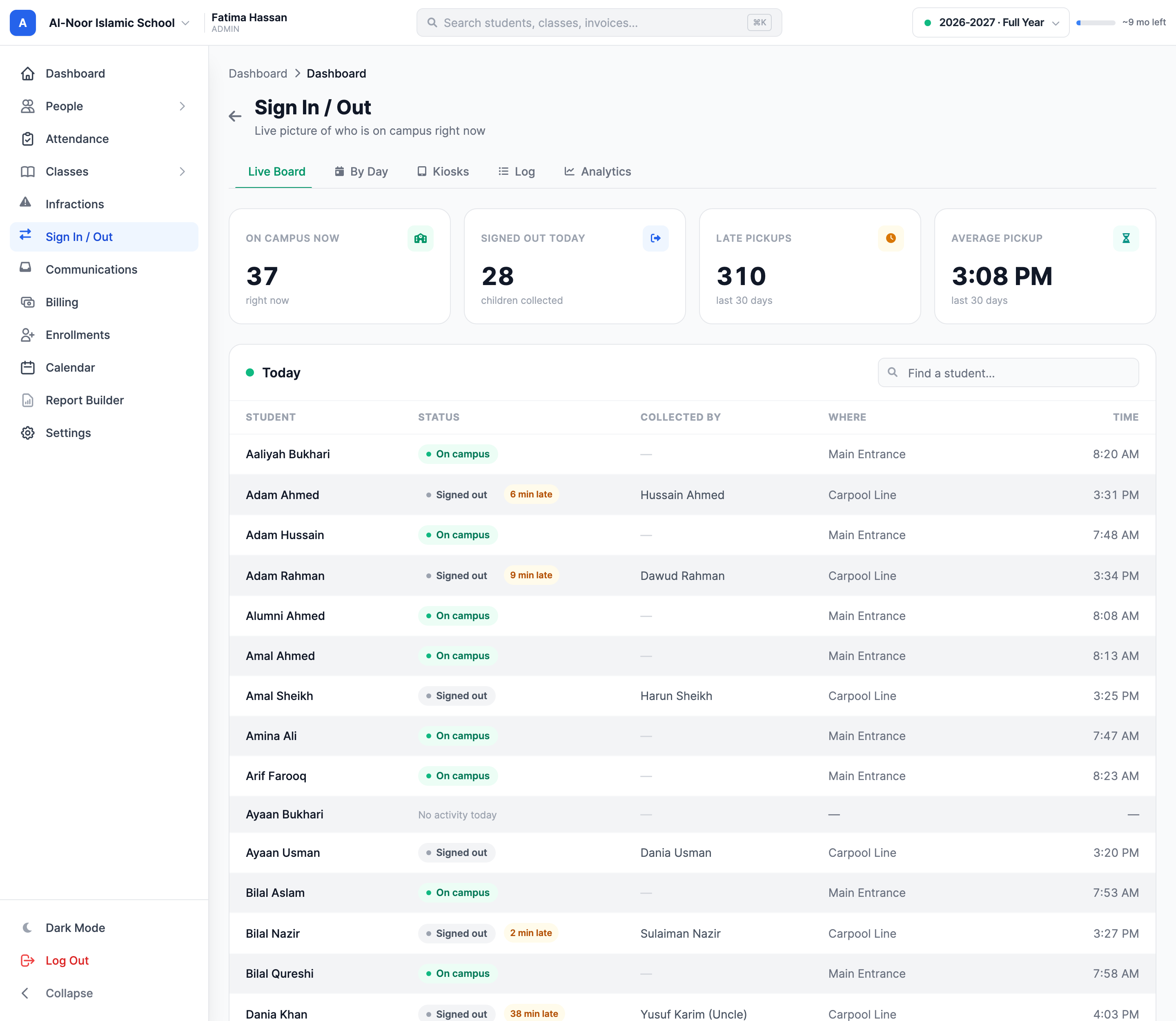
The four tiles across the top:
- On campus — children signed in today and not yet signed out.
- Signed out — children collected today.
- Late pickups — collections after dismissal plus grace, over the last 30 days.
- Average pickup time — when children actually leave, on average.
Each row shows the child, their current state, who collected them, from which station, and at what time. A pickup after dismissal plus grace carries an amber N min late badge.
"Today" means the school day, not the calendar day
The board, the kiosk and every count roll over in the early morning rather than at midnight, in your organization's timezone. An after-hours event still belongs to the day it happened on, so a late evening pickup does not disappear from the board the moment the clock passes twelve.
Step 2 — The Log, and reading an attestation back
The Log tab is every sign-in and sign-out ever recorded, newest first. Filter it by student or collector name, by date range, by direction, or narrow it to late pickups only.
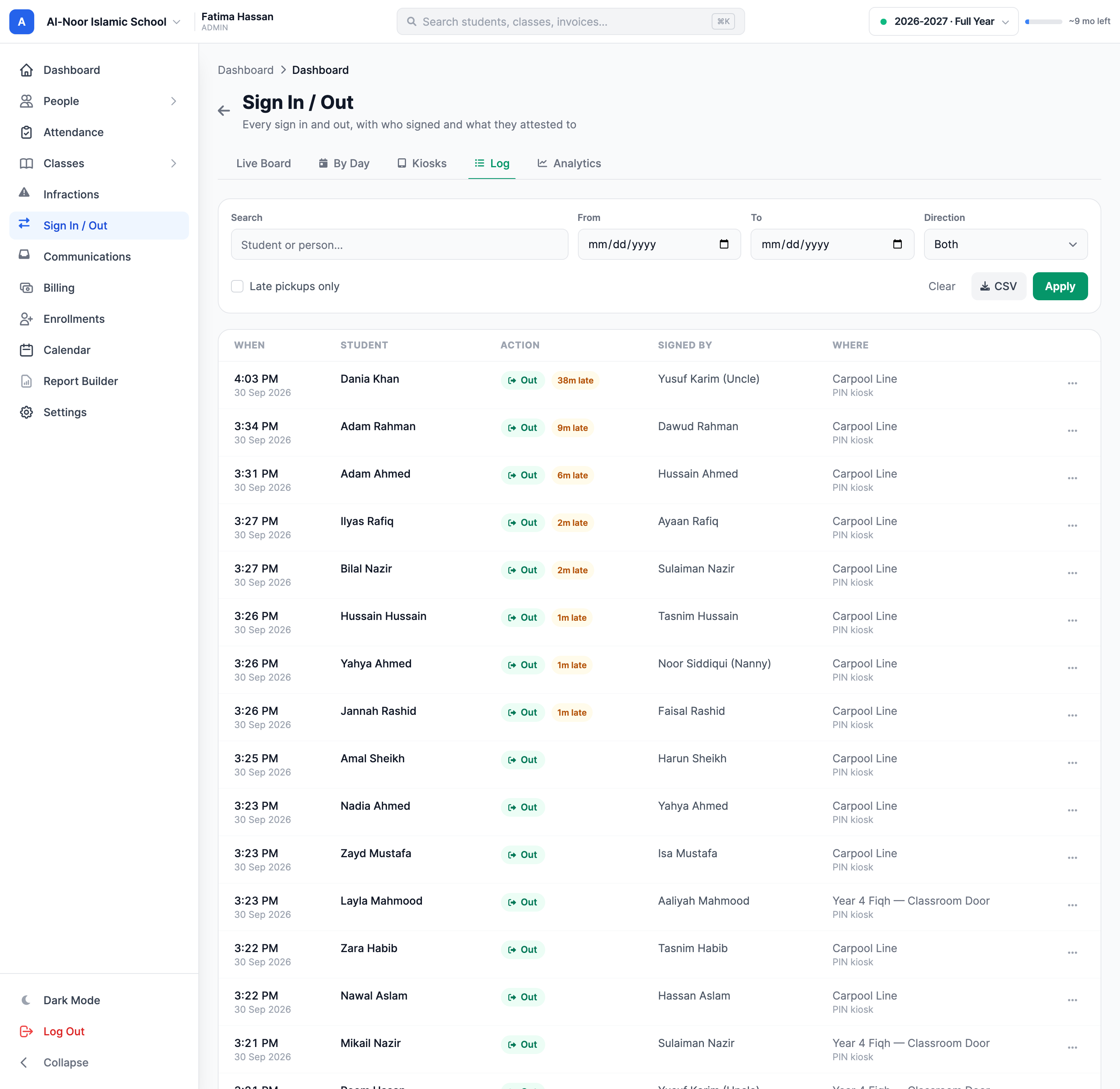
Open the … menu on a desktop row (or Attestation on a phone) to see what that person actually agreed to: the frozen attestation sentence, the exact second it was attested, and the address it came from.
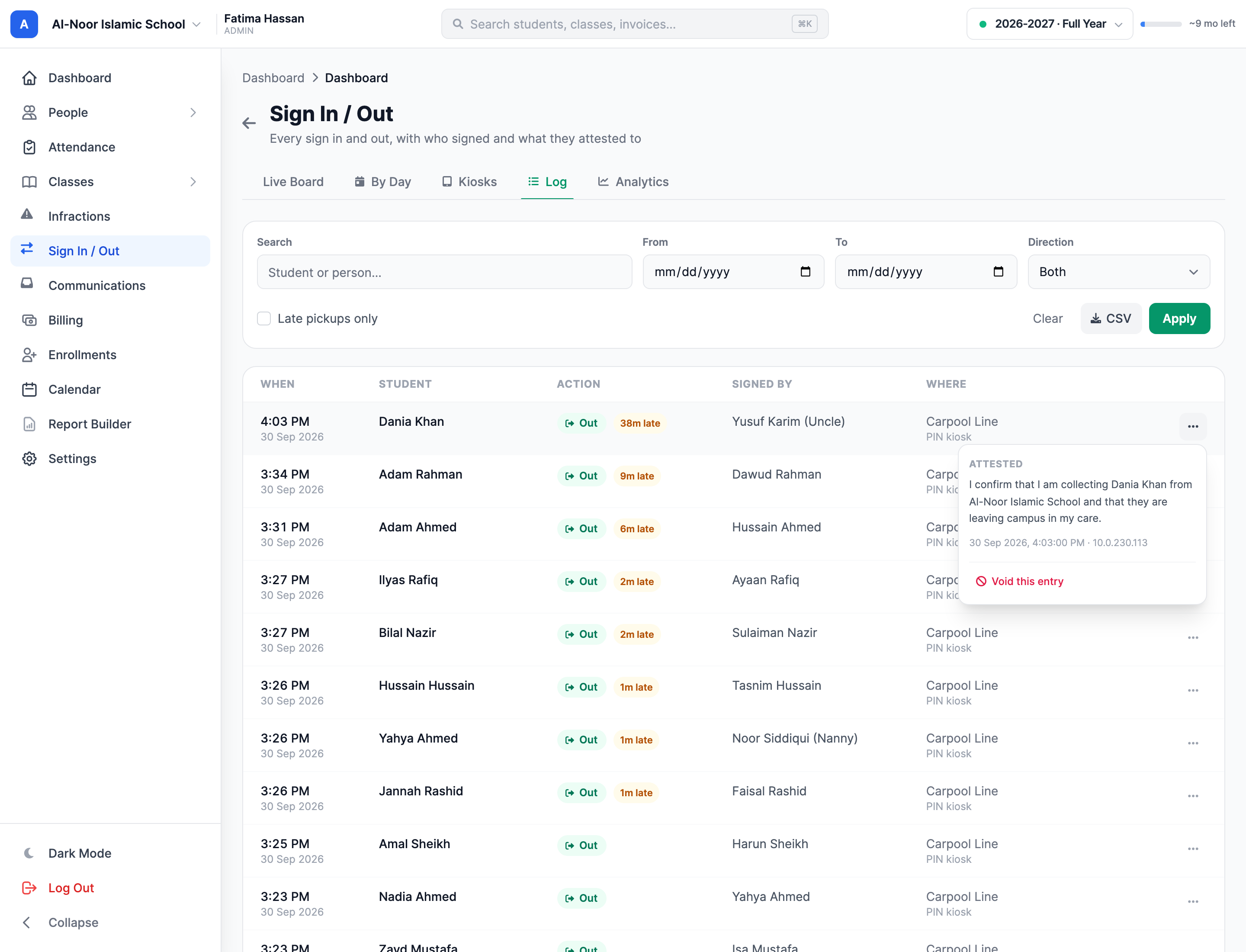
Correcting a mistake
Records are never deleted. Use Void this entry on the same menu: the row stays in the log, visibly marked as voided, and stops counting toward presence and the analytics. A log you can delete from is a log that proves nothing.
Exporting
CSV exports exactly the rows your current filters produce — so filter to "late pickups only" over a term, then export, and you have the list you need for a letter home. Text fields are escaped so that a name typed by a stranger cannot execute as a formula when the file opens in Excel.
Step 3 — Analytics
The Analytics tab covers a date range you choose, with 7-, 30- and 90-day shortcuts.
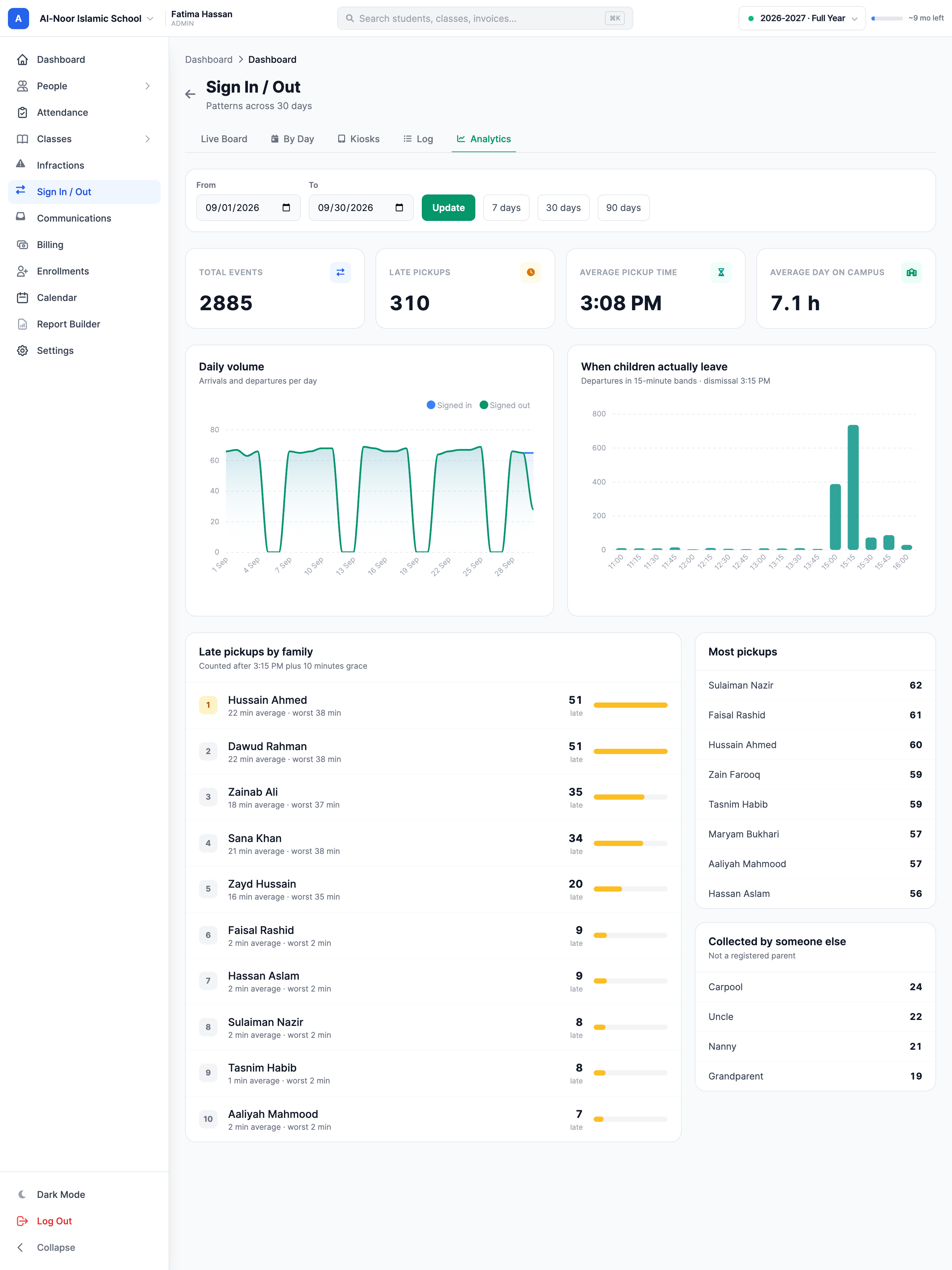
- Total events — every sign-in and sign-out in the range.
- Late pickups — collections after dismissal plus grace.
- Average pickup time — the clock time children actually leave.
- Average day on campus — from sign-in to sign-out, for children who did both.
Daily volume plots arrivals against departures per day. The two lines normally sit on top of each other; a gap between them is a day when a lot of children were never signed out, which usually means a kiosk nobody used rather than children left on campus.
Who is chronically late, and who collects
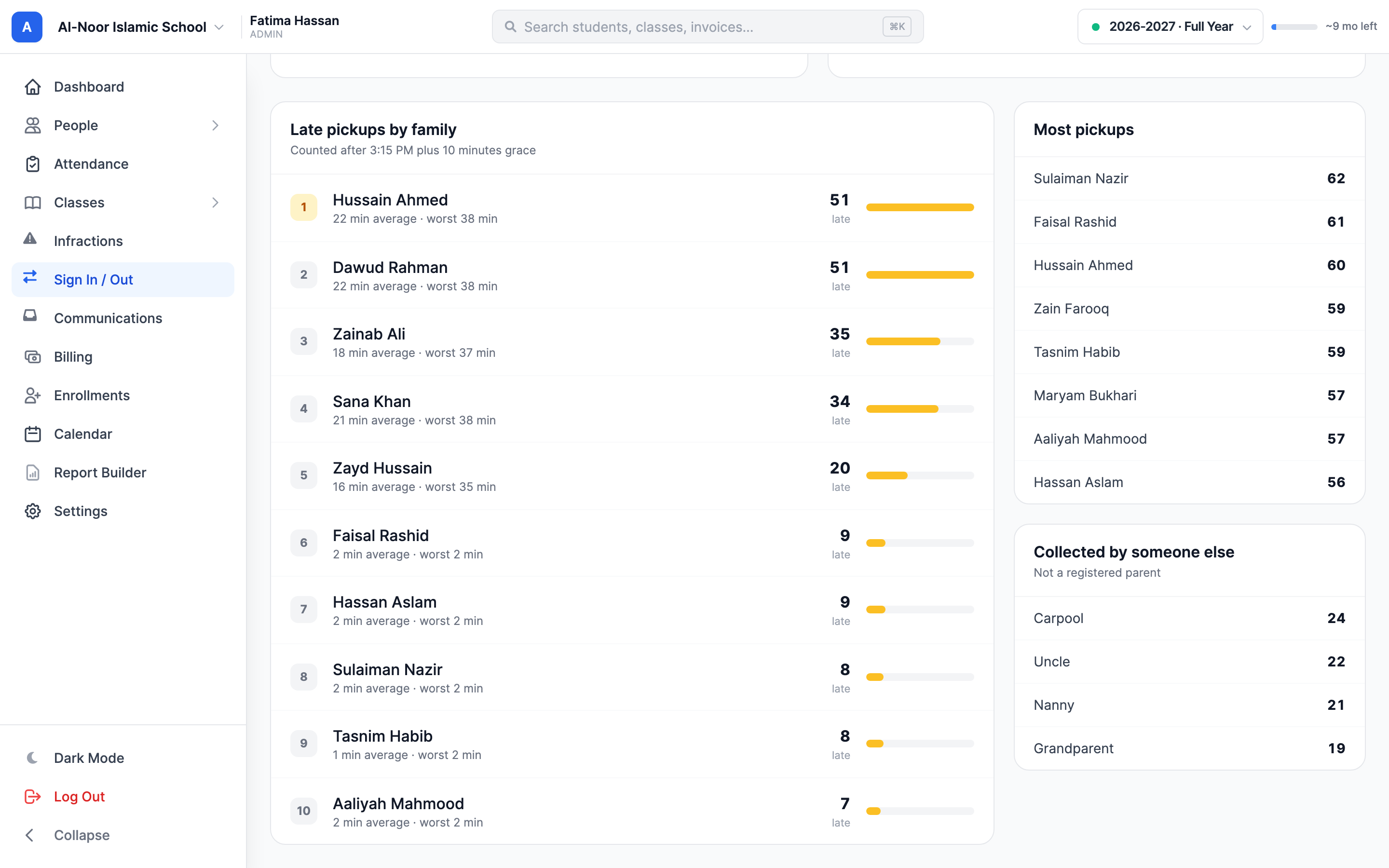
- Late pickups by family — ranked by how many times, with the average minutes late and the worst single instance. That is the difference between a family that was once stuck in traffic and a family that is twenty minutes late every day.
- Most pickups — who does the collecting, counted per person.
- Collected by someone else — how often a child leaves with an uncle, a carpool, a grandparent or a nanny rather than a registered parent.
The late leaderboard ranks by count, not by rate
A family collecting every single day has more opportunities to be late than one collecting twice a week. Read the average-minutes and worst columns alongside the count before you send anything home.
Step 4 — By Day and the live display
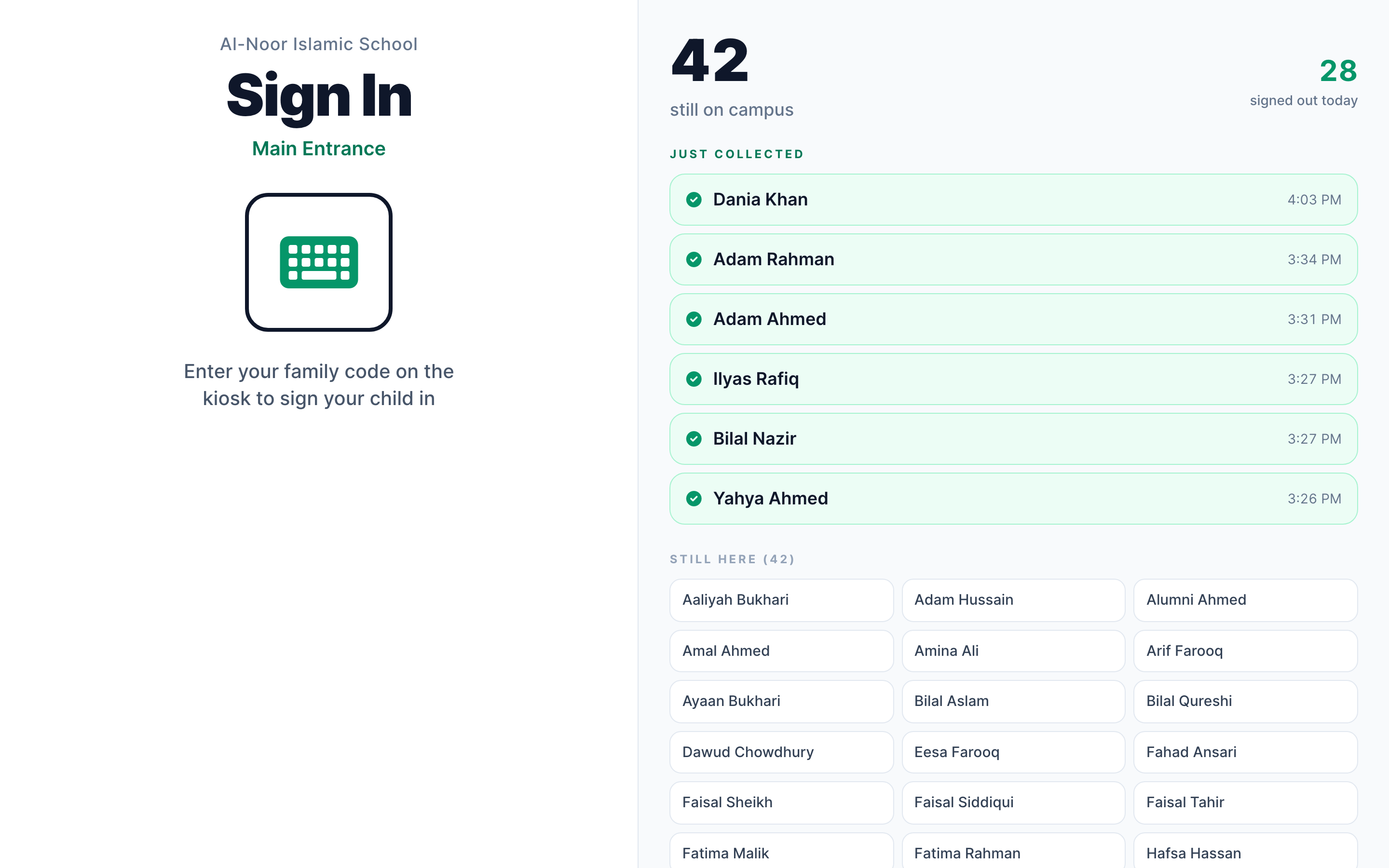
Use By Day to review arrivals and departures for a selected day. Open Kiosks to manage each station and its two separate links: Open PIN kiosk for parents to enter their code, and the live display for a front-desk screen.
The display shows school and station details, on-campus counts, and recent collections. Parents use the separate PIN kiosk to record a trip.
Who can see what
- Admins see the staff tabs, can create and rotate stations, and can void entries.
- Custom permission sets need sign_in_out granted explicitly.
- Everything is scoped to the school in the URL — switch schools in the top bar to see another one.
Next steps
More in Attendance
Still stuck?
Our team is happy to walk you through it.