
Sign children in and out with your family PIN
At the school's door, use your family's 4-digit code to sign children in or out on the PIN kiosk. The code shows only your own children at that school.
Step 1 — Get your family code
- Sign in to your parent account and open My Children.
- Find Your sign in / sign out code and click Create code.
- Save the code when it appears. If you forget it, New code replaces it and the old code stops working. The school office can also help.
If the code card is missing, check that you selected the right school and ask the office whether Sign In / Out is enabled.
Step 2 — Enter the code at the kiosk
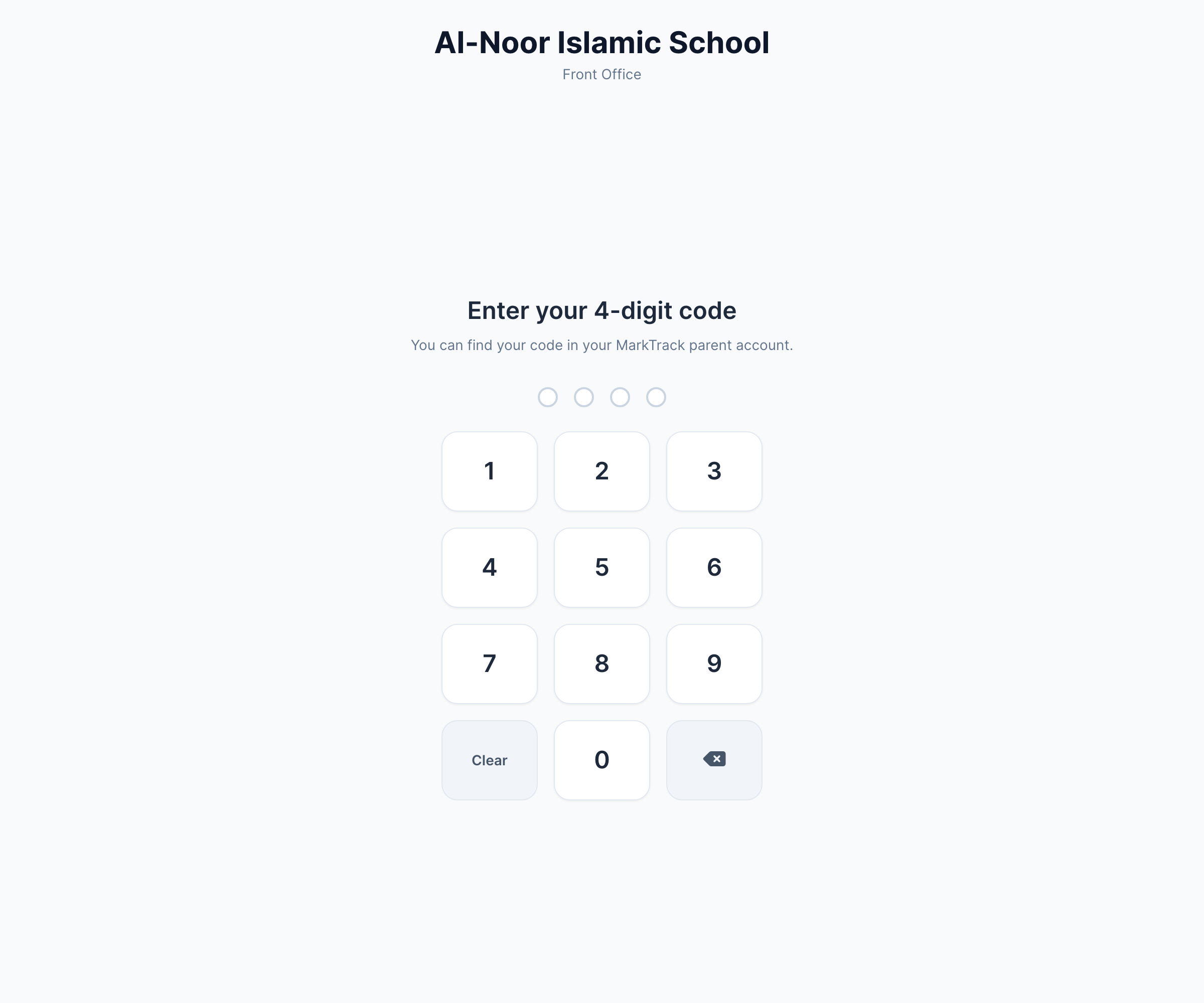
On the school's tablet, enter your four digits. Wait for your family screen to open. If the keypad reports too many attempts, wait for its cooldown and ask the office to check your code.
Step 3 — Choose the children and sign
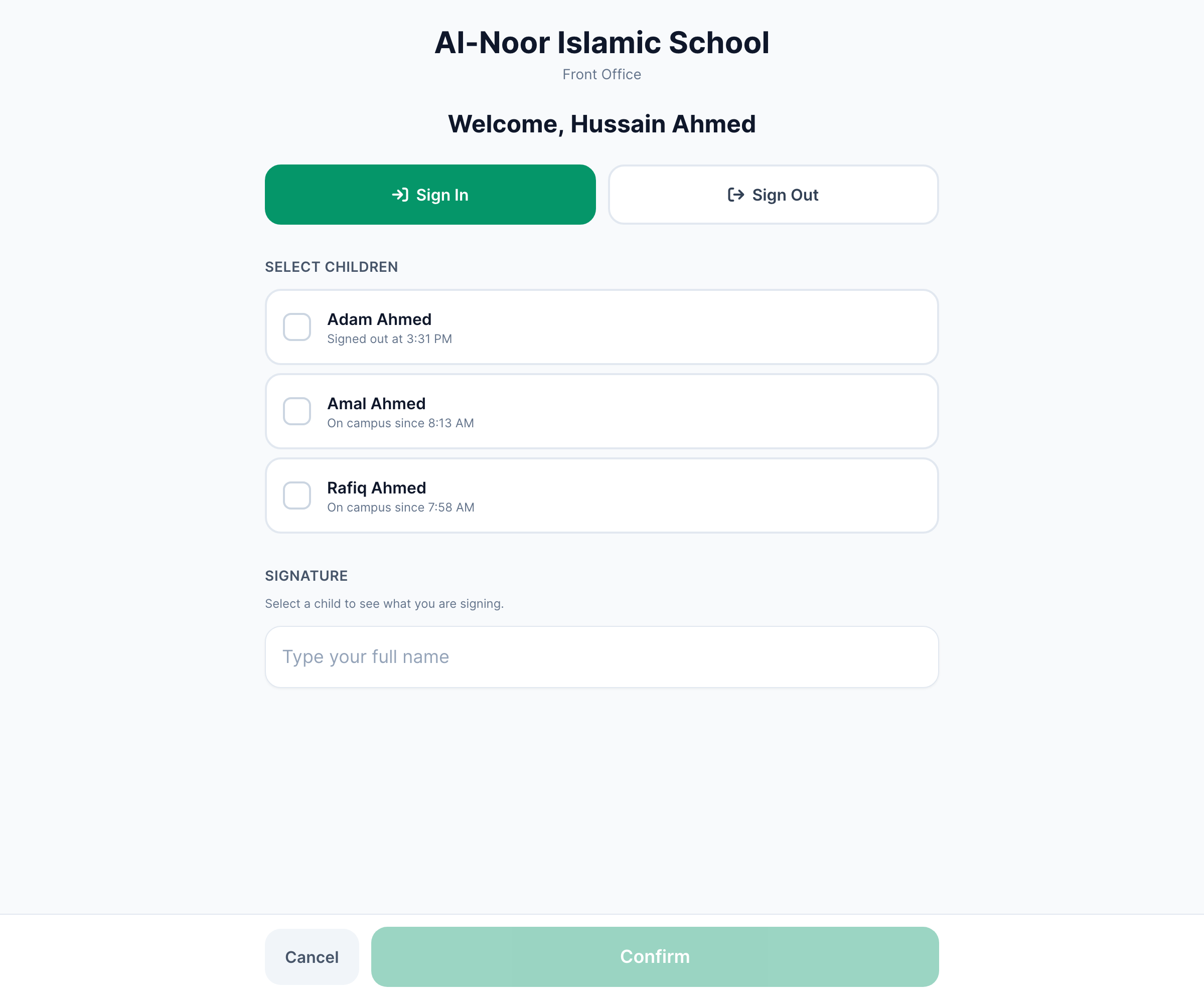
- Select the children you are dropping off or collecting. You can select siblings together.
- Check whether the action is Sign in or Sign out. Choose the direction when the kiosk offers both.
- For an early pickup, select the reason. Complete any extra explanation requested for Other.
- Read the statement above the signature field and type your name.
- Press the confirmation button and wait for the success screen before leaving.
If a child is missing, ask the office to check the parent link and enrollment in this school. Do not use another family's code. If you recorded the wrong action, the office can review and correct the entry.
School staff can follow Set up the kiosk and The live board, log and analytics.
More in For Parents
Still stuck?
Our team is happy to walk you through it.