
Attendance and absence requests
MarkTrack shows you exactly how your child's attendance was recorded, class by class and day by day — and lets you tell the school in advance when they're going to be out, instead of phoning the office. This page covers both.
Where to see attendance
There are two views, and they answer different questions.
1. The Attendance page — one child, one week, all classes
Click Attendance in the left-hand menu. Pick a child from the Viewing: row at the top, and you get a grid: one row per class, one column per day of the week, with arrows to move between weeks.
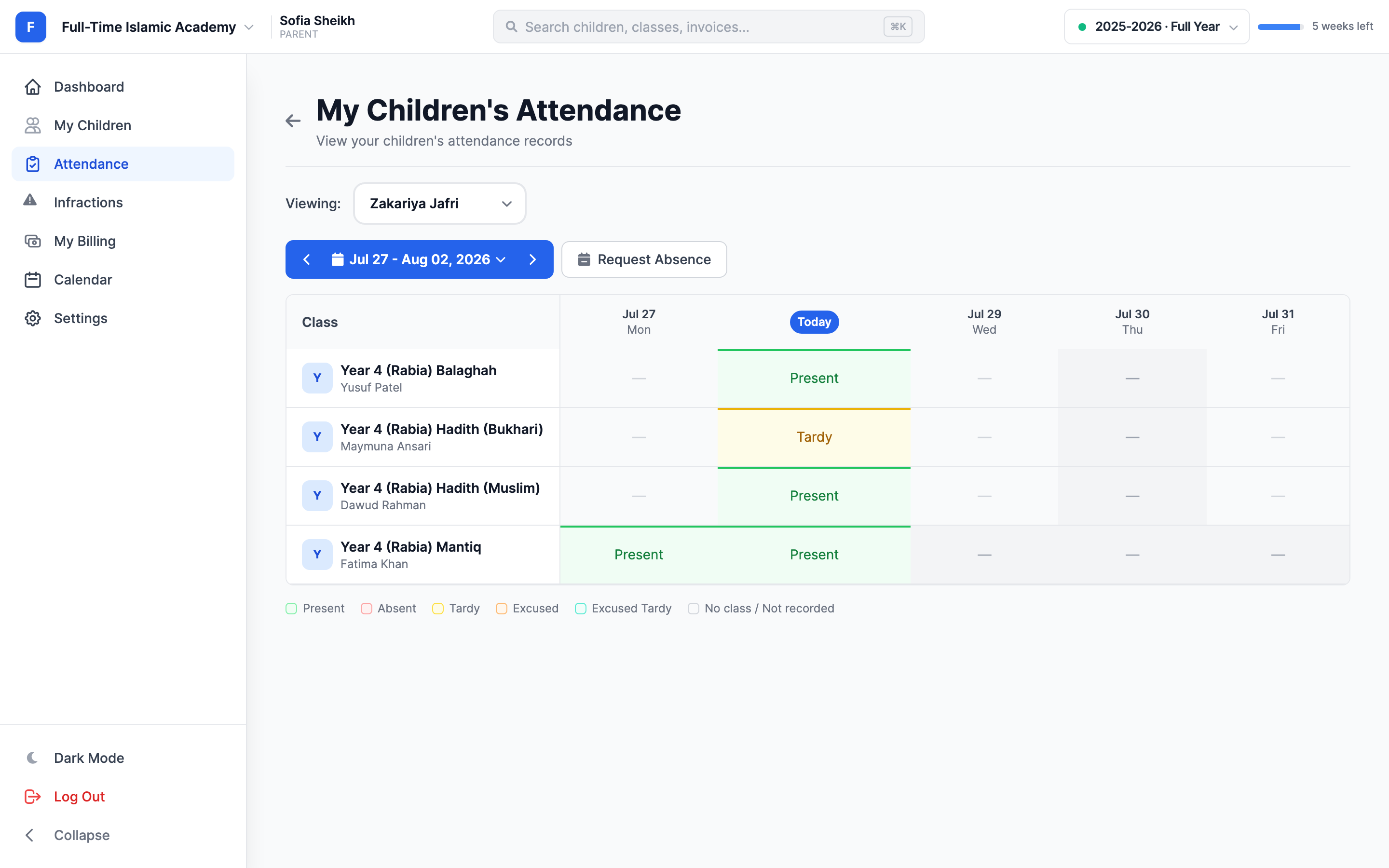
The legend at the bottom explains every mark you can see:
- Present — in class.
- Absent — not in class, and not excused.
- Tardy — arrived late.
- Excused — absent, but the school accepted the reason.
- Excused Tardy — late, but excused.
- No class / Not recorded — shown as a dash. There was no class that day, or the teacher hasn't taken the register yet.
A dash isn't a problem
Attendance is taken per class, not per day, and teachers often submit later in the day. A dash usually just means "not taken yet". If it's still blank a few days later, ask the teacher.
2. The child's Attendance tab — the running log
Open My Children → your child → the Attendance tab for a simple reverse-chronological list of every record: the date, and whether it was Present, Tardy or an Excused Absence. Their overall attendance percentage and total absences are in the stat tiles above.
Requesting an absence
If you already know your child will miss school — an appointment, travel, a family event — send an absence request. It goes to the school office, who approve or decline it. A parent can submit for a linked child; a student with their own login can also submit for themselves, even when a parent is linked.
Step 1 — Open the form
There's a Request Absence button in two places:
- On the Attendance page, next to the week selector.
- On your child's Attendance tab, as + Request Absence.
Either opens the same form, already pointed at the right child ("for [child's name]").
Running late? Next to each Request Absence button there's a Late Arrival button. It opens the same form titled Report Late Arrival, with Late Arrival already chosen, today's date and a 10:00 AM arrival time. Change the time, pick a reason and submit. You can still switch to another type in the form.
Step 2 — Choose what to report
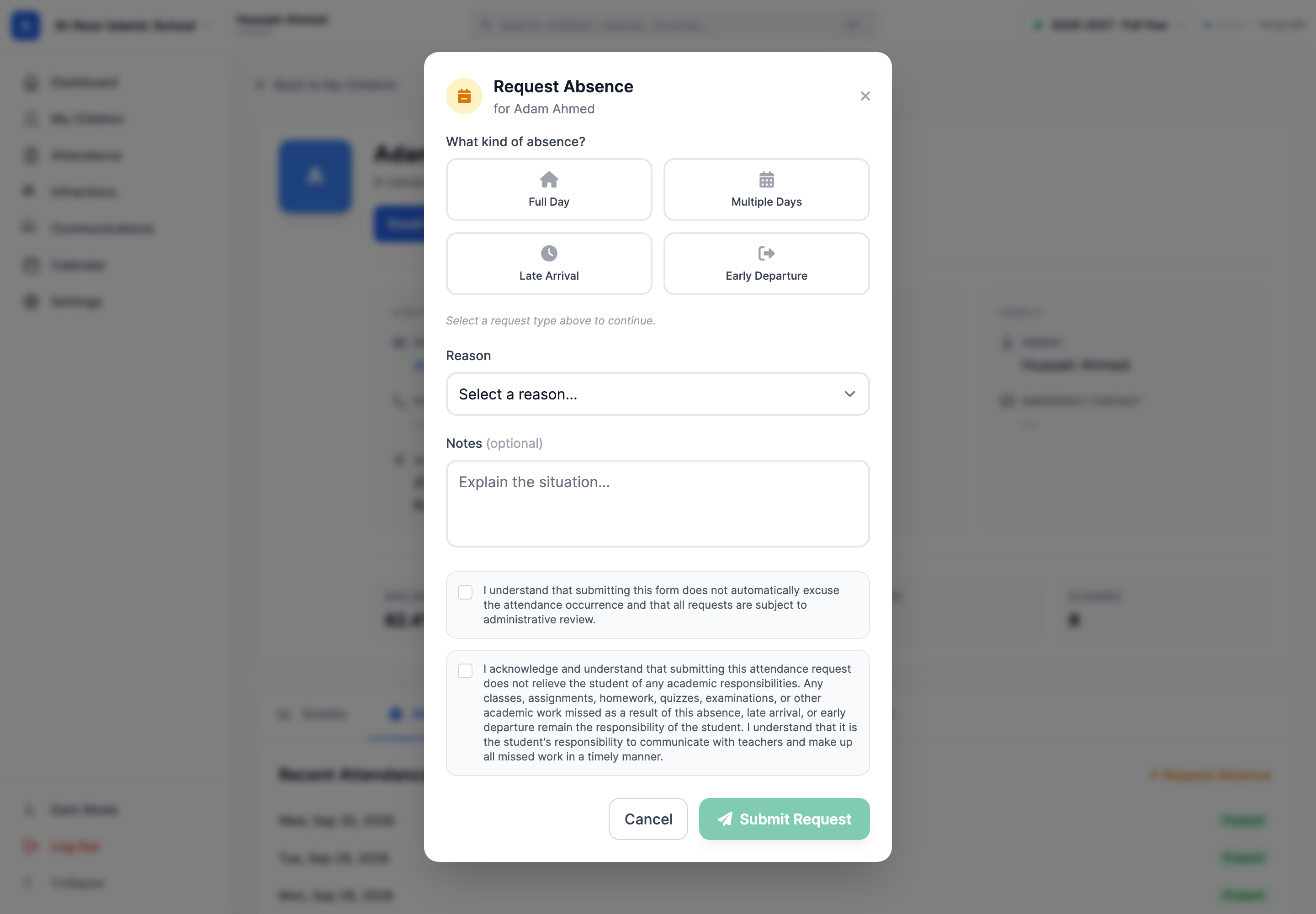
Under What do you need to report? pick one. The date and time fields depend on the type:
- Full Day — out for a single whole day. You give one date.
- Multiple Days — out for a run of days. You give a start and an end date.
- Late Arrival — coming in late. You give the date and the expected arrival time.
- Early Departure — leaving early. You give the date and the departure time.
Step 3 — Pick a reason
Choose the closest match from the Reason dropdown:
- Illness/Medical
- Medical appointment
- Family emergency
- Bereavement
- Travel
- Immigration/legal appointment
- Weather
- Overslept
- Personal
- Other
Step 4 — Add notes
Notes (optional) is free text. Use it for anything the office needs to know — a return time, a flight number, "she'll be back for the afternoon". Short and specific gets approved faster.
Step 5 — Tick both acknowledgements
Two checkboxes are mandatory, and they say something important:
- Submitting the form does not automatically excuse the absence — every request is reviewed.
- Your child is still responsible for missed work — classes, homework, quizzes and exams. It's on them to talk to their teachers and catch up.
Your school writes this wording itself, so yours may differ slightly. Read it.
Step 6 — Submit
Click Submit Request. It goes to the office straight away with a status of Pending.
Two limits to know
You can't request a date in the past, and a single request can't span more than 30 days. For a past absence, or a longer leave, contact the office directly.
There's nowhere to attach a doctor's note
The form doesn't take file uploads. If your school wants documentation, email it to the office and mention it in the Notes box.
Tracking your requests
Each child has an Absence Requests list showing everything you've submitted for them, newest first, with the dates, the type, the reason, your notes, and when it was submitted and reviewed.
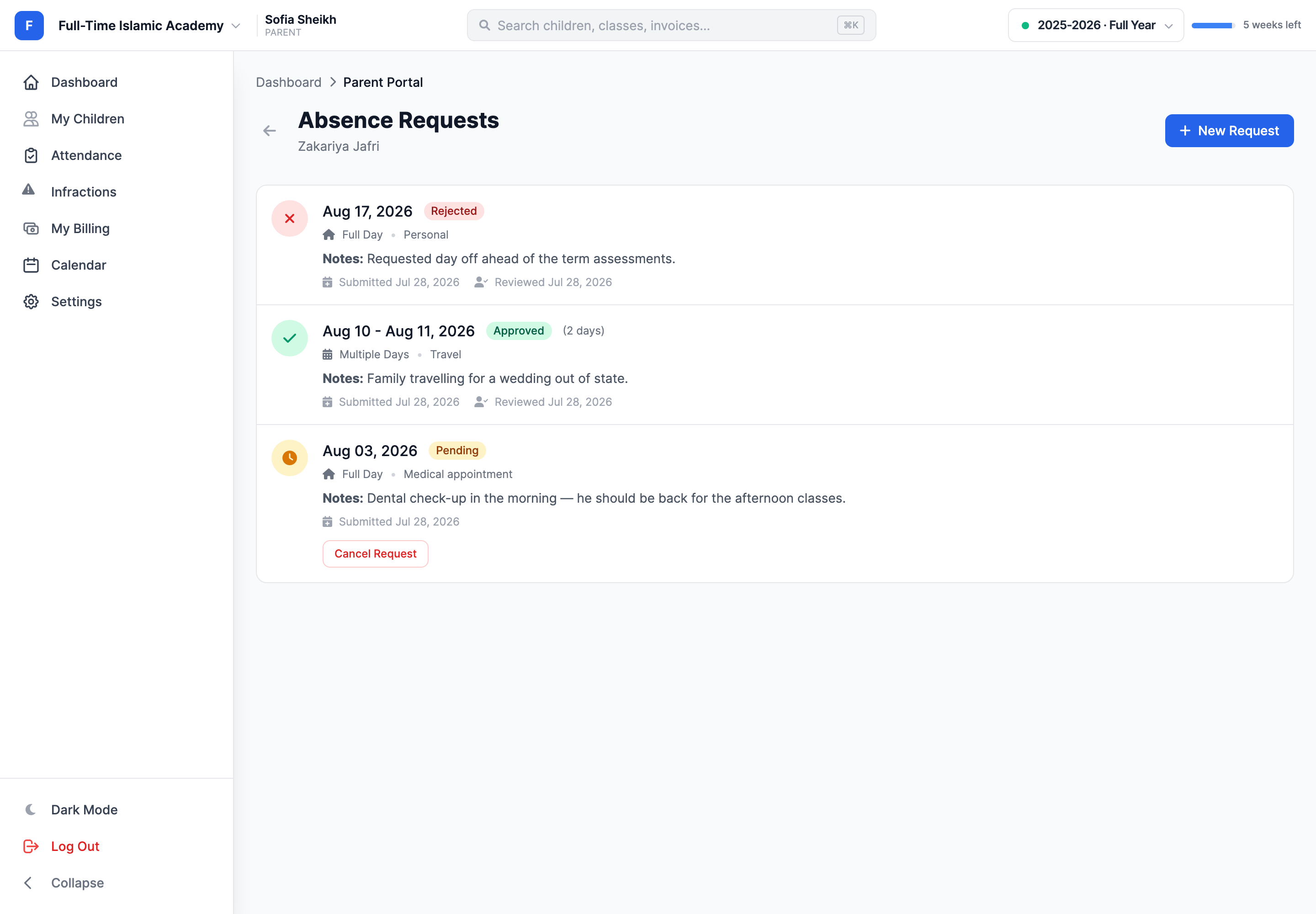
A request is always in one of four states:
- Pending — waiting on the office. You can still cancel it.
- Approved — accepted. The attendance result depends on the request type; see below.
- Rejected — declined. The absence is recorded normally, not excused.
- Cancelled — you withdrew it before it was reviewed.
Cancelling a request
Plans changed? Open the child's Absence Requests list and click Cancel Request on the pending entry.
Cancel only appears while a request is Pending. Once the office has approved or rejected it, the button is gone — contact them directly to undo it.
What happens after approval
The office reviews the request and records a decision. MarkTrack applies the approved request to the selected child, school and dates as follows:
- Full Day or Multiple Days — scheduled class days in the requested school are marked Excused Absence. Days without a class meeting are left alone.
- Late Arrival — an existing Absent, Tardy or unmarked attendance record can become Excused Tardy. A record already marked Present or Excused Absence stays as it is.
- Early Departure — the request is linked to existing attendance records for the date; it does not change the attendance status.
The decision and its date show on the request in your list. If a request is rejected, attendance stays under the school's normal marking process.
Troubleshooting
My request is still Pending
Nobody has reviewed it yet. MarkTrack doesn't approve requests automatically and there's no fixed turnaround — if the date is close, phone the office.
It was approved but the day still shows as Absent
Give it a moment and refresh; the excused records are written when the request is approved. If a class was already marked before approval, the teacher may need to update it — mention it to the office.
I can't pick the date I want
Past dates are blocked, and requests are capped at 30 days. Both are deliberate — talk to the office for anything outside those limits.
I don't see a Request Absence button
Your school hasn't turned absence requests on. Report absences the way they've asked you to — usually a phone call or an email.
Attendance looks wrong
Only teachers and administrators can change an attendance record — parents can't edit them. Contact the class teacher with the date and the class.
More in For Parents
Still stuck?
Our team is happy to walk you through it.