
Announcements, calendar and messaging your school
MarkTrack is how your school talks to you and how you talk back. This page covers announcements, the school calendar, sending a message to a teacher or the office, and getting notifications on your phone.
Announcements
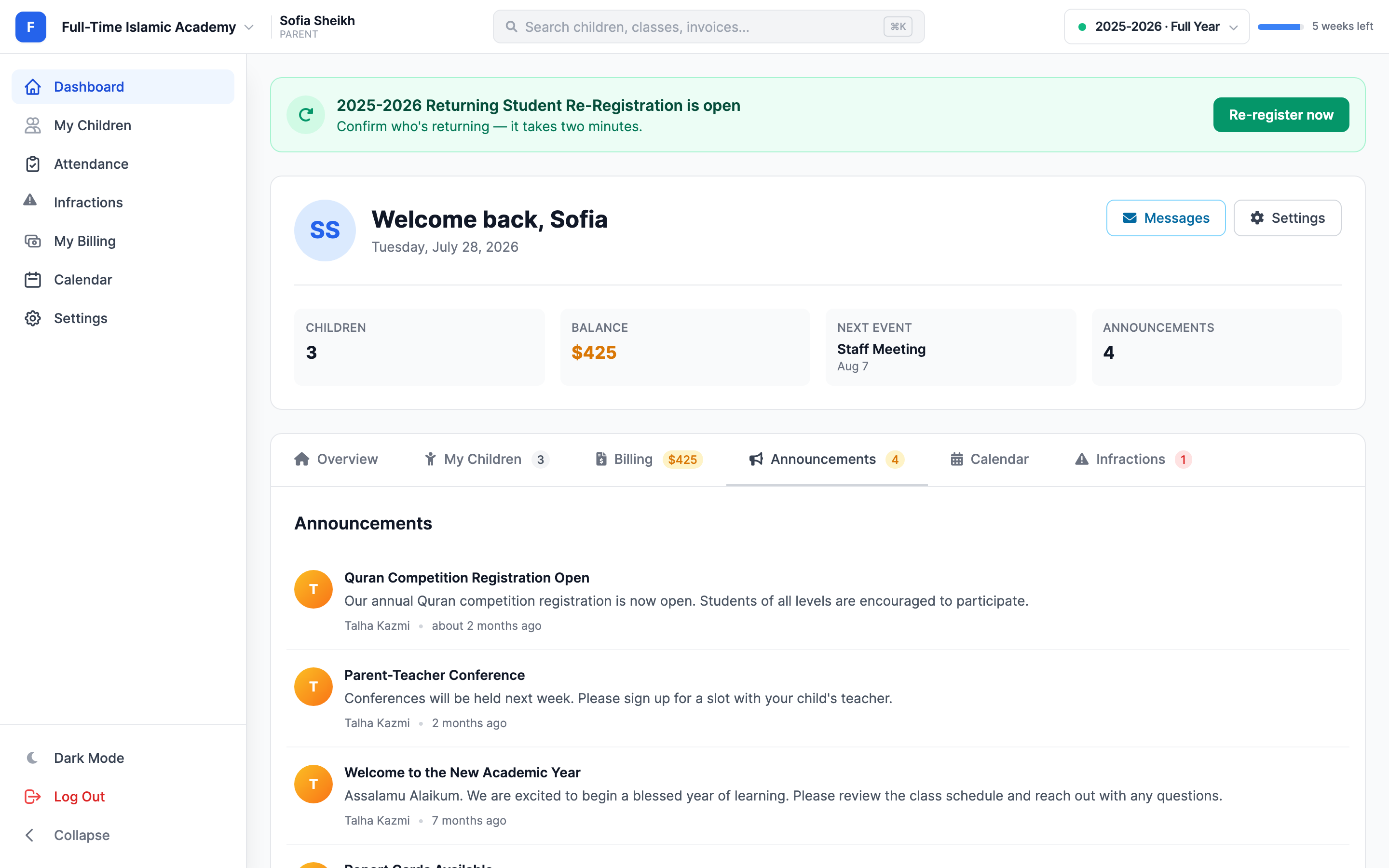
Announcements are notices the school posts to families — a competition, a conference, a closure, a reminder. You'll see them in three places:
- An Announcements count card at the top of your dashboard.
- A Latest Announcements panel on the Overview tab, with View all for the rest.
- The Announcements tab, which lists every notice you can see.
Each shows a title, the message, and how long ago it was posted. Urgent notices may also pop up over the page when you sign in — read it and click Dismiss.
Announcements are one-way
You can't reply to an announcement. If you have a question about one, send a message (below) or contact the office.
The calendar
Calendar in the left-hand menu brings together assignments, holidays and school events in one place.
- Switch between Month, Week and List views. List is easiest on a phone.
- Today jumps back to the current date.
- Use the Filter row to show or hide Holiday, Assignment Due, School Event and Class Schedule — or click All / None.
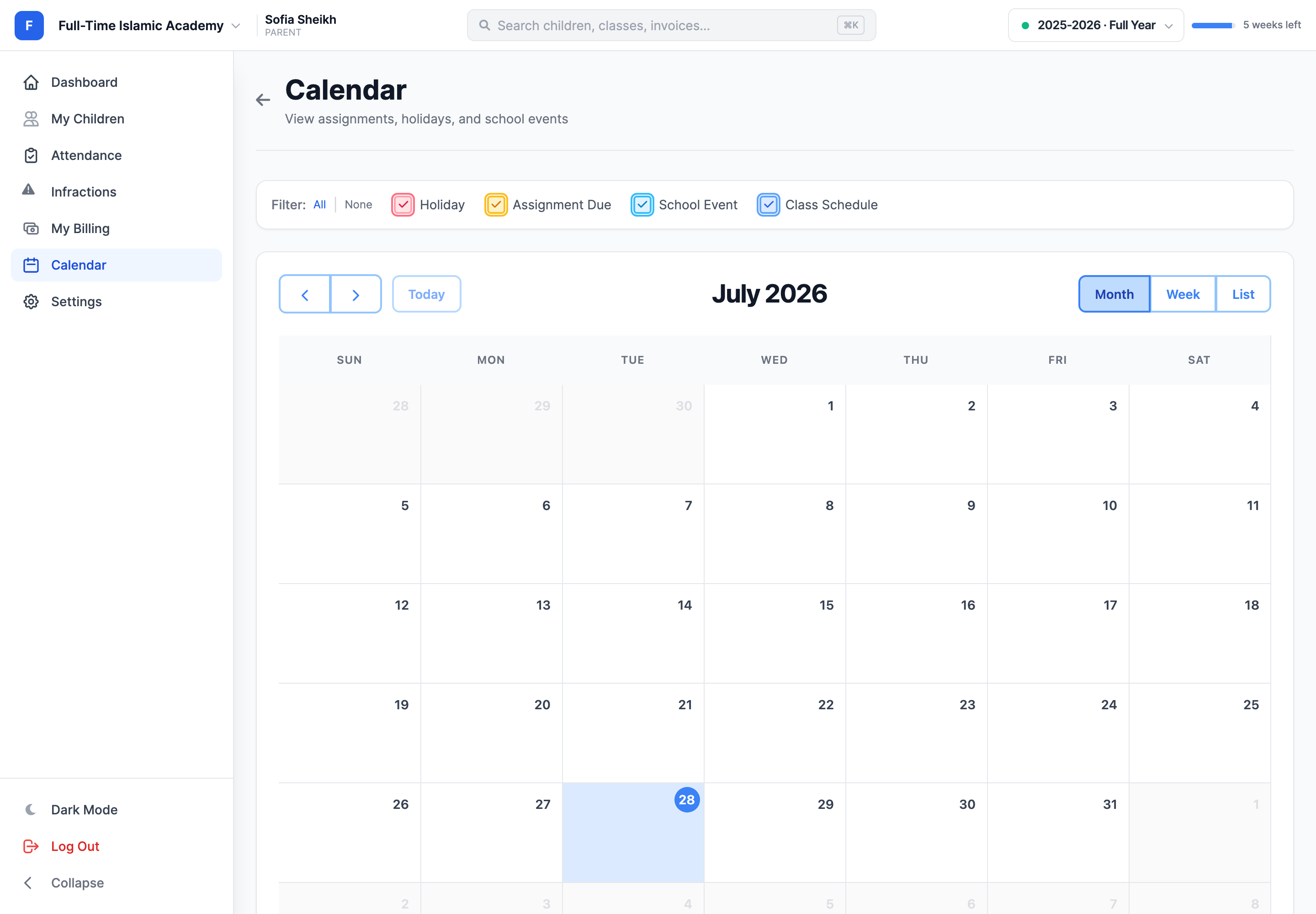
Your dashboard also shows a Next Event card so you don't have to open the calendar just to check what's coming.
Messaging your school
You can message your children's teachers and your school's administrators from inside MarkTrack, with attachments — no need to hunt for an email address.
Step 1 — Open Messages
Click Messages at the top of your dashboard, next to the greeting.
Step 2 — Choose who it goes to
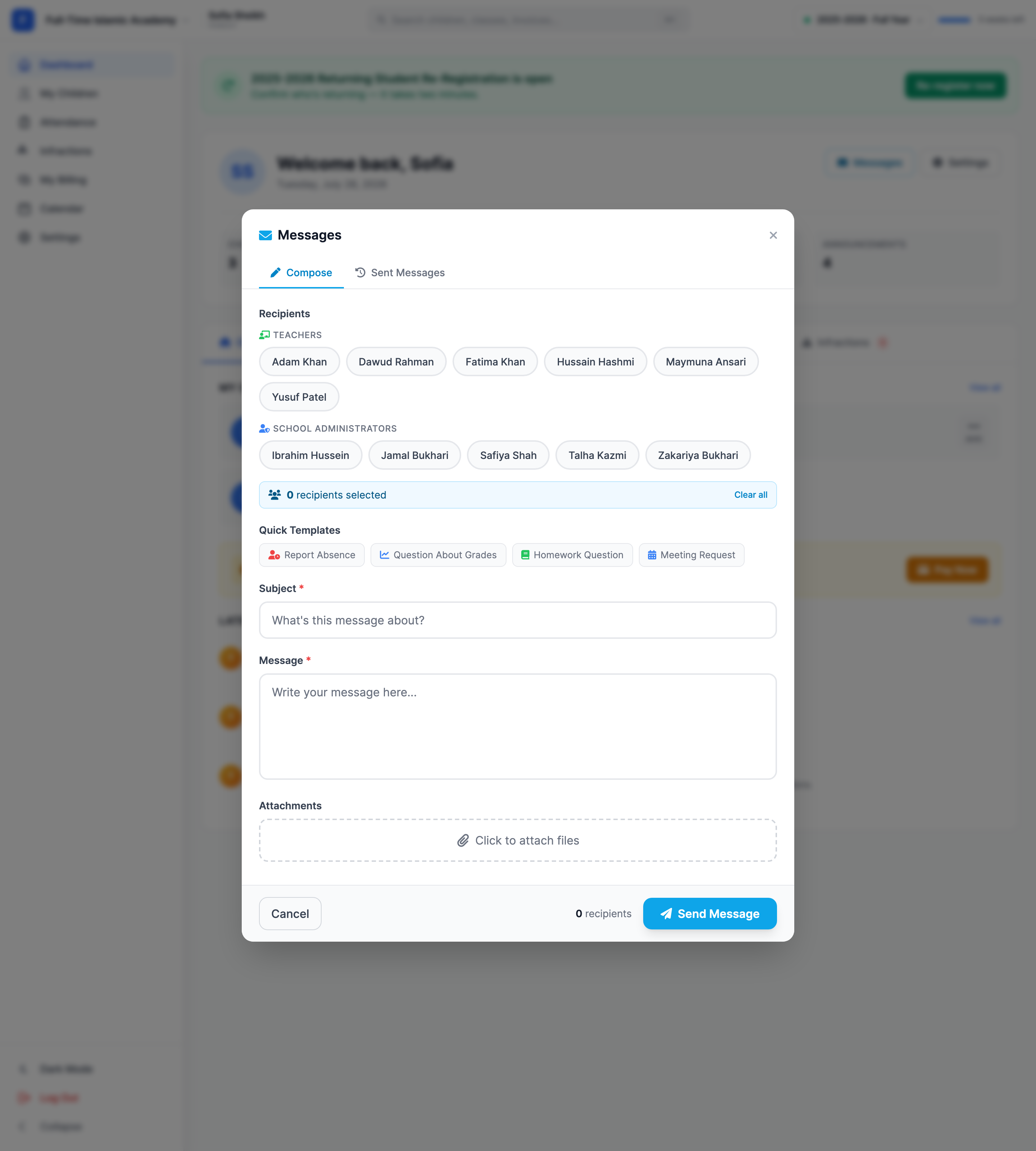
The Recipients list is split into Teachers — only the teachers who actually teach your children — and School Administrators. Click a name to select it; click again to unselect. A running count shows how many you've picked, and Clear all resets it.
Step 3 — Use a template, or write your own
Quick Templates fill in a starting subject and body for you:
- Report Absence
- Question About Grades
- Homework Question
- Meeting Request
Edit whatever they insert — they're a head start, not a form.
Step 4 — Subject, message and attachments
Subject and Message are both required. Under Attachments, click to attach files — a photo of a form, a doctor's note, a screenshot.
Step 5 — Send
Click Send Message. The button shows how many recipients you've picked, so you can sanity-check before sending. Everything you've sent is kept under the Sent Messages tab.
Replies come back by email, not in MarkTrack
Messages go out to staff, but there's no parent inbox in the portal. Staff reply to your email address — so watch your email, and check spam if you're expecting an answer.
Use the absence form, not a message, for planned absences
A message is just a note to a person. An absence request is tracked, reviewed, and actually marks the day excused when approved.
Email you'll get from MarkTrack
Beyond announcements, your school's setup decides which of these you receive:
- Your welcome email with a temporary password, and password reset emails.
- New invoices, payment receipts and overdue reminders.
- Report cards, as PDF attachments.
- Decisions on absence requests, and behaviour notifications.
Not getting them? Check spam, add your school's address to your contacts, and confirm with the office that they have the right email for you — you can see which address your account uses on the Settings page.
The mobile app
MarkTrack has parent apps for iOS and Android. Sign in with the same email and password as the website. The apps cover the same ground — children, grades, attendance, absence requests, announcements and billing — and can send push notifications so urgent announcements reach you without you having to check.
- Allow notifications when the app asks, otherwise pushes are silently blocked by your phone.
- Signing in on your phone doesn't sign you out on your computer.
Troubleshooting
A teacher isn't in my recipients list
Only teachers who currently teach one of your children appear. If someone's missing, your child may not be enrolled in their class yet — ask the office.
My message won't send
Check that you've picked at least one recipient and filled in both Subject and Message. Very large attachments can also fail — send a smaller file or a photo instead.
I'm not getting announcements
Announcements can be aimed at particular schools, year groups or classes, so you'll only see the ones meant for your family. If you think you're missing something, ask the office.
An announcement popup keeps coming back
Click Dismiss rather than navigating away — that's what marks it as read.
More in For Parents
Still stuck?
Our team is happy to walk you through it.