
Following your child's Qaidah progress
If your child is in a Qāʿidah class, their teacher records what was covered every day — which chapter, page or tajwīd rule — along with any homework and a short note for you. This guide shows you where to find it.
Finding your child's Qaidah page
- Sign in and open My Children.
- Click your child's name.
- Choose the Qaidah tab. If homework is outstanding, the tab carries a number.
- Click the class name to open the full page.
Where your child has reached
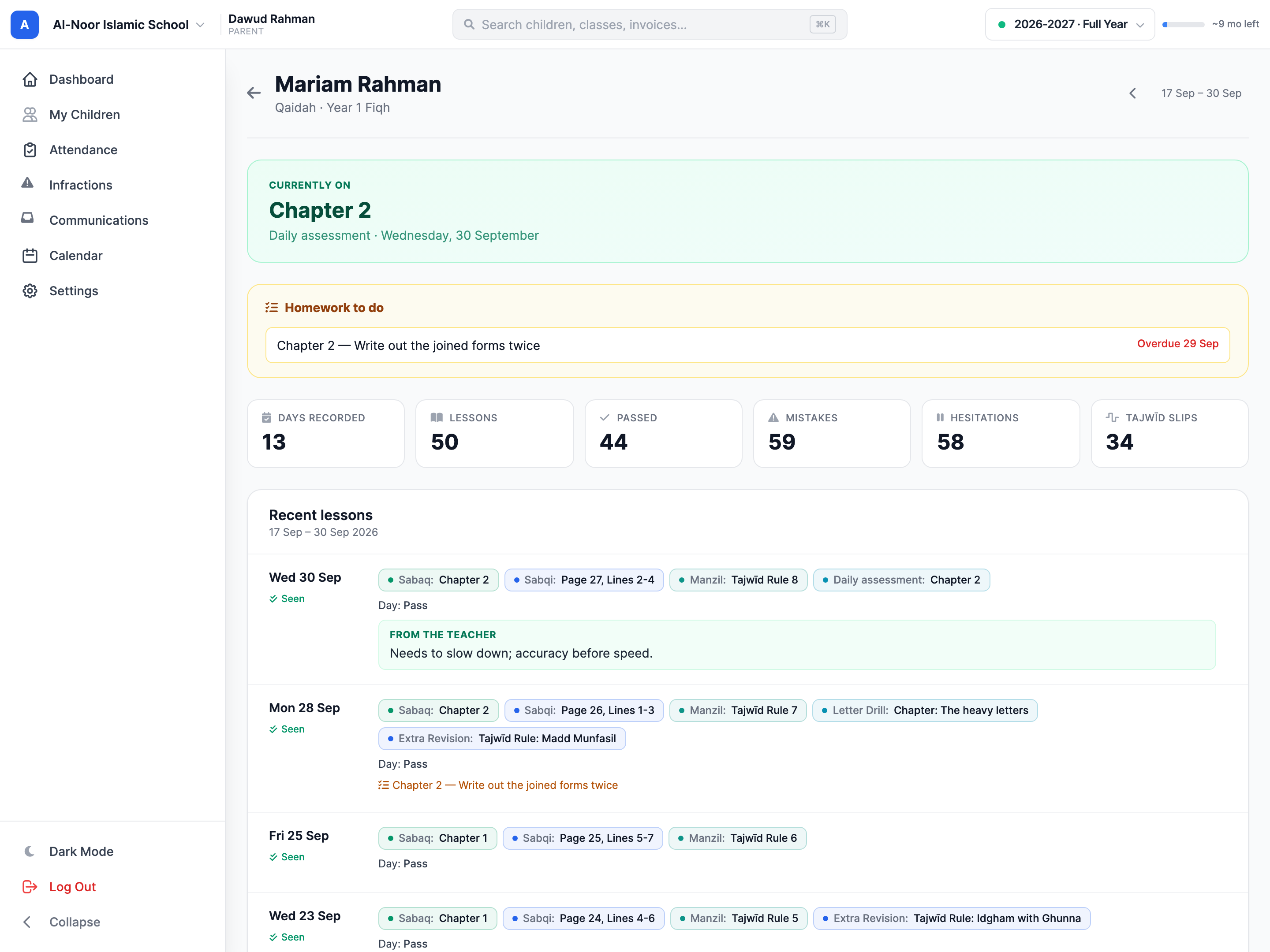
The green panel at the top — Currently on — is the most recent lesson recorded, which slot it was in, and when. This is the answer to "how far along is my child".
Why it might say a chapter, a page, or a rule
Every school teaches from a different Qāʿidah, so teachers record lessons in whichever way their book is organised — Chapter 4, Page 12, Lines 3-5, or Tajwīd Rule: Pronouncing Ghunna. All three mean the same thing: this is what your child worked on.
Homework
The amber Homework to do panel lists everything still outstanding, newest due date first. Anything past its due date is marked Overdue in red.
If the teacher attached a worksheet, a scan, or a recording, it appears as a small blue button under the task. Tap it and it opens inside MarkTrack — you can page through a PDF and pinch to zoom on a phone, without downloading anything.
You do not mark homework complete yourself; the teacher does that in class. Once they do, it disappears from this panel and shows as done in the daily log.
The daily log
Recent lessons shows roughly the last two weeks. Each day lists the slots covered as coloured chips — Sabaq, Sabqi, Manzil and any others your school uses — and the lesson recorded in each.
When the teacher has written to you, it appears in a green box marked From the teacher. This is the place to look for things like "please practise the heavy letters at home".
Letting the teacher know you have seen it
Each day has a Mark as seen button. Tapping it tells the teacher you have read that day — nothing more. It is not a grade, it does not affect your child, and there is no penalty for missing one.
It genuinely helps: a teacher who writes a note home has no way of knowing whether it was read. Days you have confirmed show a small Seen tick.
One check-in per day covers both guardians
If both parents have accounts, either can mark a day as seen and it counts for the family — you do not both need to tap it.
The four numbers
- Days recorded — days the teacher logged a lesson for your child.
- Lessons — total lessons across all slots (a single day usually has three).
- Passed — lessons marked as passed.
- Mistakes — total slips noted. A number here is normal and is how a teacher tracks which sounds need work; it is not a score.
On your phone
Everything here is in the MarkTrack mobile app too — where your child has reached, homework with its attachments, the teacher's note, and the check-in button.
If something looks wrong
The page reflects exactly what the teacher entered. If a lesson looks wrong, a day is missing, or homework is listed that your child was told not to do, message the teacher through MarkTrack — they can correct the record and it updates here immediately.
More in For Parents
Still stuck?
Our team is happy to walk you through it.