
Your dashboard and My Children
Your dashboard is the first thing you see after signing in, and My Children is where you go to look at one child in detail. This page is a guided tour of both.
The dashboard
The header greets you by name — Welcome back, [your name] — and underneath sit four summary cards covering your whole family:
- Children — how many children are linked to your account.
- Balance — what you currently owe across all of them.
- Next Event — the next thing on the school calendar.
- Announcements — how many recent notices there are.
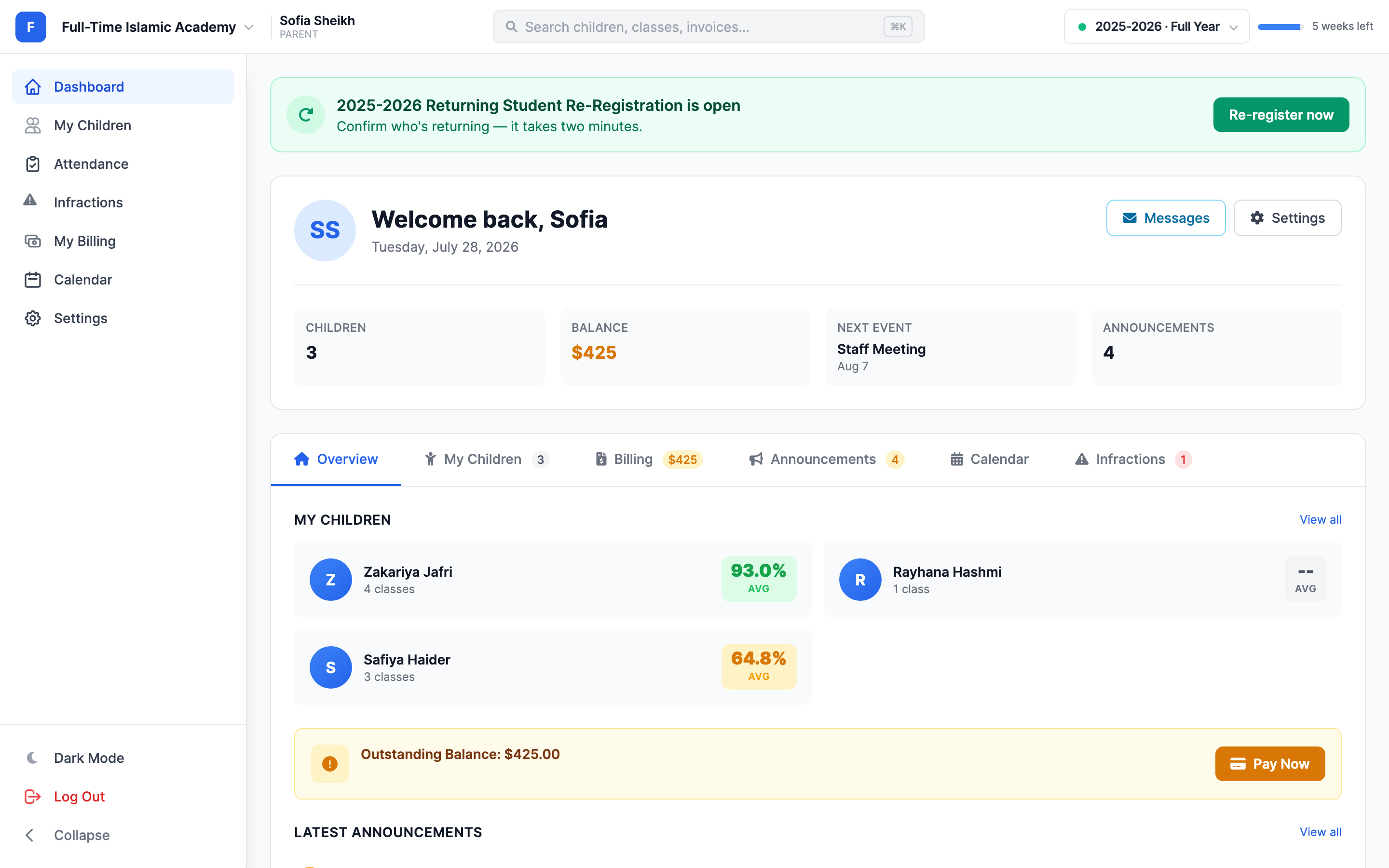
Below the cards is a row of tabs that switch the panel underneath without leaving the page:
- Overview — your children, your outstanding balance with a Pay Now button, and the latest announcements.
- My Children — the same child cards, with a count badge.
- Billing — a shortcut into what you owe; the tab itself shows the amount.
- Announcements — everything the school has posted, with a count badge.
- Calendar — upcoming school events.
- Infractions — behaviour records, with a count badge. Only appears if there are any.
Banners at the top are worth reading
Time-sensitive prompts appear above the greeting — for example a Re-register now link when the school opens re-registration. They disappear once you've acted on them.
The left-hand menu
Everything a parent can reach is in this one list:
- Dashboard — back to home.
- My Children — the list of your children.
- Attendance — a week-by-week attendance grid for one child at a time.
- Infractions — behaviour records, if your school uses them.
- My Billing — invoices, payments, cards, auto-pay.
- Calendar — the school calendar.
- Settings — your account and password.
At the top you'll also find a search box (or press ⌘K / Ctrl+K) that searches your children, their classes and your invoices. At the bottom there's a Dark Mode toggle, Log Out, and Collapse to shrink the menu to icons.
Two more controls sit in the bar across the top: your school name on the left (click it to switch schools if your children are in more than one), and the academic year on the right.
My Children
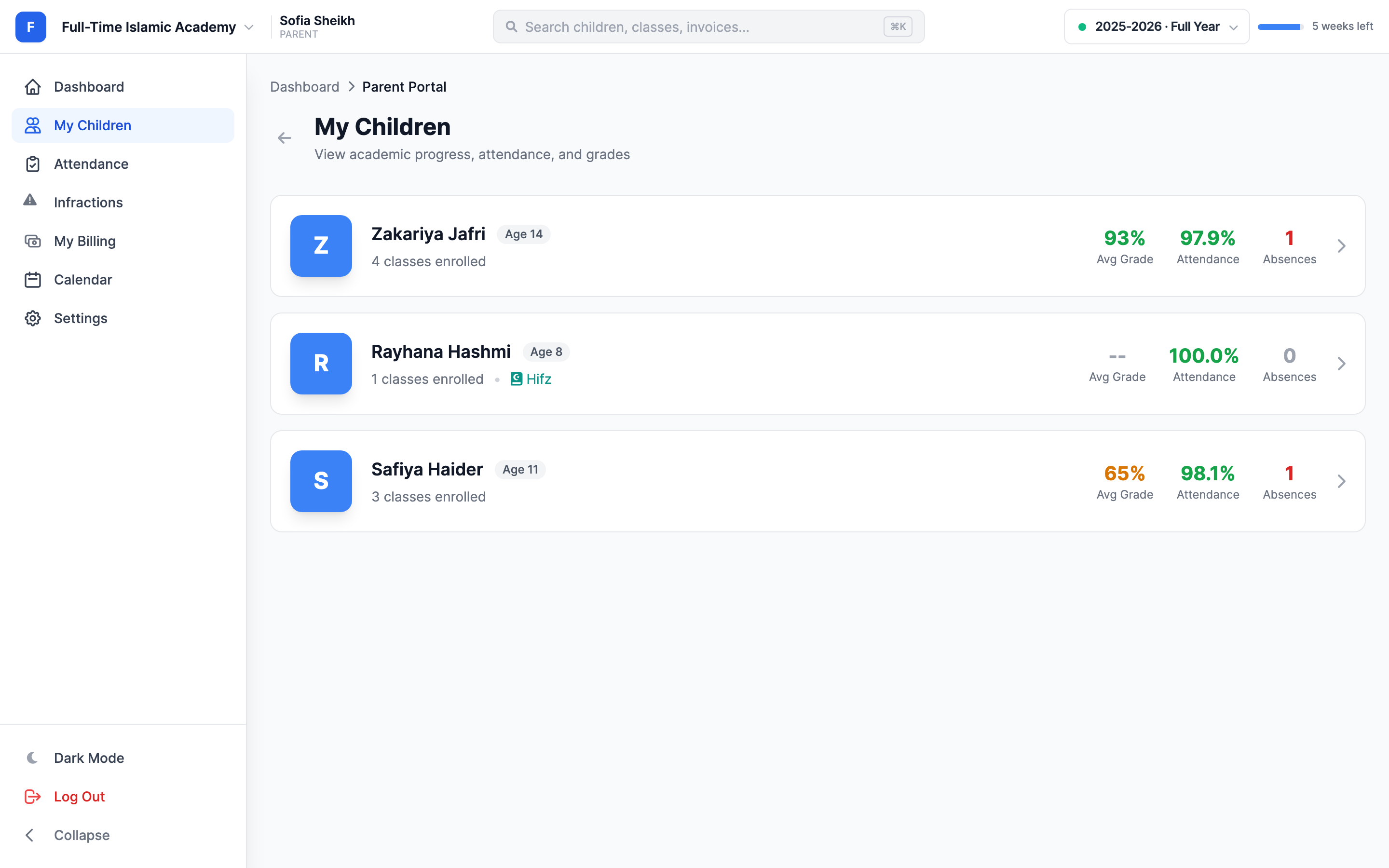
Click My Children for one card per child, each showing their initial, age, how many classes they're in, and their headline numbers — average grade, attendance percentage and number of absences.
A child's page
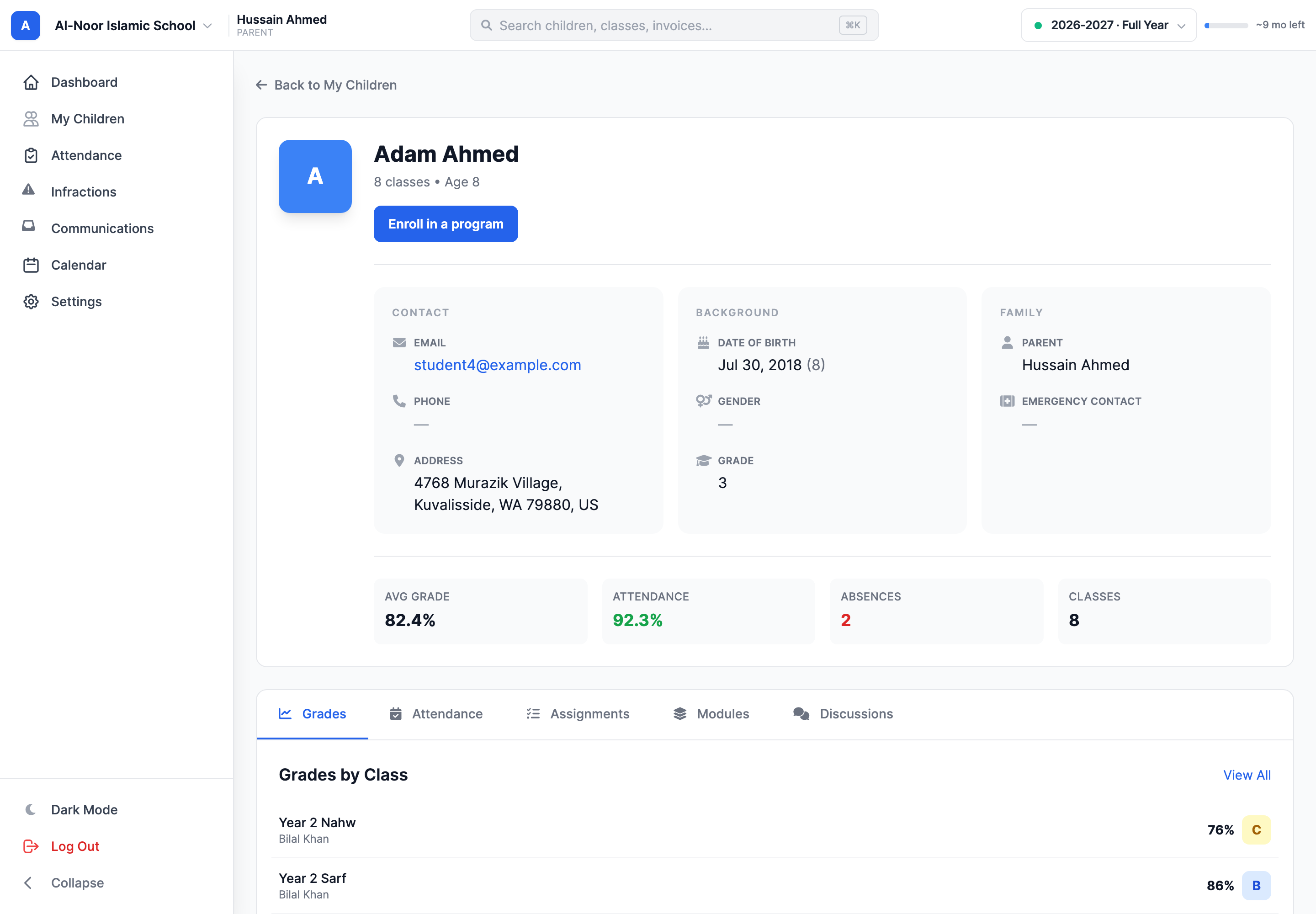
Opening a child gives you their full picture. The top of the page shows:
- Their name, how many classes they're in and their age.
- Contact — email, phone and address on file.
- Background — date of birth, gender and grade.
- Family — the parents linked to them.
- Four stat tiles: Avg Grade, Attendance, Absences and Classes.
The child's profile also has an Enroll in a program button. If your school has another open program, use it to start an application for this same child; their name and profile details carry into the form. See Apply to another program for your child.
The tabs
- Grades — every class with its teacher, a percentage and a letter grade. View All opens the full grade report.
- Attendance — the recent attendance log, day by day, with a + Request Absence button.
-
Assignments — recent work with its class, due date and score. A score of
--means it hasn't been marked yet. - Hifz — only appears if the child is in a Hifz class. See Grades and progress.
- Qaidah — appears when the child has Qaidah progress to view. See Following your child's Qaidah progress.
- Billing — what's owed for that child specifically; the tab shows the amount.
A child's details are read-only
You can see your child's contact details, date of birth and grade, but you can't edit them here. Ask the school office to correct anything that's wrong.
The academic year selector
In the top bar you'll see the current term, for example 2025-2026 · Full Year, with how long is left in it. If your school has set up multiple terms, switching here changes which grades and attendance you're looking at. If a child's grades suddenly look empty, check you're on the right term.
Searching
The search box at the top of the menu (⌘K / Ctrl+K) is the fastest way to jump around — start typing a child's name, a class or an invoice number and pick the result.
Troubleshooting
One of my children is missing
Either the school hasn't linked them to your account, or you're looking at a different school and that child is in another one. Check the school switcher at the top left first — see Get your account and sign in.
My child's average grade shows "--"
Nothing has been published for them yet. Averages only count published, marked work.
The balance on my dashboard doesn't match My Billing
The dashboard balance follows the school you're currently viewing. If your children are split across more than one school, switch schools to see the rest.
My child's age looks wrong
Age is calculated from the date of birth on their record. If it's wrong, the date of birth is wrong — ask the office to fix it.
More in For Parents
Still stuck?
Our team is happy to walk you through it.