
Order meals with Lunch Forms
Use Lunch Forms to choose meals for a child and see earlier orders in one place. The school must enable Lunch Forms and publish an open menu for the school you're viewing.
Step 1 — Open Lunch Forms
Sign in, check the school name in the school switcher, and choose Lunch Forms from the menu. If you don't see it, ask the school whether lunch ordering is enabled there. If the page says no menu is available, the school has not opened one for ordering yet.
Step 2 — Choose a child and menu
If your account is linked to more than one child, select the child you are ordering for. When more than one menu is open, choose the menu you need. Check the ordering deadline and any menu notes before selecting meals.
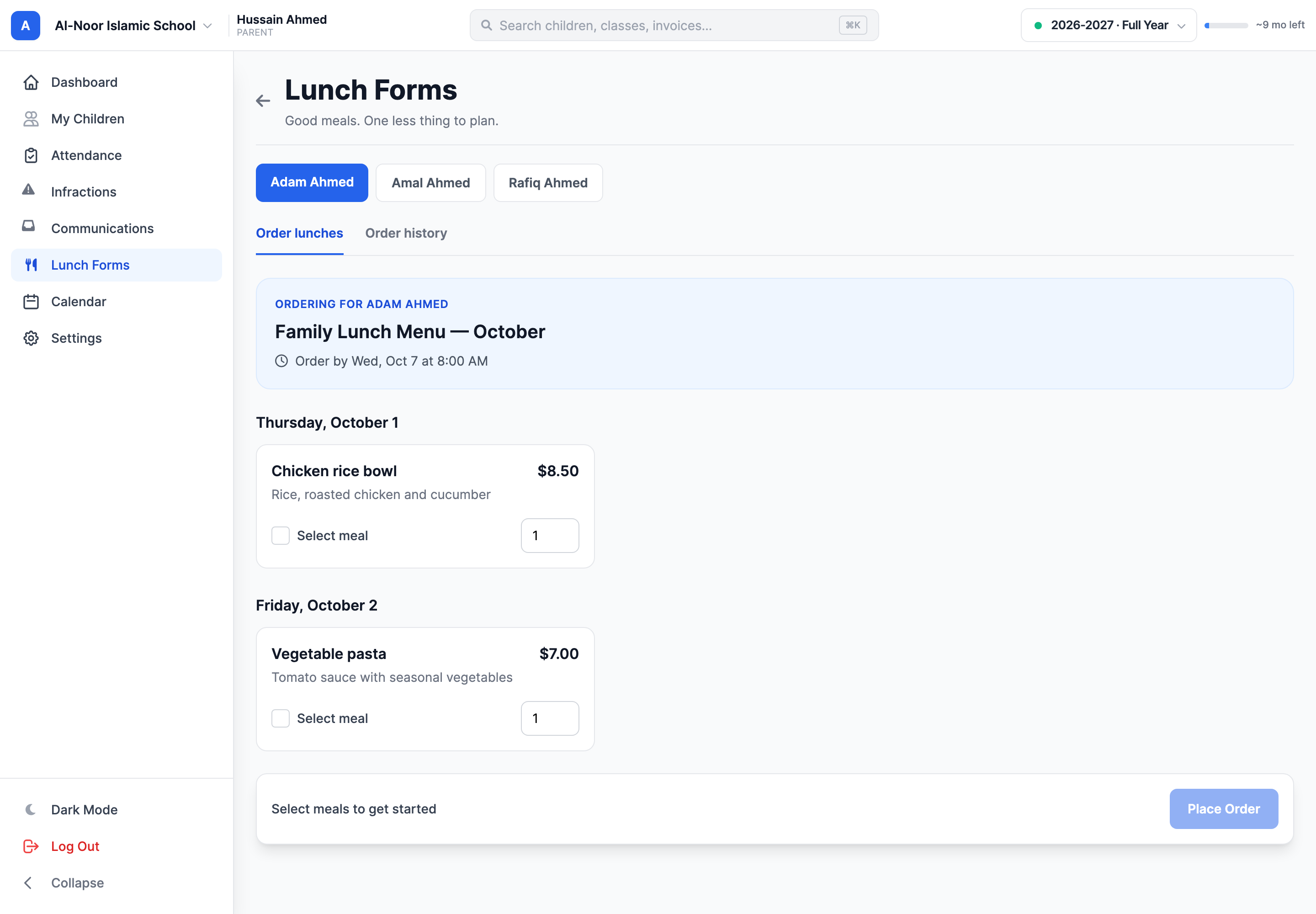
Step 3 — Select meals and place the order
- Choose the meals you want for each date and set a quantity from 1 to 100.
- Review the order summary and total at the bottom of the page.
- Choose Place Order. MarkTrack adds the order to an invoice for the family.
The order page confirms that the order was placed. Open My Billing to review and pay its invoice. Placing a meal order does not itself submit a card payment.
Change or check an order
Before the ordering deadline, use the order page to change a quantity or cancel an order that is still eligible for changes. Open Order history to check earlier meals, their payment status and the linked invoice. If payment has started, the deadline has passed, or the order cannot be changed, contact the school office.
Ordering from a shared link
Some schools also share a public lunch form. You can use that page without signing in, but it asks you to select a student and enter contact details. Keep the confirmation page to check the request status; contact the school if you need help.
For invoice payment steps, see Find and pay your invoices.
More in For Parents
Still stuck?
Our team is happy to walk you through it.