
Apply and enroll your child
Before you have a MarkTrack login, you'll usually meet the school through an application form. This page covers what that form asks for, how to save and come back to it, what happens after you submit, and how re-registration works for families who are already enrolled.
You don't need an account to apply
Application forms are public. Your school sends you a link, or posts it on their website. If you are new to MarkTrack, the school sends your sign-in instructions after creating your account; an existing parent keeps using their current login.
Already have a MarkTrack parent account? If you are applying for another program for a child already linked to you, start from My Children → your child → Enroll in a program. That flow reuses the child's profile. See Apply to another program for your child.
Step 1 — Open the link from your school
The link looks something like your-organization.marktrack.com/apply/…. Open it on a phone or a
computer — the form works on both. The top of the page shows your school's name and which program
you're applying to, so double-check you're on the right form if the school runs several.
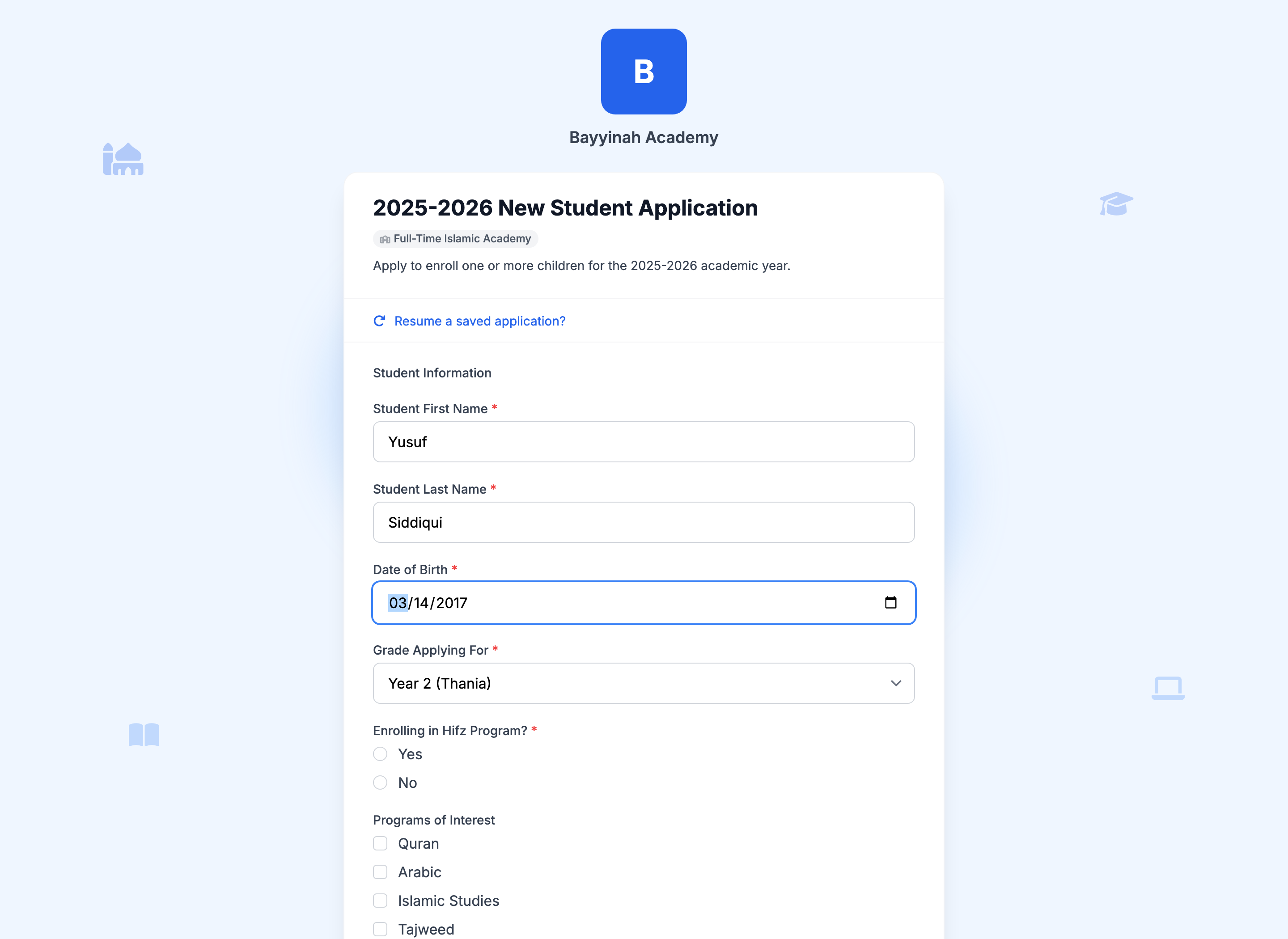
Step 2 — Fill in the form
Every school builds its own form, so the exact questions vary. Most ask for some combination of:
- Student information — name, date of birth, the grade or year you're applying for.
- Program choices — for example Quran, Arabic, Islamic Studies, Tajweed, or whether the child is joining a Hifz program.
- Parent/guardian information — your name, email and phone. Many forms have a second set of fields for a second guardian.
- Documents — a birth certificate, immunisation record or previous report card, uploaded with a Choose file… button.
- A confirmation checkbox — usually "I confirm that all information provided is accurate and complete."
Use an email address you actually check
The email you enter here becomes your MarkTrack login if you're accepted, and it's where the school sends your welcome link, invoices and announcements. A typo here is the single most common reason a family can't sign in later.
Step 3 — Add each child
If the form has a Children section, you can apply for several children in one go. Click + Add Another Child for each additional child and fill in their name, date of birth, gender, grade, previous school and any medical notes. Most forms allow up to five children per application.
Applying for siblings on one form means the school links them all to the same parent account — so you end up with one login covering the whole family, not one per child.
Step 4 — Save and come back later (optional)
Long forms save themselves as you type. If you close the tab halfway through, reopen the link and use the Resume a saved application? link at the top — enter the email address you were using, and your answers come back.
Step 5 — Pay the registration fee, if there is one
Some schools collect a registration or application fee as part of the form. If yours does, a payment step appears before you can submit; you pay by card there and then, and the receipt is emailed to you. If you don't see a payment step, your school isn't charging one at this stage.
Step 6 — Submit
Tick the confirmation box and click Submit Application. You'll land on a confirmation page and get a confirmation email. Keep it — it's your proof of submission.
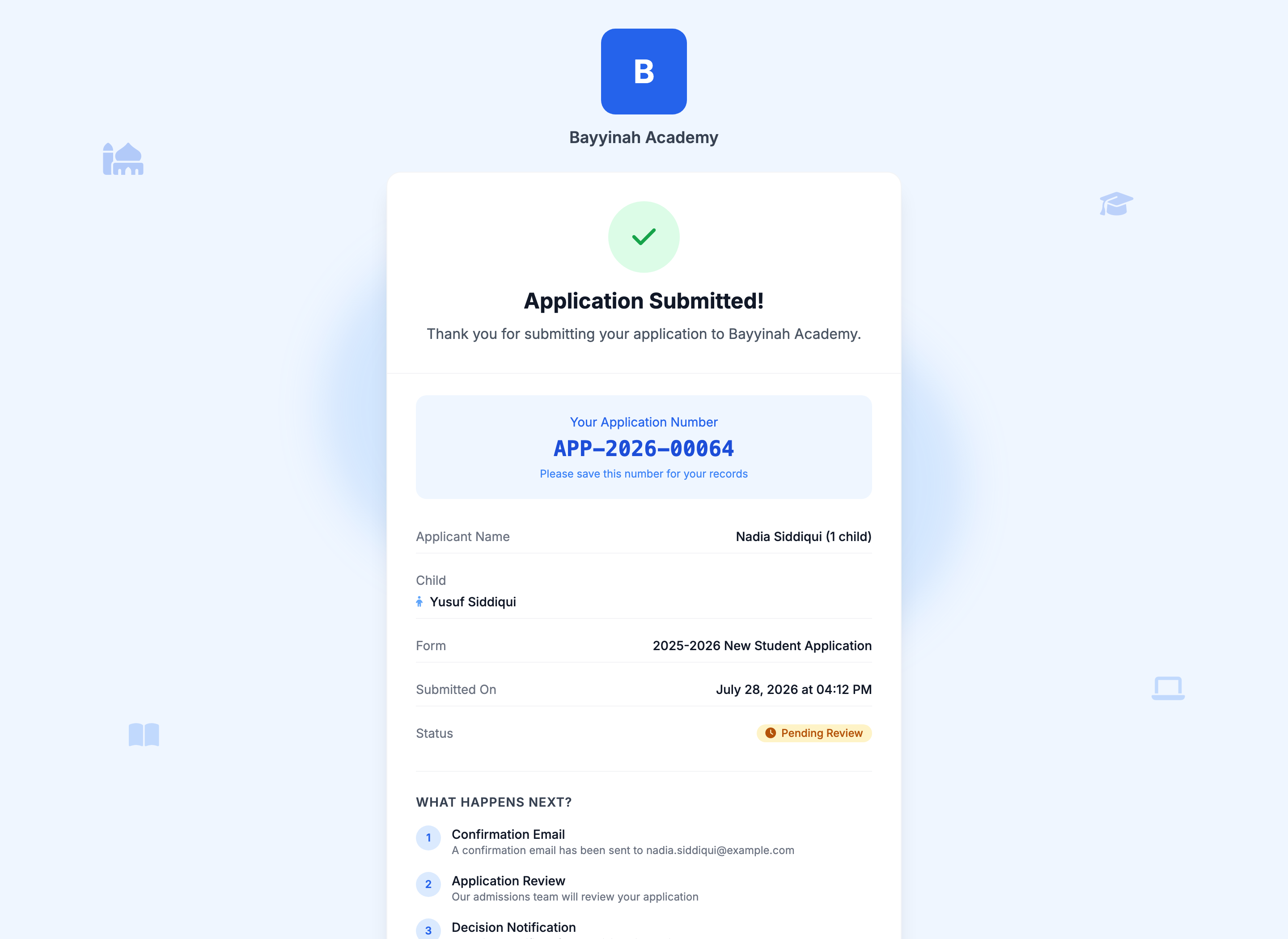
What happens next
- Your application lands in the school's enrollment queue.
- Staff review it, and may email you for missing documents or to arrange an interview or placement test.
- If you're accepted, MarkTrack creates or matches the family accounts and creates or enrolls each child as appropriate. If you are new to MarkTrack, the school sends sign-in instructions; an existing parent keeps using their current account.
- From that point on you sign in and everything moves to your parent portal — see Get your account and sign in.
How long does review take?
That's entirely up to your school — MarkTrack doesn't set a timeline. If you haven't heard back in a week or two, email the office and mention the date you applied.
Re-registration: for families already enrolled
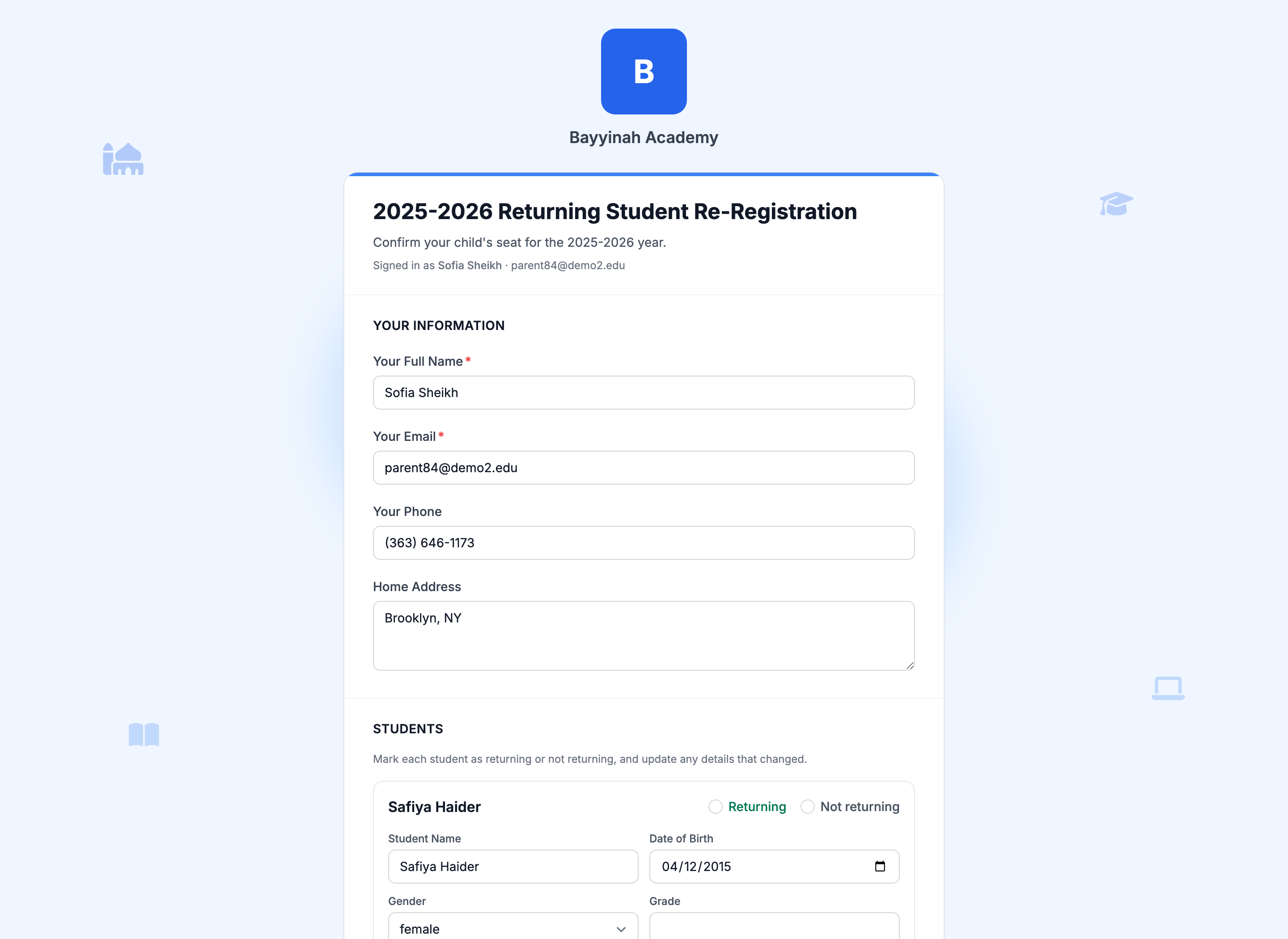
Each year, schools usually ask existing families to confirm whether their children are coming back. That's a re-registration form, and it's much shorter than a new application because MarkTrack already knows your family.
- Your name, email, phone and address are pre-filled — correct anything that's changed.
- Each of your children is listed with a Returning / Not returning choice. Mark each one.
- Update details that changed over the year — grade, medical notes, and so on.
- Submit. The school uses your answers to plan classes for next year.
Marking "Not returning" doesn't cancel what you owe
Outstanding invoices stay outstanding, and any withdrawal or refund policy is your school's. If your child is leaving, tell the office directly as well as on the form.
Troubleshooting
"This form is no longer accepting responses"
The school has closed the form — either the deadline passed or they've filled the intake. Contact the office; they can reopen it or handle you manually.
My file won't upload
Check the file size and type. Photos of documents work fine — take the picture in good light and make sure the whole page is in frame. If it still fails, submit without it and email the document to the office.
I submitted twice by mistake
Not a problem. Let the office know which one is correct and they'll discard the other. Don't fill in a third one hoping it will overwrite — it won't.
I applied but never got an account
Applying doesn't create a login by itself — the school has to accept you first. If they've told you you're accepted and you still can't sign in, check your spam folder for the welcome email, then ask the office to resend it.
More in For Parents
Still stuck?
Our team is happy to walk you through it.