
Get your account and sign in
This page covers how you get a MarkTrack parent account, what happens the first time you sign in, how to fix a password you've lost, and what you can (and can't) change about your own details.
There is no parent sign-up button
You can't create a parent account yourself, and you shouldn't try to — the "Start Free Trial" link on the login page is for schools, not families. Your school creates your account and emails you the link.
How you get an account
There are four ways a parent account comes into existence. All four end with an email to you:
- Your application was accepted. When the school accepts your enrollment form, MarkTrack creates your parent account and a student record for each child, and emails you a temporary password.
- The office added you directly. An administrator can create a parent record by hand — most common for families who enrolled on paper or over the phone.
-
You were invited. Some schools send an invitation link instead. It looks like
your-organization.marktrack.com/signup/…, and you set your own password on that page. - Your school moved onto MarkTrack. When a school migrates its records, every existing family is created in one batch and credentials are sent out together.
Step 1 — Find the welcome email
The email comes from your school and contains your email address (your username) and a temporary password. If you can't find it:
- Check spam / junk / promotions.
- Search your mailbox for your school's name, or for "MarkTrack".
- Still nothing? Ask the office to resend your credentials — they can do that in one click, and it's much faster than trying to guess.
Step 2 — Sign in
Go to your school's MarkTrack address and enter the email and password from the welcome email, then click Continue.
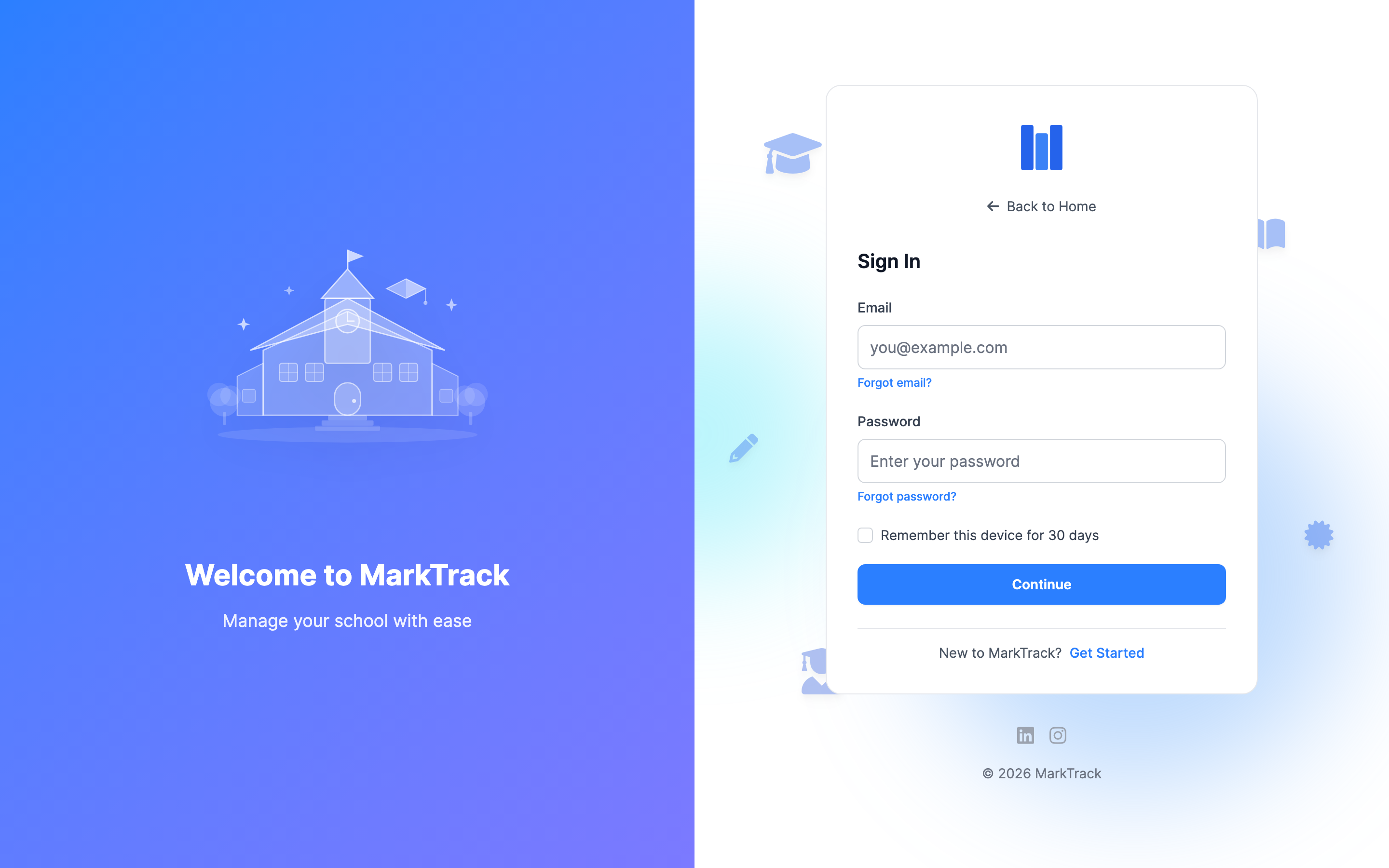
- Remember this device for 30 days saves you signing in again on a device you trust. Don't tick it on a shared or public computer.
- Forgot email? and Forgot password? are right next to the fields — see below.
Step 3 — Set your own password
The very first time you sign in with a temporary password, MarkTrack stops you at Set Up Your Password before letting you into the portal. Type a new password twice and click Set Password & Continue. The minimum is 6 characters; longer is better.
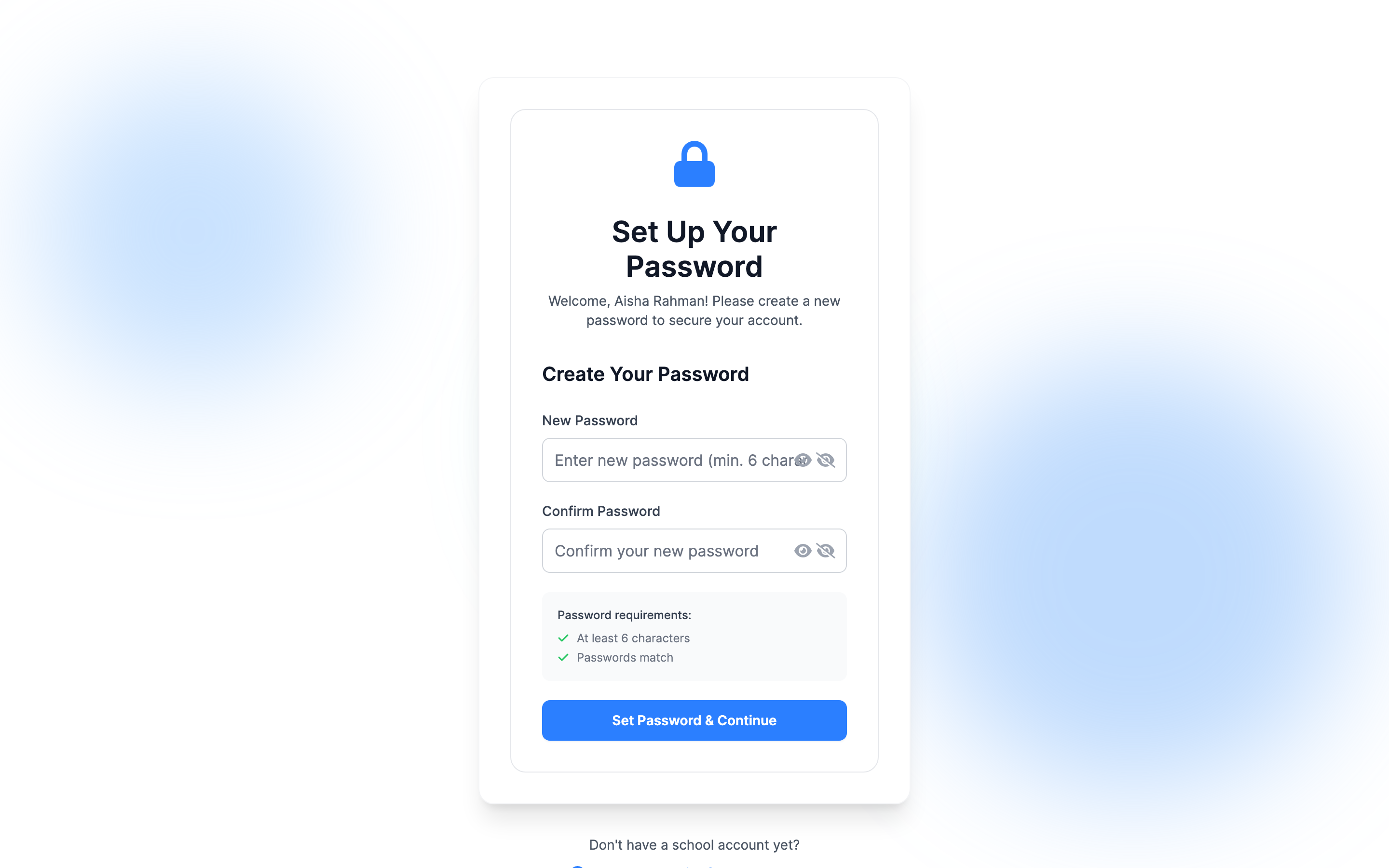
Your temporary password stops working here
Once you've set your own password, the one in the welcome email is dead. That's the point — nobody who reads that old email can get into your account afterwards.
Step 4 — Land on your dashboard
You're in. You'll see Welcome back, [your name] and a summary of your family. Take the tour in Your dashboard and My Children.
If you forget your password
- On the sign-in page, click Forgot password?
- Enter your email address and submit.
- Open the reset email and follow the link.
- Choose a new password. You're signed straight in.
Reset links expire, so use them promptly. If the link says it's expired, just request another one. If no email arrives at all, the address you typed probably isn't the one the school has on file — ask the office which email your account uses.
If you forget which email you used
Click Forgot email? on the sign-in page, or simply ask the school office. They can see the address on your record.
Your account settings
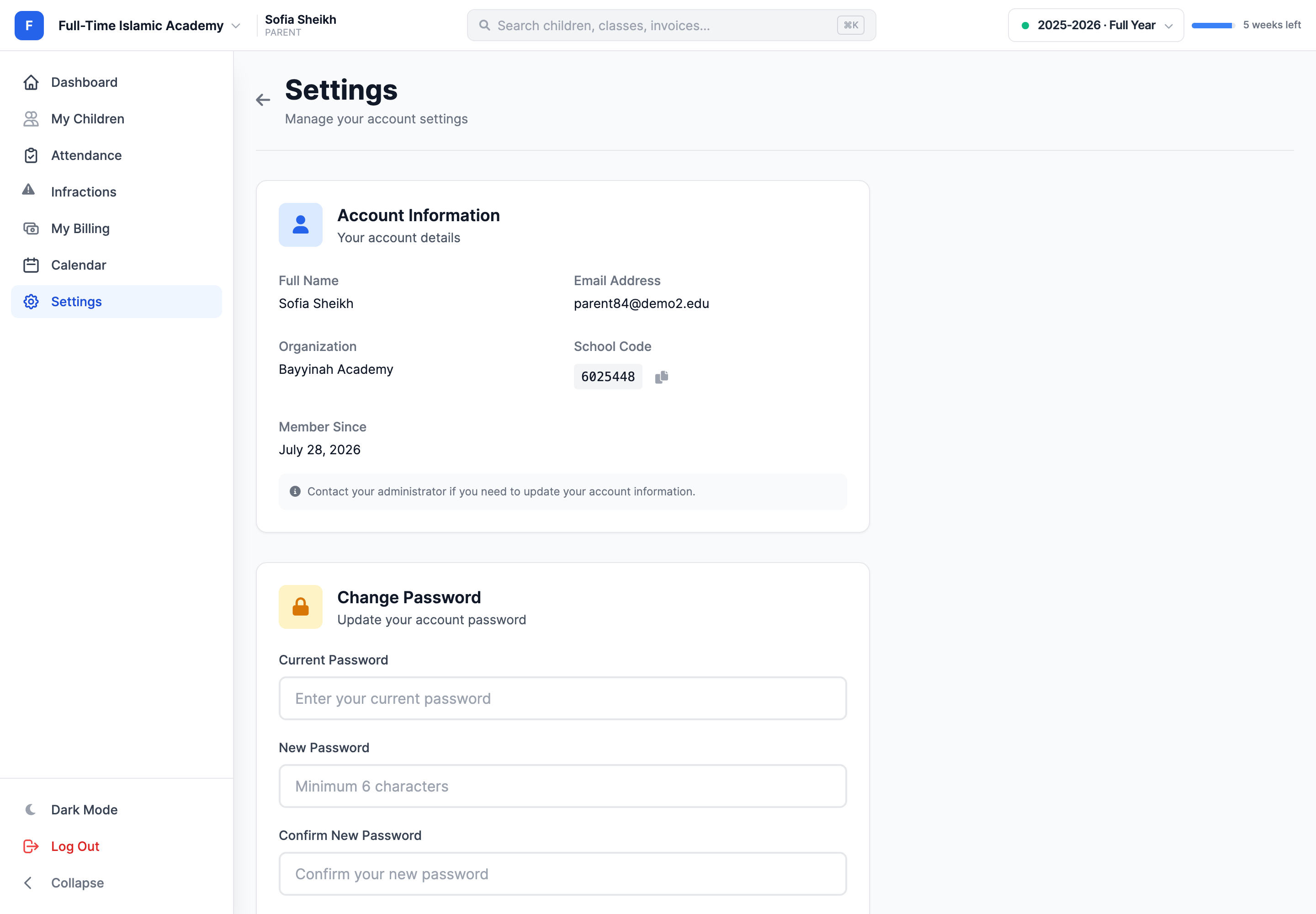
Open Settings from the bottom of the left-hand menu. There are three cards:
- Account Information — your full name, email address, organisation, school code and the date you joined. This is read-only.
- Change Password — enter your current password, then the new one twice, and click Update Password.
- System Information — which app you're on and today's date. Handy when reporting a problem.
Why can't I edit my own name, email or phone?
Because the school's records have to stay authoritative — the same details drive report cards, emergency contacts and invoices. Email the office with the correction and they'll update it; the change shows up for you immediately.
What that "School Code" is for
Your organisation has a short numeric code, shown on the Settings page with a copy button. You normally don't need it, but some schools ask for it when you contact support so they can find your family quickly.
If your children are in more than one school or program
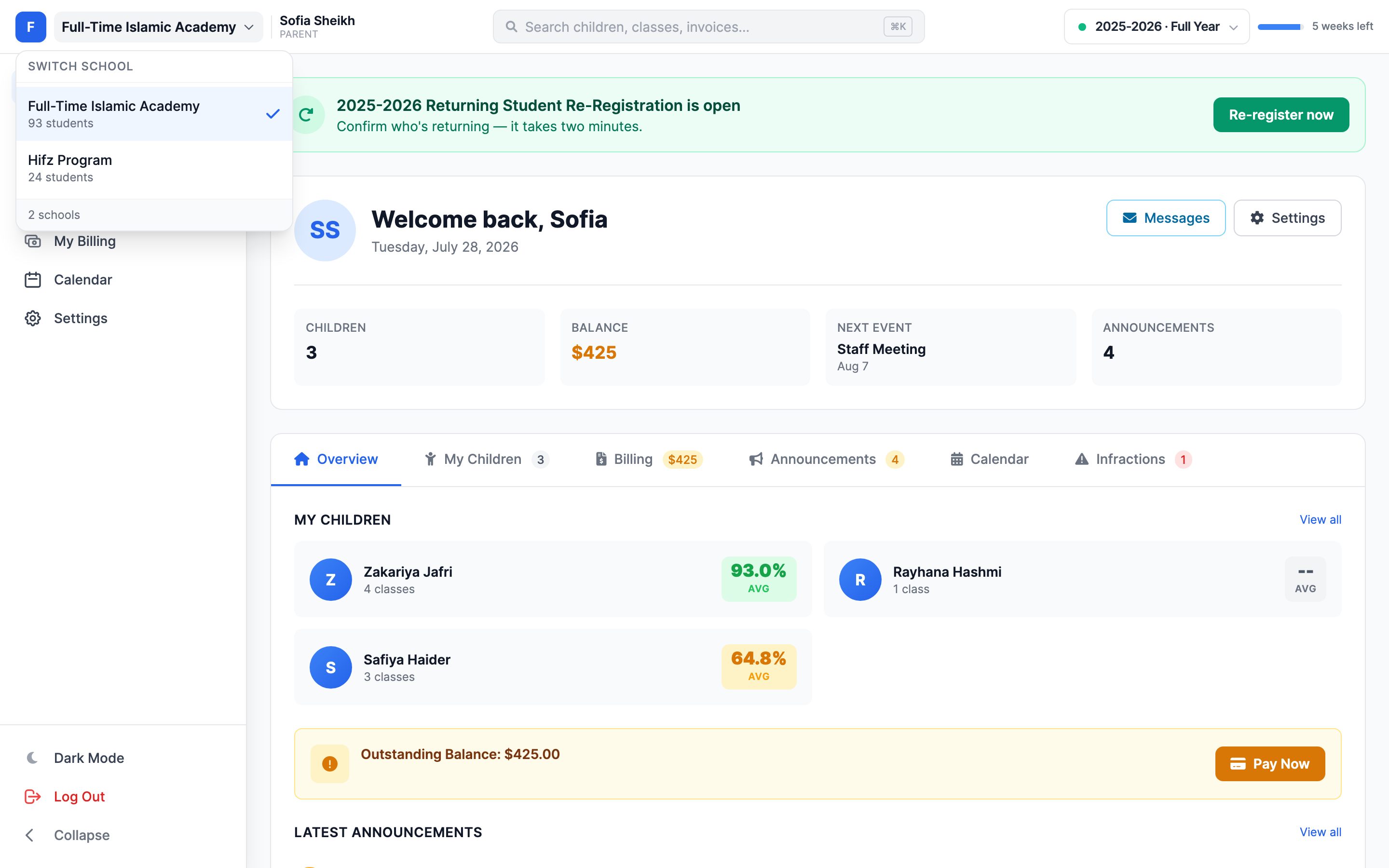
Larger organisations run several schools or programs — a full-time academy, a weekend maktab, a Hifz program. If your children are spread across them, a school switcher appears at the top left, showing the school you're currently viewing. Click it for a Switch School list of every school your family belongs to, with a tick on the current one.
Missing a child or an invoice? Check the switcher first
The portal shows one school at a time, so children, attendance and invoices from your other school are hidden while you're in this one. Switch schools before concluding something has disappeared.
Signing out, and signing in elsewhere
- Log Out is at the bottom of the left-hand menu.
- The same email and password work in the MarkTrack mobile apps for iOS and Android.
- Both parents can have their own login — ask the office to add the second guardian rather than sharing one password.
Troubleshooting
"Invalid email or password"
Almost always a typo, or the wrong email address. Passwords are case-sensitive; temporary passwords are easy to mistype, so copy and paste it. If you've tried many times you may be temporarily rate-limited — wait 15 minutes and try again.
"Your account is inactive" / "This organization is no longer active"
Your school has deactivated the account or closed its MarkTrack subscription. Only they can fix it — contact the office.
I can sign in but I see no children
Your account exists but isn't linked to any students yet, or you're viewing a school your children aren't in. Check the school switcher first, then ask the office to link your children to your account.
I have two accounts
This happens when the school has two different email addresses for you. Ask them to merge you onto one — otherwise your invoices and children can end up split across both.
More in For Parents
Still stuck?
Our team is happy to walk you through it.