
Grades, assignments, Hifz and report cards
MarkTrack shows you your child's marks as their teachers publish them — class averages, individual assignments, Qur'an memorisation, and behaviour records. This page explains what each screen means and, just as importantly, why something might not be showing yet.
You only see published work
Teachers mark in a private gradebook and publish when they're ready. Until then, an assignment and its score simply aren't visible to you — even if your child already knows the mark. This is normal and deliberate.
The grade report
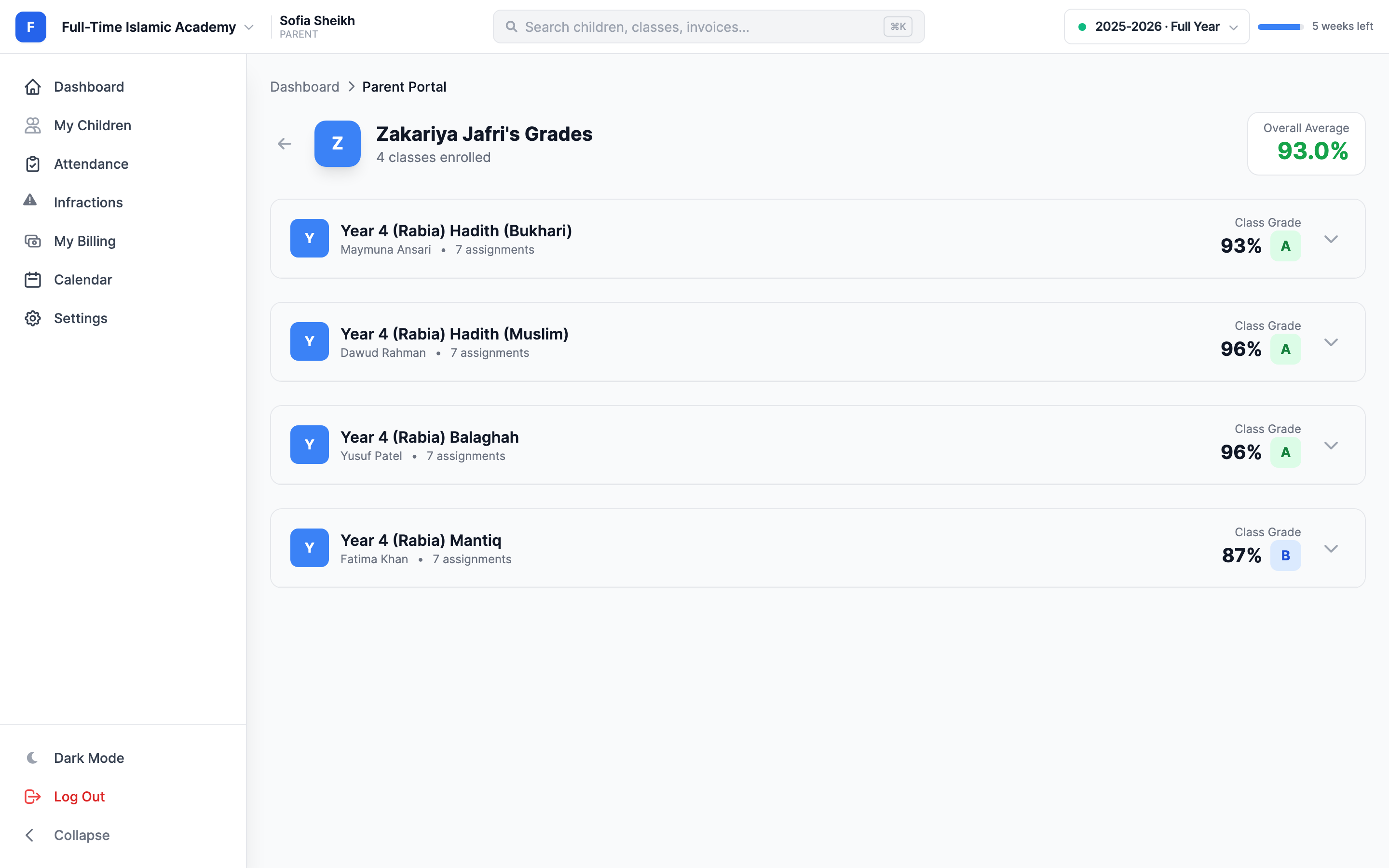
Open My Children → your child → the Grades tab, then View All. You get their full report: an Overall Average at the top, then one card per class showing the teacher, how many assignments count towards it, the class percentage and the letter grade.
Assignments
The Assignments tab on your child's page lists recent work, newest first: the title, which class it belongs to, when it's due, and the score.
- A percentage means it's been marked and published.
-
--means it isn't marked yet, or the teacher hasn't published it.
Assignment due dates also show up on your Calendar, which is a useful way to see the week ahead at a glance.
Parents can't submit work
The parent portal is read-only for coursework. If your school collects submissions online, your child does that from their own student account.
Modules and learning materials
Open My Children → your child → Modules, then choose a class. You can read published lesson pages and open shared resources and links. Draft modules and modules outside their scheduled availability are hidden. Parents view coursework; teachers manage the modules and students submit their own work.
Classes that don't use percentages
Not every subject is scored out of 100. Schools can run classes on a skills basis — akhlaq, adab, participation, Qur'an recitation — and those show proficiency levels instead of a number: labels like Exceeding, Meeting, Approaching or Beginning, per skill.
Your school chooses the wording, so yours may differ. There's nothing missing when you see these instead of a percentage — that's simply how the class is assessed.
Hifz progress
If your child is in a Qur'an memorisation class, an extra Hifz tab appears on their page. It lists their Hifz classes with a running count of passes and fails; open one for the weekly detail. Qāʿidah progress appears separately when a teacher has recorded lessons; see Following your child's Qaidah progress.
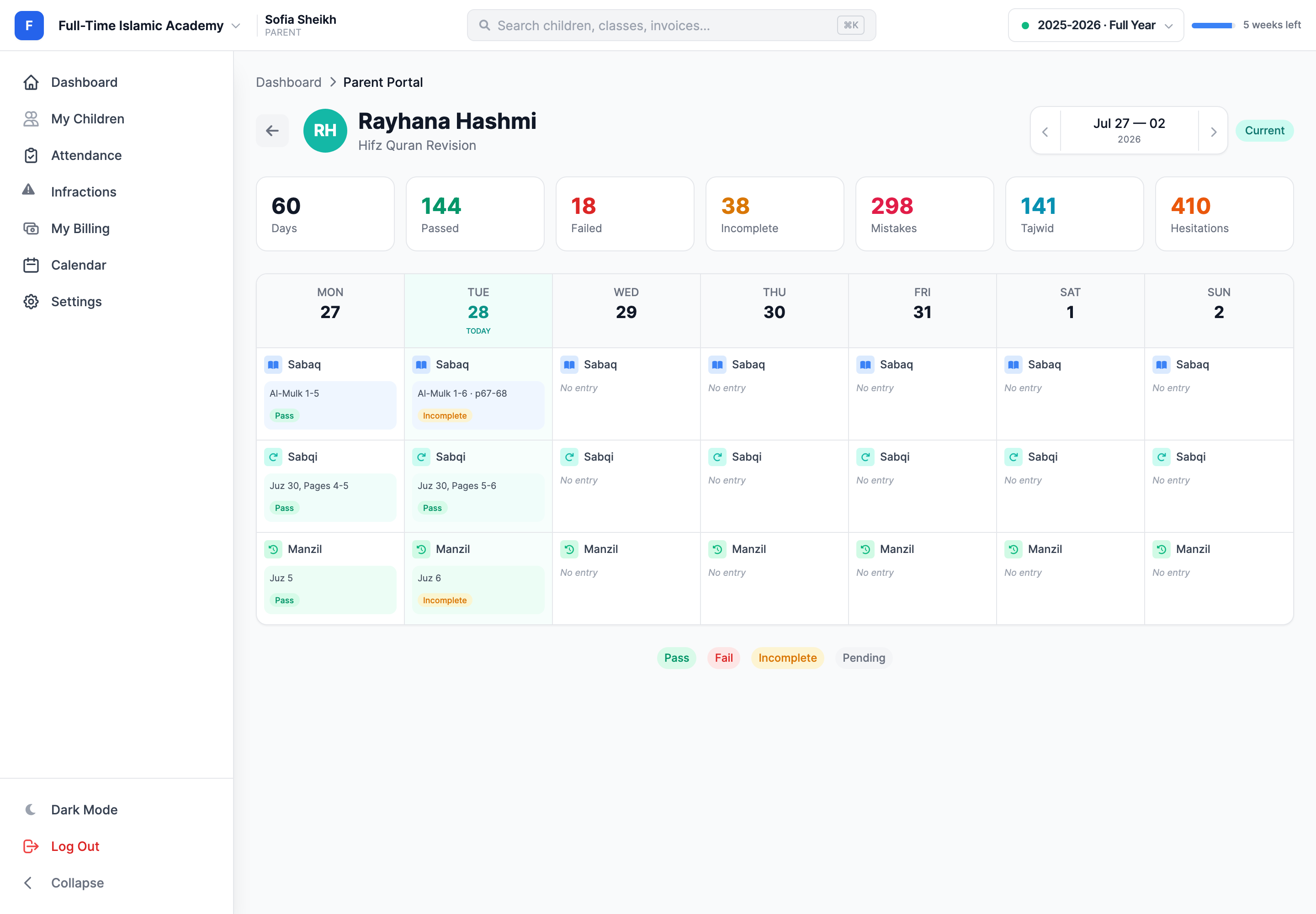
The tiles across the top are running totals for the class:
- Days — how many days have been recorded.
- Passed / Failed / Incomplete — how each day's recitation was assessed.
- Mistakes, Tajwid, Hesitations — cumulative counts the teacher logs while listening.
Underneath is a Monday-to-Sunday grid with a row for each type of recitation:
- Sabaq — the new portion being memorised.
- Sabqi — recent memorisation being consolidated.
- Manzil — older memorisation being revised.
Each cell shows what was recited (for example Al-Mulk 1-5 or Juz 5) and the result: Pass, Fail, Incomplete or Pending. No entry means nothing was recorded that day. Use the arrows beside the date to move between weeks; a Current badge marks this week.
Hifz doesn't affect the GPA
Memorisation is tracked on its own terms and is deliberately left out of the overall average, so a tough week of revision doesn't drag down an academic grade.
Report cards
Report cards are produced by the school at the end of a term or year. There's no report card page in the parent portal — when one is ready, the school emails it to you as a PDF.
- Save the PDF somewhere safe; MarkTrack won't re-post it for you.
- Didn't get it? Check spam, then ask the office to resend.
- Between report cards, the Grades tab is the live picture.
Behaviour records
If your school tracks conduct, Infractions in the left-hand menu lists any incidents recorded for your children — the date, the child, the category, how serious it was, its status and who recorded it.
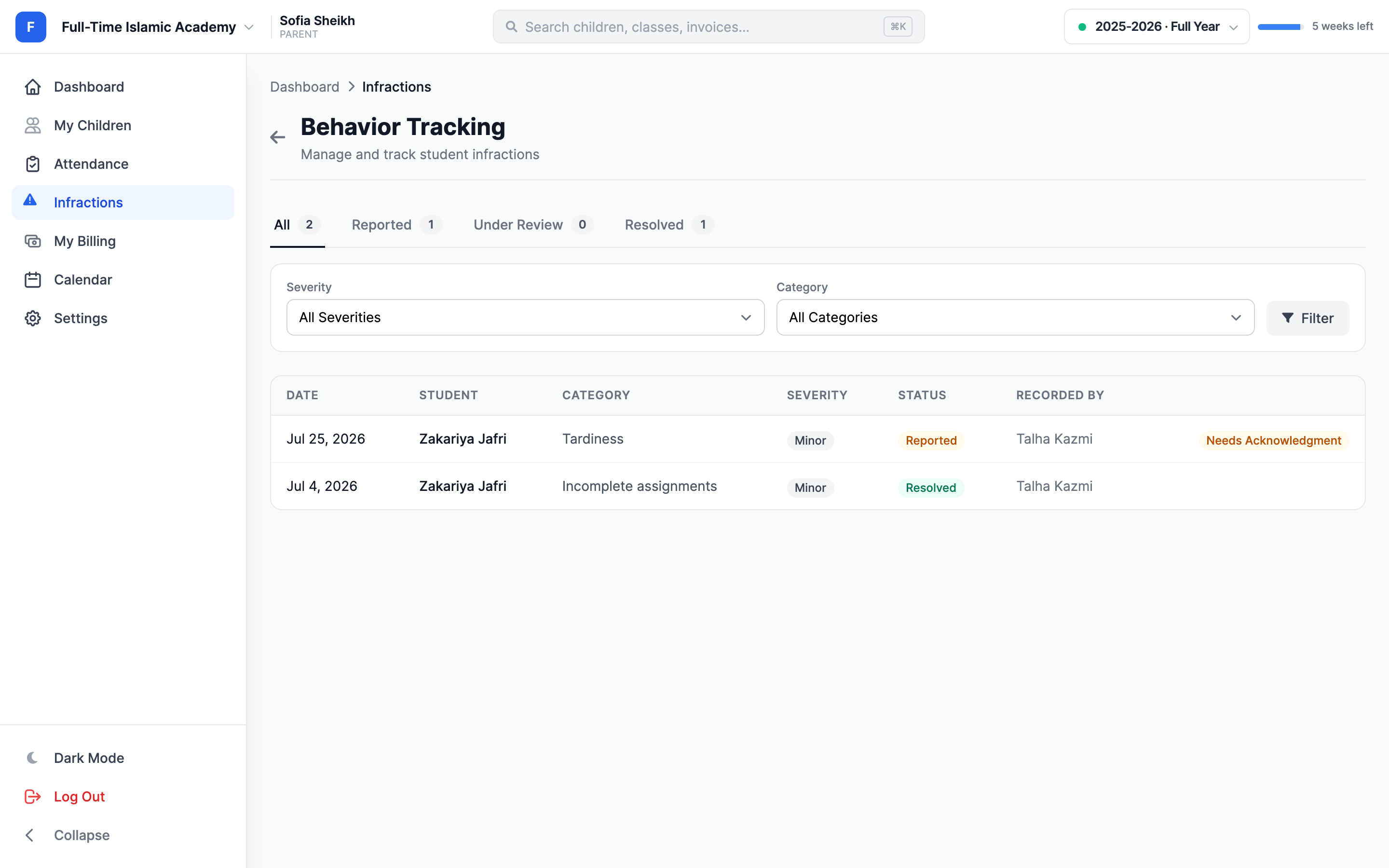
- Severity runs Minor, Moderate, Major, Severe.
- Status runs Reported → Under Review → Resolved.
- Filter tabs across the top let you narrow by status, severity or category.
Acknowledging an incident
Click a row to open the full record: the description, who recorded it, when you were notified, and any action the school took. If it's flagged Needs Acknowledgment, click Acknowledge to confirm you've seen it.
Acknowledging means "I've read this" — not "I agree with it". It doesn't change the record. If you disagree, contact the school; only staff can amend or remove an incident.
Troubleshooting
A grade is missing or looks wrong
Contact the class teacher — you can message them from your dashboard. See Announcements and messaging. Parents can't edit grades.
The overall average dropped suddenly
A newly published assignment, especially a big one, moves the average. Open the Assignments tab to see what changed.
A class shows no grades at all
Either nothing has been published yet, or you're looking at the wrong term — check the academic year selector near the top of the menu.
Where are the class materials and lesson resources?
Those live in the student account, not the parent portal. Ask your child to sign in, or ask the teacher to email you what you need.
More in For Parents
Still stuck?
Our team is happy to walk you through it.