
Set up the sign in / sign out kiosk
Sign In / Sign Out lets parents sign children in and out on a kiosk at the door — a tablet showing a number pad. A parent types their family's 4-digit code, picks which of their children they are dropping off or collecting, and signs with their name. Every record stores who did it, when, and the exact wording they agreed to. This guide covers turning the feature on (it ships off), setting the windows that make "late" mean something, creating a station, and putting the kiosk on a device.
The code is the identity
The kiosk page itself is reachable without a login — a parent at a door will not type a password — but nothing can be recorded without a family's 4-digit code, and each code unlocks only that family's own children. Codes are stored scrambled, so a parent only ever sees their own code when it is created — to get it again they create a new one. An administrator can read a family's code back to them from the parent's profile (Show code), and every reveal is recorded in the audit log. Codes issued before that was possible can only be replaced. Repeated wrong guesses lock the pad with escalating cooldowns.
Step 1 — Turn it on for a school
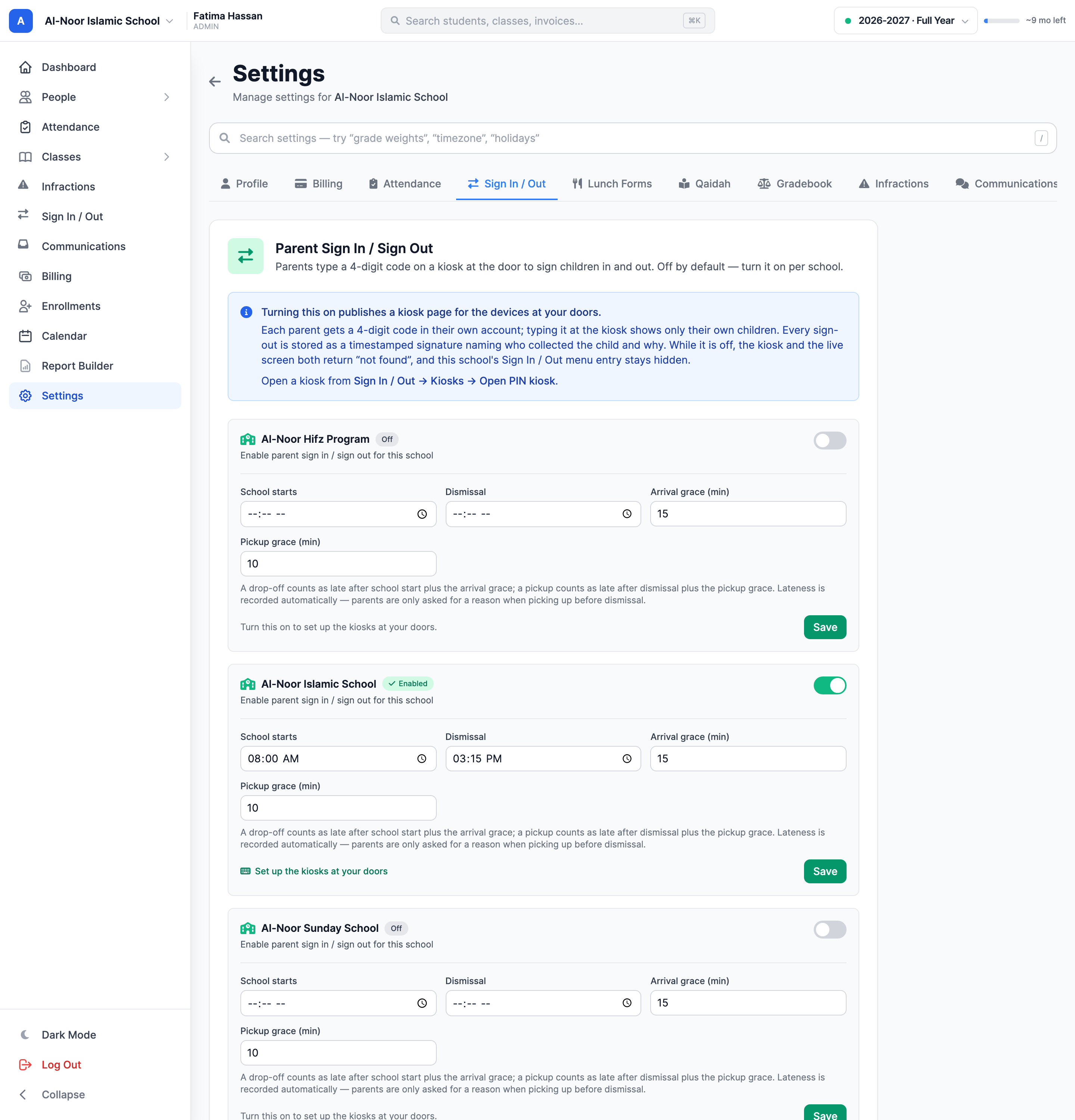
- Go to Settings.
- Open the Sign In / Out tab.
- Find the card for the school you want and flip its toggle on.
- Fill in School starts, Arrival grace, Dismissal, and Pickup grace, then click Save.
Each school gets its own switch and its own times, and each is independent. Once a school is on, a Sign In / Out entry appears in that school's sidebar.
Step 2 — Understand the windows
The four times you set drive everything automatic, and nobody at the door is ever asked to explain being late — the timestamp already says it:
- Drop-off: a sign-in later than school start + arrival grace is recorded as late, with the minutes stored on the event. The parent is asked nothing.
- Early pickup: a sign-out before dismissal is the one case that asks for a reason — a short dropdown (medical appointment, illness, family emergency…) ending in "Other".
- Normal pickup: from dismissal until dismissal + pickup grace, two taps and a signature. No reason.
- Late pickup: after the grace, the event is recorded as late automatically, minutes stored. Still no reason asked.
Set the times, or nothing is ever late
Without a school start time no drop-off can score as late; without a dismissal time no pickup can, and the kiosk will never ask an early-pickup reason. Every arrival and departure still records — the windows only decide what the analytics can say about them.
Step 3 — Create a station and open its kiosk
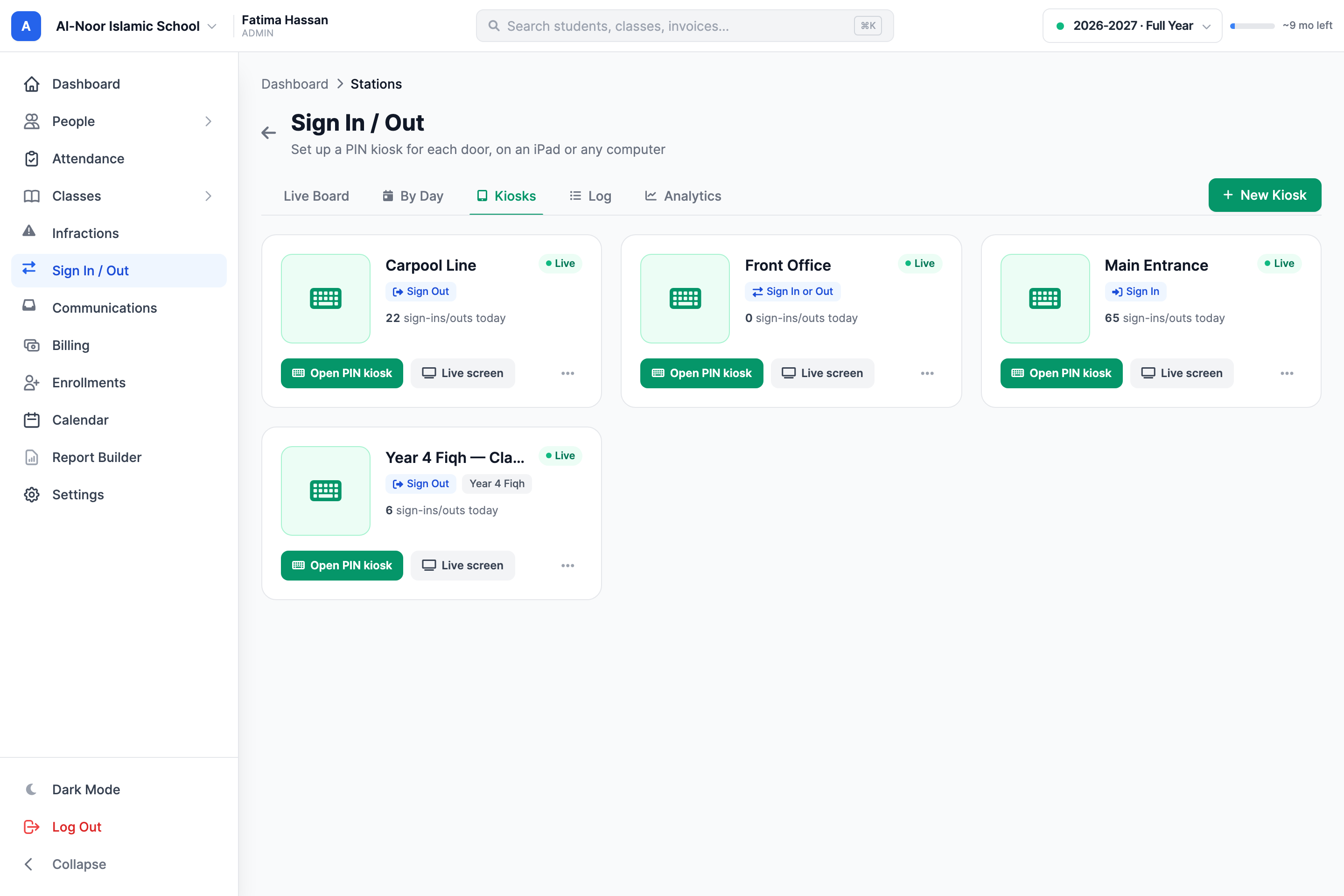
- Open Sign In / Out → Kiosks and create a station for each door or location — front entrance, carpool lane, a specific class.
- A station can be sign-in, sign-out, or automatic (it works out the direction from whether the child is currently on campus).
- On the station's card, press Open PIN kiosk — or copy the kiosk link from the station's edit page — on the tablet that will live at that door, and put the browser in full screen.
The kiosk link contains its own long token, separate from the live-screen link, so either can be re-issued without disturbing the other (⋯ → New kiosk link / New screen link on the station card).
Step 4 — Give parents their codes
- Parents get their own: in the parent portal, My Children shows a "Your sign in / sign out code" card with a Create code button. The code appears exactly once; a forgotten code is replaced with New code, which stops the old one working immediately.
- Admins can issue one: every parent's page has the same card, for the family that asks at the front desk. An admin can use Show code to read back a current code; the reveal is recorded in the audit log. Older codes without a readable copy must be replaced.
What a trip to the kiosk looks like
- The parent types their 4-digit code. The pad greets them by name and lists their children only, each with its current state ("Not signed in today", "On campus since 8:04 AM").
- They tap the children this trip covers — siblings go in one batch — and the direction if the station doesn't set one.
- If (and only if) it is an early pickup, they choose a reason.
- They type their name as a signature. The statement above the field says exactly what they are signing, and that wording is frozen into the record.
Everything recorded lands in the same log, board, day report and analytics described in The live board, the log, and pickup analytics, tagged with the station and source that produced it.
Share the parent PIN kiosk guide with families before their first visit.
More in Attendance
Still stuck?
Our team is happy to walk you through it.