
Reading whole-day attendance
At a school with a day rule, every student gets one result for each school day, worked out from all of their class marks. This guide is for everyone who reads attendance there: the office, admins and teachers. It covers what the = means, how to see why a day came out the way it did, and what to do with a day that needs a person.
Two kinds of attendance
- A class mark is what one teacher marked in one class: Present, Absent, Tardy, and so on. A day rule never changes it.
- A whole-day result is worked out from all of a student's classes that day by your school's day rule. A finished result carries the = mark. A day that's still waiting shows a flag (needs review) or a ? (not marked).
Click any whole-day result and it explains how it was worked out.
The = mark
The easiest place to see whole days is a student's attendance: Attendance › Command Center › Students, then the student's name (or the Attendance tab on their profile). Above their classes is a Whole day row with one result for each school day. The rows underneath are still each class's own marks, and the key under the grid explains whichever marks are on screen.
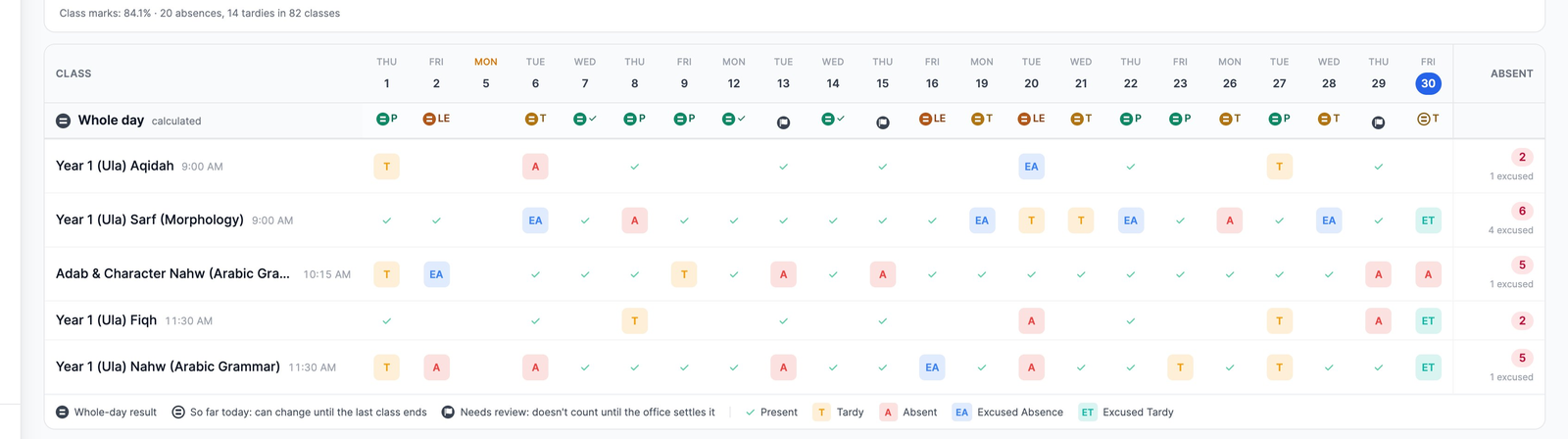
Each result is drawn in the colour of what the day counts as:
| Absent | The whole day counts as Absent. |
| Absent· half day | The day counts as half a day absent. Small spaces show it as A½. |
| Present | Present. A day present with nothing missed is drawn quietly, so the days that matter stand out. |
| Left Early | One of your school's own statuses, such as Left Early, in its own colour. |
| Excused Absence · set by Amina K. | Someone in the office settled the day by hand. |
| Absent so far· 3 of 8 marked | So far today. It can still change until the last class ends. |
| Needs review | Needs review. The rule asks the office to decide; the day doesn't count until someone does. |
| Not marked | Not marked. The day doesn't count until its classes are marked. |
| Couldn't calculate | Couldn't calculate. Usually a status the rule names was renamed or archived. |
| Before the day rule · started Sep 2 | Days before the rule's first version have no whole-day result. |
So far. Today's result is worked out as marks come in and reads “so far”, with how many classes are marked (“Tardy so far · 4 of 4 marked”). A little after the school's last class (or its dismissal time, if later) it becomes final. “So far” days never count in totals.
You'll also find whole days throughout the Command Center (Today, the tiles, Students and Records), on the class attendance grid when you hover a mark, and in attendance reports. Report cards switch to whole days only once your school shows results to families.
Why a day came out that way
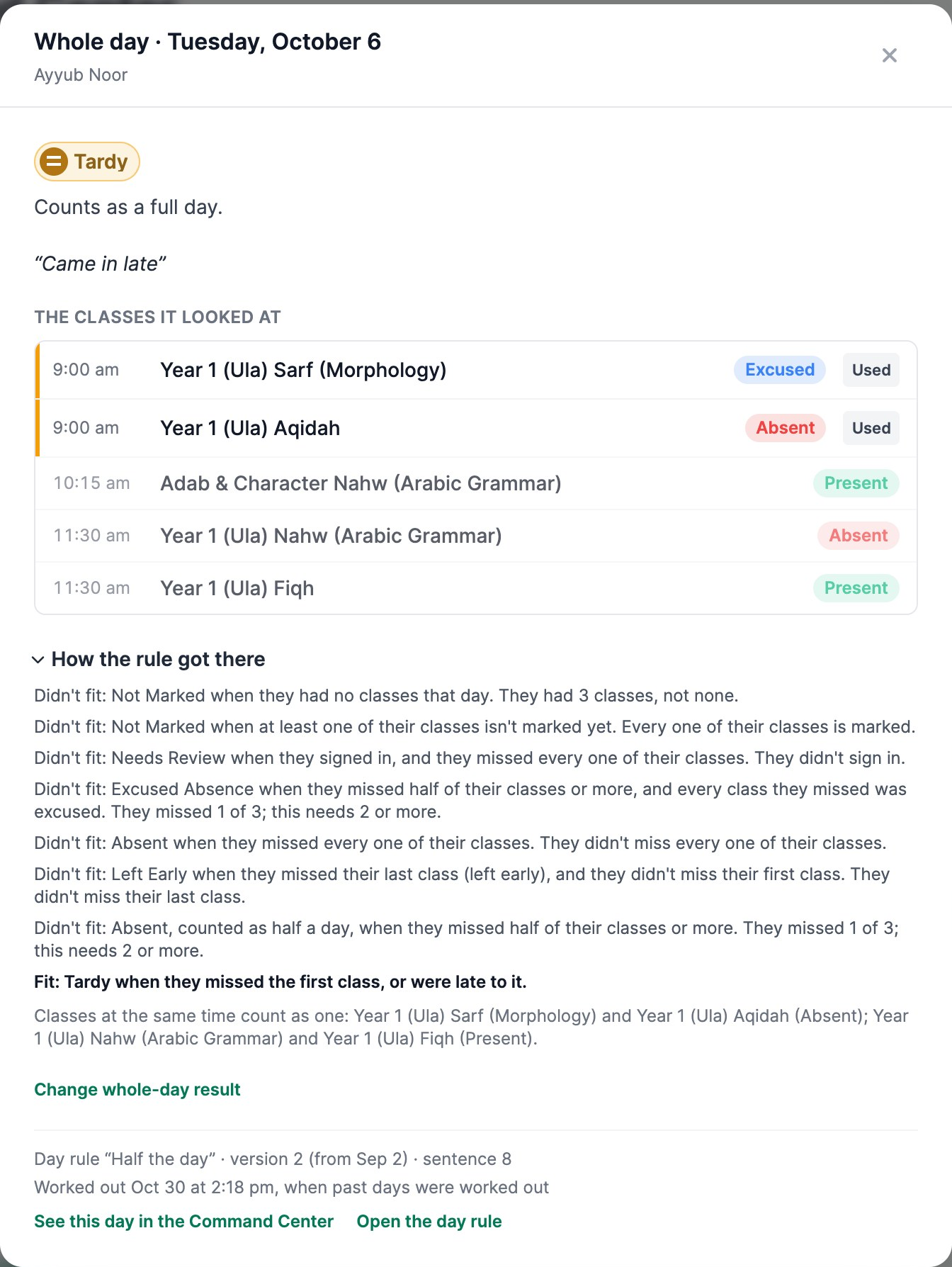
Click any whole-day result. A window opens with:
- The result and what it counts as (“Counts as a full day.”), with the reason families read, such as “Came in late”.
- The classes it looked at, in time order, each with its own mark. Used marks the classes that decided the day.
- How the rule got there (admins): each sentence of the rule from the top, and why it did or didn't fit. The one that fit is in bold. When two classes met at the same time, it says they count as one, which is why “They missed 1 of 3” can appear on a day that lists five classes.
- Change whole-day result (admins who can edit attendance), to settle the day by hand. See Days that need review.
- At the bottom, which version of the rule worked it out and when, with See this day in the Command Center and Open the day rule.
What teachers see
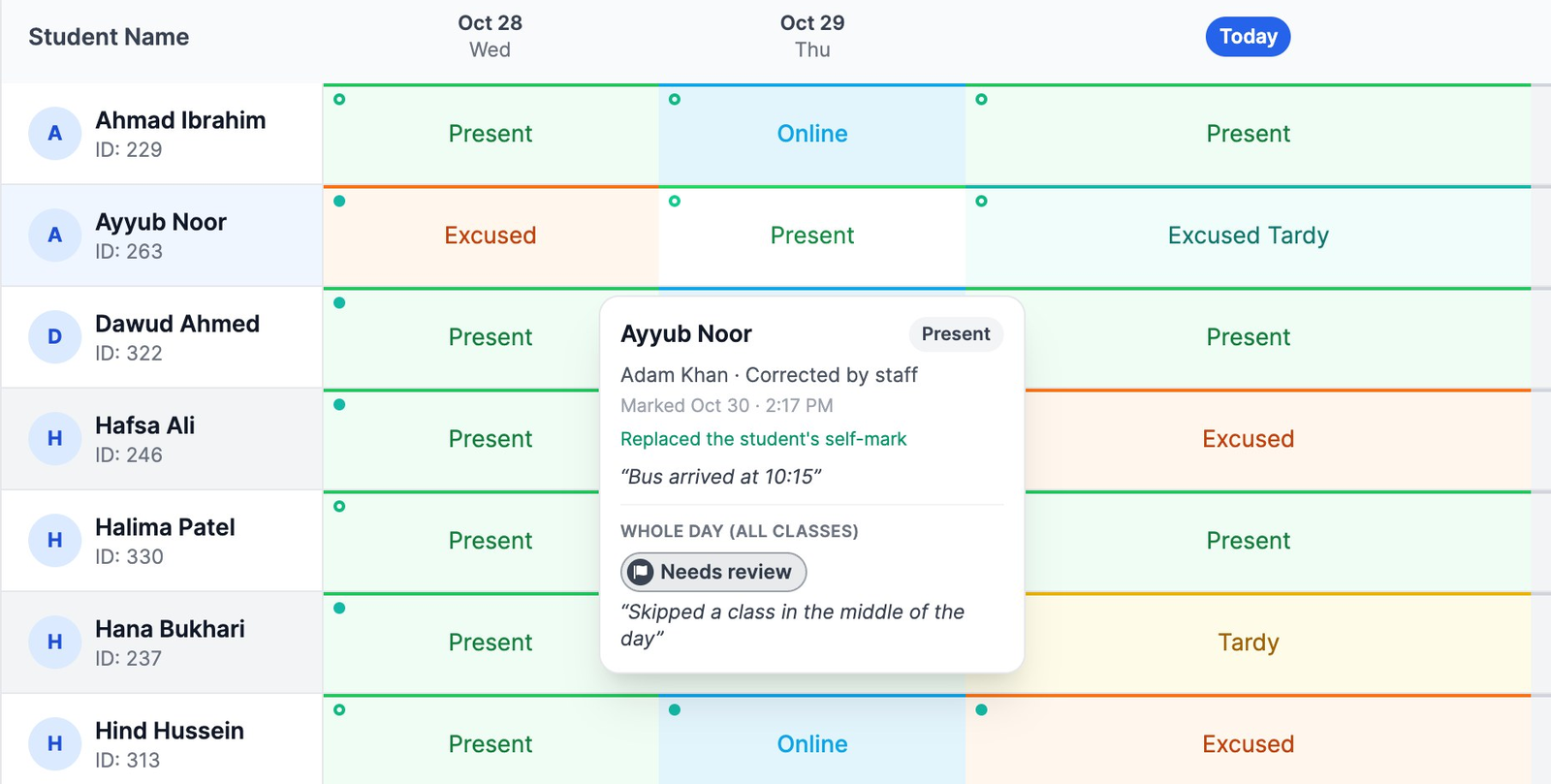
Teachers keep taking attendance exactly as before. On the Attendance page a note says “Whole days are worked out from every class by your school's day rule. Hover a mark to see the day.” Hovering a mark shows that class's mark and, underneath, Whole day (all classes) with the day's result and reason. The cell itself always shows the class's own mark.
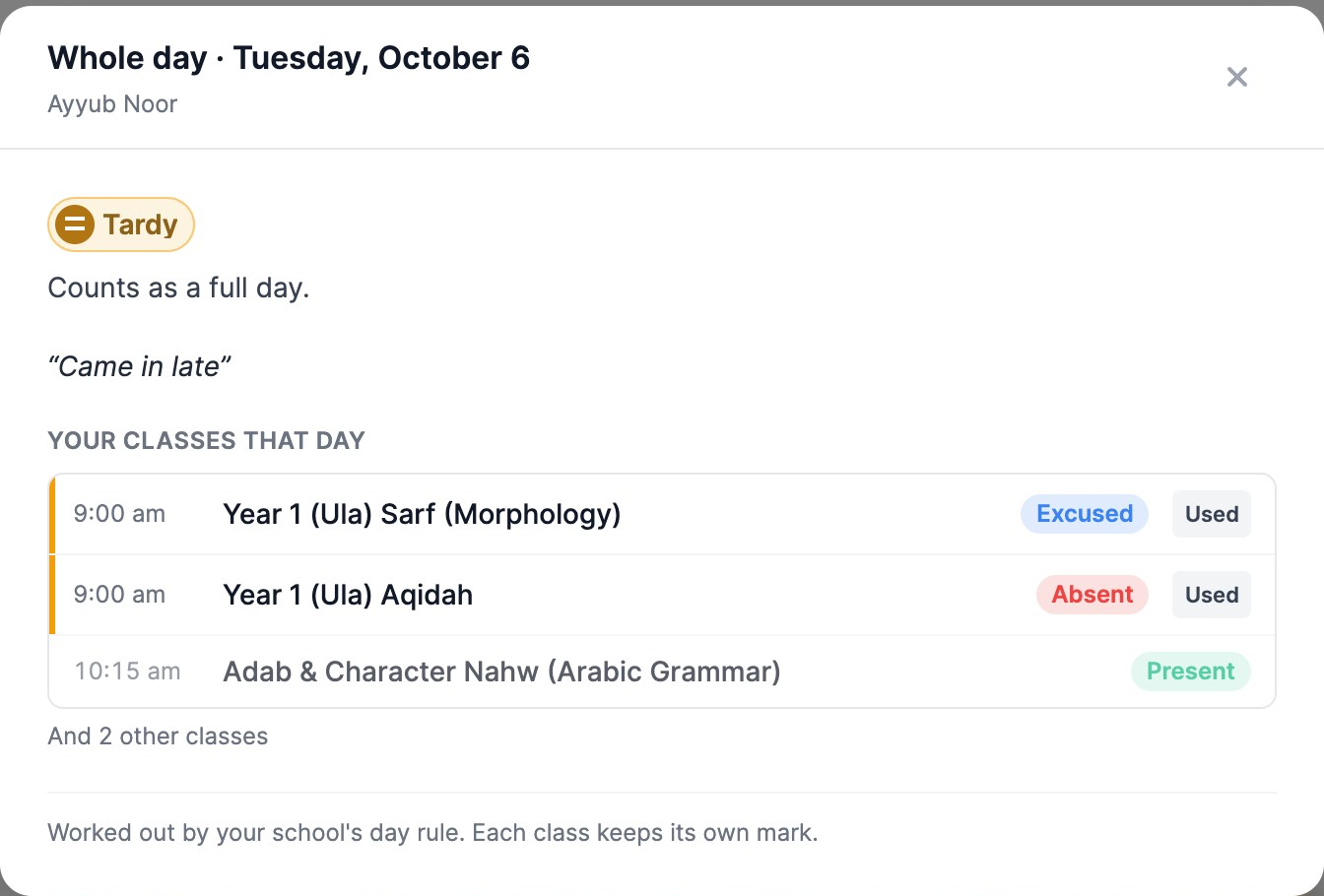
- On a student's page, a teacher sees the same Whole day row on days one of their classes met. The whole-day number reads from all classes, and the line under it counts only the teacher's own classes (“In your classes: …”).
- A teacher's explanation lists Your classes that day, with the Used tags, and the rest only as a count (“And 2 other classes”).
- Teachers can't change a whole-day result. That's for the office.
Days that need review
Some days wait for a person: a sentence of the rule said Needs Review, or the rule couldn't calculate the day. They don't count until someone settles them. You find them in three places:
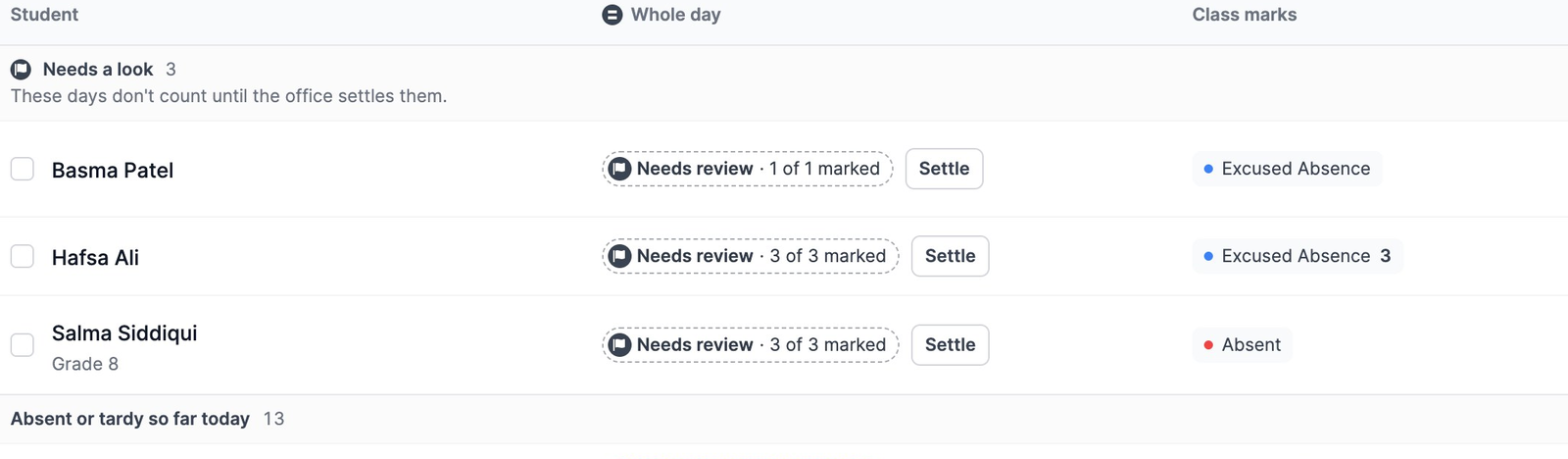
- Command Center › Today: the list starts with Needs a look (“These days don't count until the office settles them.”), each with a Settle button. It also holds days whose classes still aren't all marked after the last class has ended;
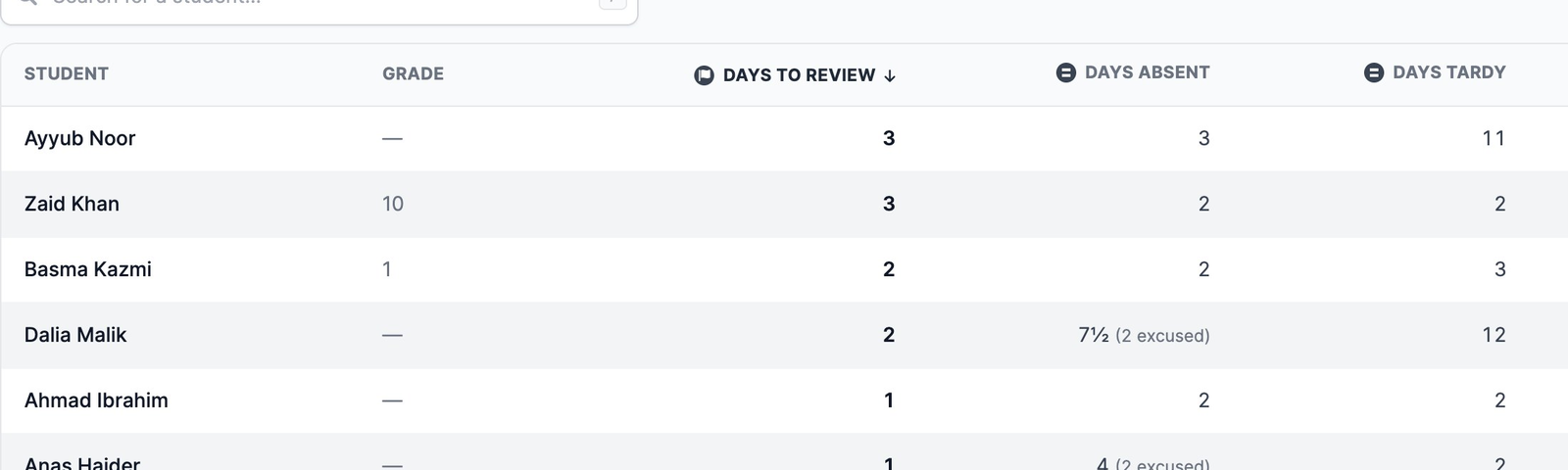
- Command Center › Students: the Days to review column counts each student's days that need review or couldn't be calculated. Click its heading to put the most at the top;
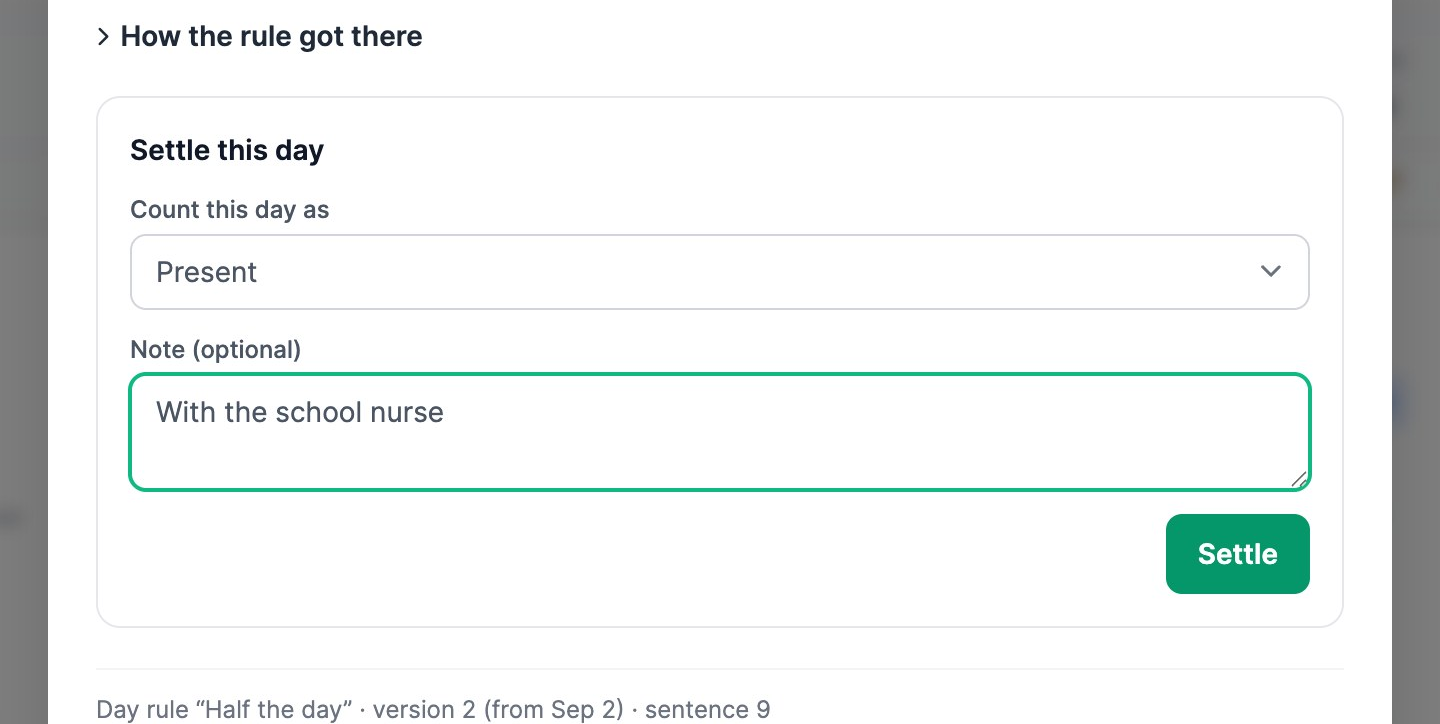
- in any day's explanation, under Settle this day.
To settle a day:
- Open the day (click its flag, or Settle in the Today list). On a day that needs review, isn't marked, or couldn't be calculated, Settle this day is already open. On any other day, click Change whole-day result first.
- Under Count this day as, choose what the day counts as.
- Add a note if you like (“With the school nurse”), and click Settle.
The day then reads “Set by Talha K. on Oct 30” with your note, and Undo hands it back to the rule. Only admins see your note: teachers read “The school office settled this day.” and families “The school office reviewed this day.” If one of the day's class marks changes later, the rule works the day out again and says who had settled it.
Whole-day and class numbers
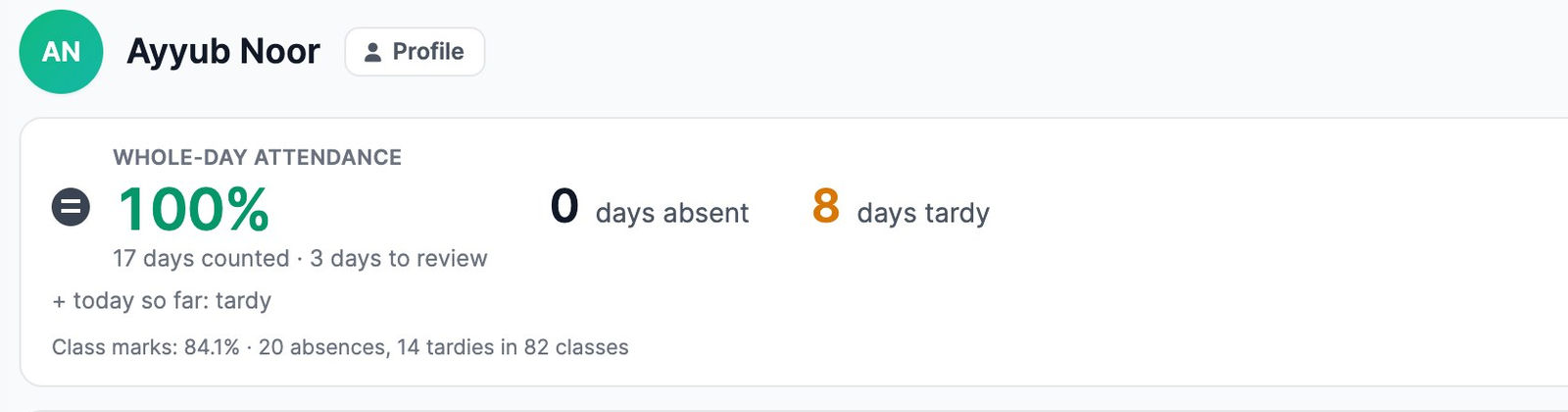
Every number says what it counts. On a student's page, the big number is labelled Whole-day attendance, with the =, and counts school days: days counted, days absent and days tardy. Days to review and today so far aren't counted yet. Only unexcused absent days lower the rate, so tardy days don't. The small line underneath counts class marks instead (“Class marks: 84.1% · 20 absences, 14 tardies in 82 classes”), so one missed day can be several class absences.
In the Command Center's tiles, Days absent, Days tardy and Attendance rate (by whole day) carry the = and count whole school days. Days to review counts days waiting for the office, and Class absences counts every class mark. The line under the tiles names the rule and version that worked the days out.
A total is never a mix. If a date range starts before your rule did, you see class-mark numbers with the note “Whole-day results start …”, and while days are being worked out again, “Whole-day results are being updated.”
What families see
Families see whole-day results only once an admin turns on Show whole-day results to families on the day rule page. Then parents and students see each day's result and reason on their attendance pages, report cards count whole days, and the attendance alert email adds the day's result. A day waiting for the office shows as Being reviewed, without a reason; a day not marked yet shows nothing; and today reads “Today: 3 of 8 classes marked” until the last class ends. See Your dashboard and your children.
Related guides: How we count a school day, Run attendance from the Command Center, and Take daily attendance.
More in Attendance
Still stuck?
Our team is happy to walk you through it.