
How we count a school day: set up a day rule
In a school that takes attendance in every class, a student can be Present in four classes and Absent in two on the same day. A day rule turns those class marks into one result for the whole school day, such as “missed half the day counts as Absent”. Nothing changes for anyone until you turn it on.
What it does
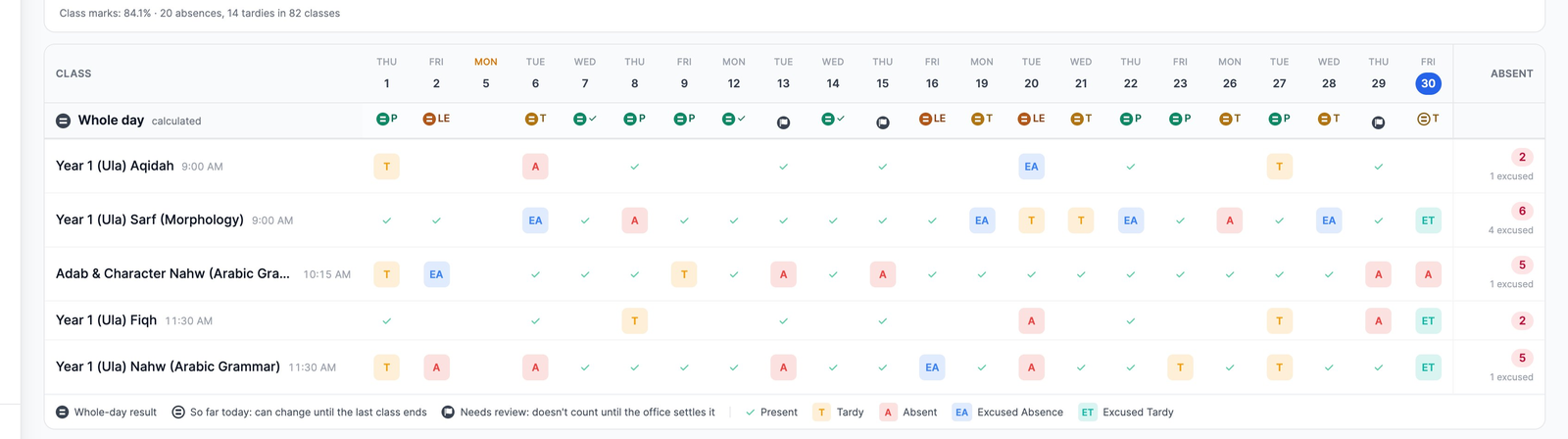
Teachers keep marking each class as they do now. A day rule is a few short sentences, read from the top, and the first one that fits a student's day gives them one result for the whole day, such as Absent, Tardy, half a day absent, one of your own statuses, or a day left for the office. That result carries an = mark. Class marks are never changed.
Without a rule, days count the built-in way, the way report cards count today: absent only when every class is missed, and tardy when the student is late to any class. To read the results, see Reading whole-day attendance.
Before you start
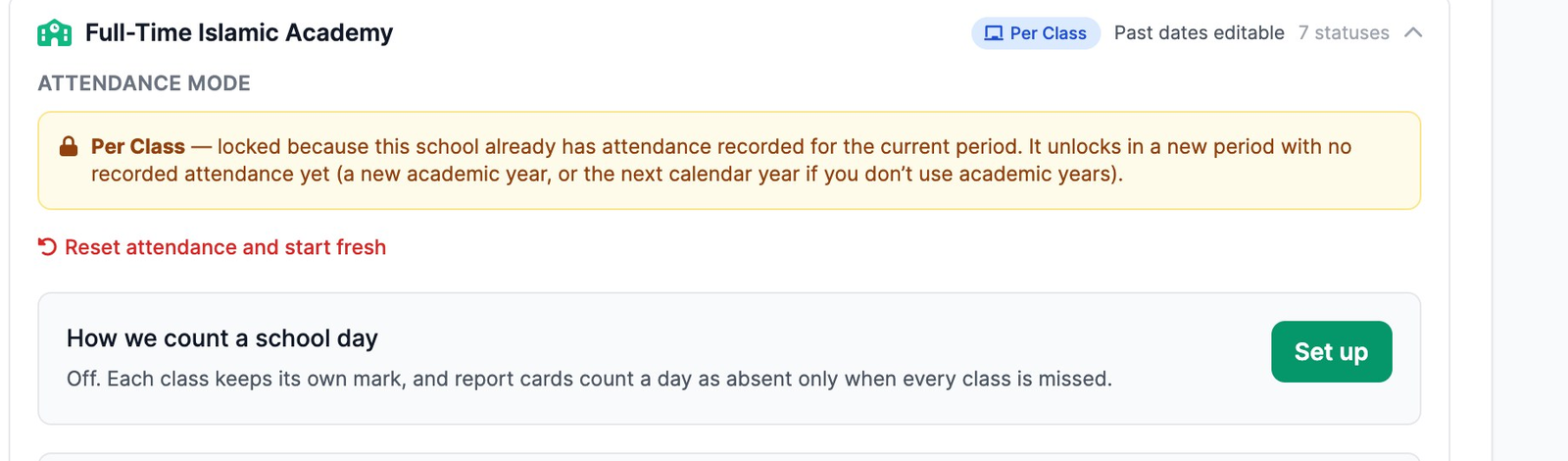
- Per-class schools only. In Settings › Attendance, under School Attendance Setup, the school must say Per Class (see Daily vs per-class attendance).
- Give each class its real time. The rule reads classes in time order, from the first class of the day.
- Give each class its real days. A class left on “every day” only counts on days someone marked it, so a missed register goes unnoticed.
- Your statuses. A rule can give any of them as the day's result, including your own, such as Left Early.
Then, in Settings › Attendance, on How we count a school day, click Set up. Later it reads Continue (a first draft is waiting), Edit, or Fix the rule if a renamed status stopped it. Changing the rule needs permission to edit settings.
Pick a starting point
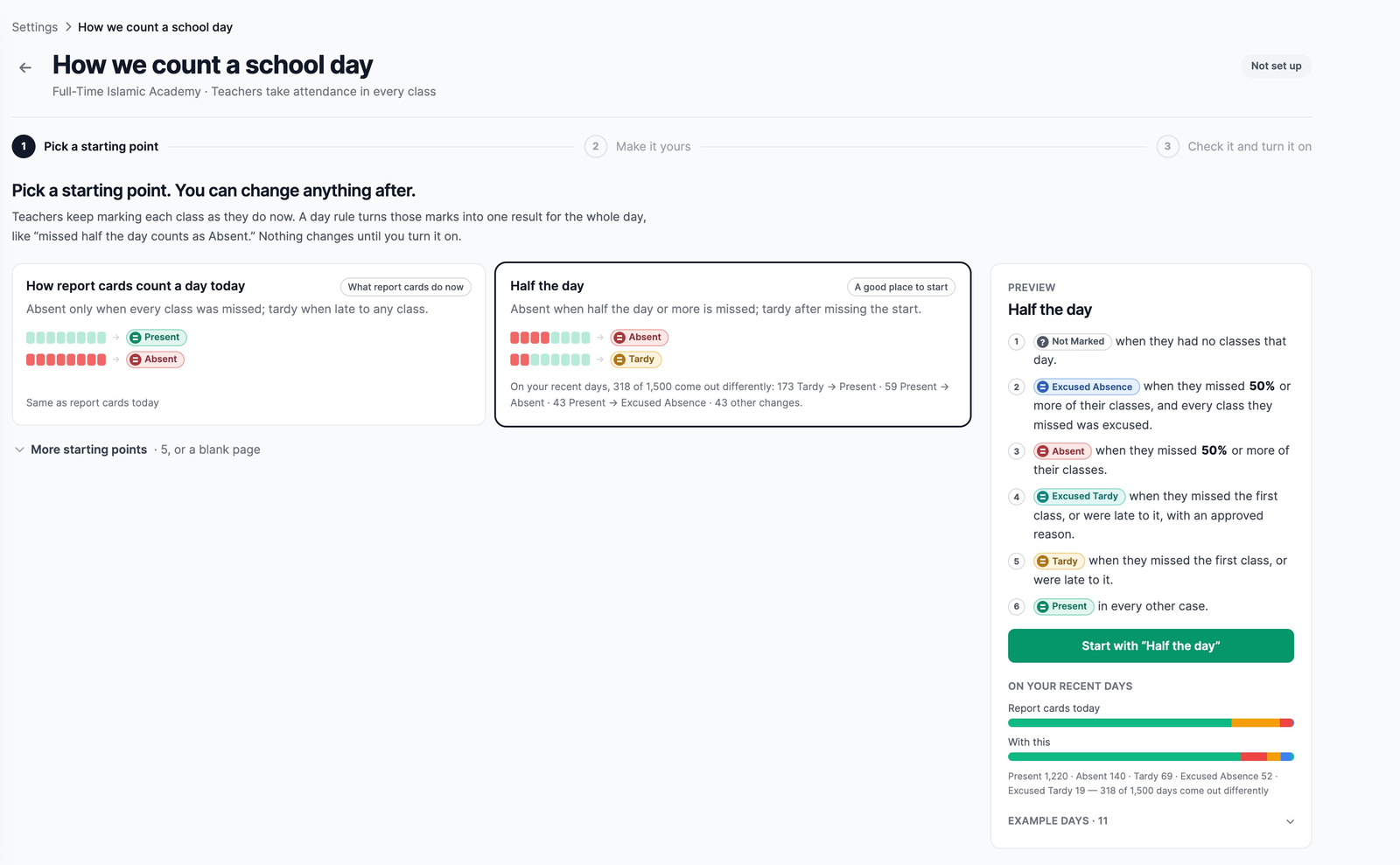
Each card is a ready-made rule, with two made-up days and a line comparing it with how your recent days are counted now. Click a card, check its sentences on the right, and click Start with “…”.
- How report cards count a day today — Absent only when every class was missed; tardy when late to any class.
- Half the day — Absent when half the day or more is missed; tardy after missing the start.
- Under More starting points: The start and the end of the day, Any missed class, Time missed, Homeroom is the official mark, and Core classes, requests and sign-ins, or Start from a blank page.
Half the day is a good place to start for most full-time schools.
Read your rule
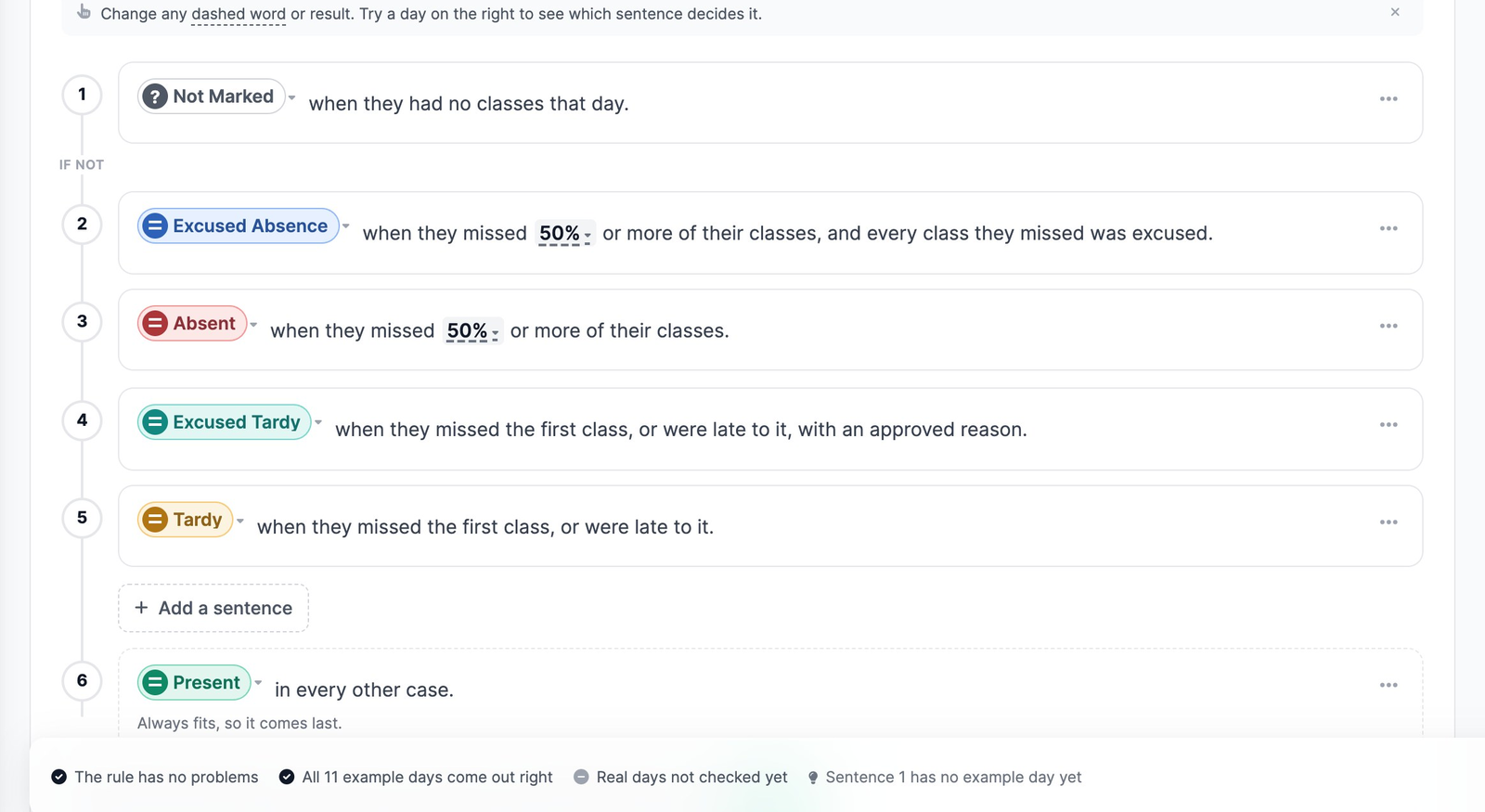
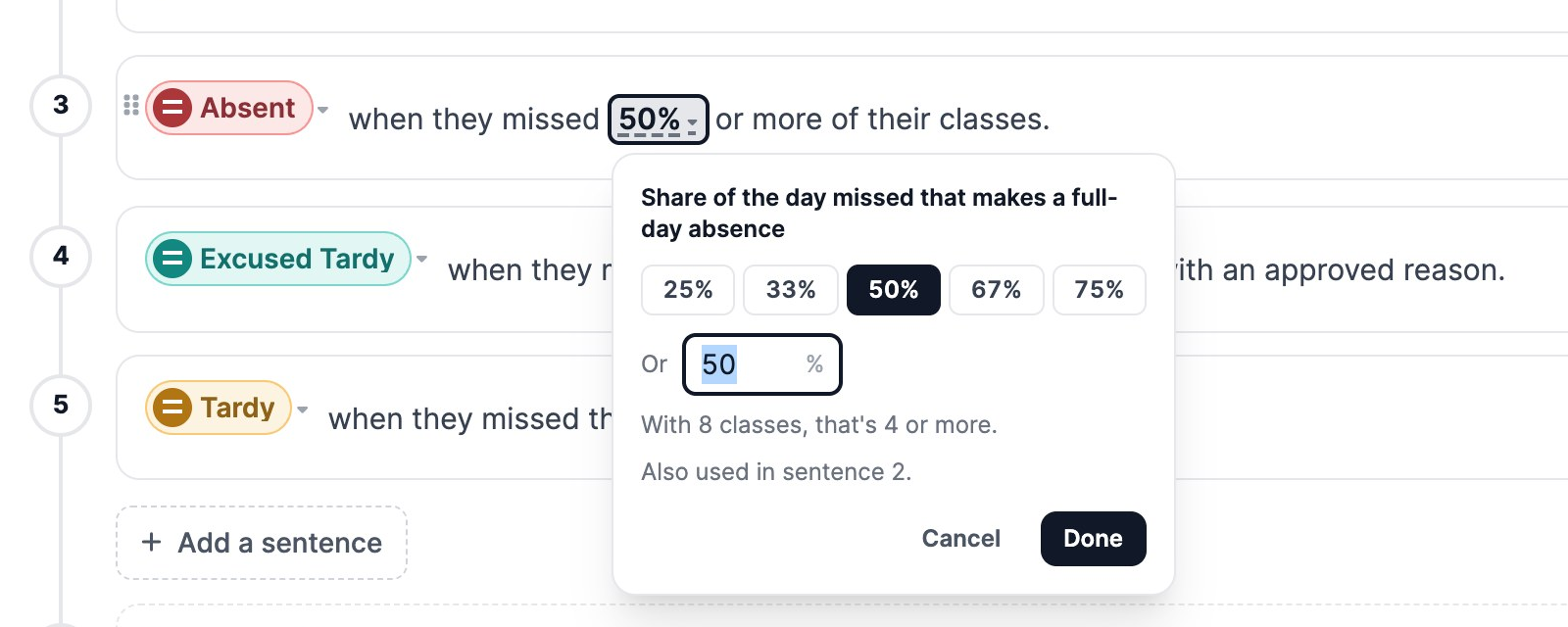
Each numbered sentence starts with a result, then says when it applies: “Absent when they missed 50% or more of their classes.” The first one that fits is the student's result, and the last one always fits. Your draft saves as you go. Prefer typing? Formula shows the same rule as text.
- A few details holds three settings most schools never change. If your teachers only mark absences, set the first one to count it as present.
- What families read holds one sentence about your rule and a reason for each result, written for you. Staff see the reasons as soon as the rule is on; families, once you show results to them.
Change a value or a result
Click anything with a dashed underline, such as 50%. The box says what it means (“With 8 classes, that's 4 or more”) and whether another sentence uses it too; changing it changes both. Starting value 50% · Reset puts it back.
Click a sentence's result to pick one of Your school's statuses, a Built in one, or Leave it for later: Needs Review sends the day to the office, and Not Marked waits for the marks. Counts as lets a status count as half a day. + Add a sentence offers ready-made phrases, such as missed 3 or more classes.
Try a day
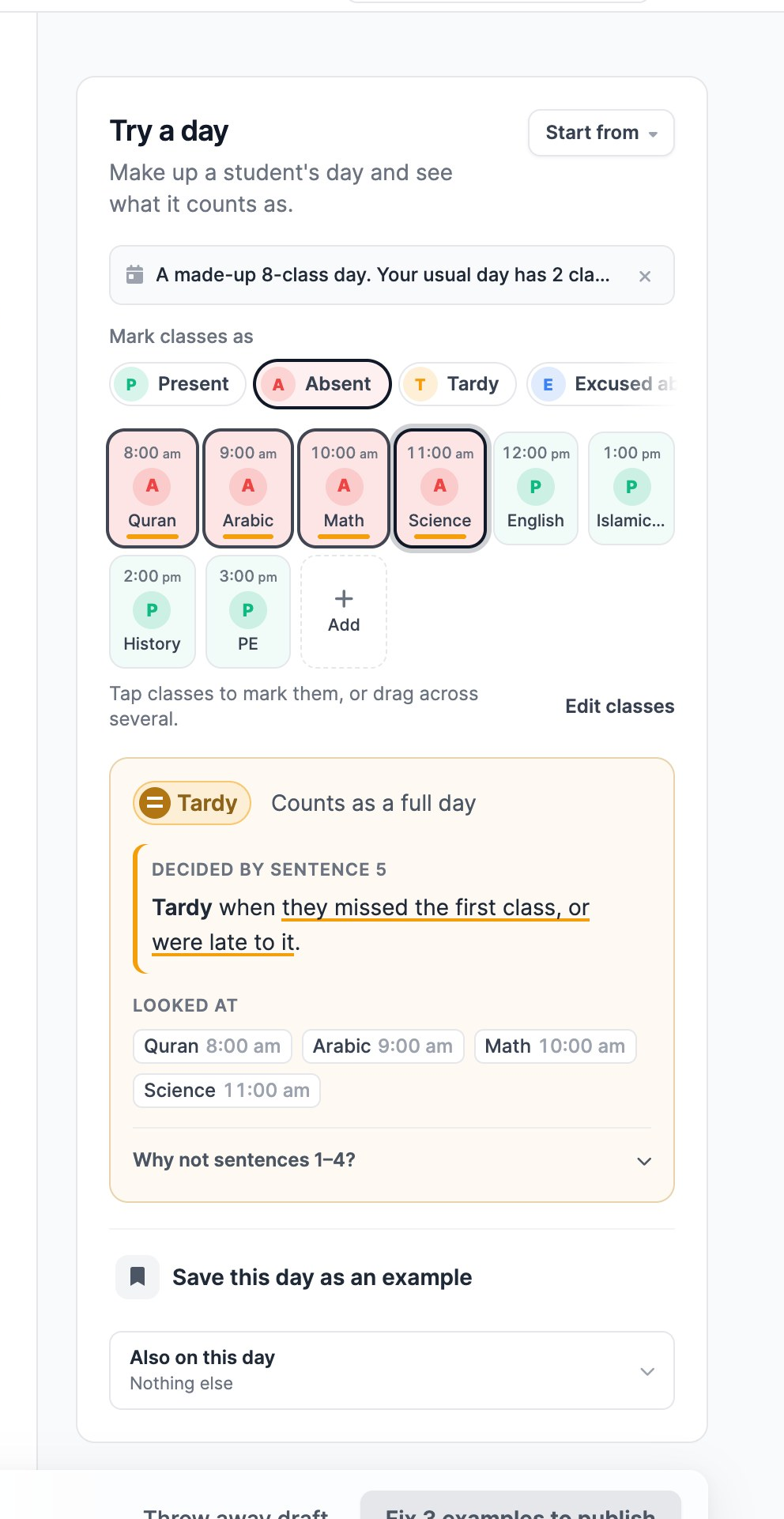
Try a day, on the right, starts with your school's usual day, all present. (If MarkTrack hasn't looked at your recent days yet, or your usual day has only one or two classes, it starts with a made-up eight-class day and says so.) Pick a mark under Mark classes as and click classes; Start from loads a ready-made day or A real day…. Add a request or a Sign-in under Also on this day if your rule looks at them.
The answer names the sentence that decided it, and Why not sentences …? says why the earlier ones didn't fit. Save this day as an example keeps a good test.
Example days
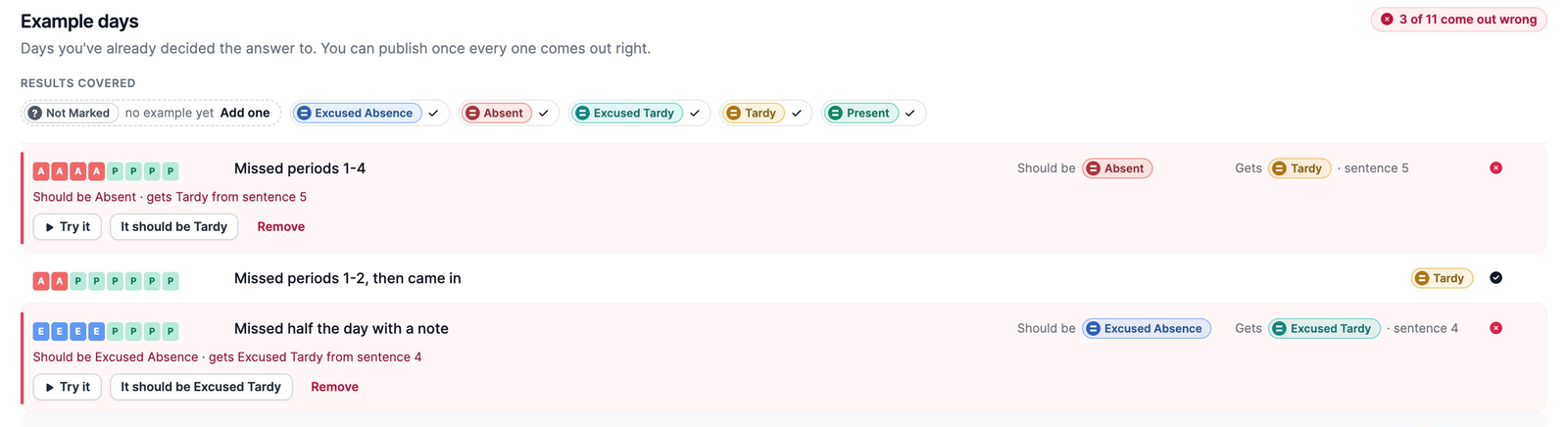
Example days are days you've already decided, such as “Missed periods 1–4 should be Absent”. Starting points come with their own. If a change breaks one, it turns red and shows what it should be and what it gets: change the rule back, or click It should be … if the new answer is right. MarkTrack keeps only the classes and marks, never who the student was.
Check against real days
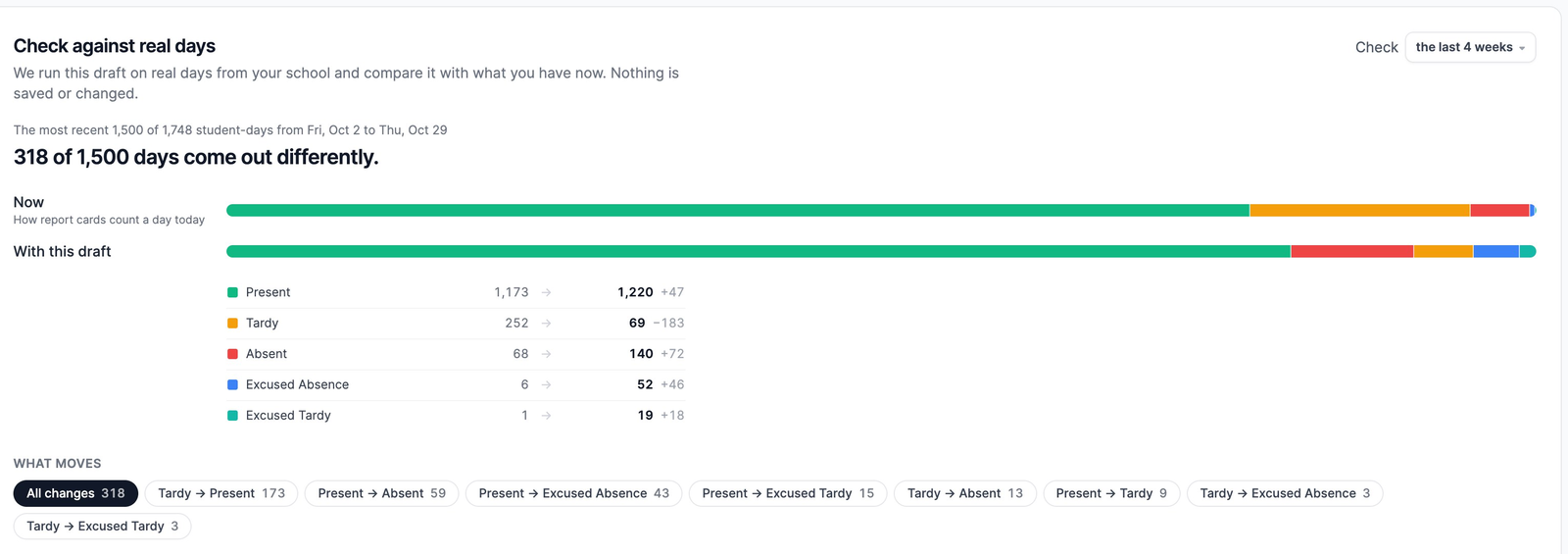
Optional, but the best way to see what your rule will do. Check against real days runs your draft on your own days from the last 2 weeks, 4 weeks or this term, and shows how many would come out differently and What moves (“Tardy → Present”). Click a change to see those days, and a day to try it. Nothing is saved.
Turn it on
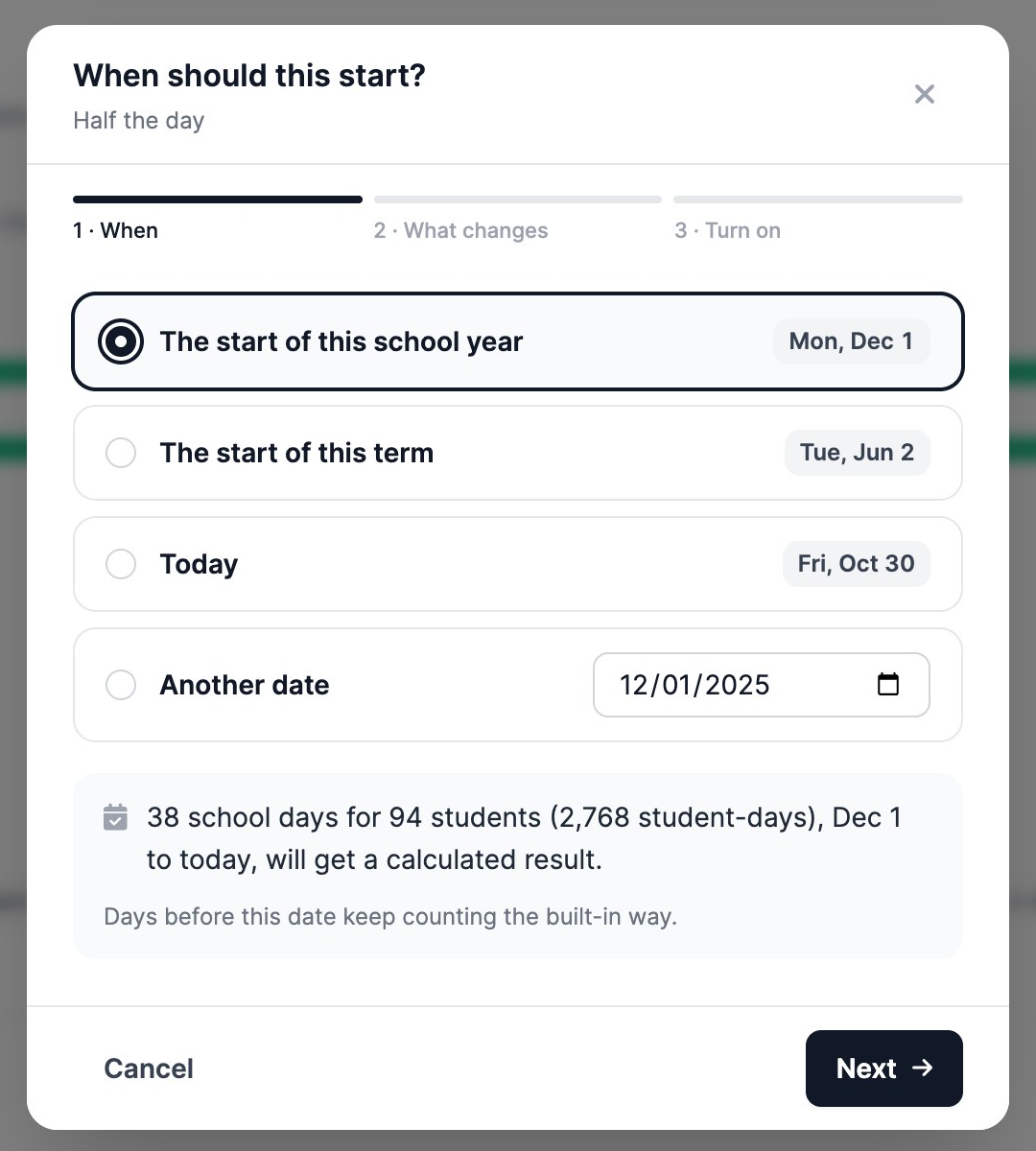
You can turn the rule on once it has no problems, it has at least one example day and every example comes out right, and what families read is filled in (the one sentence, and a reason for any sentence written in Formula view). If most of your recent days would come out Not marked, it asks you to look first. The button at the bottom names the next thing to fix. When it reads Review and turn on…, click it:
- When: usually the start of this school year. Days before it keep the built-in way.
- What changes: your sentences, examples and recent days.
- Turn on: click Turn on from ….
MarkTrack then works out every school day from that date. You can leave the page; until it's done, totals say “Whole-day results are being updated.” and the rule can't be changed.
After it's on
- Where results show. Staff see them straight away: on each student's attendance, in the Command Center, on the class grid when you hover a mark, and in attendance reports. Report cards count whole days only once you show whole-day results to families, because they go home.
- Changing it. Click Make changes, then Review and publish…, pick a start date (tomorrow by default), and click Publish version …. The version in use keeps counting until then, and earlier days keep the version they had. Versions lists them all.
- Turning it off. The Calculating days switch puts every screen back on the built-in way. Class marks aren't touched; turn it back on and the days are worked out again.
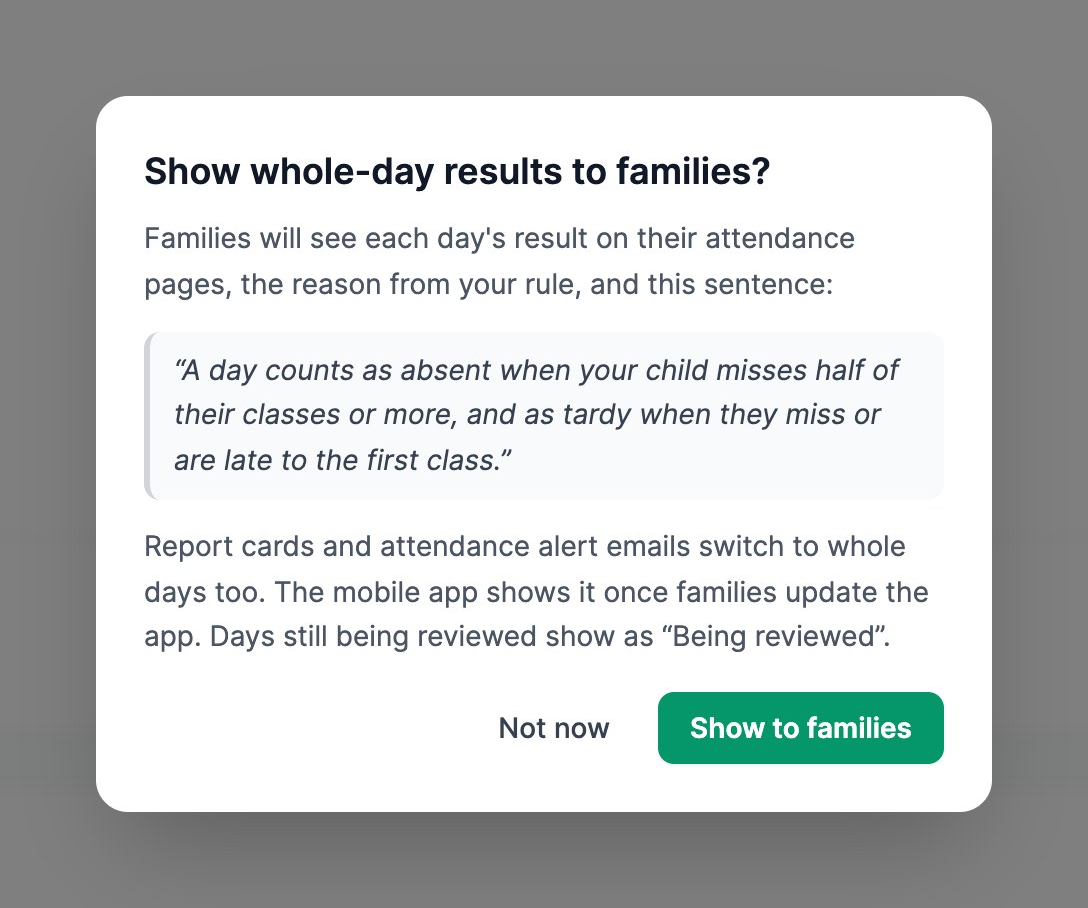
- Showing families. Turn on Show whole-day results to families. Parents and students then see each day's result and reason, and report cards and the end-of-day alert email switch to whole days too. Before you confirm, it shows exactly what families will read.
Common questions
Why does a class count as the first class when it isn't?
Its start time is odd, such as 12:40 am. The rule page warns you about it, above A few details. Fix the class's time.
What happens to a class nobody marked?
On the standard choice it isn't counted as missed. A few details can count it as present or absent instead.
Do excused absences count as missed?
Yes. So in Half the day, missing half the day with notes is an Excused Absence, not Present.
Why is a day Excused Tardy when the first class was excused?
In Half the day, The start and the end of the day, and Core classes, requests and sign-ins, an excused first class gives Excused Tardy, unless an earlier sentence fits first (for example, enough was missed for an absence).
What counts as a sign-in?
The student's first sign-in of the day, at the kiosk or the front office.
The starting points changed. Does my rule change too?
No. A published rule never changes by itself. Publish a new version to pick up an improvement.
What about days before the rule started, and holidays?
Days before the start date keep the built-in way; a total that starts earlier shows class marks with “Whole-day results start …”. A holiday is never an absence.
Why does a day say “Couldn't calculate”?
A status the rule gives was renamed or archived. The Settings row names the status and the rule page the sentence; fix either and the days are worked out again.
Do absence alerts change?
They're still sent for class marks. Once you show whole-day results to families, the end-of-day alert email also shows the day's whole-day result and counts the last three months in whole days.
Related guides: Reading whole-day attendance, Daily vs per-class attendance, Custom statuses, self-marking, and attendance takers, and Run attendance from the Command Center.
More in Attendance
Still stuck?
Our team is happy to walk you through it.