
Read the whole-school daily attendance report
The Daily Attendance report answers one question for one school on one day: did every class get marked, and who is missing? It lists every class that meets that day with its Present / Absent / Tardy / Excused counts, flags the classes nobody has taken yet, and ends with a chip for every student who was absent or tardy — the follow-up list you actually call home about. This guide shows you where to open it, what each tile and column means, how to move between days and schools, and how it changes for a school running day-based attendance.
One school, one day
The report is always scoped to the school you're currently in and to a single date. It is a snapshot, not a date range — for trends over weeks or a term use the Command Center, and for one class over a range use the class report in Take daily attendance.
Step 1 — Open the report
- Go to Attendance → Command Center (admins only).
- Open the Teachers tab and make sure the Daily toggle is selected.
- Pick the date you care about with the date picker or the arrows either side of it.
- Click the teal Daily Report button. It carries the date you picked straight into the report.

The report is also a plain, bookmarkable page at
/your-school-slug/attendance/daily, and it accepts a ?date=YYYY-MM-DD
parameter — so "yesterday's attendance for the elementary school" can live in your browser
bookmarks bar. Opening it with no date shows today.
Step 2 — Read the four summary tiles
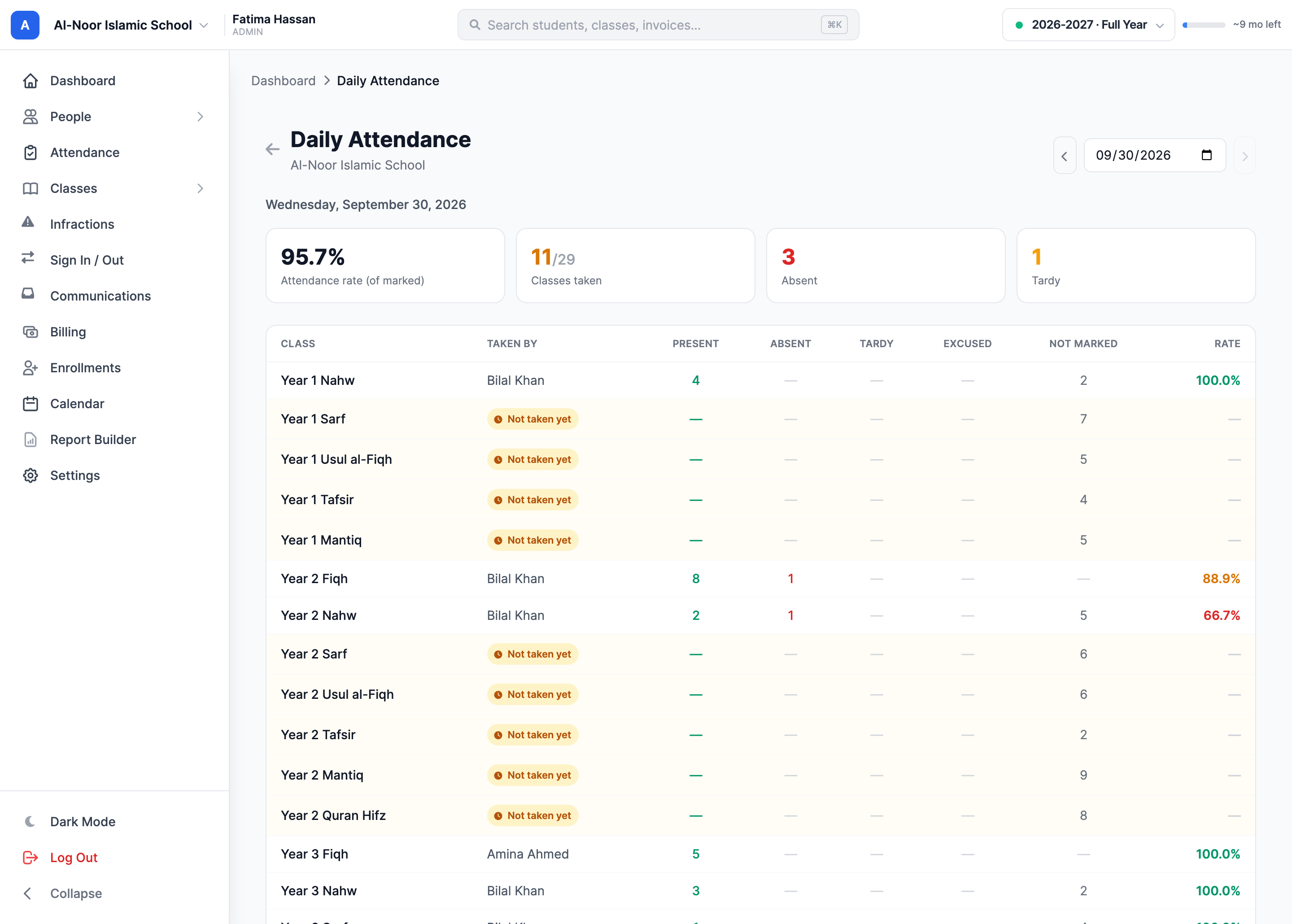
- Attendance rate (of marked) — the school-wide rate for the day. Tardy and Excused count as attended; only a plain Absent lowers it.
- Classes taken — how many of the day's classes have at least one mark. It turns green when the two numbers match and amber the moment even one class is outstanding. This is the number to look at first each morning.
- Absent — the day's unexcused absences across every class.
- Tardy — the day's late arrivals across every class.
"Of marked" is the important part
This rate divides by the marks that actually exist, not by the roster. A class where a teacher marked only the three absent students will read 0% — technically true, badly misleading. Read the rate next to the Not marked column, never on its own. (The per-class report in Take daily attendance uses a different rule over a date range: there an unmarked student counts as present.)
Step 3 — What each column means
- Class — the class name. In day-based schools this is the single "School Day" row instead.
- Taken by — who recorded the marks. A staff name means a teacher or admin did it. A blue dot with "(taker)" means an appointed student attendance taker; a teal dot with "Self-marked" means students checked themselves in. Multiple means more than one person marked that class. An amber Not taken yet pill means nobody has.
- Present / Absent / Tardy / Excused — the day's marks for that class. A dash means zero.
- Not marked — students on the roster with no mark at all that day. This is the gap, not a status.
- Rate — that class's rate for the day, colored green at 90% and above, amber from 75%, and red below. A dash means nothing was marked, so there is nothing to divide.
Not marked is not Absent
A student in the Not marked column has no record for the day — the teacher simply hasn't reached them. Nobody is contacted, no absence alert fires, and the student is not counted against the rate. Treat a high Not-marked number as an unfinished register, not as good news.
One subtlety in the counts: a mark that is both excused and tardy is shown in the Tardy column and the Excused column, so those two columns can add up to more than the number of students marked. The rate and the "classes taken" count use the real number of records, so they stay correct.
Step 4 — Chase the classes nobody took
Untaken classes are tinted amber and sorted into the same table as everything else, so a morning check is one scroll: any amber row is a register that still needs doing. The Not marked figure on that row is the whole roster, and the rate shows a dash.
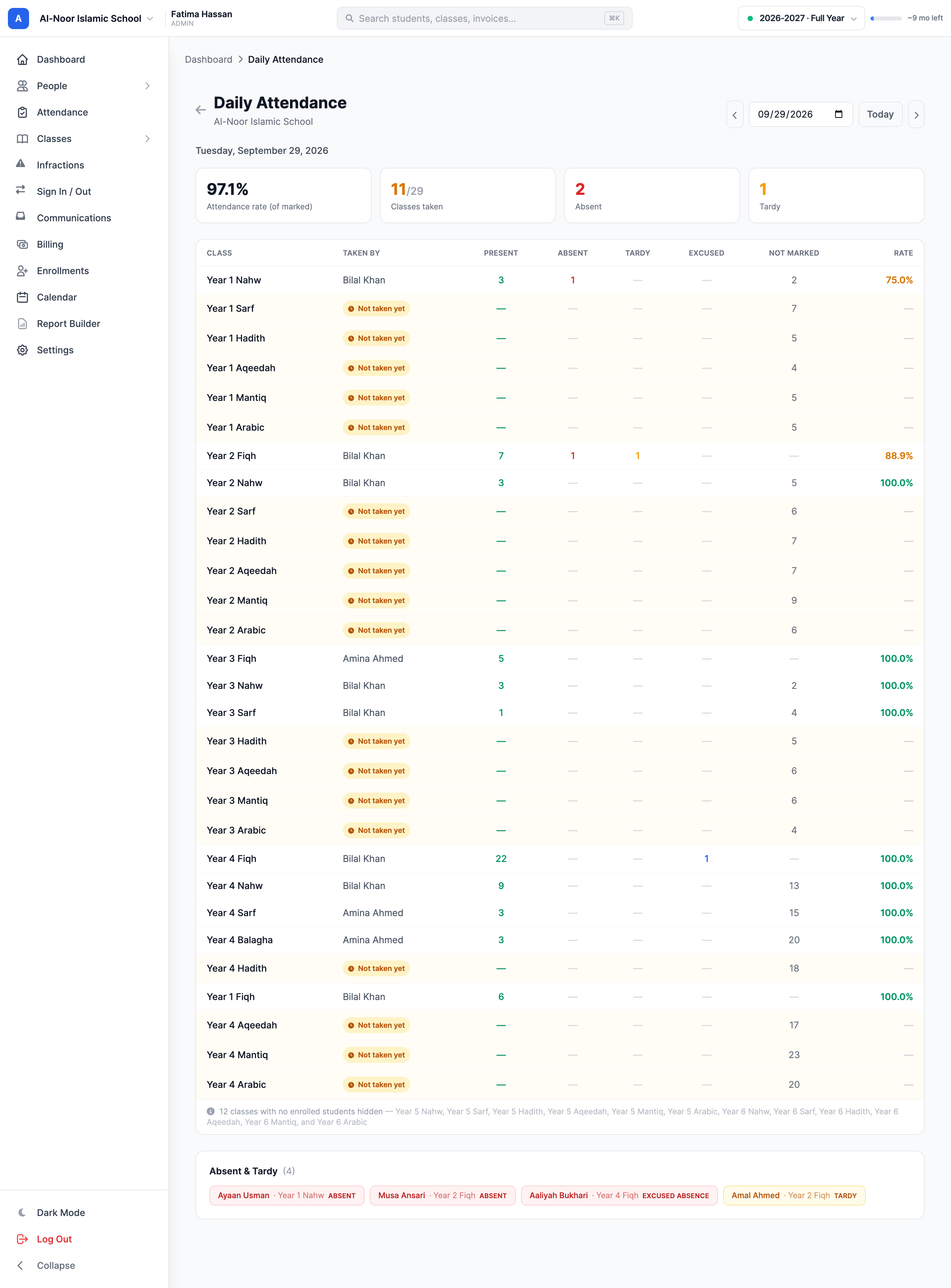
The grey note under the table — "N classes with no enrolled students hidden" — is there so the taken/total count stays honest. A class with an empty roster can never be "taken," so it is left out of the table and the denominator and simply named in the footer.
Step 5 — Work the follow-up list
Absent & Tardy collects every absence and tardy of the day into one chip per mark: student name, class, and status. Red chips are absences, amber chips are tardies. This is the call list — one chip per class, so a student who was out all day appears once for each class they missed.

When there is nothing to chase, the card says "No absences or tardies recorded on this day" instead. If a name is followed by (no longer enrolled), that student has since left the class or the school — their mark is real history, but there is no current roster spot behind it. Excused absences are deliberately not in this list: an approved absence request is already explained, so it needs no follow-up.
Change the date

- The left chevron goes back one day, the right chevron forward one.
- The date field reloads the report as soon as you pick a date — there is no Apply button.
- Today appears only when you're looking at some other day, and returns you to today.
- The forward chevron is greyed out on today. The report never runs on a future date, because attendance can't be marked in the future.
"Today" follows your organization's timezone
Which day counts as today — and therefore where the forward arrow stops — comes from your organization's timezone, not your laptop's. If evening checks land on the wrong day, fix your timezone setting first.
Switch schools — and what changes in day-based mode
There is no school picker on the report itself. Change schools with the school switcher at the top-left of the app and open the report again; the school's name sits right under the "Daily Attendance" title so you always know which one you're reading.
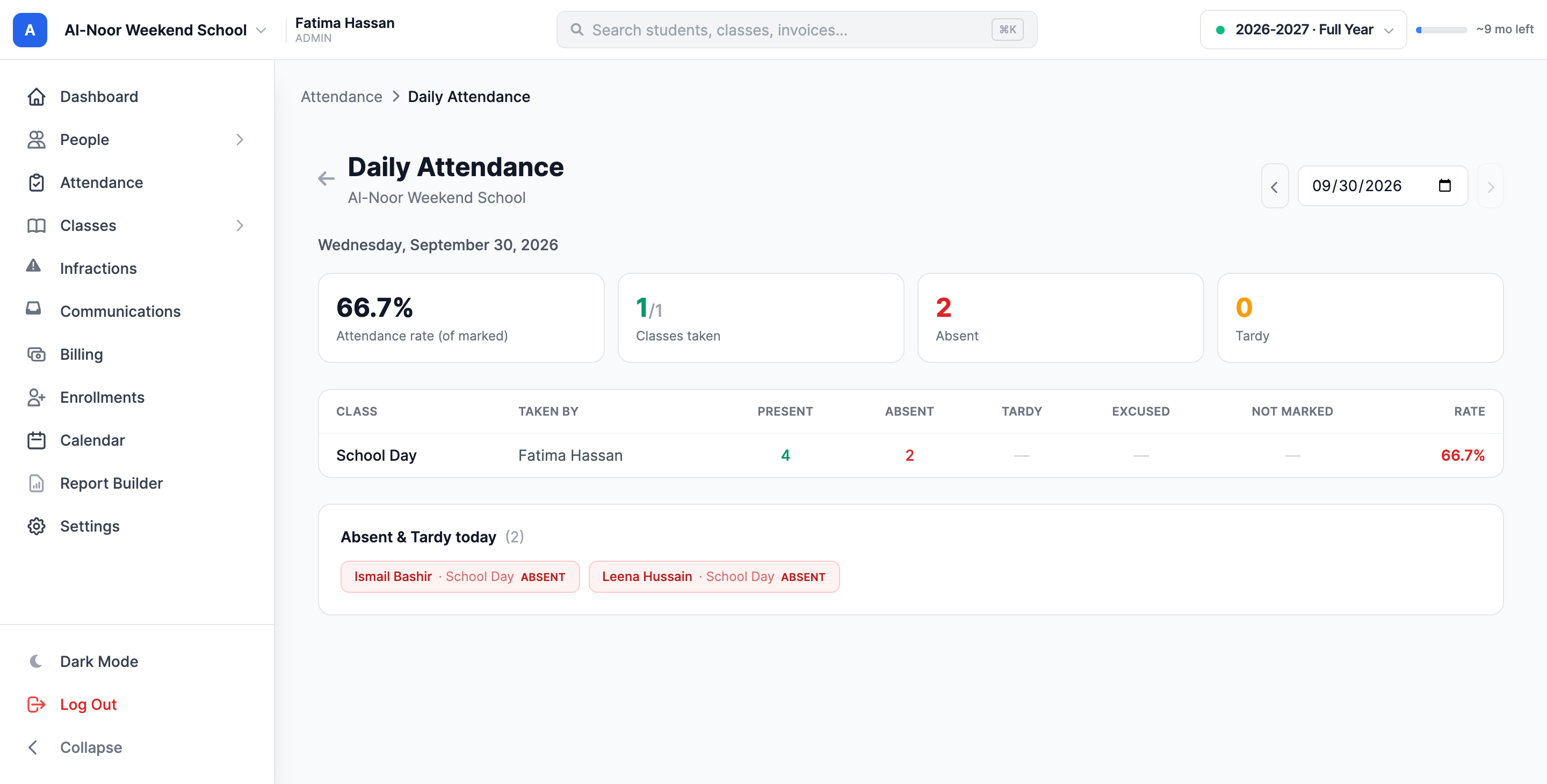
A school set to daily attendance mode takes one mark per student per day instead of one per class. Its report has exactly the same tiles, columns, and follow-up card — there is simply one row, named School Day, and "Classes taken" reads 1/1 when the day is done.
Which classes appear on a given day
MarkTrack picks the day's classes for you, using these rules:
- A class appears if it meets that weekday (its Adjust Class Days setting) and the date falls inside the class's academic year.
- A class whose meeting days were never set falls back to a sensible pattern for the school type — weekdays for a full-time school, Sunday for a Sunday school.
- Recorded marks always win. If someone marked a class on a day it doesn't normally meet, that class still shows up — so an off-schedule register can never hide its absentees.
- On a holiday a blue banner names the holiday and no class is treated as in session; anything marked anyway is still listed underneath.
- If nothing meets at all — a weekend, a closed day — the table is replaced by "No classes meet on this day."
Printing and exporting
The report page has no export buttons of its own, but it is built to print: the back arrow and the day navigation drop out automatically, so Print (or Save as PDF) from your browser gives you a clean one-page sheet for the front desk or a morning huddle.
For a spreadsheet, use the CSV button on the Command Center's Teachers tab — right next to the Daily Report link — which exports the same day's per-class compliance rows. For raw attendance records with filters, use the Command Center's Records tab and its CSV / XLSX / PDF exports.
Who can see it
- Admins get the full path: Command Center → Teachers → Daily Report.
- Teachers with attendance access can open the report by URL, and they see the whole school — every class, not just the ones they teach. It's a read-only overview; nothing on the page changes a mark.
- Parents and students have no access. Families see only their own attendance.
Next up: fix the gaps this report surfaces in Take daily attendance, dig into trends and per-student history in the Command Center, or browse the other guides in Attendance.
More in Attendance
Still stuck?
Our team is happy to walk you through it.