
Set up attendance alerts for families (email, app and text)
MarkTrack can tell a family that their child was marked absent or late — by email, by text, by a notification in the app, or any combination — and it can tell your admins that a family filed an absence request. Both live on one tab: Settings → Attendance. This guide walks the two cards there: Attendance alerts (one card, one Save, four questions) and Absence Requests (who on your staff hears about new requests). It also says exactly what each choice sends, and when.
Alerts start switched off
A new school has all three channels — Email, Text message and Push notification — unticked. No attendance alert goes out until an admin turns one on here. Nothing you do on the attendance grid turns alerts on by itself.
Looking for billing text messages?
Texts about invoices and overdue payments used to sit at the bottom of this tab. They are an invoice setting, so they now live in Billing → Settings, under SMS Notifications beside the invoice emails they mirror, and they save with that window's one Save Settings button. Nothing on the Attendance tab controls them any more.
Step 1 — Open the Attendance settings for the right school
- Go to Settings and open the Attendance tab.
- Check the school in the school switcher first. The email half of the card is per school — each school has its own marks, its own recipients and its own timings. Switch schools and set each one up.
- You need admin (or settings-edit) permission. If the card says "Pick a school at the top of the page first," you're in an org-wide view — pick a school and come back.
Only staff marks alert families
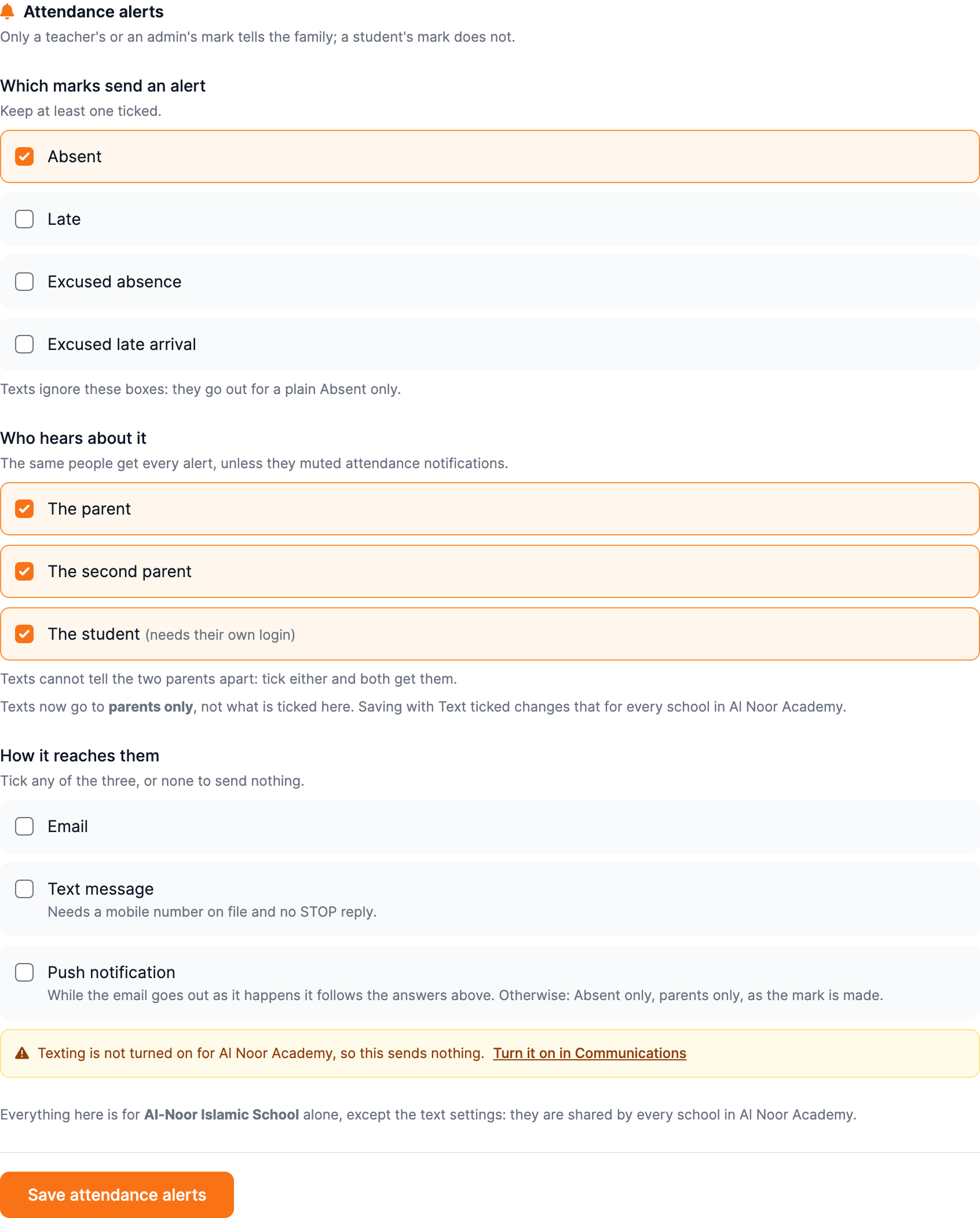
When a student marks themselves or an appointed student attendance taker marks a classmate absent, no alert is sent. The alert is held until a teacher or admin confirms the mark. This is deliberate: a mis-tap by a classmate should never text someone's parents.
Step 2 — Which marks send an alert
Tick the marks worth telling a family about:
- Absent — the student did not attend.
- Late — the student arrived after the start of class.
- Excused absence — an absence the school already approved.
- Excused late arrival — a late arrival the school already approved.
Present is never alertable — there is no box for it, and a mark that ends up Present sends nothing. At least one box has to stay ticked: a save with all four cleared is refused, and the card says so. If what you want is silence, untick all three channels under How it reaches them instead — that is the real off switch.
These four boxes govern the email and the app notification. A text message goes out for a plain Absent and nothing else — and it goes out whether or not Absent is ticked here. Unticking Absent does not stop a single text; unticking Text message does. The app notification is narrower in one case too: outside the as-it-happens email it can only fire on Absent (see Step 4).
Step 3 — Who hears about it
Three boxes, and the same answer drives both channels:
- The parent — the student's primary parent.
- The second parent — only when a second parent is on the student's record.
- The student — only when the student has their own login and email. A no-login child account has no inbox and is skipped, so ticking this changes nothing for younger students.
Email follows the boxes exactly. Texts are coarser: the text pipeline cannot tell the two parents apart, so ticking either parent means every parent on file with a mobile number gets the text. And because texting is configured once for the whole organization, saving this card with Text message ticked points every school's texts at the people ticked here. The card warns you before you save whenever the boxes and the stored text recipients disagree.
One exception worth knowing: the push notification reaches parents only unless the email goes out as it happens. A school on At the end of the day — or with no email at all — sends its app notification down an older path that tells guardians and never the student, however The student is ticked here. It still honours the two parent boxes. Schools whose email goes out as it happens get a notification that follows all three boxes exactly.
Step 4 — How it reaches them
Three independent checkboxes. Tick any combination, or none.
- Email — an email to the address on the recipient's account. Anyone who muted attendance email in their own notification settings still will not get it.
- Text message — only reaches people with a mobile number on file who have not replied STOP. Everyone else still gets the email, if email is on.
- Push notification — a notification in the MarkTrack app (and on the phone, for anyone with the mobile app). While the email goes out as it happens, the push follows every answer above it — the same marks, the same people, the same wait. Otherwise it comes from an older, narrower path: Absent only, parents only, and it arrives as the mark is made rather than waiting for the end-of-day send time. The card says this under the option, and again under At the end of the day.
None ticked means no attendance alerts at all. If someone is ticked under Who hears about it but no channel is on — or a channel is on with nobody ticked — the card refuses the save and says which question is unanswered.
Texting is organization-wide, and it costs money
Unlike the email half, everything about texts is one setting for your whole organization — the switch, the timing, the wait, and who the text reaches. Every school shares them. Texts also need SMS switched on with credits in Settings → Communications, and each message is billed per segment (see Send text messages). Until texting is set up, ticking Text message only saves the preference — nothing is sent. The card shows an amber note whenever that is the case.
Step 5 — When should the alerts fire?
One question, two answers. It appears while Email is ticked, because the answer is stored as the email's timing. A text has no end-of-day form, so its own wait sits on its own line under Text message.
- A number of minutes after the mark — one email (and one app notification) per mark, that many minutes after it is made. The wait is there so a teacher can fix a wrong mark: default 10, range 1–120, anything outside pulled back to the nearest limit (the flash says when that happened). Nothing leaves during the wait — a mark corrected to Present inside it sends nothing, and a mark corrected to another ticked mark sends that one instead.
- At the end of the day — at the time you pick, MarkTrack emails the marks from the previous day, in your organization's timezone. It is one email per child per kind of mark, each carrying that child's recent attendance rate — not one combined list. A student absent in six classes on the same day still produces a single email.
The app notification does not wait for the end of the day
This answer times the email. A push notification has no queue to sit in, so on At the end of the day it arrives as the mark is made — a whole school day before the email it is paired with. The card shows a note saying so whenever both are on. If you want nothing to reach a family in real time, untick Push notification.
When the text goes out
- A set wait after the mark — the text goes out the chosen number of minutes after the student is marked absent. Set the wait to 0 to text straight away.
- After the class ends — the wait counts from the class's scheduled end time instead. A class with no end time on the schedule falls back to 2 hours after the mark.
- Minutes to wait — 0 to 240, default 30. Any change away from Absent inside the wait cancels the queued text, and nothing is sent.
Click Save attendance alerts. The confirmation names what you just chose — which way email goes out for this school, whether app notifications are on for it, and whether texts are on or off for every school — so you can tell a real change from a mis-click. If the save dropped something you did not pick, it names that too: a school that used to send both the real-time email and the daily summary keeps only the answer above, and the confirmation says which email has stopped.
Real-time alerts don't spam
Several guards sit between a click and a parent's inbox: only the last change inside the settle window counts, the same status is never announced twice for the same mark, and a student marked absent in six classes on one day generates one alert — not six.
Step 6 — Route absence-request notifications
The second card, Absence Requests, is per school and covers the family-request flow rather than attendance marks.
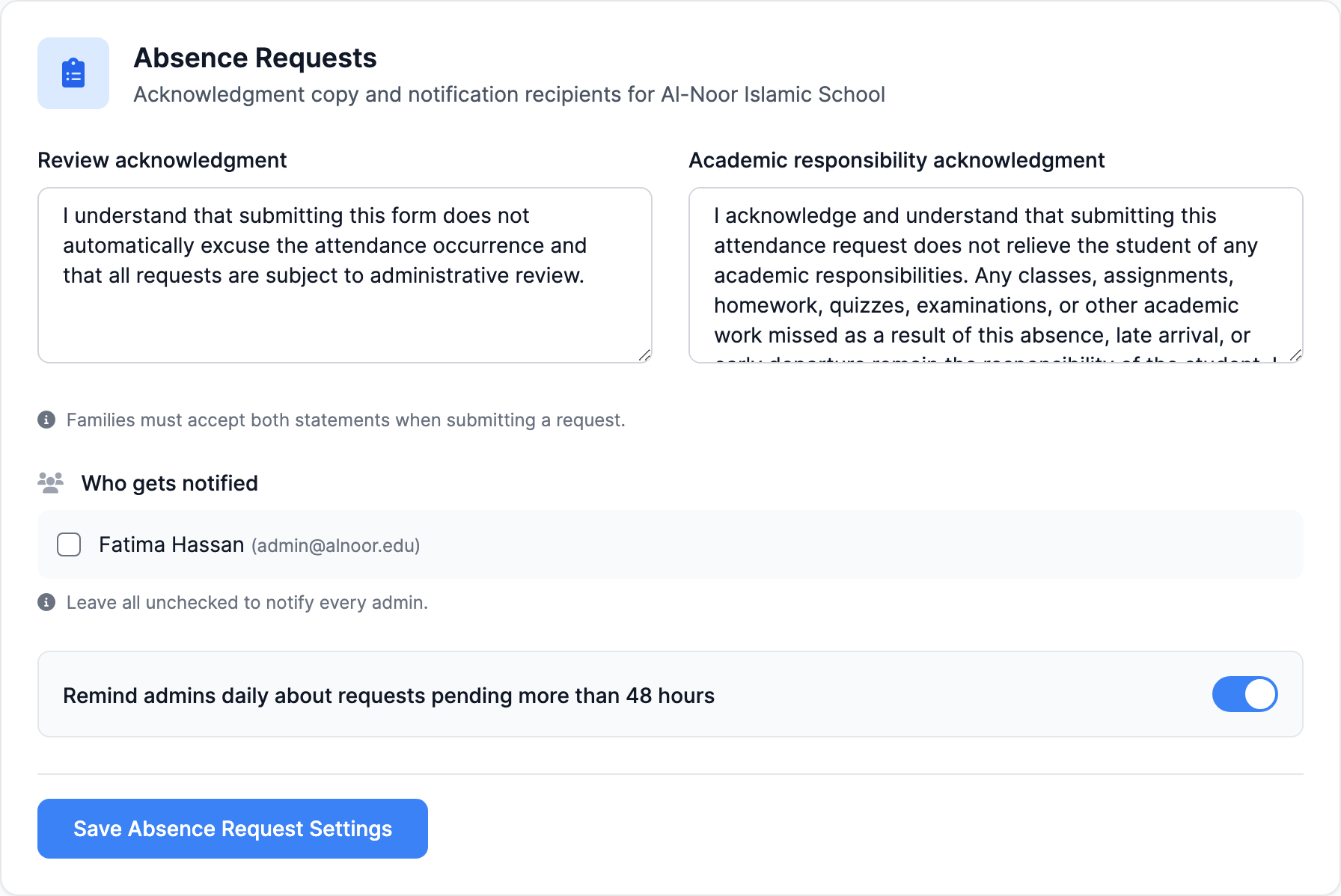
- Review acknowledgment and Academic responsibility acknowledgment — the two statements a family must tick before a request can be submitted. Edit the wording to match your policy; both are required, so they can't be left blank.
- Who gets notified — tick the admins who should receive new-request emails and in-app notifications for this school. Leave every box unchecked to notify every admin who can see this school (super admins, admins linked to it, and admins with no school restriction). An admin restricted to a different school is never included.
- Remind admins daily about requests pending more than 48 hours — one summary email per school per day listing everything still sitting in the queue, sent to the same recipients.
Click Save Absence Request Settings.
What each side actually receives
- Families — the attendance-mark email (a few minutes after the mark, or once a day), the in-app/push notification when that is ticked, and a text for a plain Absent when texting is on.
- A family who files an absence request — a submission receipt straight away, then an approval or rejection email when an admin decides. These are separate from the alerts above and always go out.
- Admins — new-request notifications per the recipient list, plus the optional 48-hour reminder.
- Teachers — a morning in-app/push heads-up when students in their classes have an approved absence for the day. No email, and nothing to configure.
Approved absences are deliberately left out of these alerts
Days marked Excused by an approved absence request raise neither a real-time alert nor a summary line. The family already received a request-specific approval email for exactly those days — alerting again would notify them twice about one event.
Individual families can still opt out
Parents and students with the MarkTrack mobile app have their own notification preferences per category and per channel. A parent who muted attendance-alert email keeps receiving push, and vice versa — so "alerts are on" at the school level doesn't guarantee every inbox. Everyone is opted in until they change it themselves.
Troubleshooting
- Nobody got an email. Check that Email is ticked, that the mark itself is ticked under Which marks send an alert, and that at least one person is ticked under Who hears about it. Then confirm the mark was made by a teacher or admin, not a self-marking student.
- The app notification came hours before the email. Expected on At the end of the day: the email waits for the send time, the push does not. Untick Push notification if nothing should arrive in real time.
- The student did not get the app notification, but the parents did. Outside the as-it-happens email, push reaches guardians only. Switch the timing to a number of minutes after the mark if the student should get it too.
- Only one school is sending email. The email half is per school — switch schools in the switcher and set the others up.
- A change I made at one school changed texting everywhere. That is how texting is stored: one setting for the whole organization. The switch, the timing and the recipients are shared by every school.
- The daily summary arrives at a strange hour, or covers the wrong day. The send time follows your organization's timezone, and the summary always covers the previous day; fix the timezone first.
- A parent got no text. They need a mobile number on file, texting must be set up and in credit for the organization, and only a plain Absent ever texts. A mark changed inside the wait cancels the text on purpose.
- I unticked Absent and the texts kept coming. Expected: the mark boxes govern the email and the app notification, never texts. Untick Text message to stop texts.
- You marked the whole class present after a wrong absence. That's fine — flipping a student back to Present inside the settle or text wait cancels the queued email and the queued text. Demo-seeded data never notifies anyone at all.
Next: see how the marks that trigger these alerts get made in take daily attendance, review the family side in absence requests, or browse the other guides in Attendance.
More in Attendance
Still stuck?
Our team is happy to walk you through it.