
Daily vs per-class attendance: pick the right mode for each school
Every school in MarkTrack takes attendance in one of two attendance modes: Per Class (each class marks its own roster — the default) or Daily (one whole-school mark per student per day). The mode is set per school, so a full-time school and a weekend program in the same organization can each use the mode that fits how they actually run.
Pick early — the mode locks
Once a school has any attendance recorded for the current period, its mode locks until a new period begins (a new academic year, or the next calendar year if you don’t use academic years). Decide the mode when you set the school up, before anyone starts marking.
The two modes at a glance
- Per Class — every class keeps its own register. A student in five classes can be Present in four and Tardy in one on the same day. This is the default and the right fit for full-time schools where rosters differ by subject and period.
- Daily — attendance is taken once per day for the whole school. Each student gets exactly one mark per day, recorded on a single school-wide register. This fits weekend and Sunday schools, hifz circles, and small programs where the whole school arrives and leaves together.
Step 1 — Choose the mode for each school
Attendance mode is an admin-only setting, and there are two places to set it:
- Settings → Attendance: the School Attendance Setup card lists every school as an accordion, each tagged with a blue Per Class or green Daily pill. Expand a school and use the Attendance Mode cards at the top — clicking a card switches the school immediately.
- The Edit School dialog (from your school list or the Settings profile tab): the same two cards appear under Attendance Mode, and MarkTrack asks you to confirm before saving a whole-school change.
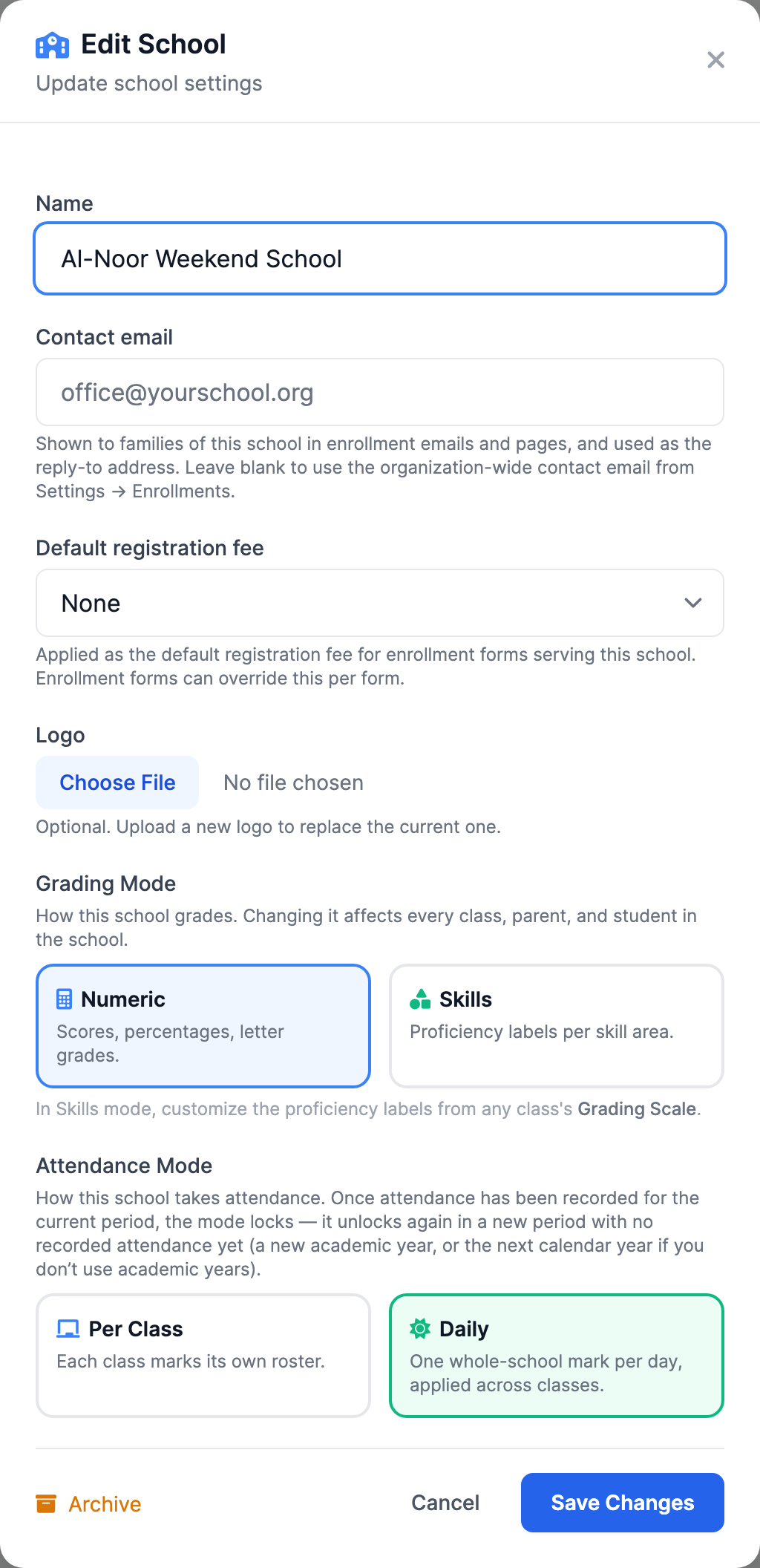
Step 2 — Know what Daily mode changes
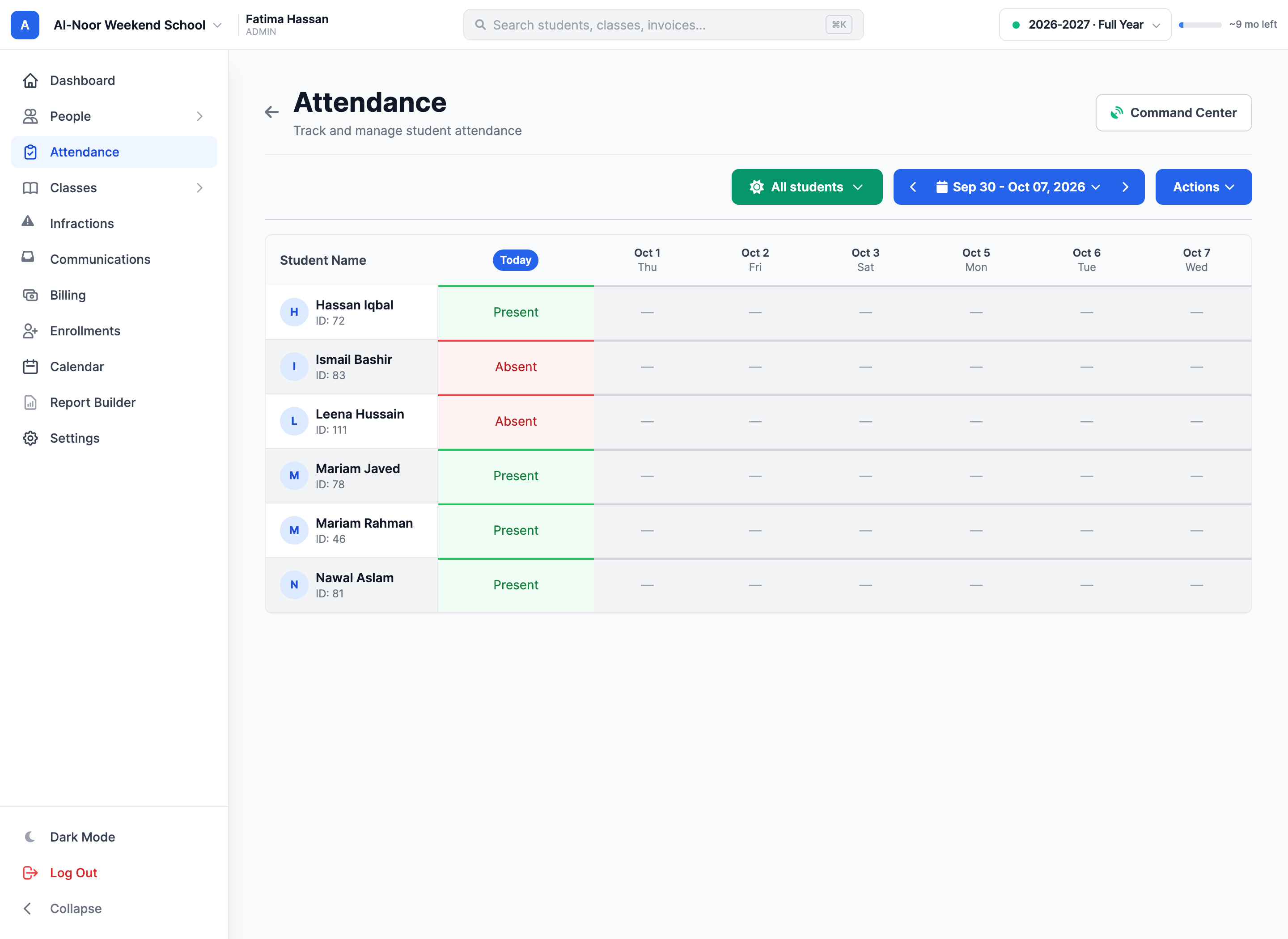
When a school switches to Daily, MarkTrack automatically provisions a hidden School Day register that holds every student in the school. From then on:
- The Attendance page opens straight to the whole-school roster — there is no class picker. In its place you get a green All students filter that can narrow the roster by level or class when you want to mark one group at a time.
- Regular classes stop taking attendance. Classes still exist for grading, assignments, and resources, but every attendance mark goes to the School Day register — one row per student per day.
- Marking works exactly like the per-class grid: click a cell, pick a status, add an optional reason. Date columns follow the school’s meeting days, and future dates stay locked.
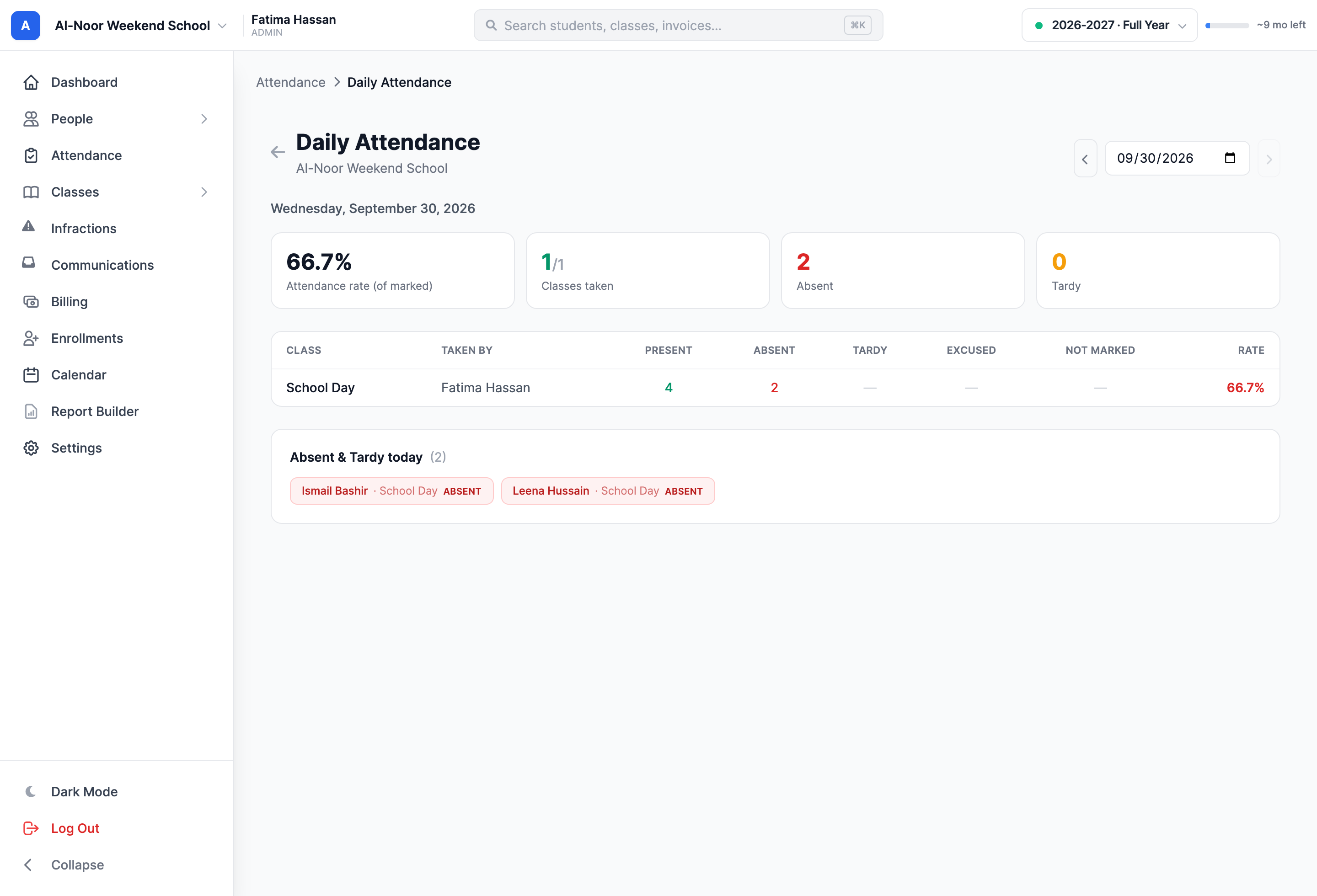
Because the whole school shares one register, the whole-school Daily Attendance report becomes the natural day-level summary: open the Command Center from the attendance page and use the Teachers tab’s Daily Report link. It shows the day’s rate, who took attendance, and which students need follow-up.
If attendance mode is already locked
The normal mode selector stays locked while the current period has attendance. An administrator who intentionally needs to discard a school's attendance can open Settings → Attendance, expand the school, and choose Reset attendance and start fresh.
Read the preview before confirming: this erases attendance marks, notes, excusals and sent-alert records for that school, and recalculates reports and report cards. It is irreversible. Approved future absences are reapplied; students, classes, grades, billing and other schools are preserved. Concluded-year attendance blocks the reset. The dialog requires the school's name and a choice of mode before Erase and reset.
To keep existing history, wait for a new period with no attendance recorded before switching mode.
What stays the same in both modes
- Statuses — the school’s status list (including any custom statuses you’ve added) applies to marks in either mode.
- Notes and reasons — every mark can carry a reason in both modes.
- Locks — future dates are always blocked, and the “Lock Past Attendance” setting behaves identically.
- Absence requests — parents submit them the same way; in a Daily school approval applies to the student’s School Day record on applicable meeting dates. Full-day requests excuse the absence; late arrivals and early departures follow their own rules in the absence-request guide.
- Reports, exports, and parent alerts — attendance rates, report cards, exports, and absence alerts all keep working; they just read from one register instead of many.
Switching rules — when the mode locks
Switching applies immediately, but only while the school has a clean slate: as soon as any attendance has been recorded for the current period, the mode locks. In Settings → Attendance, a locked school shows an amber banner in place of the picker, naming the current mode and why it can’t change.

The lock releases on its own when a new period starts with no recorded attendance yet:
- If the school uses academic years — at the start of the next academic year.
- If it doesn’t — at the start of the next calendar year.
Why mid-year switches are blocked
Per-class history can’t be collapsed into one mark per day without losing data, and daily history can’t be fanned back out into per-class rows. Locking the mode protects the year’s records from an accidental one-click rewrite. Plan the switch for the year boundary.
Daily mode and the other attendance features
- Student self-marking — if the school allows students to mark their own attendance, a student in a Daily school sees a single School Day entry for the day instead of one entry per class. Staff marks still always override.
- Student attendance takers — a taker can’t be appointed on the School Day register: that would hand one student marking power over the entire school. Takers remain a per-class feature for Per Class schools.
- Parent alerts — unchanged: alerts fire only for marks recorded by a teacher or admin, whichever mode the school uses.
Which mode fits which program?
- Weekend / Sunday schools, maktabs, hifz circles — usually Daily. Students are either at school that day or not; one mark answers the question, and staff mark the whole school in one pass.
- Full-time schools — usually Per Class. Attendance differs by period, and per-class registers catch the student who made first period but skipped fourth.
- Mixed organizations — set each school independently. A full-time school in Per Class mode and its weekend program in Daily mode work side by side in the same account.
Ready to start marking? See Take daily attendance for the grid itself, and Custom statuses, self-marking, and attendance takers for the settings that shape it.
More in Attendance
Still stuck?
Our team is happy to walk you through it.