
Track student conduct with Behavior Tracking
Behavior Tracking is where your school logs conduct and discipline incidents — a late arrival, a dress-code slip, a classroom disruption, anything worth a record. Each entry is called an infraction. This guide shows you how to record one, move it through review and resolution, control who can see it, filter and export the list, and let parents acknowledge that they've seen an incident.
Every infraction is tied to one student and one school. It carries a date, a category, a severity, a written description, and — once handled — an action taken. It also remembers who recorded it, who reviewed it, and which parent acknowledged it. Nothing here is ever shown to the student. Infractions are an internal flow for admins, teachers, and parents only.
Who sees what
An admin sees every infraction in the school. A teacher sees only the ones they recorded plus ones for students in their own classes. A parent sees only their own children's infractions. The student never sees any of it — not in the app, not in any export.
Step 1 — Open Behavior Tracking
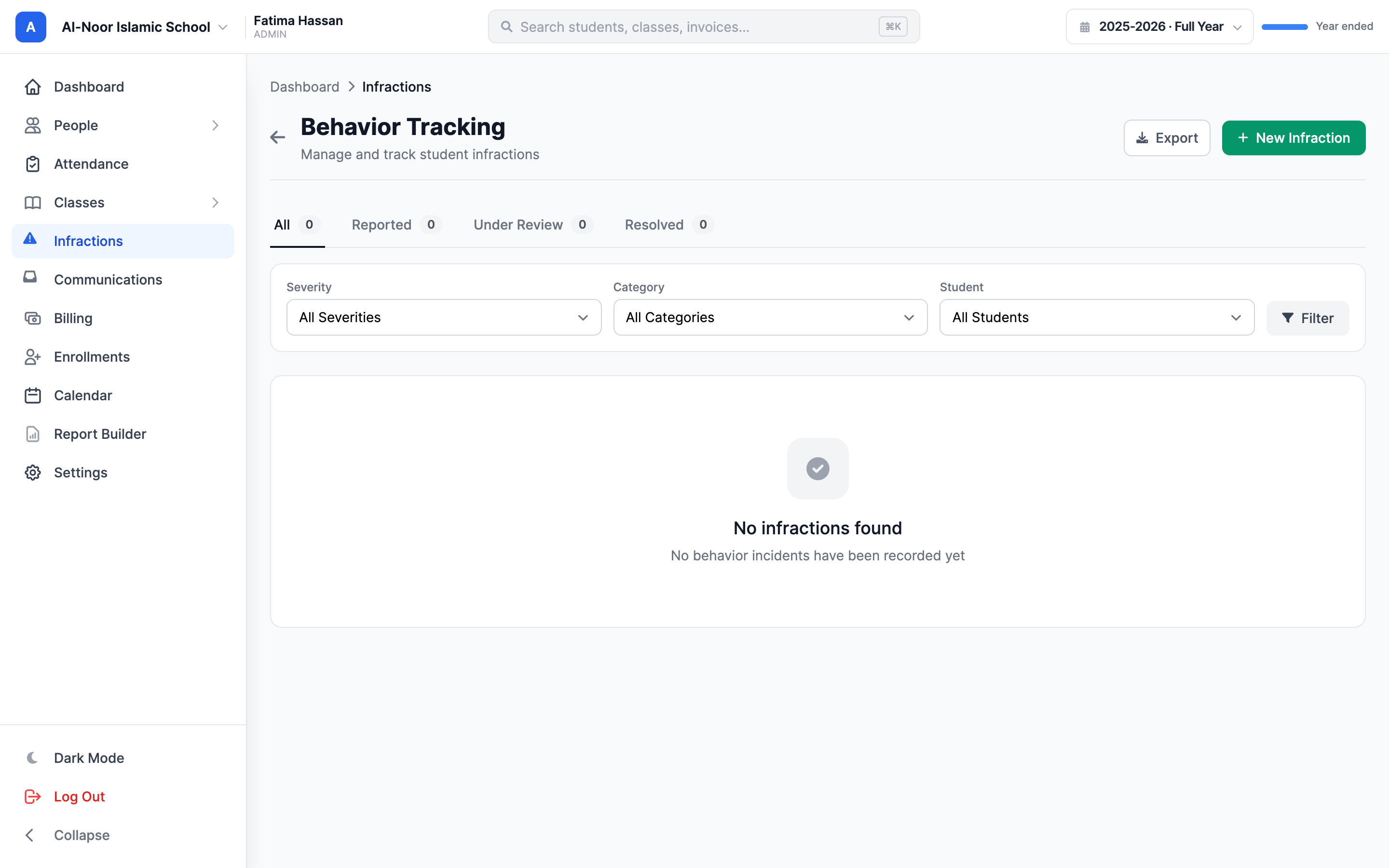
- From the dashboard, go to Behavior Tracking (the infractions page). The heading reads Behavior Tracking with the note "Manage and track student infractions."
- You'll land on a list of incidents, newest first, with status tabs across the top: All, Reported, Under Review, and Resolved. Each tab shows a count.
Step 2 — Record a new infraction
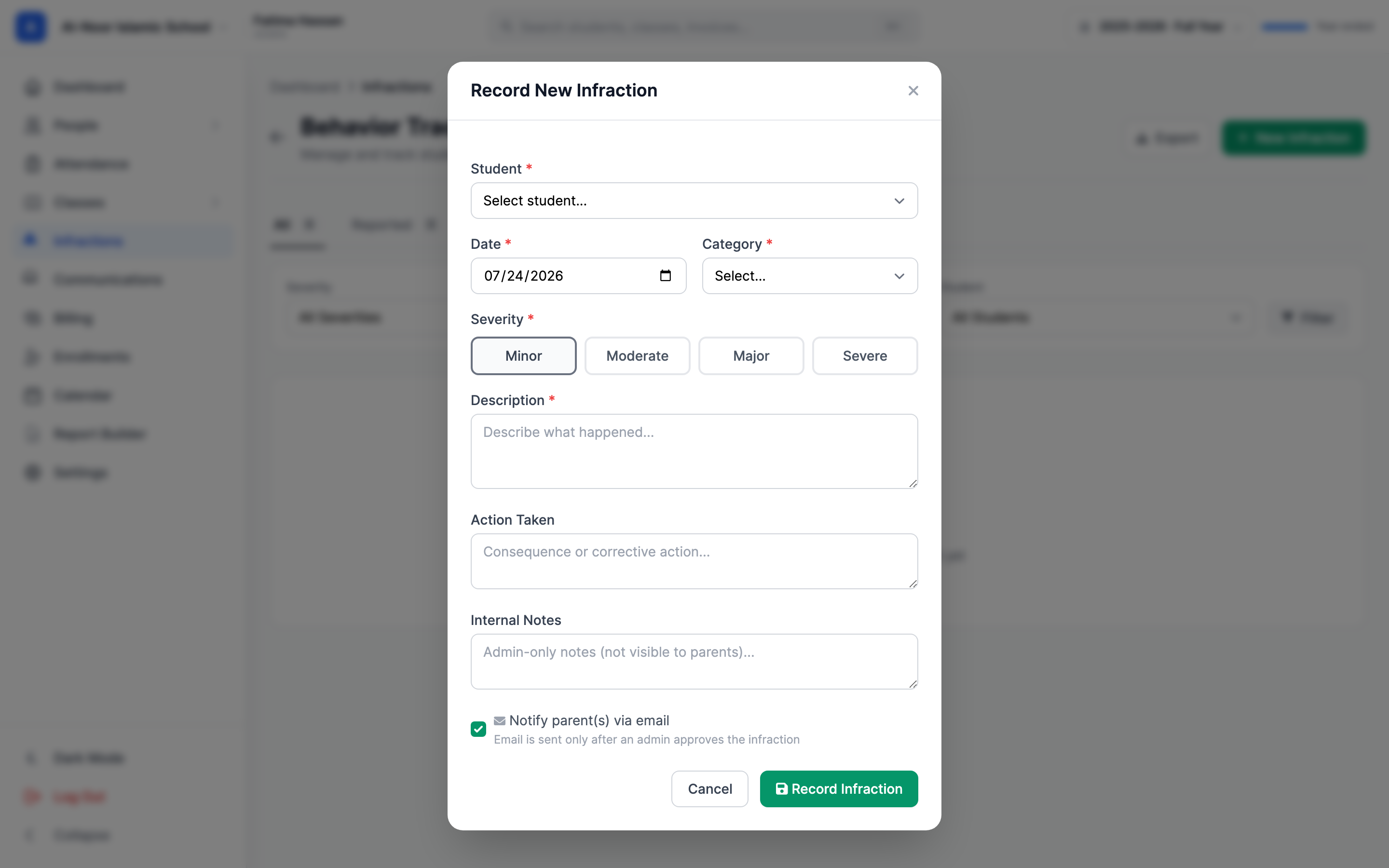
- Click the green New Infraction button (top right). The Record New Infraction form opens.
- Pick the Student. The dropdown only lists students from this school that you're allowed to log against — for a teacher, that's the students in their classes.
- Set the Date. It defaults to today; change it if the incident happened earlier.
- Choose a Category — for example Tardiness, Dress code violation, Classroom disruption, Disrespectful behavior, Cheating/Academic dishonesty, Bullying/Harassment, Fighting, or Other.
- Pick a Severity: Minor, Moderate, Major, or Severe. These are color-coded everywhere the infraction appears.
- Write a Description of what happened. This is required.
- Optionally fill in Action Taken (the consequence or corrective step) and Internal Notes.
- Leave Notify parent(s) via email checked to email the family, or uncheck it to keep the record internal.
- Click Record Infraction.
Internal Notes are private
The Internal Notes field is only ever shown to admins and teachers. Parents never see it on the infraction detail. Keep staff-only context here; put anything you want the family to read in the Description or Action Taken.
Step 3 — Understand the status lifecycle
Every infraction moves through three statuses, in order:
- Reported — the starting point. A brand-new infraction is always Reported.
- Under Review — someone is looking into it. Marking it Under Review records who reviewed it and when.
- Resolved — the incident is closed, with an action taken on record.
You don't have to pass through Under Review — you can resolve a Reported infraction directly. Both admins and teachers can review and resolve, as long as the infraction is one they're allowed to see.
Step 4 — Open an infraction and review it
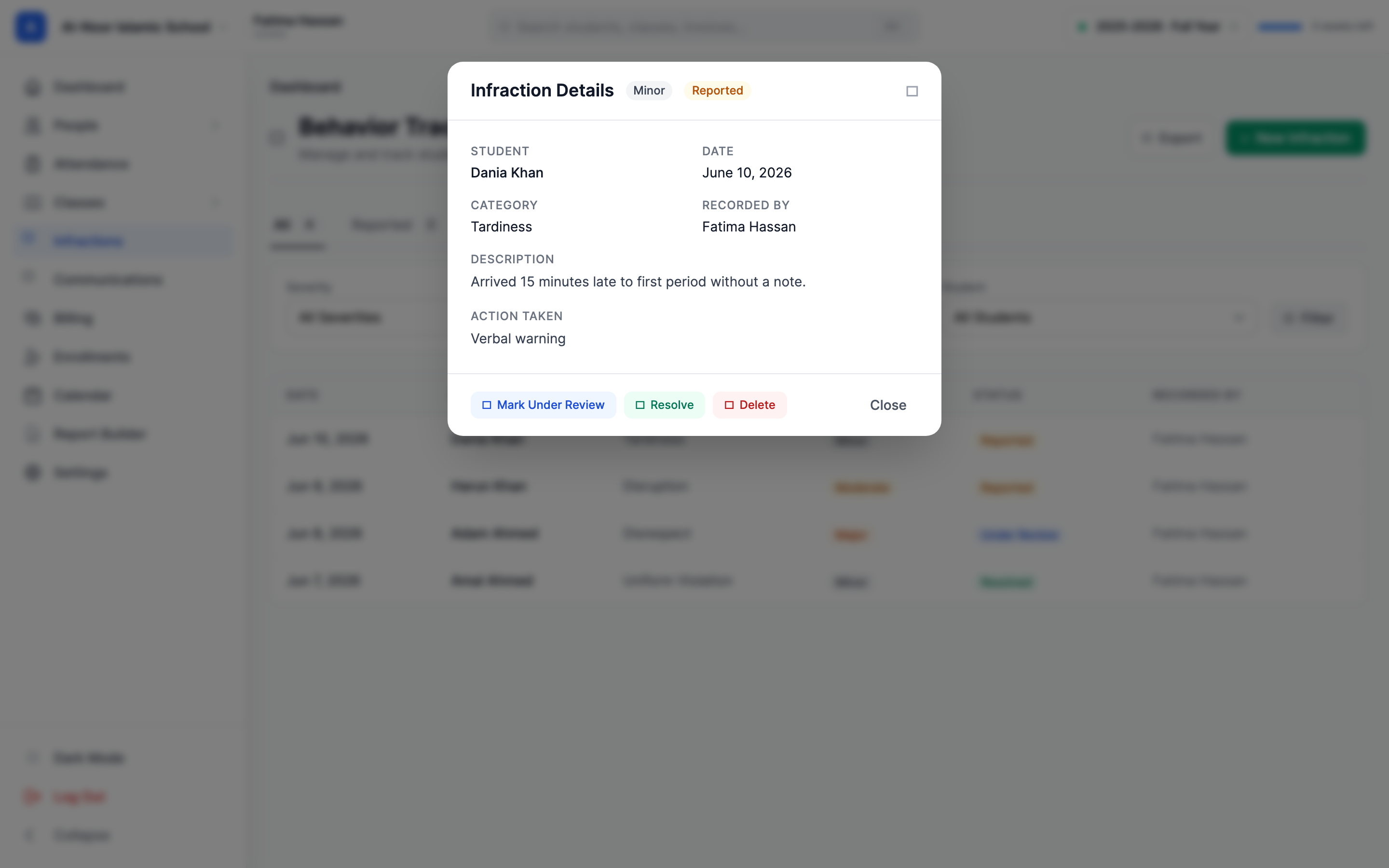
- Click any row in the list to open its Infraction Details. You'll see the student, date, category, description, action taken, severity and status badges, and a trail of who recorded, reviewed, or acknowledged it.
- If the infraction is still Reported, click Mark Under Review. The status flips to Under Review and stamps your name and the time on it.
Step 5 — Resolve an infraction
- In the detail view, click Resolve. A small form opens.
- Fill in Action Taken / Resolution — what was done about the incident. If you already entered an action taken, it's pre-filled, and you can edit it.
- Add any closing Notes.
- Click Resolve. The status becomes Resolved and your name and the time are recorded as the reviewer.
Editing an existing infraction
The Resolve form is also how you update the action taken and notes after the fact. There's no separate "edit everything" screen — the description, category, and severity are set when you record it, while reviewing and resolving are how the record is updated as it's handled.
Step 6 — Filter and export the list
The filter bar above the list narrows what you see. The status tabs and the filters work together.
- Status — use the All / Reported / Under Review / Resolved tabs.
- Severity — show only Minor, Moderate, Major, or Severe.
- Category — narrow to a single category like Tardiness or Fighting.
- Student — show one student's history (admins and teachers see this dropdown).
- Date range — limit to incidents between two dates.
- Set the dropdowns you want, then click Filter. The tab counts update to reflect your filters.
- Click Clear to drop the severity, category, and student filters while staying on the same status tab.
- To download the list, click Export. You get a CSV named with today's date, containing Date, Student, Category, Severity, Description, Action Taken, Status, Recorded By, and Reviewed By — for exactly the rows your filters are currently showing.
Export respects your view
The CSV exports the filtered list, not the whole table. If you've narrowed to one student or one severity, that's what downloads. It also respects who you are: a teacher's export only ever contains infractions they're allowed to see.
Step 7 — Parent acknowledgment
When a parent opens Behavior Tracking, they see only their own children's infractions. Any incident they haven't yet acknowledged is flagged Needs Acknowledgment.
- The parent opens the infraction and clicks Acknowledge.
- The infraction is stamped with their name and the time. The Acknowledged by … line then appears on the detail view for staff, so you can confirm the family has seen it.
Acknowledging is a parent-only action — admins and teachers can't acknowledge on a family's behalf. It also does not change the status; an infraction can be Resolved and still be waiting on a parent to acknowledge it, and vice versa.
Step 8 — Notifications
Two events can notify a family, and only families are ever notified — students never are.
- When an infraction is created, each of the student's parents gets an in-app notification ("Behavior Incident Recorded"). If Notify parent(s) via email was checked, they also get an email.
- When an infraction is resolved, parents get a "Behavior Incident Resolved" notification, plus an email if email notification is on for that record.
Parents on the mobile app with push notifications enabled also receive a push for both events. Once a notification email goes out, the detail view shows a Parent notified line with the date.
Step 9 — Deleting an infraction
If a record was logged in error, an admin (or anyone with delete permission) can open it and click Delete, then confirm. The infraction is archived out of the list rather than permanently erased, so it stops appearing for everyone — staff and parents alike.
That's the full loop: record an incident, route it through review and resolution, keep the right people informed, and give parents a clear way to acknowledge what happened. For anything you can't do from these screens, reach out via our contact page.
More in Attendance
Still stuck?
Our team is happy to walk you through it.