
Send text messages
MarkTrack can send text messages (SMS) to parents and students — perfect for time-sensitive alerts like a weather closure or an early dismissal that people will actually see on their phone right away. This guide covers turning SMS on (a one-time setup), writing and sending a text blast, scheduling one for later, using templates, and tracking who got the message, whether it was delivered, and what it cost.
Unlike email, texting costs money — you're sending real SMS through a phone carrier — so texts run on prepaid credits you buy up front, and you switch SMS on deliberately before you can use it. 1 credit = 1 message segment. Texts go out from MarkTrack's shared toll-free number, with your school's name at the front of every message so families know who it's from.
SMS must be turned on first
If SMS isn't enabled for your organization, the composer will refuse to send and tell you SMS is not configured. Turning it on takes one click — you then buy a credit pack before your first text goes out. Do Step 1 once, then you're set.
Step 1 — Turn on SMS and buy credits
This is a one-time setup done by an admin.
- Go to Settings and open the SMS tab.
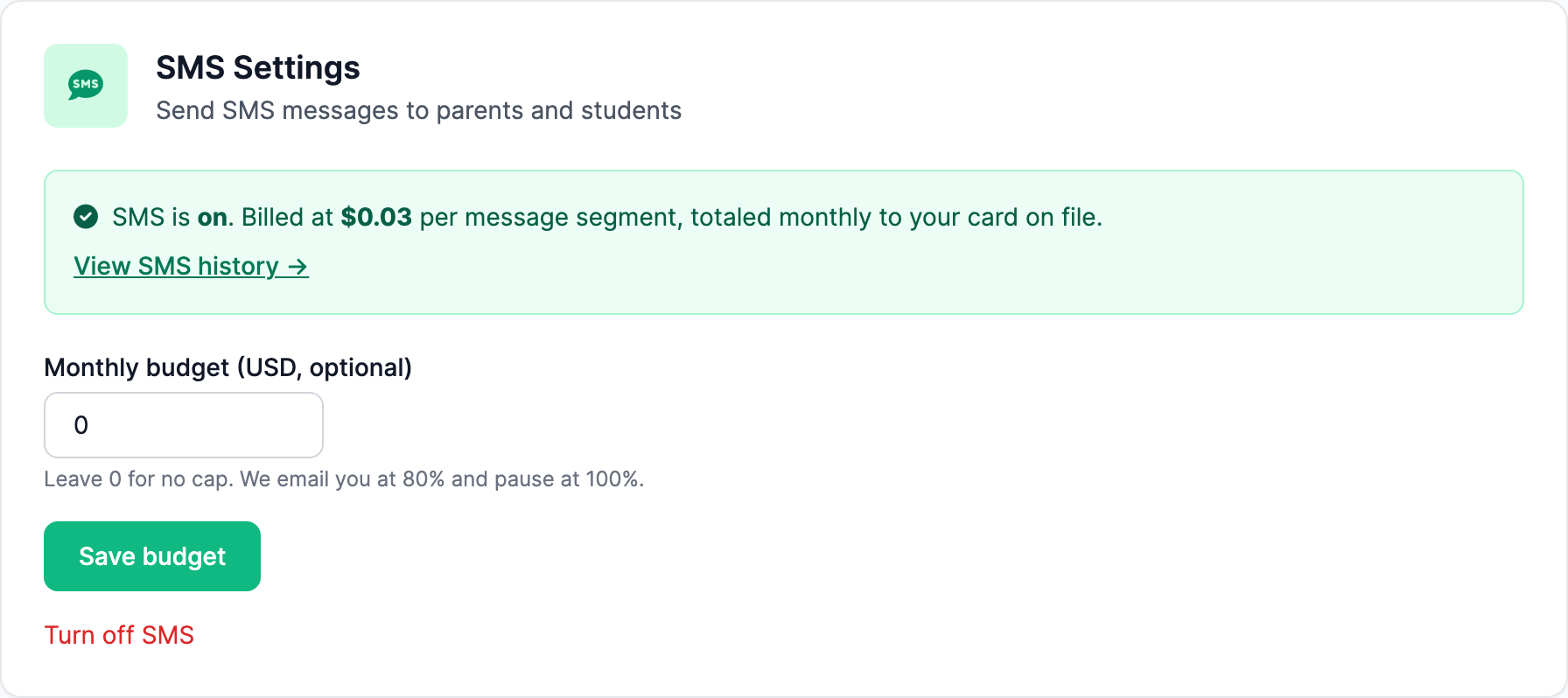
- Find the SMS Settings card ("Send SMS messages to parents and students").
- Click Turn on SMS.
- The card now shows your credit balance and three packs: 500 credits for $15, 1,000 for $30, or 2,500 for $75.
- Click a pack and pay by card. Credits land as soon as the payment clears, and they never expire.
From then on the card shows SMS is on, the number texts are sent from, your running balance, and a link to View SMS history. MarkTrack emails you when the balance runs low, and sending pauses at zero until you top up.
Turning SMS off later
On the same SMS Settings card, click Turn off SMS to stop sending. You can turn it back on anytime — any credits you already bought are still there waiting.
Step 2 — Open the SMS composer
- Go to your Dashboard.
- In the Quick Actions row, click Send SMS (the chat-bubble icon).
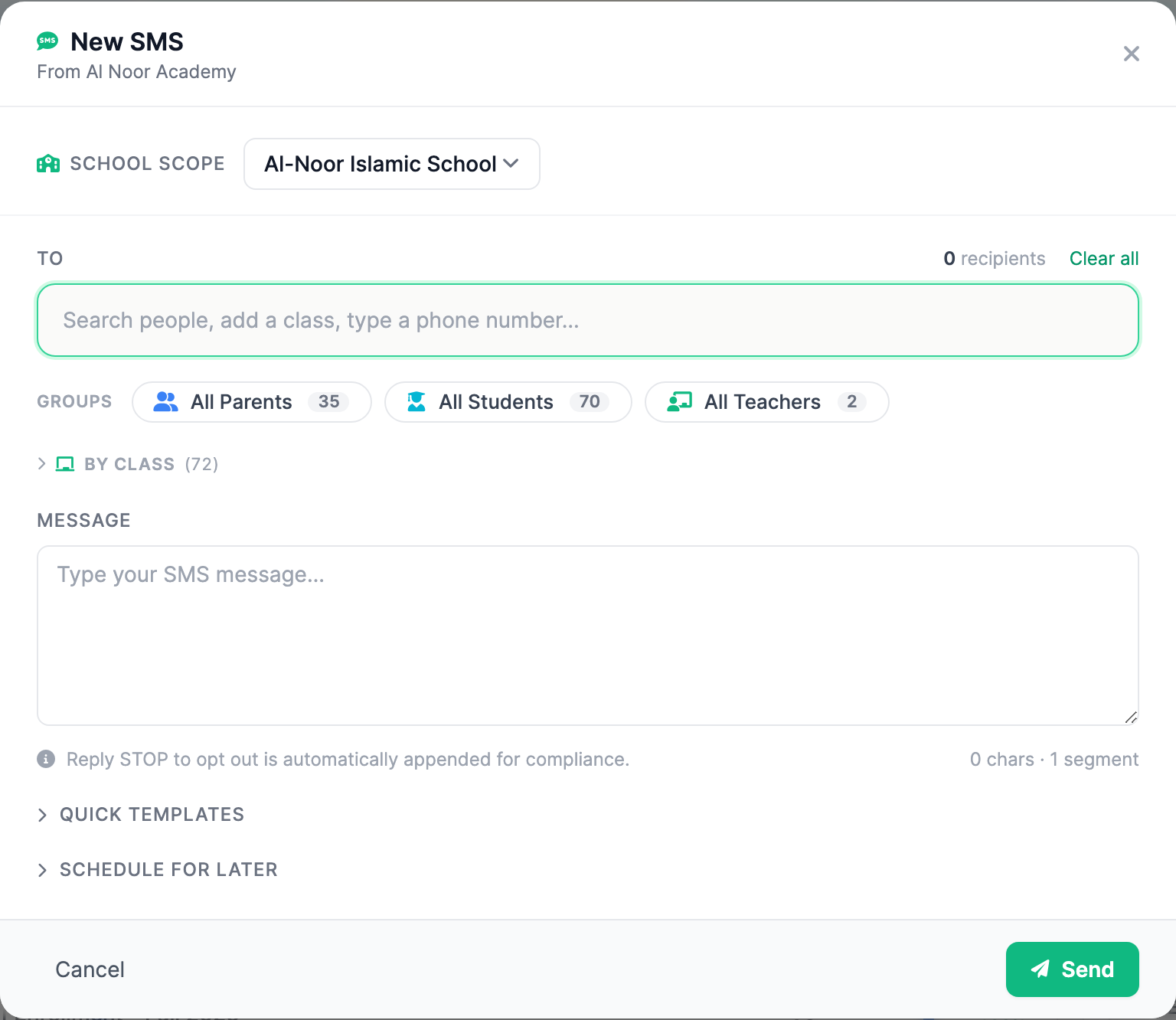
- The New SMS window opens. Its header shows the name families will see on the message.
Step 3 — Pick your recipients
Choosing who gets the text works just like the email composer. In the To box you can:
- Search by name and click a parent, student, or teacher to add them.
- Click All Parents, All Students, or All Teachers to add a whole group.
- Open By class to add every student in a class.
- Type a phone number directly to text someone who isn't in MarkTrack.
Admins with several schools get a School scope dropdown to switch which school's people appear. Teachers are limited to their own students and those students' parents.
Only people with a phone number get texted
A text can only go to someone who has a valid mobile number on file. If you add a class or group, MarkTrack quietly skips anyone without a phone number. If none of your chosen recipients has a usable number, it stops you with "No valid phone numbers found."
Step 4 — Write the message
The SMS Message box is plain text — no bold, links, or images, since those don't carry over text. As you type, a counter shows the character count and how many segments the message uses.
- A standard text fits in one segment (about 160 characters). Longer messages split into multiple segments, and each segment costs one credit — so keep it tight to make your credits go further.
- The hard limit is 1,600 characters. MarkTrack won't send a longer message.
- You don't need to add opt-out wording yourself — "Reply STOP to opt out" is appended automatically for compliance.
Quick templates
Click Quick templates for ready-made texts: Weather Closure, Delayed Opening, Early Dismissal, Attendance Alert, Event Reminder, and Payment Reminder. Click one to drop its wording in, then fill in any placeholders (like [TIME] or [DATE]) and edit to fit.
Step 5 — Send now, or schedule for later
To send immediately, just click Send. MarkTrack confirms with "Sending SMS to N recipient(s)" and the texts go out in the background.
To send at a future time instead:
- Click Schedule for later to expand it.
- Pick a date and time in the picker. (Leave it blank to send right away.)
- Click Send. MarkTrack confirms with "SMS scheduled for …" and queues it to go out at that time.
Recipients who replied STOP are skipped
Anyone who has texted STOP (or CANCEL, UNSUBSCRIBE, and similar) is opted out, and MarkTrack will not text them — even if you add them to a blast. They stay opted out until they reply START to resubscribe. Because every school texts from the same MarkTrack number, a STOP applies everywhere that person is reachable. This protects you from messaging people who've asked you to stop.
Step 6 — Track delivery and cost
Texts are logged per recipient so you can see exactly who received each message, whether it was delivered, and what it cost.
- In the left sidebar, click Communications, then open the Texts tab. (You can also use the View SMS history link on the SMS Settings card.)
- Each row shows the recipient, a preview of the message, when it was sent, a status badge, and the cost.
- Click any row to open its detail — the full message, recipient and phone number, status, cost, when it was sent and delivered, the message type, and who sent it. A failed text shows the error.
Status badges tell you where each text stands: Delivered (green) reached the phone, Sent or Queued (blue) is on its way, Pending or Scheduled (yellow) hasn't gone out yet, and Failed or Undelivered (red) didn't get through.
Who sees the SMS history
Like email, an admin sees the current school's texts (or everything when viewing all schools), while a teacher sees only the texts they sent. Credits are spent per segment and per recipient, so the history doubles as your running tally of SMS usage.
That's texting in MarkTrack: turn it on once, buy credits, compose and send (or schedule) a blast, and watch delivery in the Communications history. For sending richer messages with formatting and attachments, see Send an email to families. Questions about SMS credits or setup? Contact our support team.
More in Communications
Still stuck?
Our team is happy to walk you through it.