What parents see when they scan the code
This guide walks the parent side of Sign In / Sign Out — what a family sees after they point a phone camera at one of your printed codes, what the system asks them, and exactly what gets recorded when they tap the button. Nothing here needs an app, an account, or a password.
Step 1 — The scan lands on a roster
Scanning the code opens a page in the phone's browser. It shows the school name, the station name, the current time, and a searchable list of students — each with a live status dot so a parent can see their child is still on campus before tapping anything.
The list is alphabetical with letter headers, and the search box filters as they type — useful on a whole-school code, unnecessary on a classroom door.
Step 2 — Tap the child, then say who is collecting
Tapping a name slides up a sheet. The first question is always the same one: who is picking up?
- The child's registered parents appear as one-tap cards.
- Someone else covers a grandparent, a carpool driver, a nanny, or an aunt. It asks for a name and a relationship, and records both.
The name a parent types into Someone else is stored on the record and shown everywhere the collector is shown — as, for example, "Yusuf Karim (Uncle)". That is the answer to "who took this child" when it was not a parent, which is precisely the case where a paper clipboard is least trustworthy.
Step 3 — Siblings, in the same tap
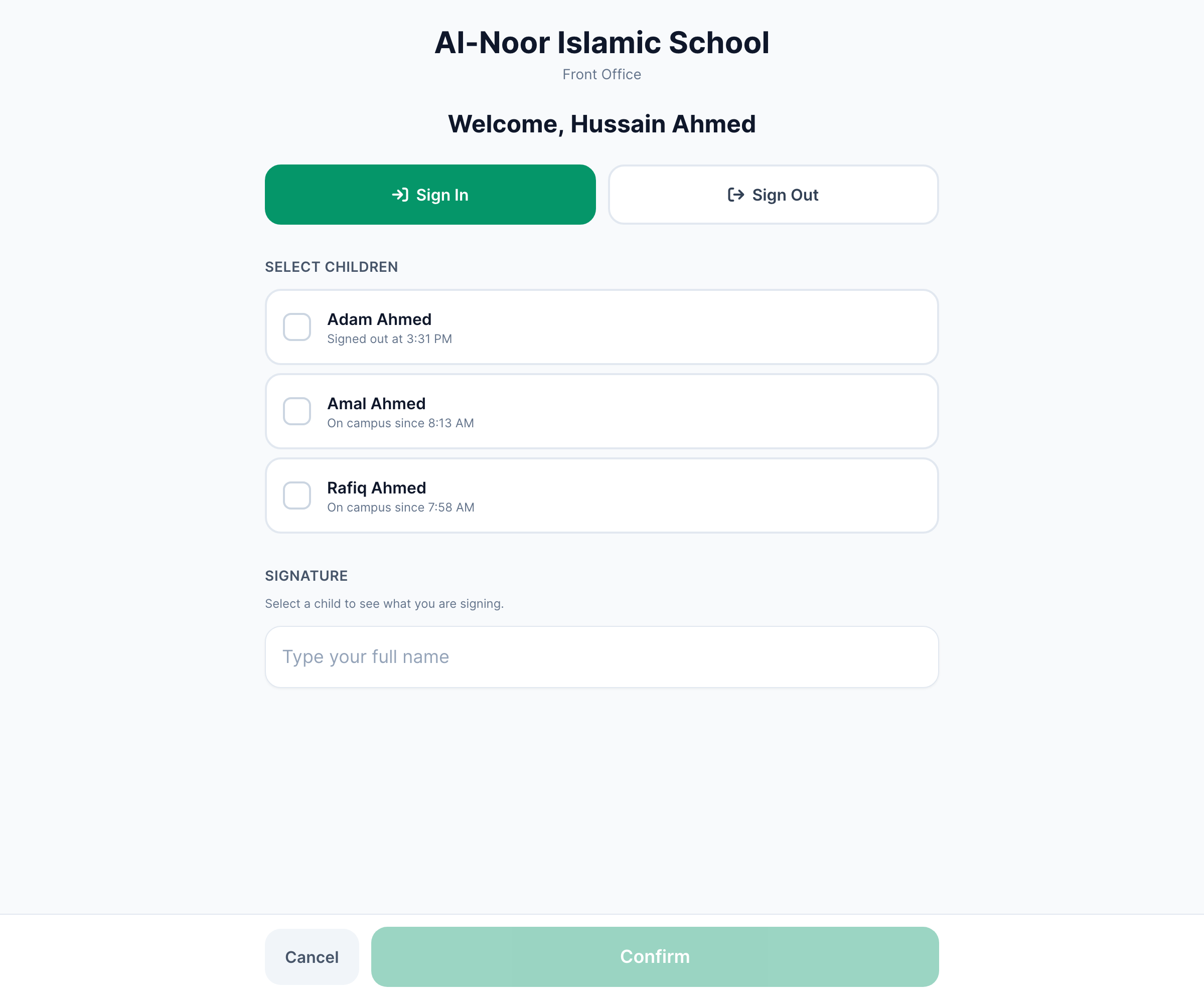
If the child has siblings enrolled at the school who are also eligible to be signed out, the sheet lists them under Also signing out, pre-checked. A parent collecting two children taps once and the button reads Sign Out · 2 children.
This is a convenience for the family, not a shortcut in the ledger: each child still gets their own separate record, each naming the same collector, each with its own timestamp and its own attestation. Unchecking a sibling leaves that child signed in.
Step 4 — Your school's questions
Any questions you added to the station appear next, under a heading naming the school. They can be dropdowns, text fields, checkboxes, or phone numbers, and each can be optional or required. A required question keeps the button disabled until it is answered.
Step 5 — The attestation, and what the tap actually records
Above the button sits the sentence the parent is agreeing to, naming the children and the school:
By tapping Sign Out I confirm that I am collecting Aaliyah Bukhari and Ayaan Bukhari from Al-Noor Islamic School and that they are leaving campus in my care. This is recorded with the time.
The wording is frozen at the moment of the tap
That exact sentence is stored on the record as an attestation. If you later rename the school, archive the parent's account, or edit the station, the sentence on past records does not change — it keeps saying what the person actually agreed to on the day. You can read it back on any row from the Log tab.
Tapping the button records, per child:
- the direction (in or out) and the exact time;
- the station it came from, and that it was a QR scan;
- who collected — a registered parent, or the typed name and relationship;
- every question answer;
- the attestation text, the moment it was attested, and the originating address;
- whether it was late, measured against your dismissal time plus the grace window.
The parent then sees a confirmation with the time, and the roster updates so the child now reads "Signed out". Anyone watching the live board sees it appear within seconds.
What parents cannot do
- Sign out a child who is not on the station's roster. A class-scoped code only ever offers that class.
- Skip a required question, including by submitting directly — the check is enforced on the server, not just in the browser.
- Change who a child's parents are. The scan page is a read-only view of your records; it can never re-link a family.
- Sign a child out twice. A repeat tap on an already-signed-out child is caught and explained rather than written twice.
- See anything by guessing a code. Paused, rotated and never-existed codes all return the same "not found".
Next steps
More in Attendance
Still stuck?
Our team is happy to walk you through it.