
Track your students' daily salah
Salah tracking lets teachers record, for every student, whether each of the five daily prayers was prayed in jamaah, prayed alone, missed, or excused — with an optional note. Admins get a dashboard showing which prayers and which students need attention, and parents and students see their own record.
Turn it on for a school
Salah tracking is off by default, and it is set per school.
- Open Settings → Salah. Each of your schools has its own section.
- Open the school, switch on Track salah, and choose the prayers to track. A weekend school might track only Dhuhr and Asr; a full-time or boarding school all five.
- Decide whether teachers can mark the whole school. Off, a teacher marks the students in their own classes. On, any teacher at the school can mark any student — useful for the teacher on duty at Dhuhr jamaah. Admins can always mark everyone.
- Click Save. Salah now appears in the sidebar for that school's staff, parents and students.
Turning Salah off later only hides it. No record is ever deleted, and everything comes back if you turn it on again. The same settings are one click away on the Salah page itself (the Settings button, admins only).
Record a prayer
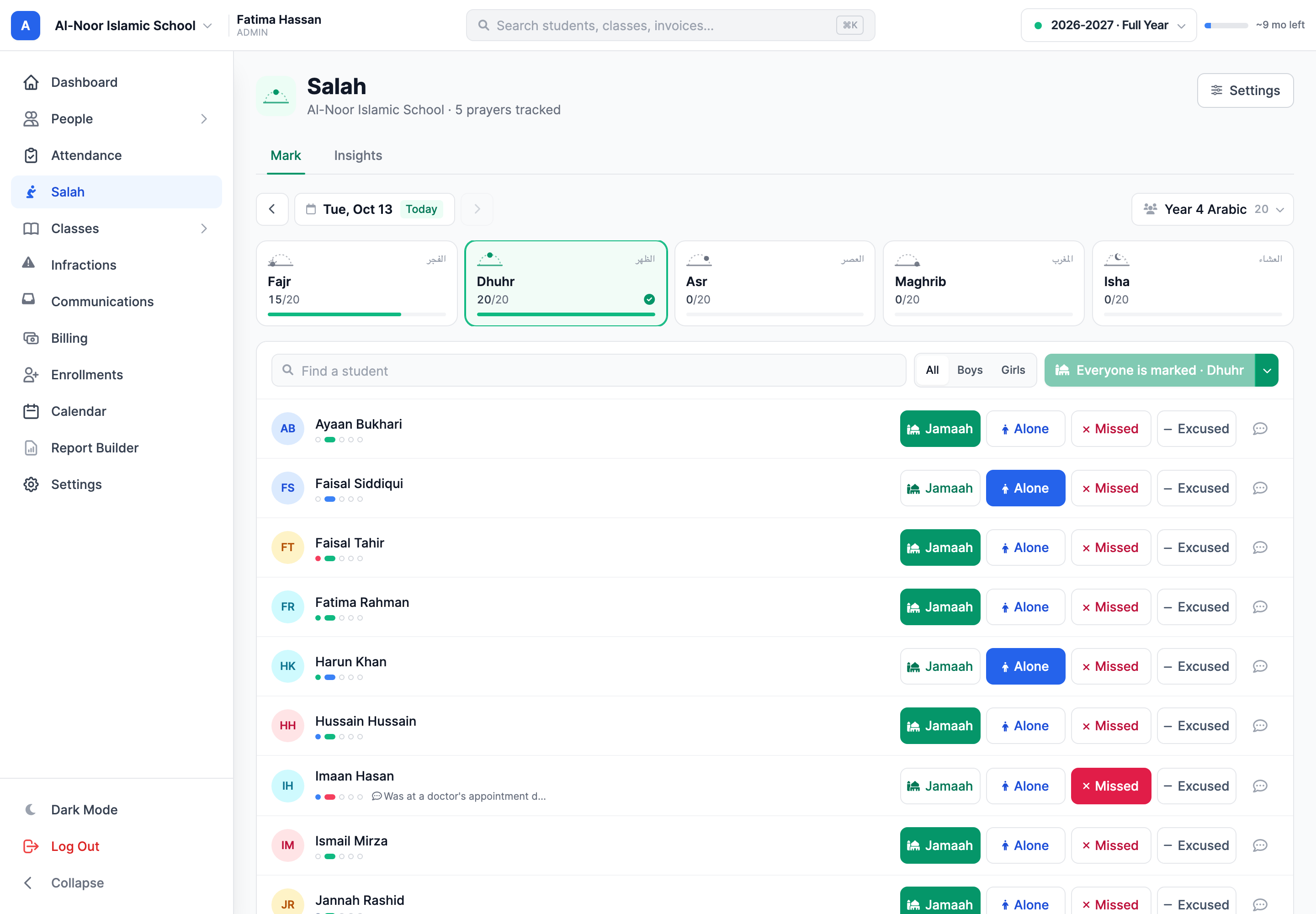
- Open Salah in the sidebar. You land on Mark, for today.
- Check the date and the group at the top — the whole school, a level, or one class. Teachers start on their first class.
- Choose the prayer. Each prayer tab shows how many students are marked so far, and a tick once everyone is. On a Friday, Dhuhr reads Jumu'ah.
- Tap Jamaah, Alone, Missed or Excused beside each student. Every tap saves straight away — there is no Save button. Tap the same status again to clear it.
The fastest way: mark everyone, then the exceptions
After jamaah, click Mark unmarked as Jamaah. Every student not yet marked becomes Jamaah in one go — then change the few who were not there. The arrow beside the button marks the rest as Alone, Missed or Excused instead, and the message that appears has an Undo. Search and the Boys / Girls filter narrow who "the rest" are.
Notes
The button on a row adds a note to that prayer — for example "Prayed after class with Br. Yusuf". You can set the status in the same window. Notes are visible to the student's parents and to the student, so write them for the family.
What the statuses mean
- Jamaah — prayed in congregation.
- Alone — prayed, but not in jamaah.
- Missed — did not pray.
- Excused — not expected to pray (for example a sister on her cycle, or illness). Families only ever see the word "Excused", never a reason, and excused prayers are left out of every percentage.
A prayer nobody has marked is simply not recorded. It never counts as missed.
Look back at a student
Click a student's name to open their page: a month calendar with five dots on each day (one per prayer, coloured by status), their prayed and jamaah rates, their current and best streak of days without a missed prayer, a prayer-by-prayer breakdown, and every note. Click any day to see it in full — staff can change any of that day's prayers right there.
Insights and reports
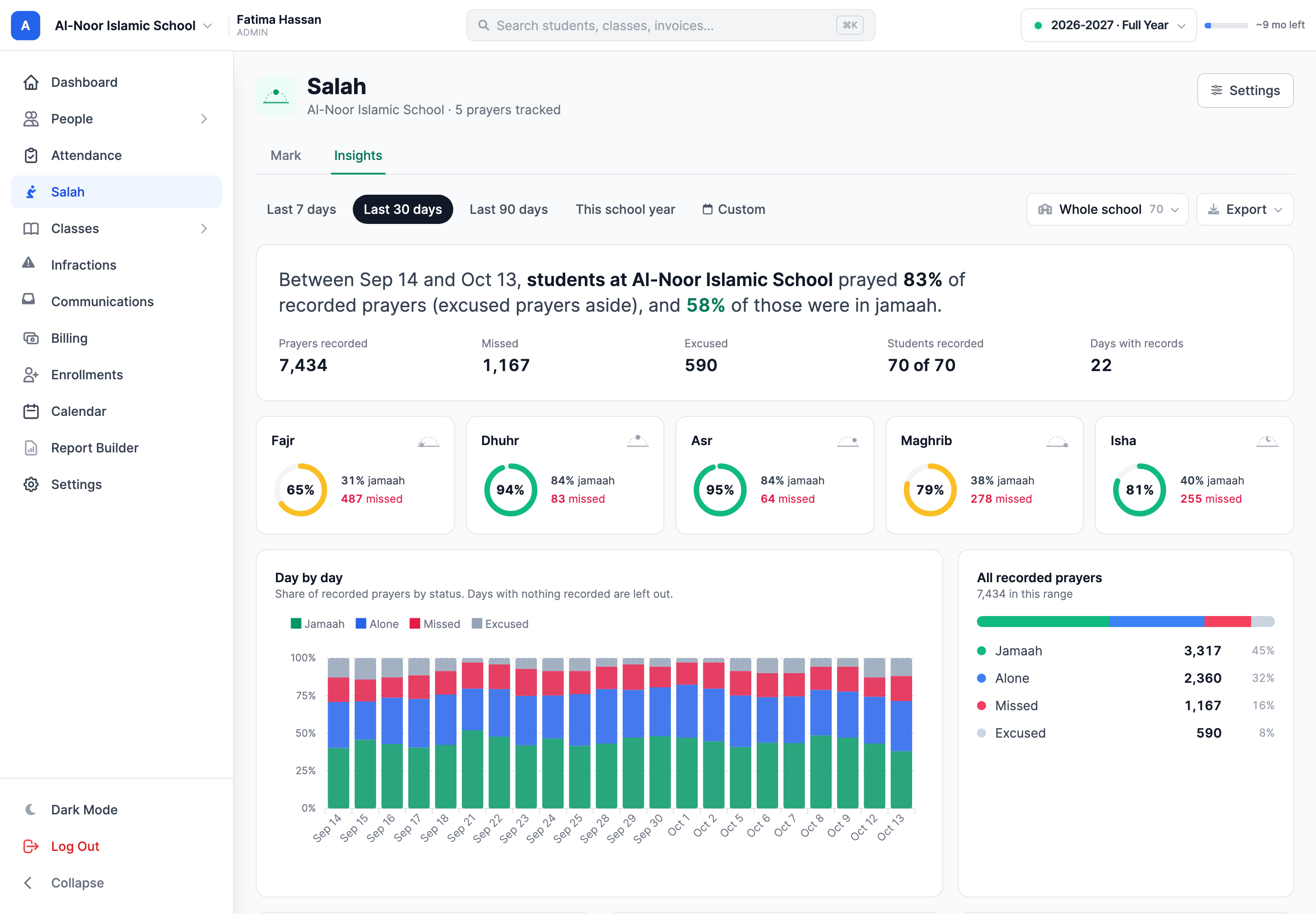
The Insights tab shows, for the group and range you choose:
- the share of recorded prayers that were prayed, and how many of those were in jamaah;
- each prayer's rate — Fajr is usually the one that needs the most attention;
- a day-by-day (or week-by-week) breakdown;
- each class or level, lowest first; and the students who most need attention and who are most consistent.
How the percentages are worked out:
- Prayed = (Jamaah + Alone) ÷ (Jamaah + Alone + Missed)
- In jamaah = Jamaah ÷ (Jamaah + Alone)
Export downloads a summary by student or the full daily log as Excel or CSV. In the Report Builder, the Salah group has Salah Summary and Missed Prayers (with a parent to contact), which you can save, print or download like any other report.
Good to know
- Prayers cannot be recorded for a day that has not happened yet, and days inside a concluded academic year are read-only.
- Each school's records are separate. A student who attends two of your schools has a record at each.
- Whether a teacher can view or record salah follows their Salah Tracking permissions, which an admin can change on the teacher's profile.
More in Classes & Grades
Still stuck?
Our team is happy to walk you through it.