
Pick programs for your children and pay
Some schools let you choose what each child takes when you apply — classes, programs, and extras such as housing or books — each with its own price. The form adds it all up so you always know the total before you pay. You don't need a MarkTrack login to apply; the school sends you one once a child is accepted.
For the rest of the application — your details, documents, and what happens after you submit — see Apply and enroll your child.
Pick programs for each child
- Open the form from the link your school shared. It works on a phone or a computer.
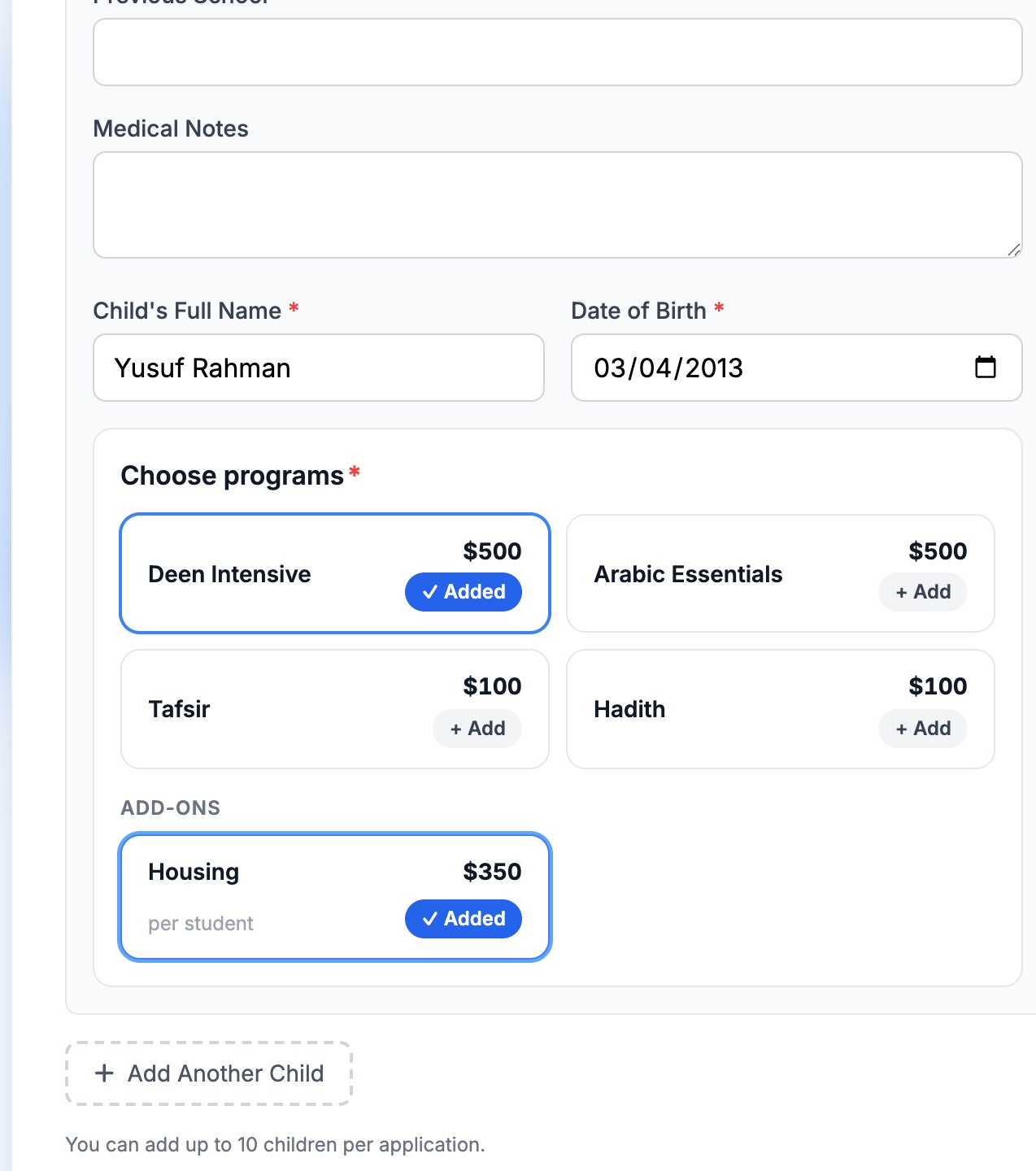
- Fill in each child's details. Every child has their own list of programs.
- Click Add on each program you want for that child. It changes to Added. Click it again to take it off.
- Extras (add-ons) are charged per child. Some only go with certain programs — they show Not yet and say which programs they go with, and become available as soon as you pick one.
- Click Add Another Child to pick for a brother or sister.
Watch it in 24 seconds: Pick programs for each child.
Check your total
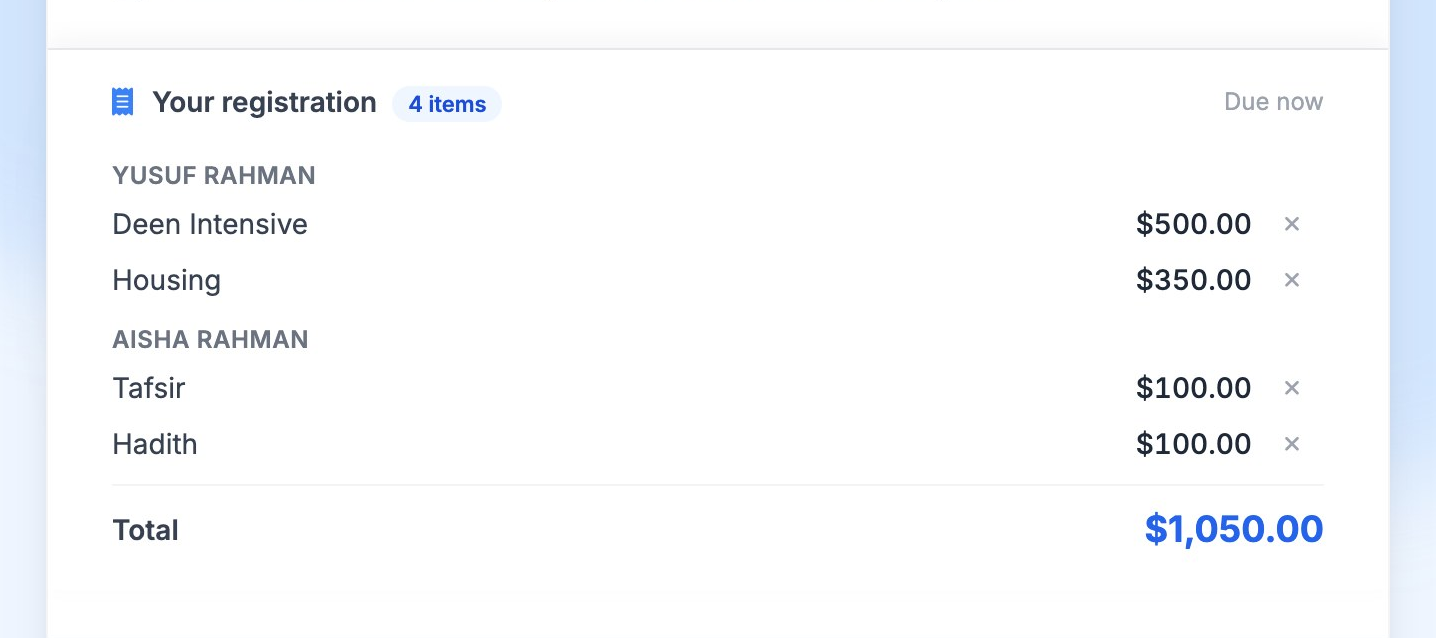
Your registration lists every item under each child's name, with the total. Use the × next to an item to remove it. On a phone, a bar at the bottom of the screen shows how many items you've picked and the total — tap View to see the list.
If you pay when you apply
When the summary says Due now, the button reads Pay $… & Submit.
- Tick the confirmation and click Pay & Submit. Your answers are locked while you pay (click Edit answers to go back).
- Enter your card, or use Link (Stripe's saved checkout, which can also pay from a bank account you've connected to it). Your details go straight to Stripe, the payment company — the school never sees them.
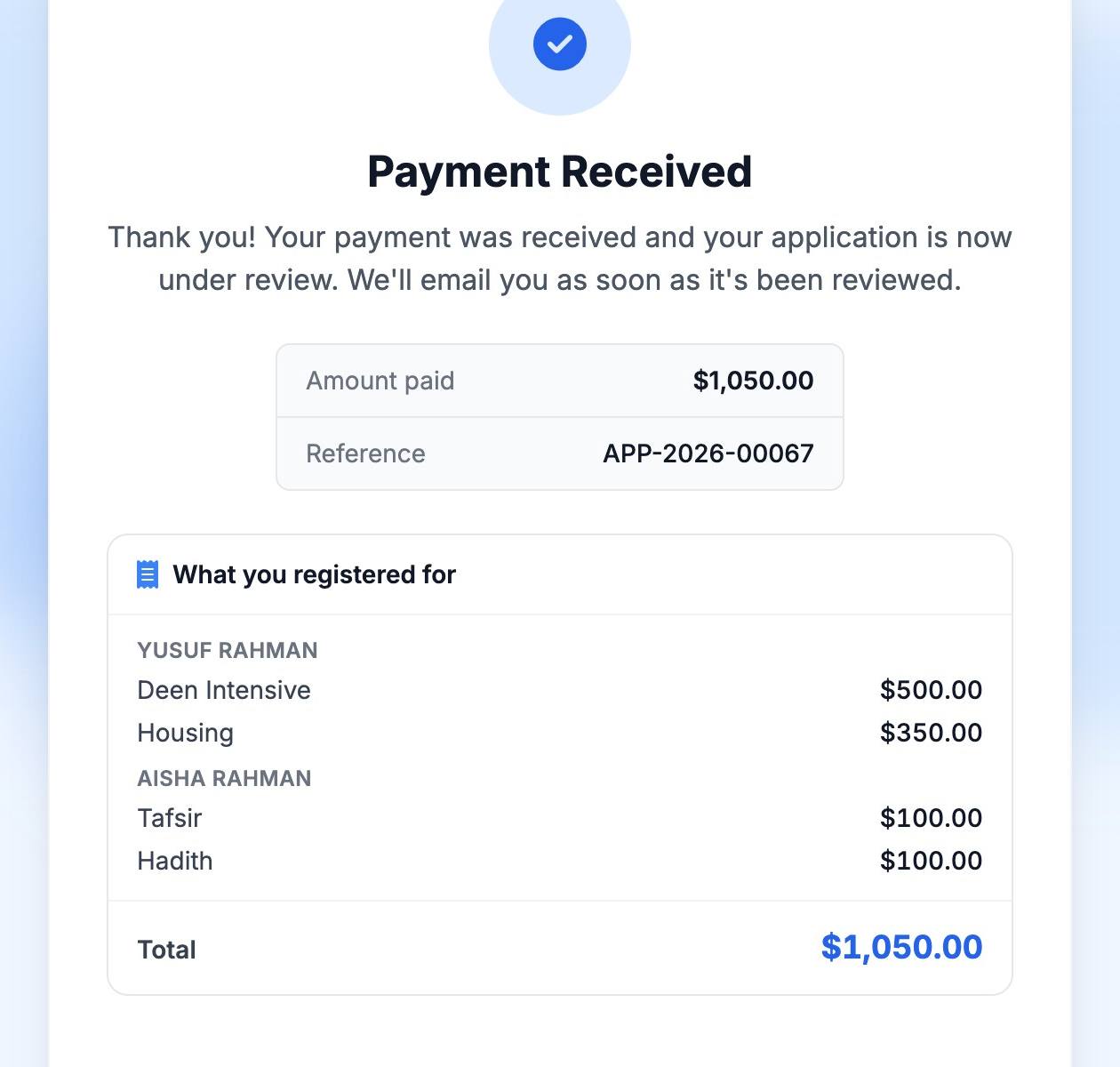
- Click Pay. You'll see Payment Received with what you registered for, and get the same list by email.
The school then reviews your application, often one child at a time, and emails you as each decision is made. On a form for several children, the note under the Pay button explains the rule: “This payment covers every child's programs and add-ons, and is not refunded for children who aren't offered a place.”
If the school also charges monthly tuition, you may see Automatic tuition payments with the monthly amount. Leaving it ticked saves your card and charges each month automatically, starting when your application is accepted. Untick it to be emailed each monthly invoice and pay it yourself.
If you're invoiced after acceptance
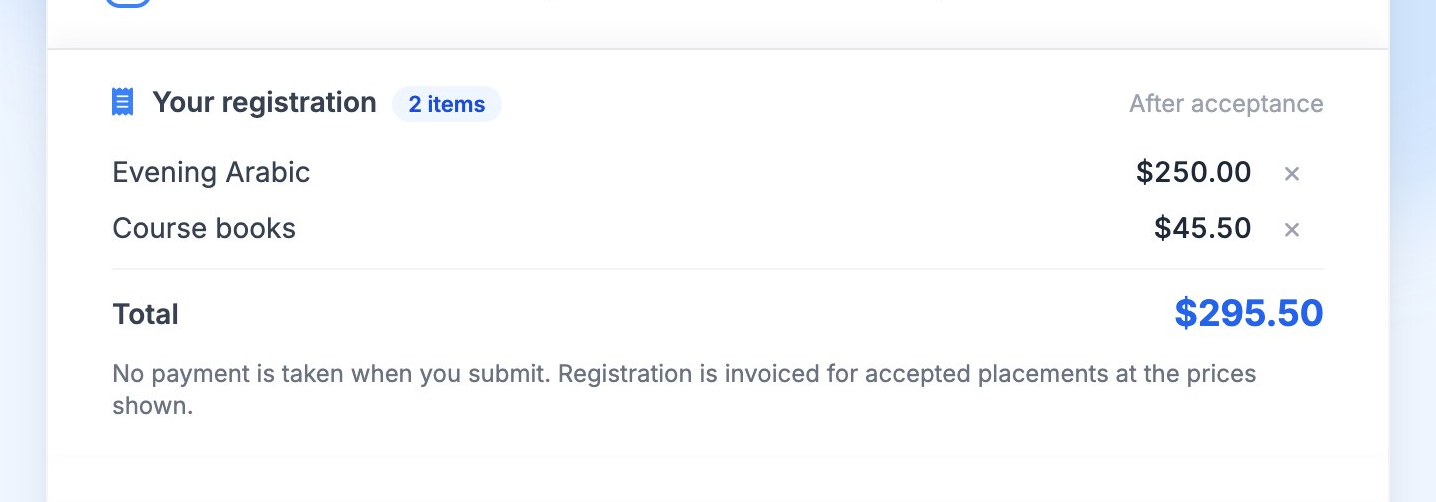
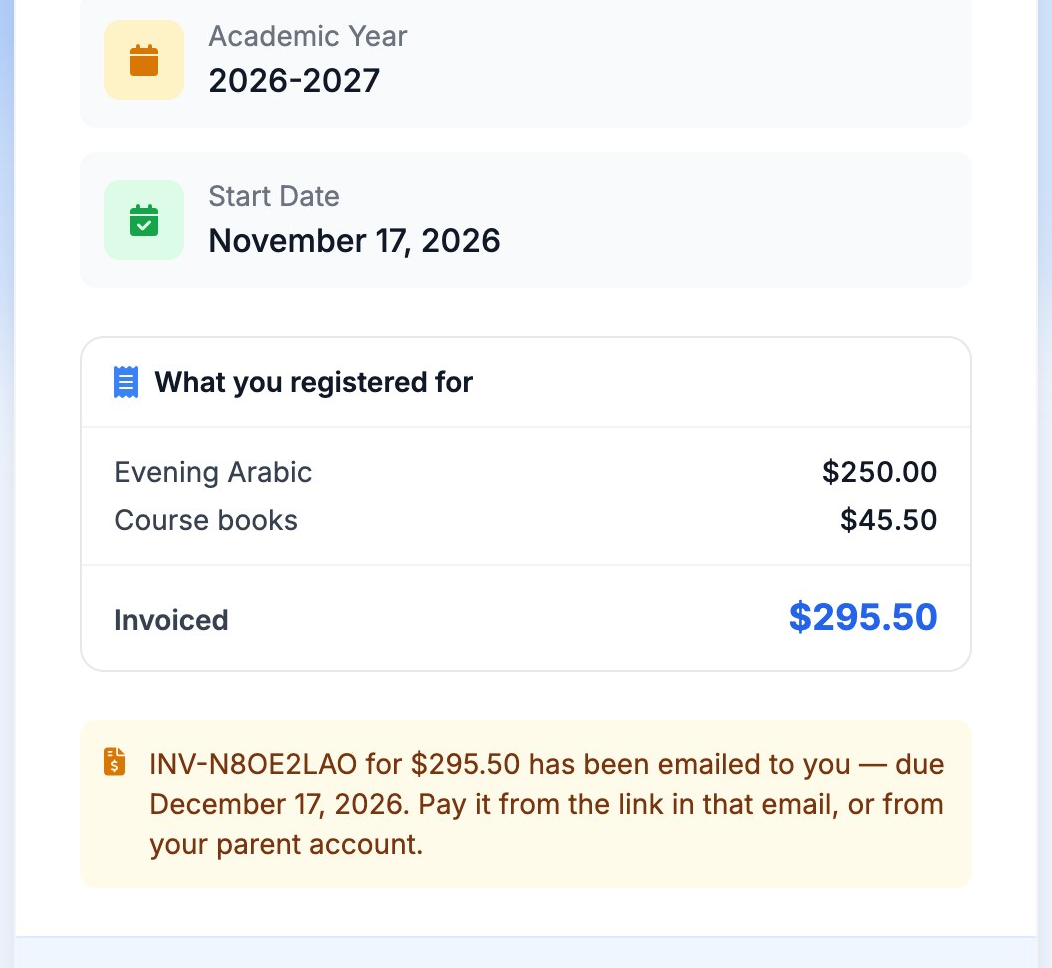
When the summary says After acceptance, nothing is charged when you submit. Your confirmation page and email say To be invoiced.
- When your child is accepted, you get an email. Click Confirm My Enrollment. The page shows exactly what will be invoiced before you confirm.
- After you confirm, the invoice is emailed to you with its number and due date.
- Pay it from the link in that email, or sign in and go to My Billing and click Pay Now.
Paying by card or from your bank
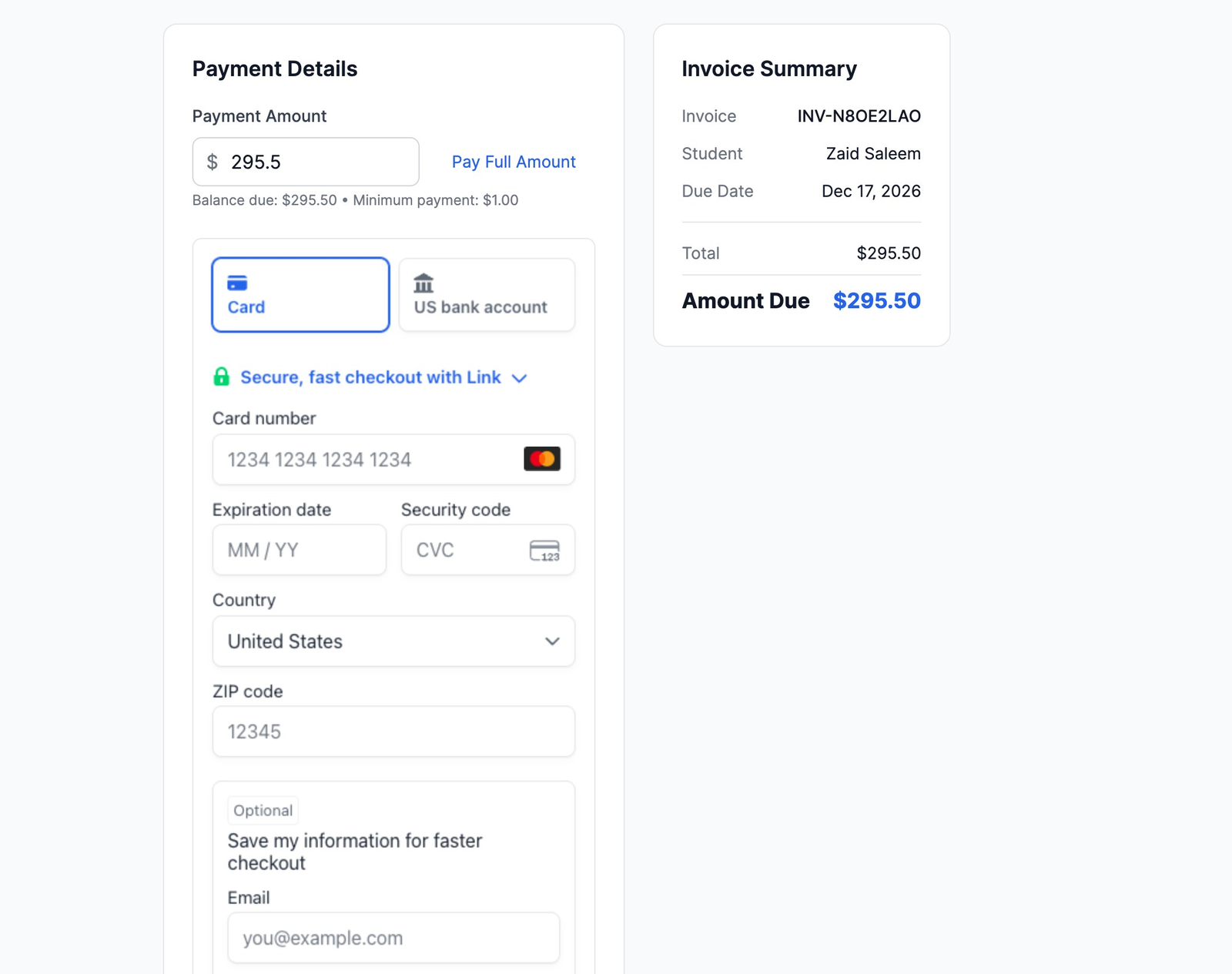
On the payment page, choose Card, or US bank account if your school offers it. For a bank payment you connect your bank (or enter its details) and agree to the payment.
- A bank payment takes a few business days to clear. Until then the invoice says Payment Processing, and you can't start another payment on it.
- When it clears, the invoice shows Paid and a receipt is emailed.
- If your bank turns it down, you'll get an email saying the payment couldn't be completed, and the invoice is open again so you can pay by card or try your bank again. Your child stays enrolled.
Common questions
- Will the price change after I apply?
- No. You pay the prices you saw when you applied, even if the school changes them later.
- I have a discount code.
- Enter it on the form where it asks. It applies to your whole total.
- One of my children wasn't offered a place.
- If you paid when you applied, that child's part is normally not refunded — the form says so before you pay. If you're invoiced later, you're only invoiced for children who are accepted. Contact your school with any questions.
- Where can I see what I registered for?
- In the confirmation emails, and — once you have a login — on your invoices in My Billing, where each item is listed under your child's name.
More in For Parents
Still stuck?
Our team is happy to walk you through it.