
Create and manage discount codes
A discount code is a named, reusable price reduction you create once and use on enrollment fees, existing invoices, or both. It can take a fixed amount off (like $50) or a percentage off (like 10%), and you can optionally cap how many times it can be used. This guide covers creating codes, where they apply, how the usage count works, and the difference between archiving, deleting, and restoring a code.
Discount codes are managed from the Billing page and belong to your whole organization, not a single school. So a code you create is available on every school's enrollment forms and recipient invoices. They pair naturally with enrollment fees and payments — the code is what knocks money off the fee or invoice a family pays.
Two different kinds of discount
Discount codes (this guide) can apply to enrollment fees or an unpaid invoice. Sibling discounts are a separate, automatic system for families with multiple children — see Sibling discounts.
Step 1 — Open the Discount Codes panel
- Go to Billing → Tuition.
- In the row of quick-action buttons at the top, click Discounts.
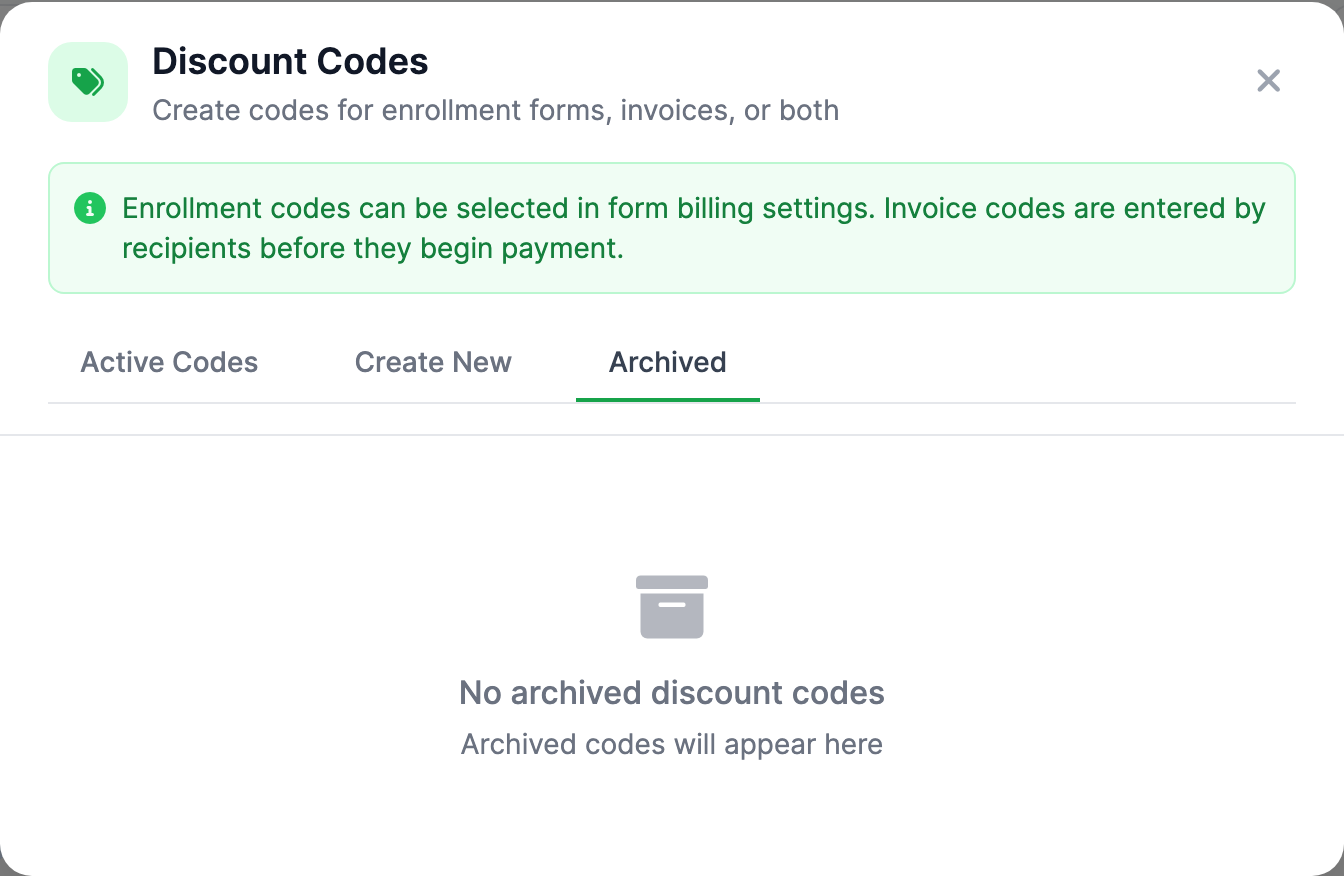
- The Discount Codes panel opens with three tabs: Active Codes, Create New, and Archived.
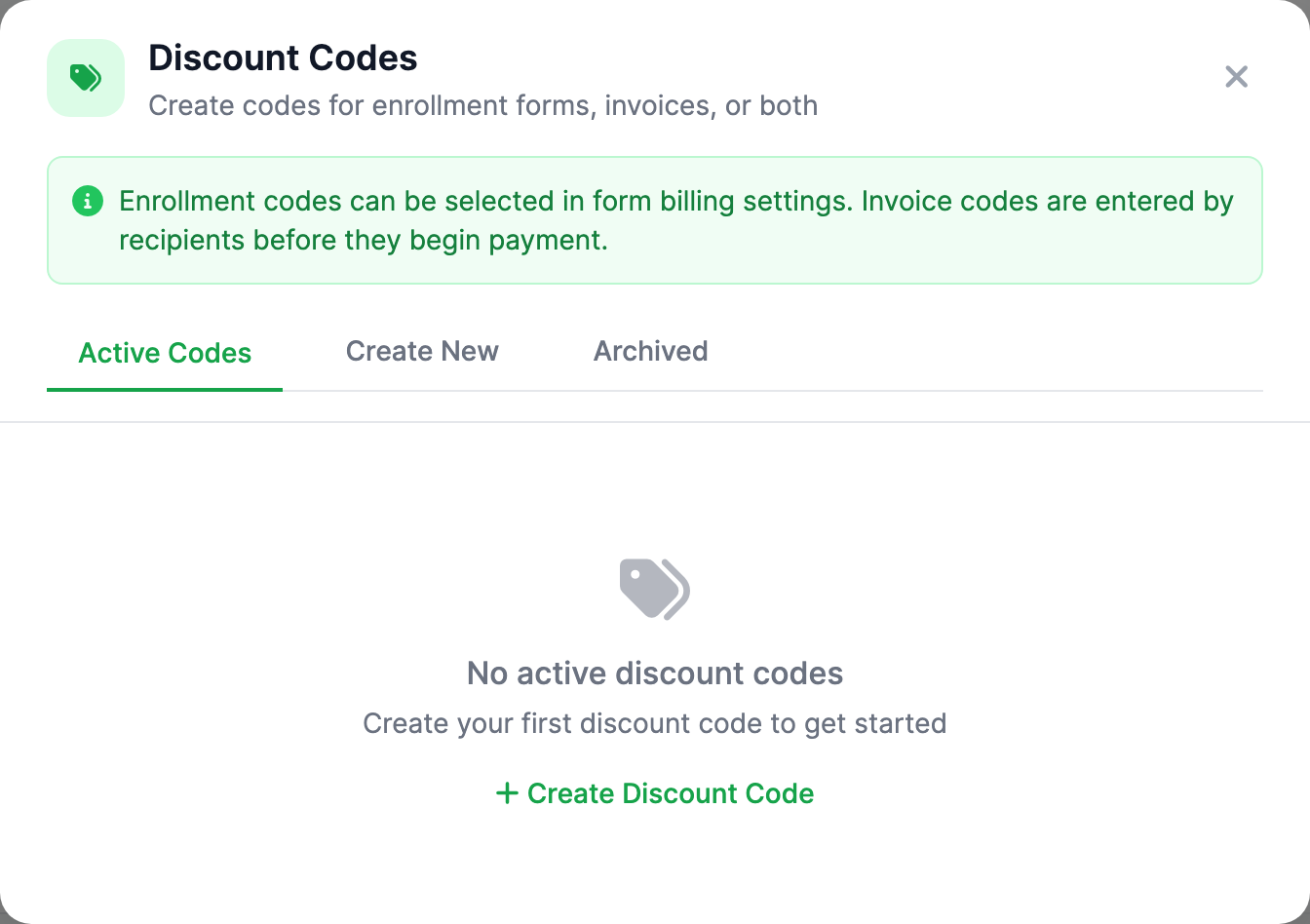
Step 2 — Create a discount code
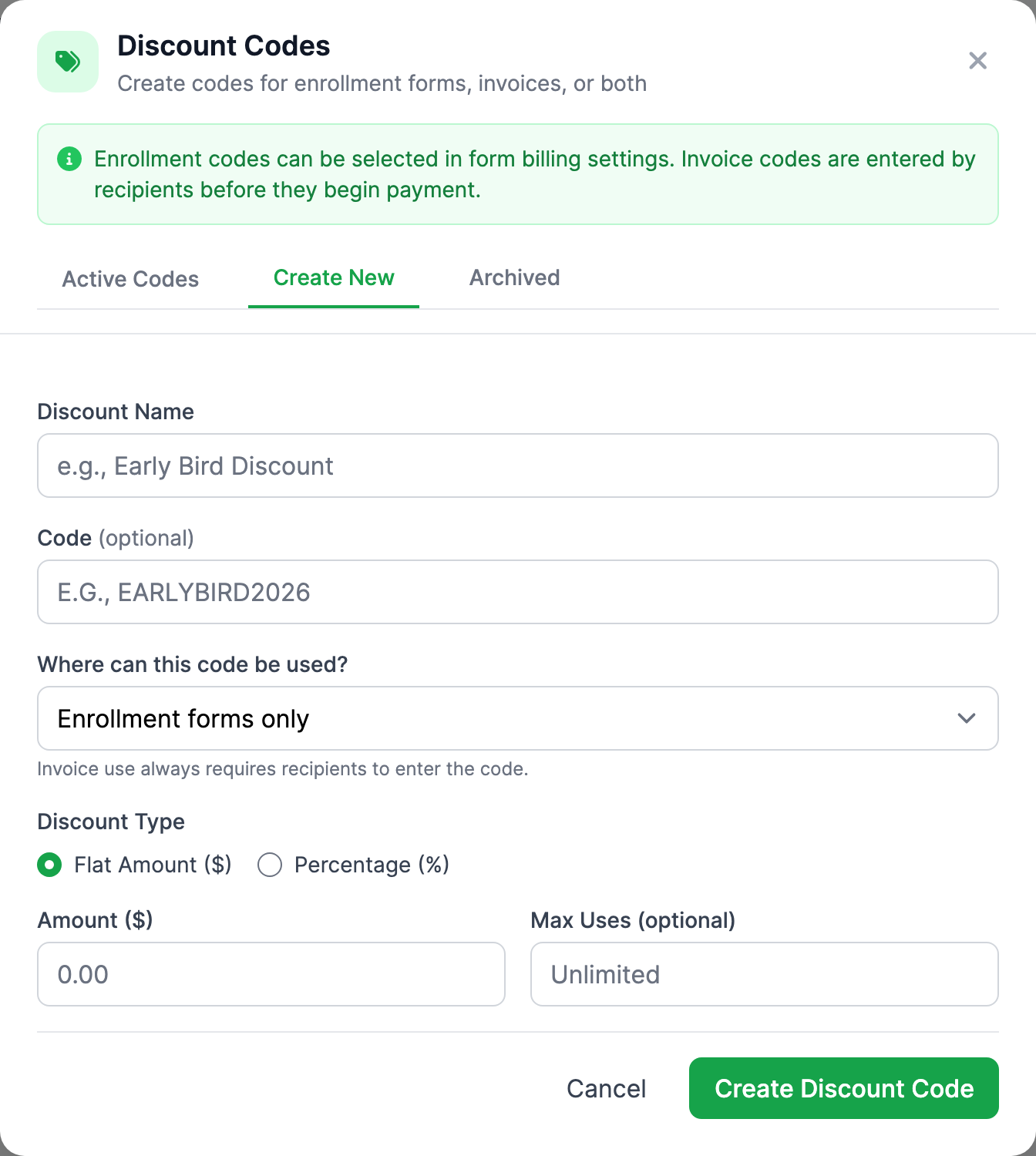
Click the Create New tab and fill in the form:
- Discount Name — required. A label you'll recognize, like Early Bird Discount. This is what shows in the dropdown when you attach a code to an enrollment form.
- Code — the short text a family types, like EARLYBIRD2026. It is optional for enrollment-only discounts and required for any code recipients can apply to an invoice. Codes are unique within your organization and are not case-sensitive.
- Where can this code be used? — choose Enrollment forms only, Recipient invoices only, or Enrollment forms and recipient invoices.
- Discount Type — choose Flat Amount ($) or Percentage (%).
- If flat, enter the dollar Amount ($). If percentage, enter the Percentage (%) (1–100).
- Max Uses (optional) — leave blank for unlimited, or enter a number to cap how many times the code can be redeemed.
- Click Create Discount Code.
Flat amounts never go negative
A flat discount is capped at the fee it's applied to. A $100 code on a $60 fee takes off $60, not $100 — the family never ends up with a credit from a discount code.
Step 2.1 — Where discount codes apply
A code reaches a family in one of three ways, depending on the usage location you selected:
- Attached to an enrollment form. The form's billing settings list active enrollment-enabled codes. Pick one and every applicant on that form gets it automatically. See Build an enrollment form.
- Typed during enrollment or re-registration. A family can enter an enrollment-enabled code on the public form when that form allows code entry.
- Typed on an existing invoice. A parent or independent student opens an eligible unpaid invoice, enters an invoice-enabled code, and sees the new total before opening the Stripe payment window.
- Applied by your office for the family. See Step 2.2.
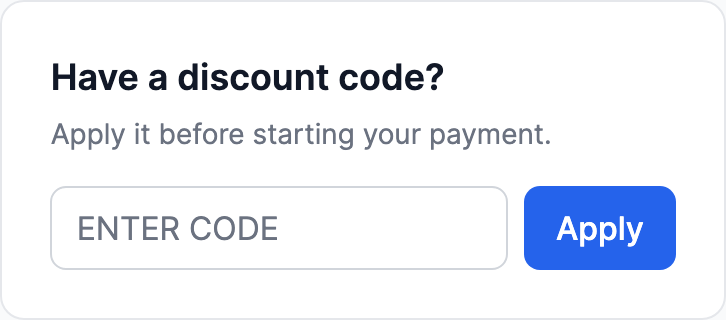
Invoice discounts are intentionally conservative
A recipient can apply one code only before any payment or payment plan starts. MarkTrack does not stack it with another discount, and does not offer it on lunch, recurring-template, or mixed-school invoices. If the code covers the full balance, the invoice closes at $0 without sending the family to Stripe.

Step 2.2 — Apply a code for a family
When a family can't enter a code themselves — they called the office, or they aren't comfortable with the portal — an admin with billing edit permission can apply it for them:
- Open the family's unpaid invoice from Billing.
- In the Apply a discount code card, choose a code. The list only shows codes that fit this invoice: single-invoice codes on a one-time invoice, and recurring codes on a recurring schedule.
- Click Apply to see exactly what the code will do and the family's new balance, then click Confirm & apply.
It works exactly as if the family had entered the code: the same limits apply, and it counts toward the code's uses. The Recipient Discount card records which staff member applied it, and the family's invoice shows that your school added the discount.
Step 3 — Understand the usage count
Each code tracks a uses count. On the Active Codes tab, every card shows the usage — either 3 uses (unlimited) or 3 / 25 uses (capped). A "use" is counted when the code is claimed for an enrollment or recipient invoice, not when you create it.
What "at max uses" does
Once a capped code's uses count reaches its Max Uses, the code stops working — typing it returns "not valid," and it's skipped when calculating fees, even if it's still listed as active. The cap is enforced strictly: two families redeeming at the exact same moment can't push the count past the limit. If a use is later reversed (for example an unpaid application is revoked before any money was collected), MarkTrack gives that use back so the code can be used again.
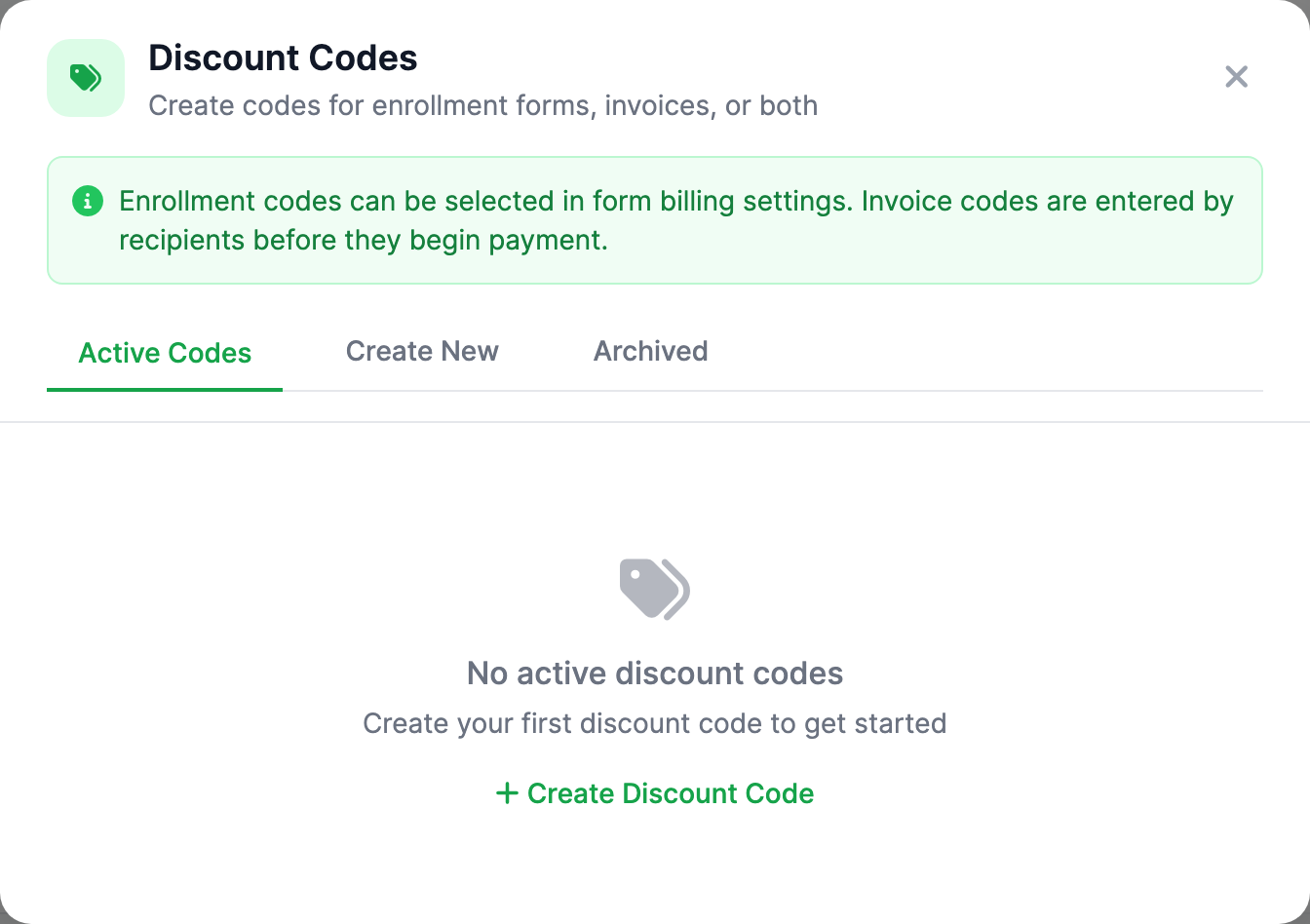
Step 4 — Edit a code
- On the Active Codes tab, click the edit (pencil) button on the code's card.
- The form opens pre-filled. Change the name, code, usage location, type, amount, or max uses.
- Click Save.
Editing the amount changes future redemptions only — fees already calculated for past applicants or invoices are not retroactively recalculated. MarkTrack keeps the name, code, and amount that were actually redeemed.
Step 4.1 — Remove a code from an unpaid invoice
Open the invoice as an admin. The Recipient Discount card shows who applied it, when it was applied, the code used, and the amount taken off. Before payment starts, enter a required reason and click Remove Discount. MarkTrack restores the original total, records the admin and reason, and returns the use to the code's available limit. Once money is processing or collected, the discount stays on the invoice for an accurate audit trail.
Step 5 — Archive vs. delete
MarkTrack protects your records by preferring archive over permanent deletion.
- Archive — click the archive button on an active code. It disappears from enrollment settings and stops working for new invoice entries, but its history is kept.
- Delete — on the Archived tab, permanent deletion is allowed only when a code has no usage or invoice-redemption history. Otherwise MarkTrack keeps it archived so real financial history cannot be erased.
Restoring an archived code
On the Archived tab, click restore to bring a code back to active. It becomes available again in the channels selected by its usage location, with its old usage count intact.
Discount codes are the simplest way to offer targeted enrollment or invoice savings without editing each charge by hand. For automatic multi-child savings, set up sibling discounts instead. Stuck? Contact support and we'll help.
More in Billing & Tuition
Still stuck?
Our team is happy to walk you through it.