
Set up sibling discounts
A sibling discount rewards families who enroll more than one child by taking money off the tuition of the second, third, and later children. You set the policy once as a list of tiers — one rule per sibling position — and MarkTrack applies it automatically whenever you create a single invoice that bills a family for two or more children. This guide covers building tiers, how the auto-apply works, how it avoids double-discounting, and how it fits alongside regular discount codes.
Sibling discounts are configured per school. Each school in your organization keeps its own tier policy, so a combined invoice spanning two schools discounts each school's children using that school's own rules.
Step 1 — Open the Sibling Discount Policy panel
- Go to Billing → Tuition for the school you're setting up.
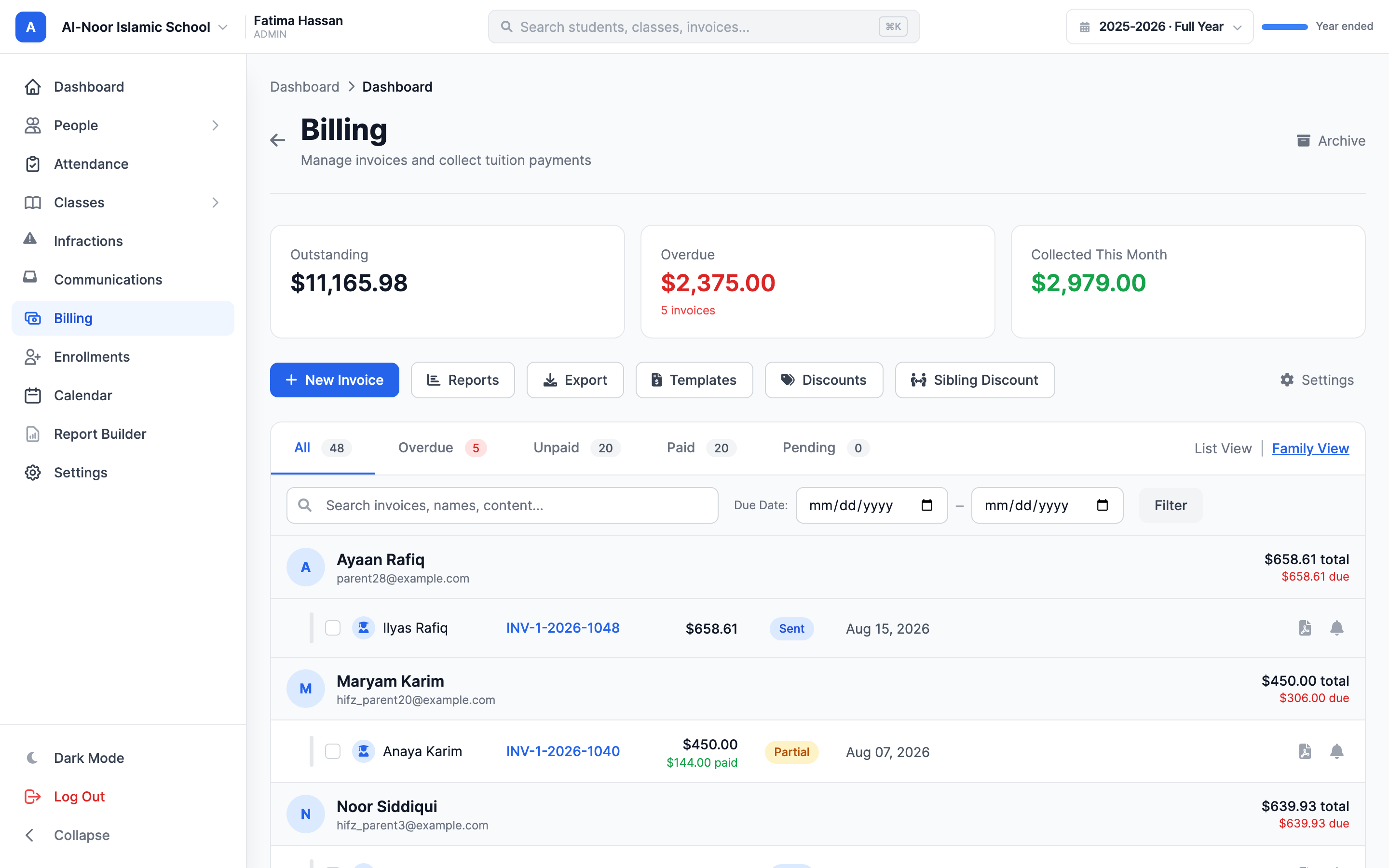
- In the row of quick-action buttons at the top, click Sibling Discount.
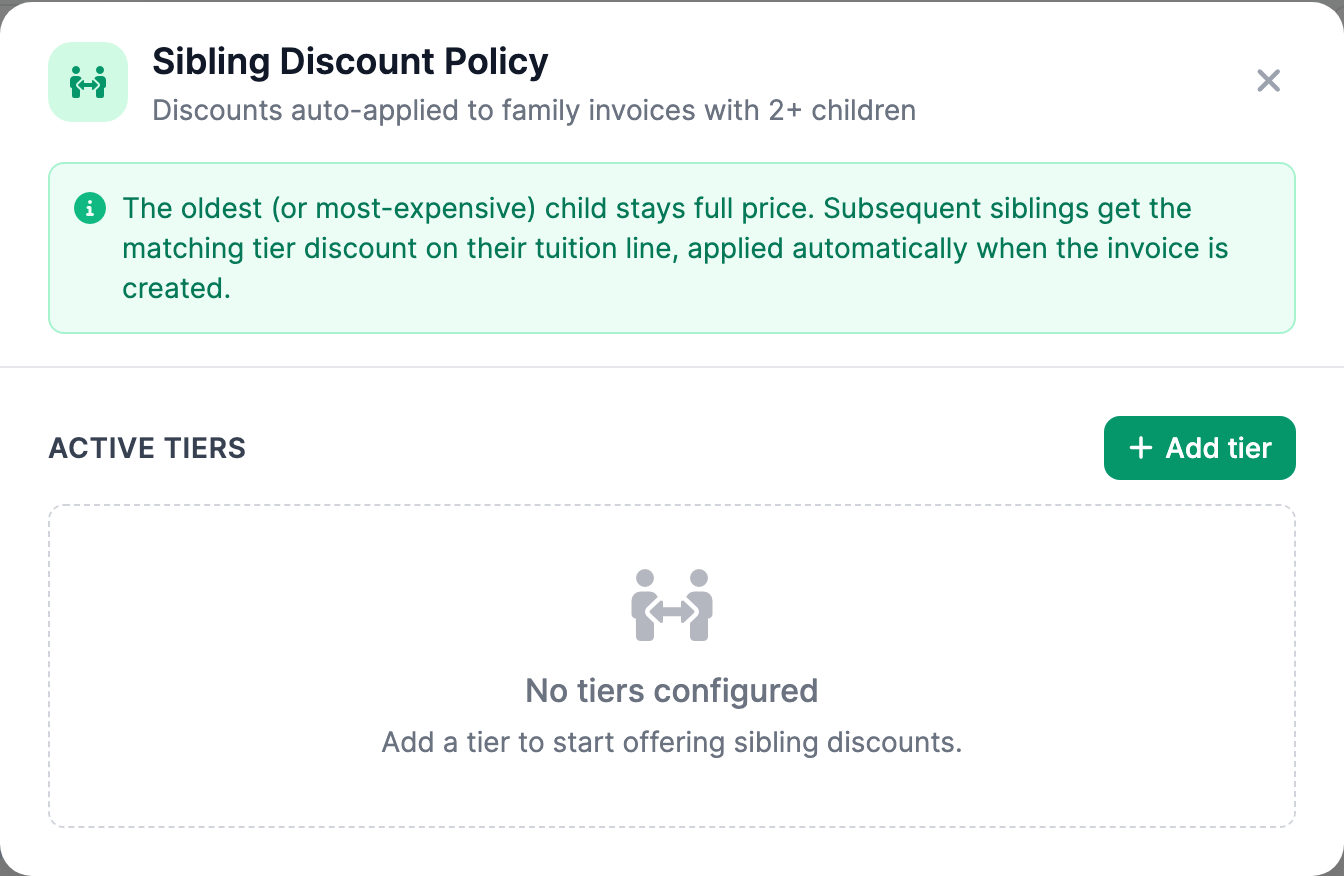
- The Sibling Discount Policy panel opens, listing your Active Tiers with an Add tier button.
Step 2 — Add a tier
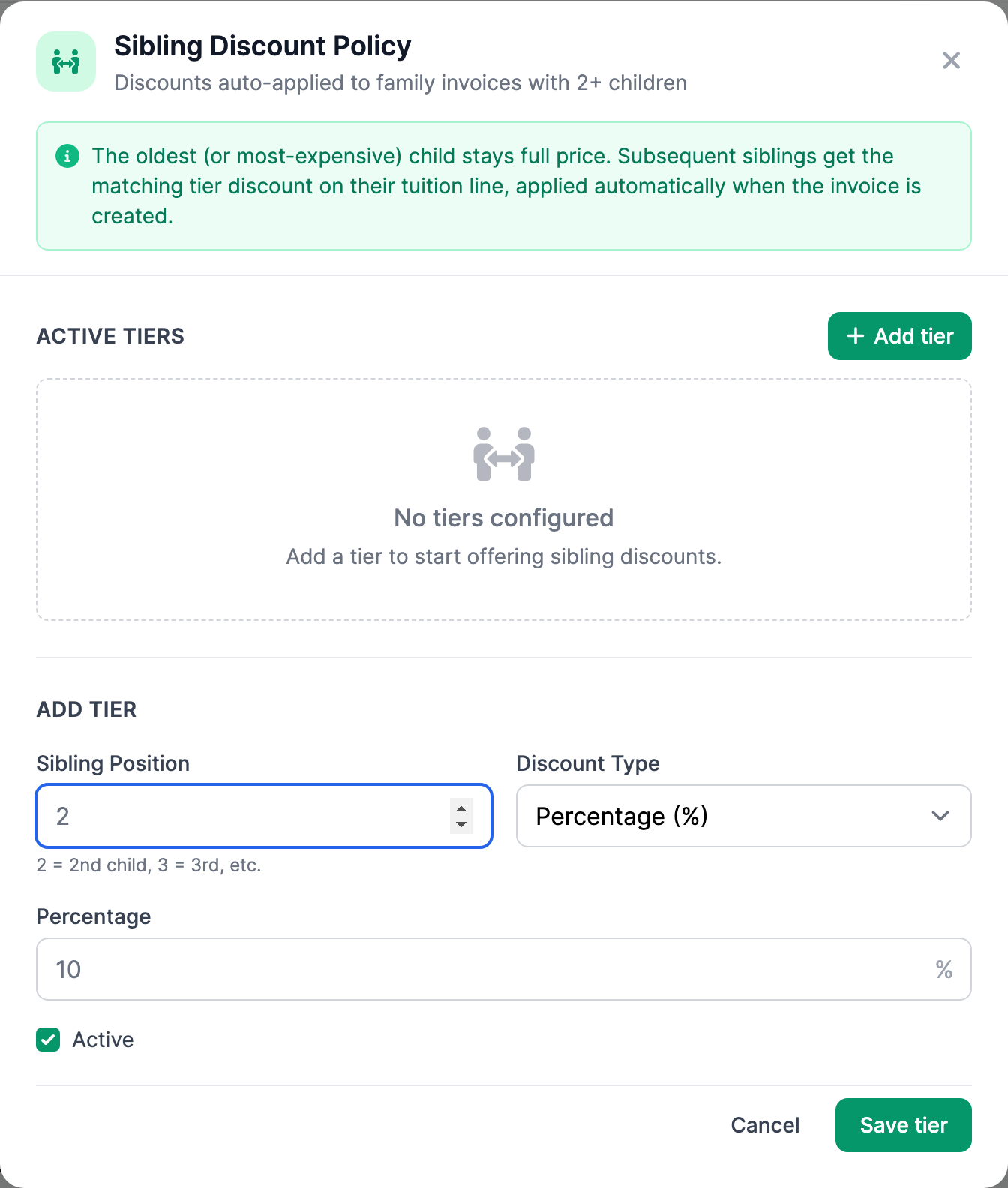
A tier is one rule that says "the Nth child gets this much off." Click Add tier and fill in:
- Sibling Position — which child the rule is for. 2 = 2nd child, 3 = 3rd child, and so on. Positions start at 2 (the first child is always full price).
- Discount Type — Percentage (%) or Flat amount ($).
- If percentage, enter the Percentage (1–100). If flat, enter the Amount in dollars.
- Leave Active checked so the tier is in force.
- Click Save tier.
Repeat to add a tier for each sibling position you want to reward. A common setup is 2nd child 25%, 3rd child 50%. Each position can only have one tier.
Step 3 — How discounts auto-apply
You don't apply sibling discounts by hand. When you create a single invoice that bills a family for more than one child (a family invoice with a tuition line per child), MarkTrack ranks the children and applies your tiers automatically. Here's exactly how it ranks them:
- Position 1 (full price) goes to the child with the highest tuition total on the invoice. Ties break toward the oldest child (earliest date of birth).
- Positions 2, 3, … get the matching tier's discount, added as its own Sibling discount line on the invoice. The line names the child and the amount, like Sibling discount — Yusuf (2nd child, 25%).
- If there's no tier for a given position (say you only set up a 2nd-child tier and there are three children), that child simply gets no sibling discount.
It needs at least two children on one invoice
The discount only kicks in when a single invoice bills two or more children. Separate invoices, one per child, won't trigger it — bill the family on one combined invoice. A per-child invoice (one tied to a single student) is always full price.
Step 4 — Anti-stacking: discounts aren't recalculated on every save
MarkTrack recomputes the sibling-discount lines only when something meaningful changes — the invoice is brand new, you edit its line items, or you flip the sibling-discount setting on the invoice. Routine saves (like a payment coming in and the invoice recalculating its balance) leave the existing discount lines exactly as they are. This means a paid or historical invoice is never silently re-discounted behind your back.
The discount is also based on each child's own tuition total, not on the whole invoice, so two children's discounts never compound onto each other.
Step 5 — Turning the discount off for one invoice
Sometimes you want a family invoice without the automatic sibling discount. On an invoice, if you remove an auto-applied Sibling discount line, MarkTrack flips the invoice's sibling discount to disabled so it won't be re-added when you save.
Putting it back
An invoice with the discount turned off shows a notice saying Sibling discount is disabled for this invoice, with a Re-apply sibling discount button. Clicking it re-runs your tiers and adds the discount lines back.
Step 6 — Editing and deleting tiers
- In the Sibling Discount Policy panel, each tier row shows the position ordinal and the discount. Click the edit (pencil) button to change the type, amount, or active state, then Save tier.
- Click the delete (trash) button to remove a tier entirely.
Changing or deleting a tier affects future calculations. Invoices already created keep the discount lines they were given — to apply a new tier policy to an existing family invoice, edit that invoice (or use Re-apply sibling discount) so it recomputes.
How it works with regular discount codes
Sibling discounts and discount codes are independent systems:
- Discount codes reduce enrollment fees or an eligible unpaid invoice, depending on the code's usage location.
- Sibling discounts reduce tuition on a family invoice and apply automatically by child position.
A family can receive an enrollment discount and a sibling tuition discount on different charges. MarkTrack does not stack a recipient-entered invoice code onto an invoice that already contains a sibling or other discount line.
Set your tiers once and every multi-child family invoice you create from then on prices itself. For the broader billing flow, see Create and send invoices, or contact support if you'd like help choosing tier amounts.
More in Billing & Tuition
Still stuck?
Our team is happy to walk you through it.