
Record a cash or check payment
When a family pays you in person — cash at the front desk, a check in the mail, or a card swipe on your own terminal — you record that money on the invoice yourself. This is called a manual payment (or "recording a payment"). It tells MarkTrack the family has paid, updates the invoice, and keeps your totals accurate.
This guide covers recording a full payment, recording a partial payment (a down payment), and how an invoice's status changes as money comes in. It picks up where Create and send invoices leaves off.
Manual payments do not touch Stripe
Recording a cash or check payment is purely a bookkeeping entry — no card is charged and no money moves through your online payment account. You're telling MarkTrack "this money already arrived." (Online card and bank payments the parent makes through their portal are recorded automatically; you only record the offline ones.)
When can you record a payment?
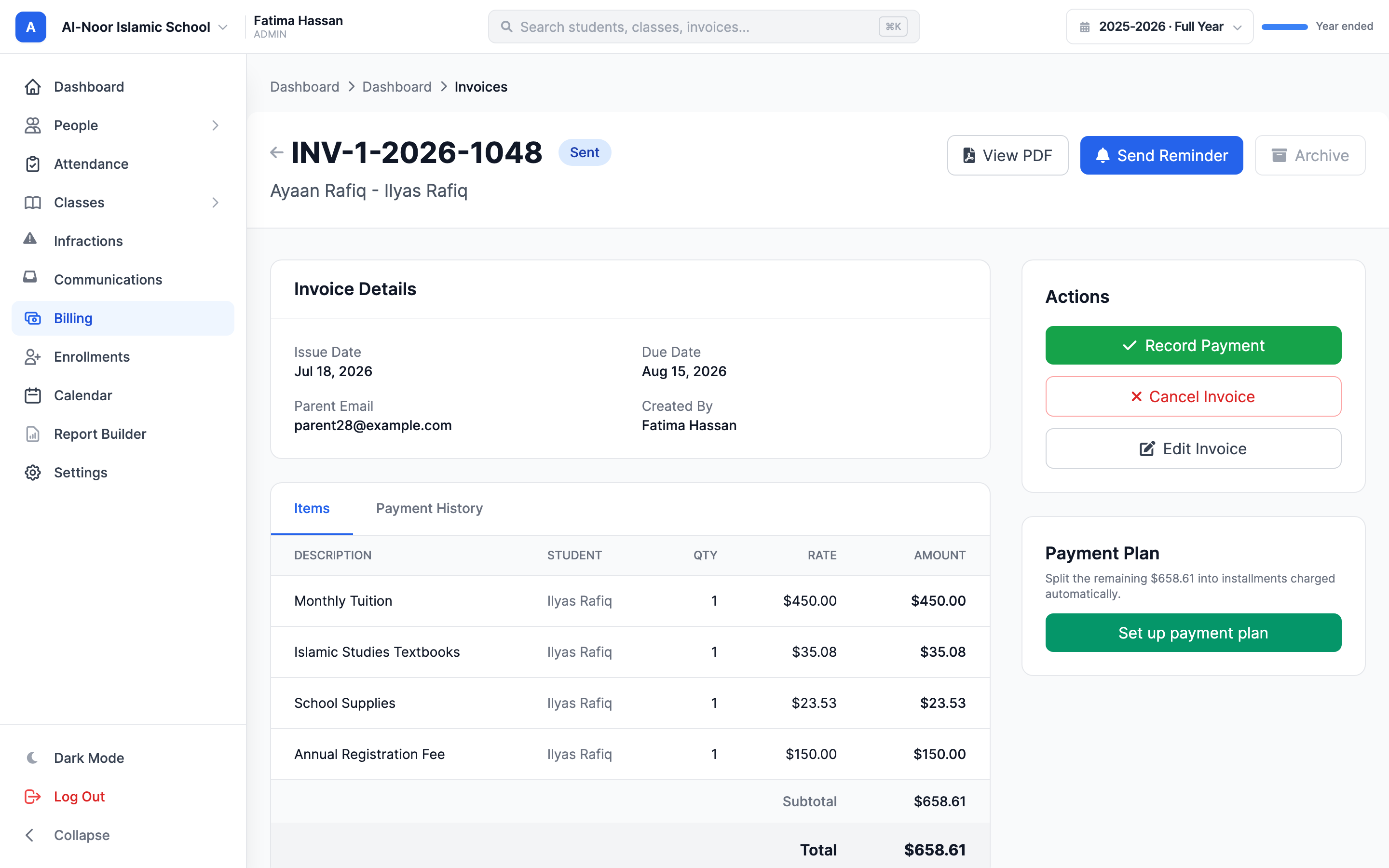
You can record a manual payment on any invoice that has been sent and still owes money — that is, an invoice whose status is Sent, Partial, or Overdue. You cannot record a payment on a Draft invoice (send it first), or on one that's already Paid or Cancelled. When recording is allowed, a green Record Payment button appears in the Actions panel on the invoice.
Step 1 — Open the invoice
- Go to Billing → Tuition for the school the invoice belongs to.
- Find the invoice in the list (use the Unpaid or Overdue tab to narrow it down) and click it to open its detail page.
- On the right, find the Actions panel. If the invoice can take a payment, you'll see a green Record Payment button.
Step 2 — Fill in the Record Payment form
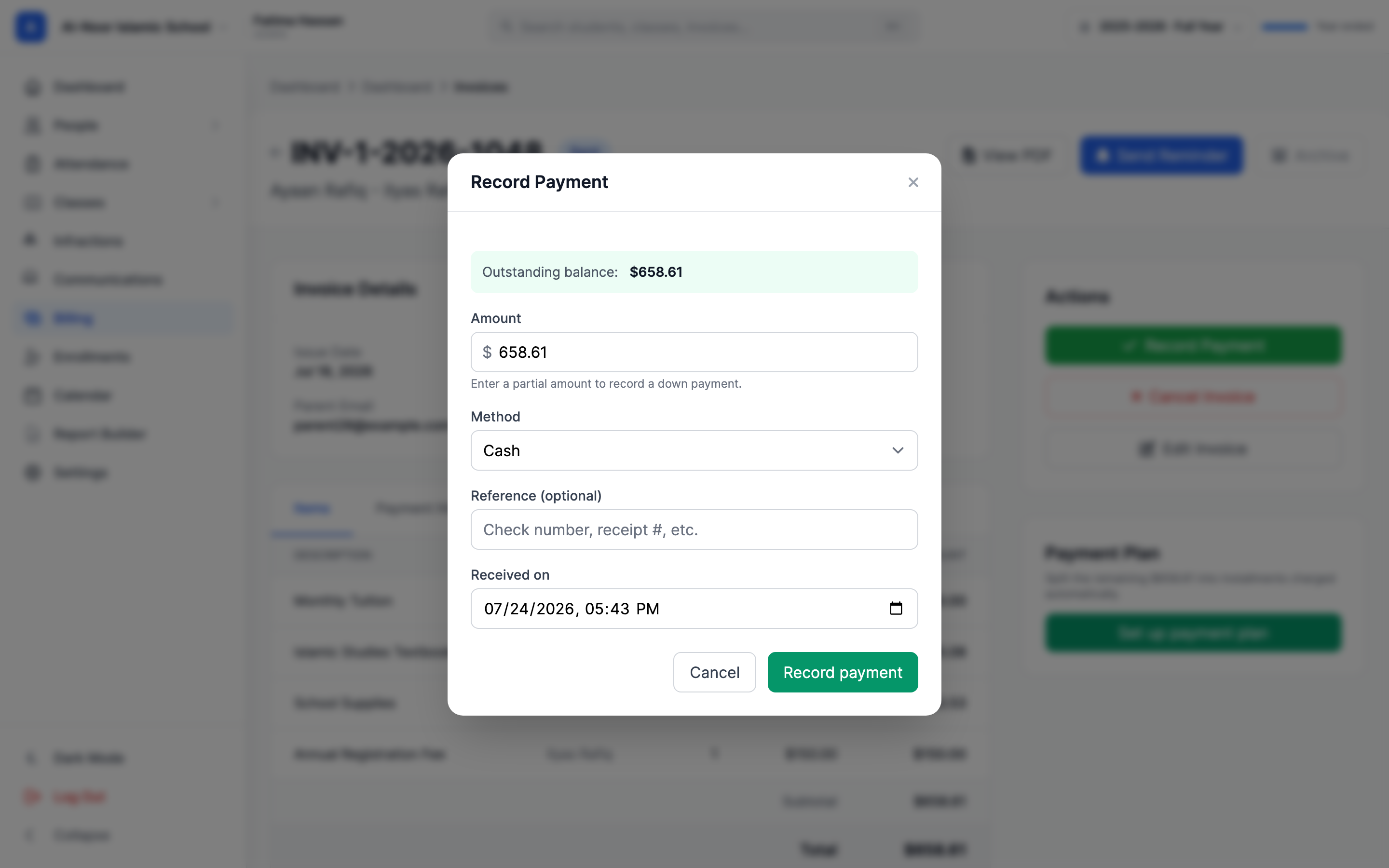
Click Record Payment. A panel slides open titled Record Payment. At the top it shows the invoice's Outstanding balance so you know exactly how much is still owed. Fill in the fields:
- Amount — pre-filled with the full outstanding balance. Leave it as-is for a payment in full, or type a smaller number to record a partial payment.
- Method — pick how the family paid: Cash, Check, Credit Card (in person), Debit Card (in person), or Other. This is just a label for your records — it doesn't process anything.
- Reference (optional) — a note like a check number or a paper receipt number. Helpful for matching against your bank deposit later. If you chose Check and enter a number here, the payment shows as "Check #1234" in the payment history.
- Received on — the date and time the money actually arrived. It defaults to right now, but you can back-date a check that came in last week.
- Click Record payment. The panel closes and the invoice reloads with a green "Payment recorded." message.
You can't record more than is owed
If the amount you enter is more than the remaining balance, MarkTrack rejects it with "Amount exceeds the remaining balance of $…". An amount of zero or less is rejected too. Record what was actually paid — if the family overpaid, take the exact balance here and handle the extra separately.
Step 3 — Recording a partial payment
A partial payment is any payment smaller than the full balance — a down payment, a first installment a parent hands you in cash, or half now and half later. To record one, just type the smaller amount in the Amount field before saving.
- The invoice moves to Partial status and now shows what's left owing.
- You can come back and record another payment any time — each one chips away at the balance. The Record Payment panel always shows the current Outstanding balance at the top.
- When the payments add up to the full amount, the invoice flips to Paid on its own. You don't mark it paid by hand — the running total does it.
How the invoice status changes as money comes in
Every invoice carries a status that reflects how much has been paid. MarkTrack recalculates it automatically each time you record a payment. Here's the lifecycle:
- Draft — created but not sent. The family can't see it and you can't record a payment yet.
- Sent — emailed to the family, nothing paid yet, not past due.
- Overdue — sent, still unpaid, and past the due date.
- Partial — some money recorded, but a balance remains.
- Paid — fully paid. Recording a payment that clears the balance lands here.
- Cancelled — voided by an admin (see the refunds guide). No longer collectible.
- Refunded — money that was paid has been given back.
- Pending — an online bank (ACH) payment is still clearing. This is set by online payments, not by you.
The status drives everything downstream — which tab the invoice shows under (Unpaid, Overdue, Paid), the Outstanding and Collected This Month numbers at the top of the Billing page, and which actions are available on the invoice.
Where to see the payment afterward
Open the invoice and switch to the Payments tab. Each payment is listed with its amount, method (e.g. "Cash" or "Check #1234"), date, and the running balance after it. The Total Paid line at the bottom sums them up against the invoice total.
A note on receipts
Recording a manual payment does not automatically email the family a receipt. Once an invoice is fully Paid, a Send Receipt button appears in the Actions panel so you can send one on demand. Refunds, reminders, and receipts are all covered in Refunds, reminders, and receipts.
Questions about a payment that won't reconcile? Contact support, or browse more in Billing & Tuition.
More in Billing & Tuition
Still stuck?
Our team is happy to walk you through it.