
Withdraw and reinstate a student
Use Withdraw when a student leaves and you want the departure, last day, family notice, and school history recorded. Withdrawal preserves the student's grades, attendance, and other records. Use Archive for duplicates or mistakes; an archived student is not the same as a student who has left.
Withdraw a student
- Open People → Students, find the student, and open their profile. On a phone, use the Students search and open the matching profile.
- Choose Withdraw on the profile. Review the classes that will be removed from the live roster.
- Select a reason and enter the student's last day of attendance. Add optional staff-only notes if useful.
- Choose whether to email the family. If you select it, review the listed recipients and add an optional message.
- Review the summary, then confirm the withdrawal.
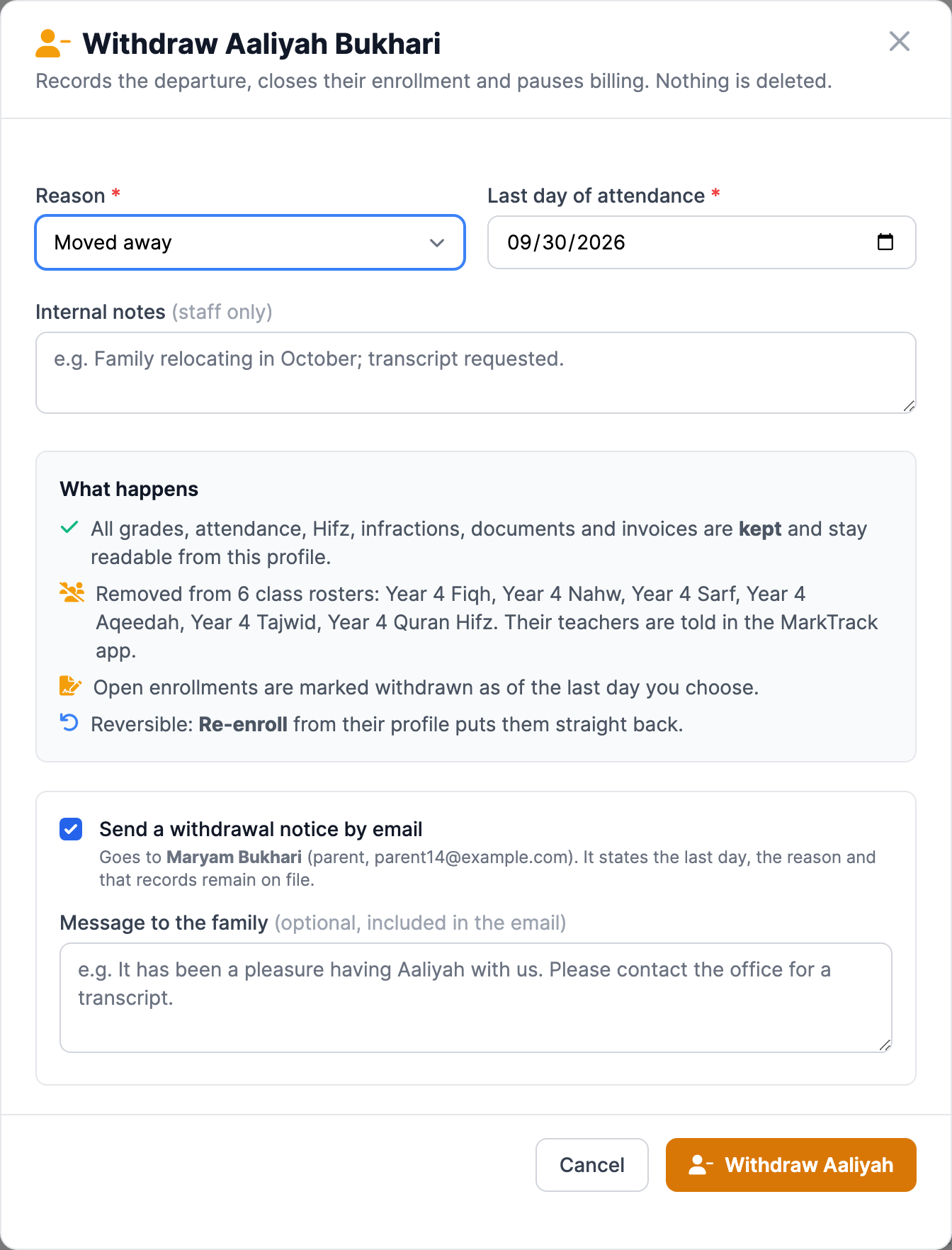
The student leaves active class rosters and appears under People → Students → Actions → Former Students, on the Withdrawn tab. Grades, attendance, Hifz, infractions, documents, and invoices remain readable from the profile. Open enrollments close, and recurring billing is paused or adjusted as the confirmation explains.
Reinstate a withdrawn student
- Open People → Students → Actions → Former Students and select Withdrawn.
- Find the student and choose Re-enroll.
- Review the dialog. It lists the class rosters and current-year enrollments that will reopen. Add optional staff-only notes, then confirm.
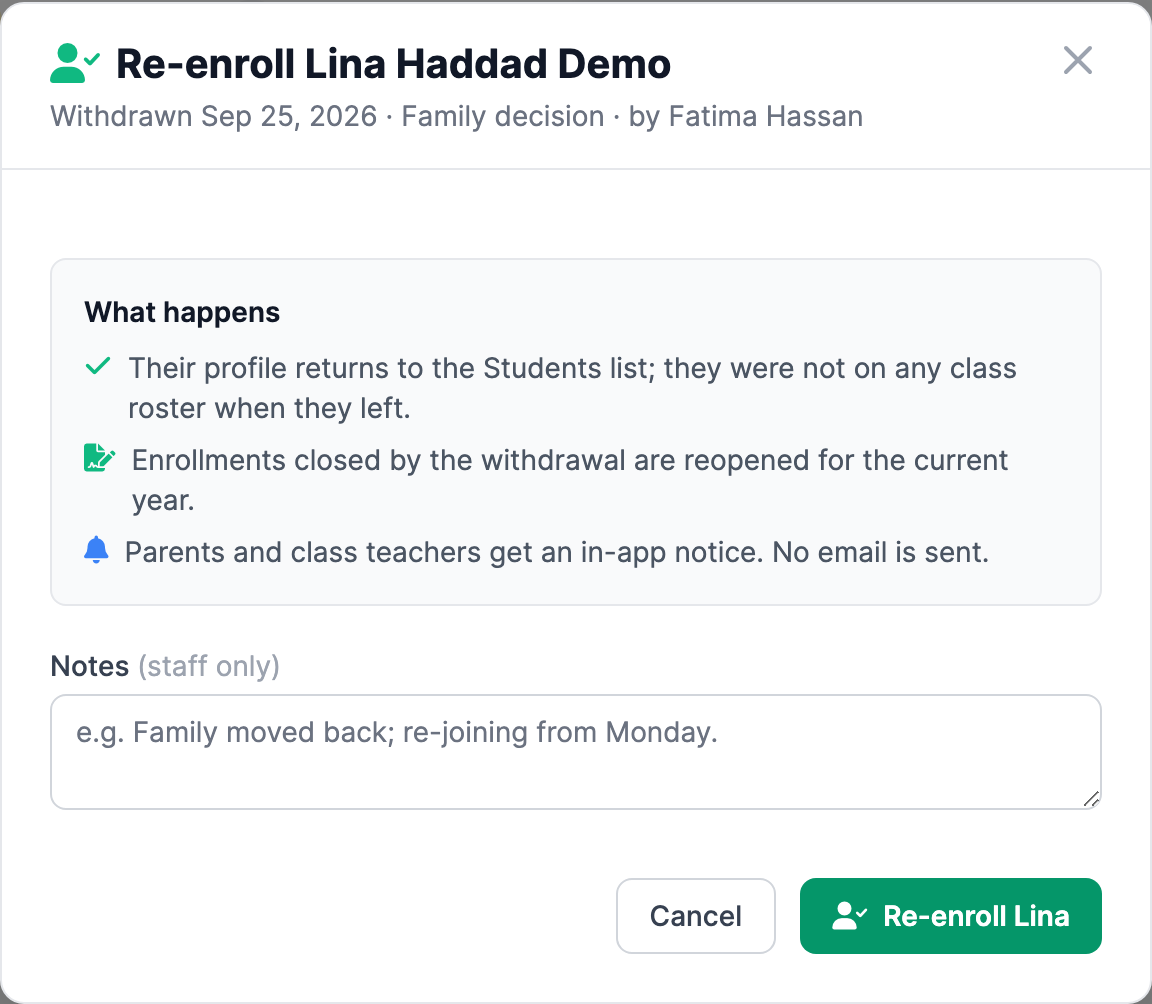
Reinstating restores the listed class rosters and reopens current-year enrollments. An independent student's login works again. Recurring billing remains paused, so review the Billing tab and resume an appropriate schedule separately. Parents and class teachers receive an in-app notice; reinstatement does not send an email.
To move a student between schools, use school membership instead of recording a withdrawal.
More in Users & Accounts
Still stuck?
Our team is happy to walk you through it.