
Grant a child student their own login
Child students use their parent's account and do not sign in. If an older child should have their own access, an admin can add the student's email address and grant independent login from the student profile. The parent link remains in place.
1. Add the student's email address
- Open People → Students and choose the child.
- Choose Edit, enter an email address the student can access, and save.
Use an address for the student, not the parent's address. An email address can belong to only one account in your organization, and MarkTrack sends login information to the address on the student record.
2. Grant the login
- On the student profile, choose Grant login and confirm.
- If the email is new to MarkTrack, MarkTrack creates a temporary password and emails login credentials to the student. The student chooses a password when signing in.
- If the student already uses that email in another organization, their existing password works here too and MarkTrack sends an added-to-organization notice instead.
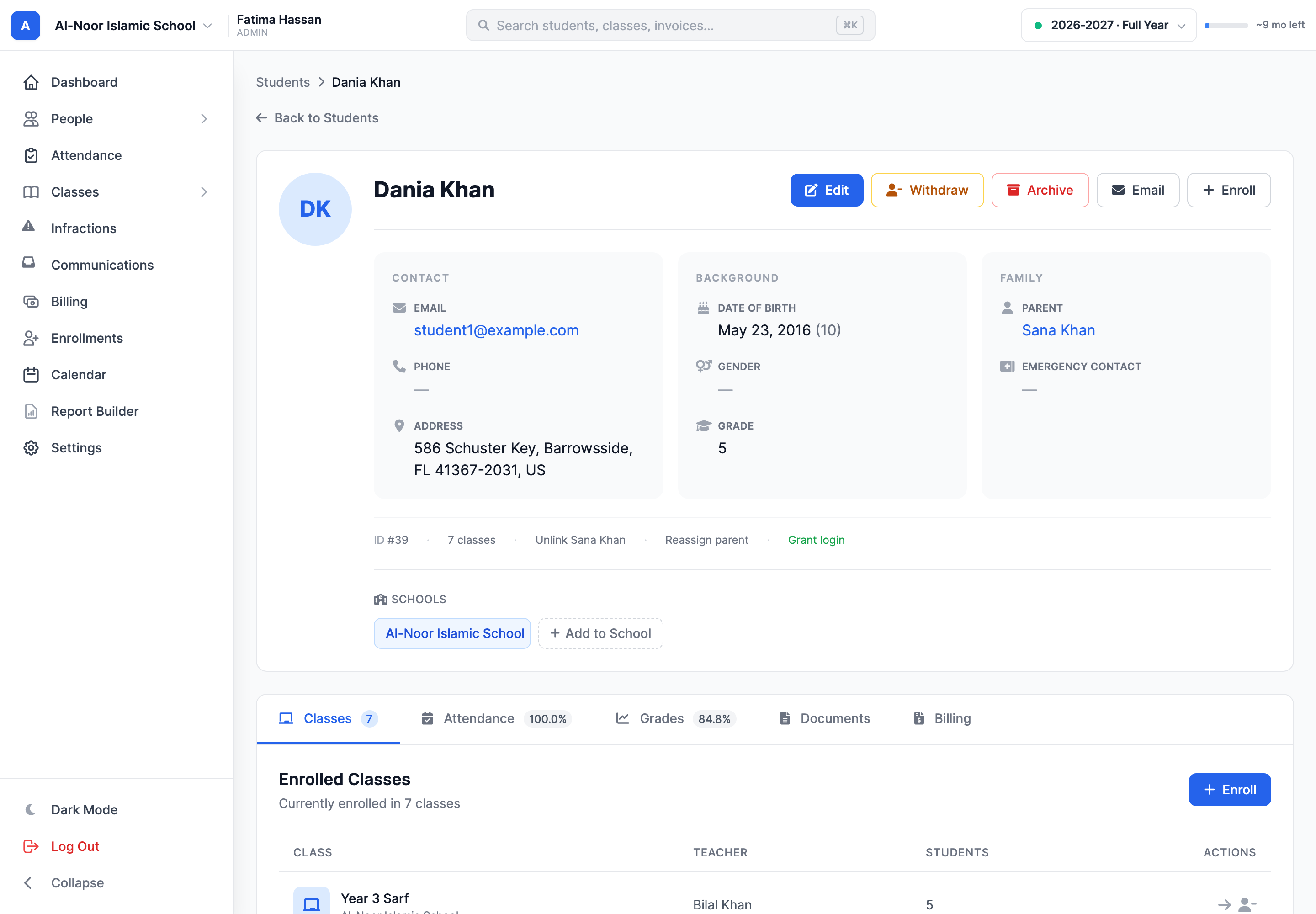
After the change, the student can sign in independently. Their Parent 1 and Parent 2 links stay in place, so the parent portal continues to show the child. If the email is already used by another account in your organization, resolve which account should own it before proceeding.
For child and independent account differences, see Add students. For linking a family, see Add and link parents.
More in Users & Accounts
Still stuck?
Our team is happy to walk you through it.