
Transfer organization ownership
Every MarkTrack organization has exactly one owner — the Super Admin shown with a gold crown. The owner has unrestricted access to every school and every setting, and is the only person who can turn other admins on or off. This guide shows how to transfer ownership to another admin: a one-step, password-protected handoff for when the founder leaves, a director changes, or you simply want a different person to hold the top role.
The transfer is atomic and keeps a single owner at all times: the moment it succeeds, the chosen admin becomes the new owner and you become a regular admin — there's never a gap where the organization has zero or two owners.
Only you can start it — and you can't undo it yourself
Only the current owner can transfer ownership, and only by re-entering their password. Once it's done, the new owner is the only person who can transfer it back. Be sure before you confirm.
Step 1 — Make sure the new owner is ready
The person you're handing off to must be an admin in your organization, and they must be active (not deactivated, not archived). If they're a teacher or parent, you can't make them the owner — add them as an admin first. See Add admins and control permissions for that.
Step 2 — Open the new owner's admin profile
- In the left sidebar, open People and click Admins.
- Click the name of the admin you want to make the owner. Their profile opens.
- In the header, click the Transfer Ownership button (it carries a crown icon, next to Permissions and Edit Profile).
Don't see the button?
The Transfer Ownership button only appears when you're the owner and you're viewing a different, active admin's profile. It won't show on your own profile, on a teacher's profile, or on an admin who is inactive or already the owner.
Step 3 — Confirm with your password
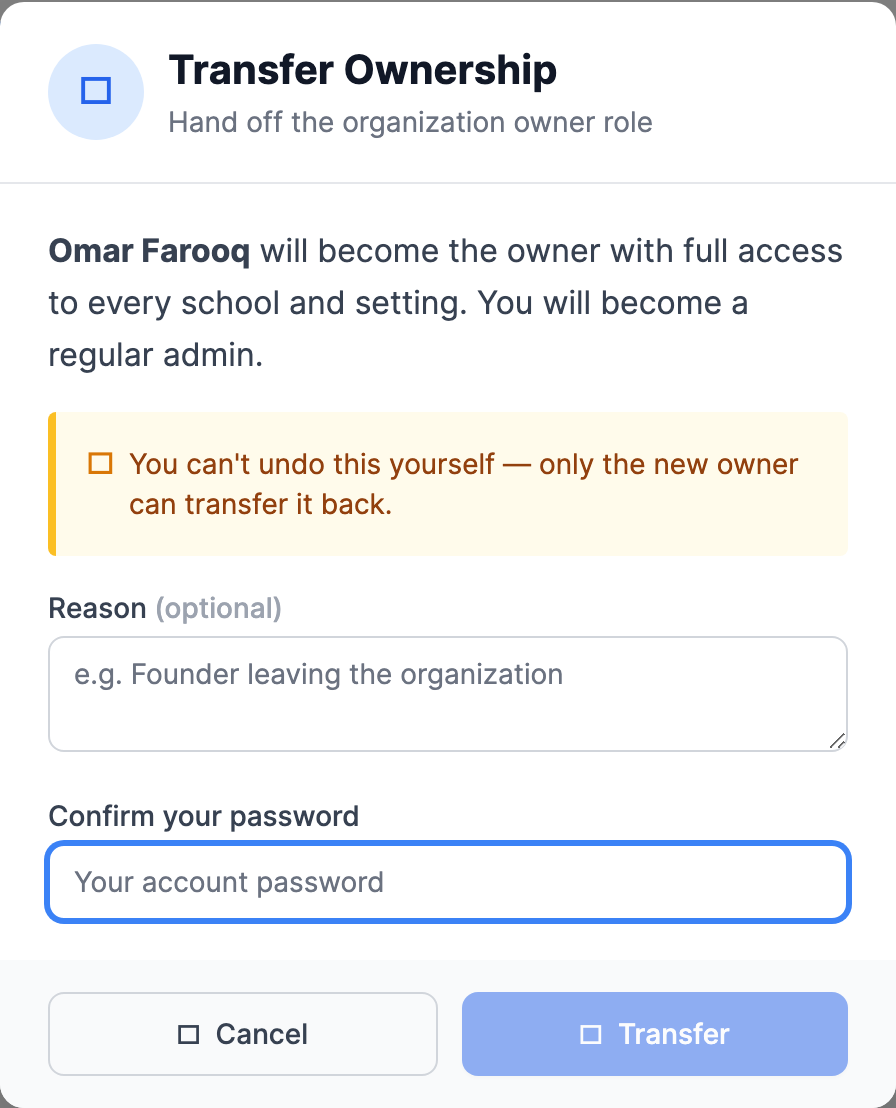
- Read the summary — it names who's about to become owner and reminds you that you'll drop to a regular admin.
- Optionally type a Reason (for example, "Founder leaving the organization"). This is saved to the ownership history for your records.
- Type your own account password in Confirm your password. The confirm button stays greyed out until you do.
- Click Transfer Ownership to confirm.
Wrong password = nothing happens
If the password is blank or incorrect, MarkTrack stops and tells you "Password incorrect. Ownership was not transferred." Nothing changes until the password checks out, so a mistyped password is harmless.
Step 4 — What changes the instant it succeeds
When the transfer goes through, MarkTrack does all of this in one atomic step:
- The chosen admin becomes the owner / Super Admin, with the gold crown and unrestricted access to every school and setting.
- You become a regular admin — you keep your account, but you no longer have owner-only powers like turning admins on or off.
- Both you and the new owner are added to every school in the organization, so the handoff doesn't accidentally lock either of you out of a school.
- An entry is written to the organization's ownership history (who, to whom, when, and your reason) for an audit trail.
Always exactly one owner
The change either fully succeeds or fully rolls back — if anything went wrong mid-way, the old owner stays the owner. You'll never end up with two owners or none. You can confirm the current owner any time under Settings → Ownership.
That's the whole handoff. If you later need to take ownership back, the new owner repeats these steps on your profile. For everything else about admin accounts and what each one can do, see Add admins and control permissions, or contact us if you're unsure who should hold the owner role.
More in Users & Accounts
Still stuck?
Our team is happy to walk you through it.