
Add parents and link them to children
A parent in MarkTrack is a guardian account that pays the bills and watches over one or more children. Parents log in to a parent portal where they can see each child's grades, attendance, Hifz progress, and invoices — all in one place. This guide shows how to add a parent, link them to their children as the primary (Parent 1) or secondary (Parent 2) guardian, send them their login details, and what happens to their children when you archive the parent.
Every child student has up to two parent slots. The primary slot is required for a child (a child student must always have a primary parent), and the secondary slot is optional — use it for a second guardian who shares the same child. Both parents get the same portal view of that child.
Parent first, child second
A child student can only be created once their parent exists. If a whole family is new, add the parent here first, then add the children — see Add students.
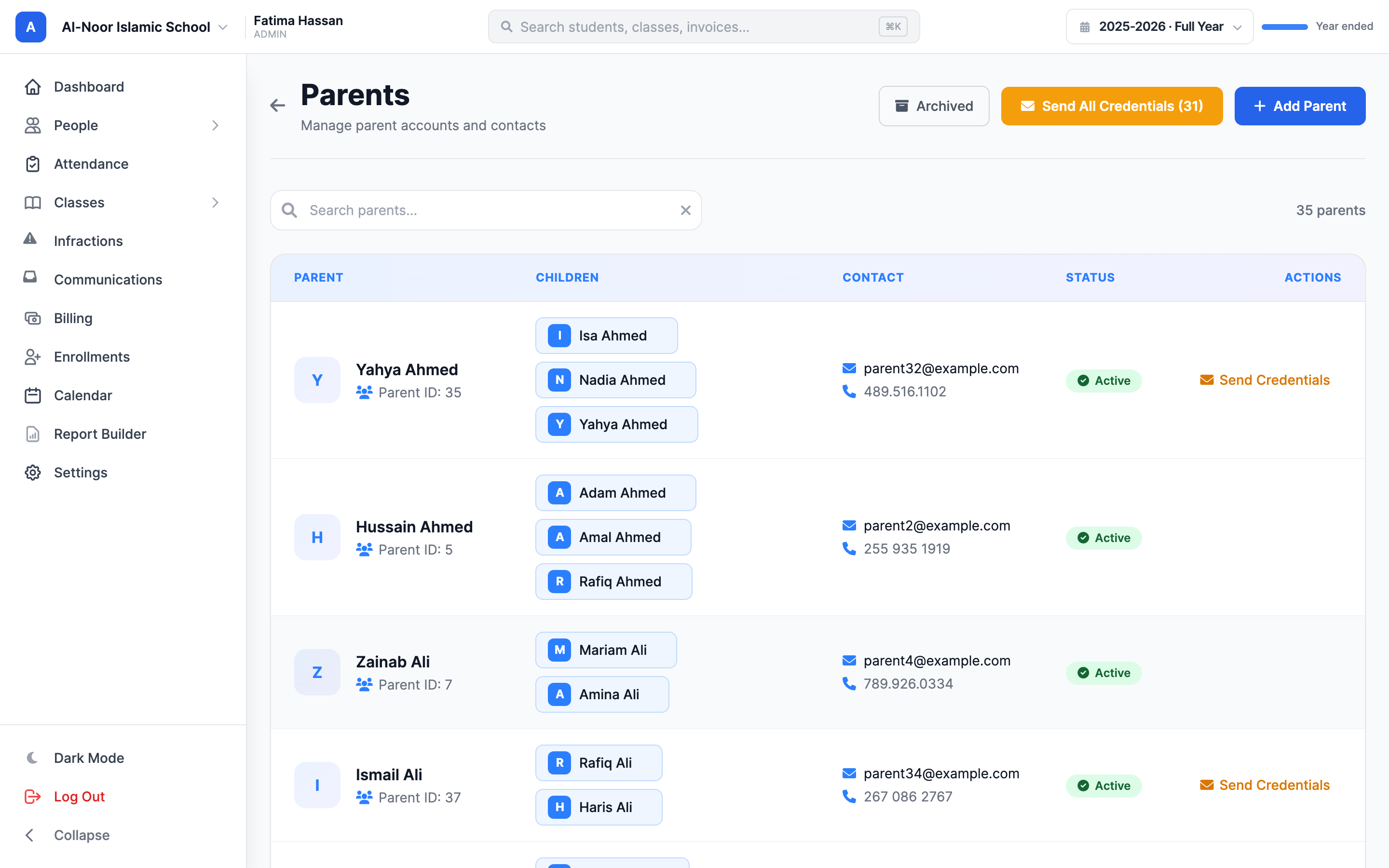
Step 1 — Open the Parents page
- In the left sidebar, open People and click Parents.
- The header has three buttons: Archived, Send All Credentials, and the blue Add Parent button.
Step 2 — Add a parent
- Click Add Parent. The Add New Parent window opens ("Create a new parent/guardian account").
- Type the parent's Full Name (required).
- Type their Email Address (required) — this is the primary contact for notifications and the address their login details are sent to.
- Optionally add a Phone Number.
- Click Create Parent.
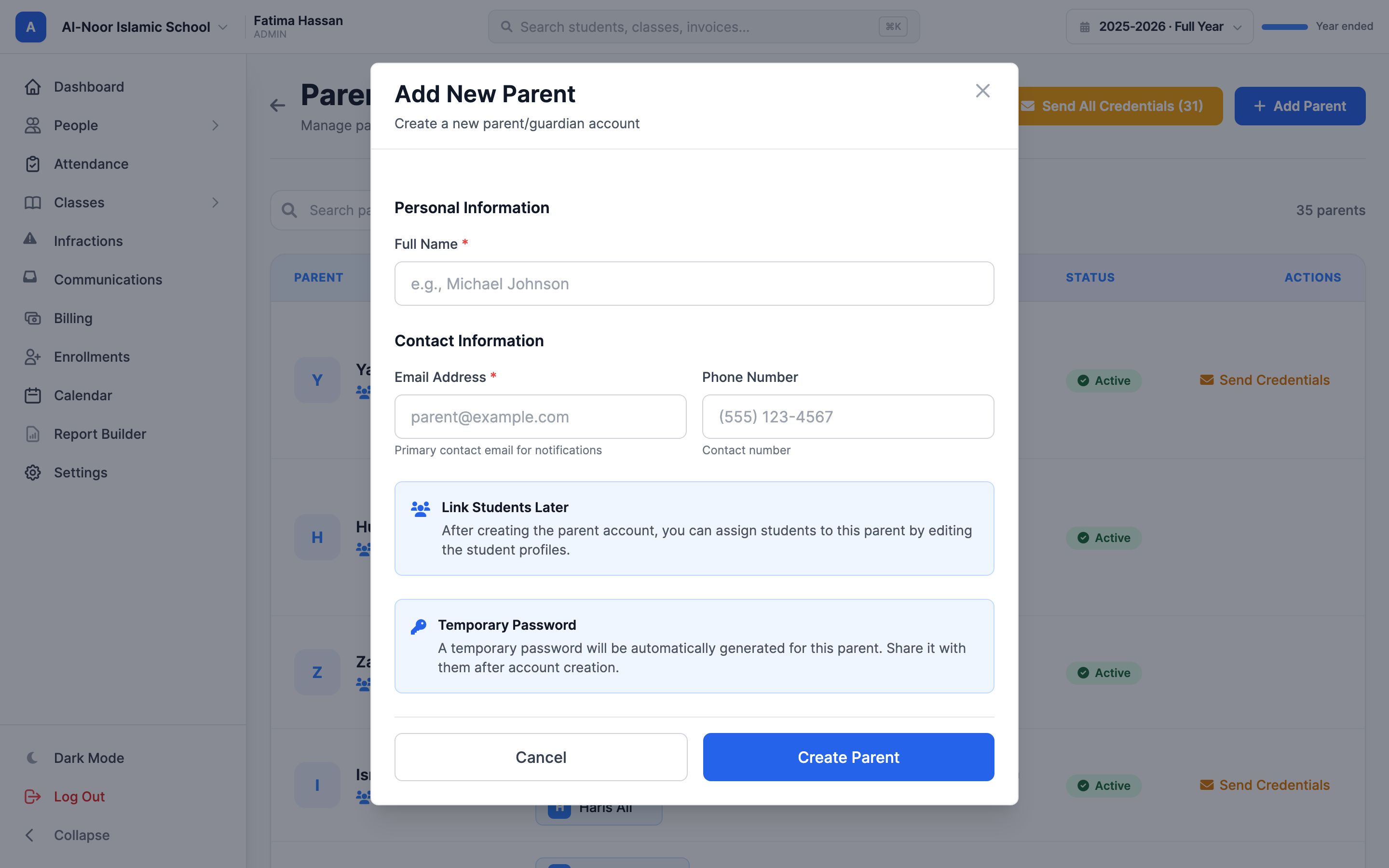
When you click Create Parent, three things happen automatically: the account is created and marked verified, MarkTrack generates a temporary password, and a welcome email with that password is sent to the parent. You'll see "Parent account created successfully! Login credentials have been emailed to…". The new parent is also added to the school you're currently viewing.
Emails are unique — check the spelling
Every email in MarkTrack is unique across the whole platform. If the address already belongs to any account you'll see "is already linked to an existing account. A new account cannot be created with this email." A typo can be corrected afterwards: open the parent and click Edit, and the sign-in email is the first thing in the panel. Because that address is where invoices and school notifications go, MarkTrack spells out exactly what the change affects — and who gets signed out — before anything is saved.
Step 3 — Link the parent to their children
A brand-new parent has no children attached. You link them on the parent's profile page.
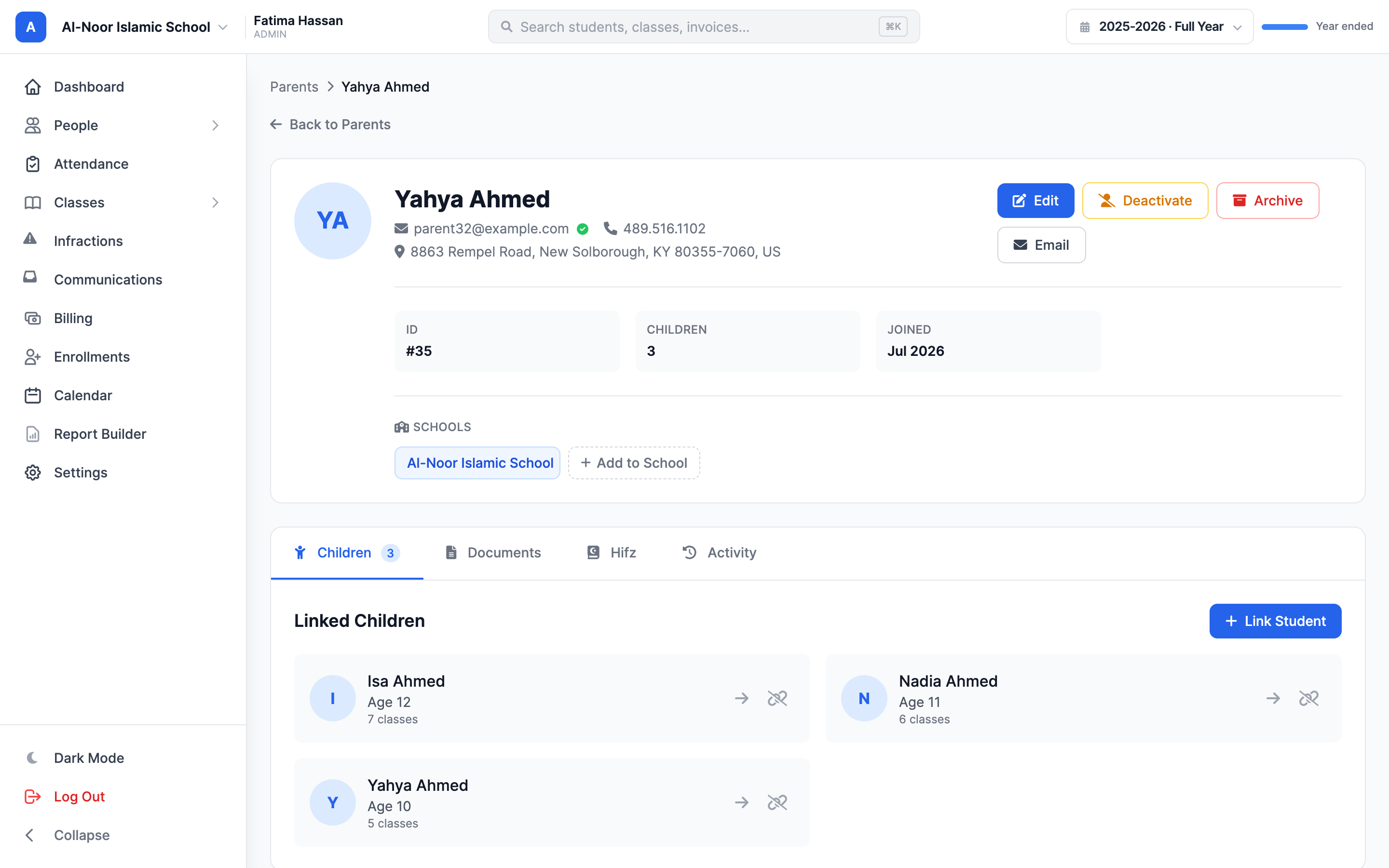
- From the Parents list, click the parent's name to open their profile.
- On the Children tab, click Link Student. The Link Student to Parent window opens.
- Pick a student from the list (students already linked are shown greyed out with an "Already Linked" badge so you can't double-link them).
- Click Link Student.
How the Parent 1 / Parent 2 slots get filled
You don't pick the slot by hand — MarkTrack fills the next empty one automatically:
- If the student has no primary parent yet, this parent becomes Parent 1 (primary).
- If the student already has a primary parent, this parent fills the Parent 2 (secondary) slot. You'll see "[Student] has been linked as a child of [Parent]".
- If both slots are already taken, the link is refused: "[Student] already has two parents linked. Please unlink one first."
- Linking the same parent to the same child twice is blocked too — "[Student] is already linked to [Parent]."
So to set a specific guardian as the secondary parent, link the primary parent first, then link the second parent — they automatically land in the Parent 2 slot. The same Link Student tool works from the student's side too (see Add students).
Both parents see everything for a shared child
Parent 1 and Parent 2 are equal in the portal — both can see the child's grades, attendance, Hifz, and invoices, and either one can pay a bill. Linking a child also copies the parent's phone number onto the child record (not the email, since every email must be unique).
Step 4 — Understand unlinking (it's not always the same)
On the Children tab, the Unlink icon next to a child removes that parent-child link. What happens next depends on which slot this parent holds and whether a second parent exists:
- Unlinking a secondary parent (Parent 2): the link is simply removed. The child keeps their primary parent and nothing else changes — "Link to [Student] has been removed."
- Unlinking the primary parent when a Parent 2 exists: the second parent is promoted into the primary slot so the child still has a guardian — "Link to [Student] has been removed. The second parent is now the primary."
- Unlinking the only parent of a child student: the child has no guardian left, so MarkTrack converts them into an independent student — login is switched on, a temporary password is generated, and credentials are emailed to the student. This only works if the child already has an email on file; without one you'll see "Cannot unlink: student needs an email address to become independent."
Unlinking never deletes records
Removing a link only changes who's connected to whom. The student's grades, attendance, and history stay intact. The unlink confirmation spells this out: "No records will be deleted."
Step 5 — Send (and resend) login details
Parents created with the Add Parent button already get a welcome email automatically. Two tools on the Parents page let you (re)send credentials afterward:
- Send Credentials (per parent, in the table row): generates a fresh temporary password and emails it. After the first send the button reads Resend, and it disappears once the parent has actually logged in.
- Send All Credentials (N) (top of the page): does the same for every parent in the current school who has an email and has never logged in. The number in the button is how many parents qualify; parents who've already signed in are skipped.
Every send resets the password
Each click generates a new temporary password and the old one stops working. If you send credentials to one parent and then press Send All Credentials, the password you just emailed them is dead — they'll need the newest email.
What a parent sees in their portal
Once a parent logs in, they get a portal scoped to their own children only. From My Children they can open any linked child and view:
- Grades — a per-class breakdown and an overall average.
- Attendance — recent records and an attendance rate.
- Hifz — memorization progress for any Hifz classes, with a daily acknowledgment they can tap.
- Billing — the child's invoices and payments, with the ability to pay online. Walk them through it with Pay your invoices.
A parent can only ever see children linked to them in Parent 1 or Parent 2 — they cannot see other families' students.
Step 6 — Parents and schools (multi-school orgs)
If your organization runs more than one school, a parent's profile shows a Schools section with a chip for each school they belong to and an Add to School button. Two things to know:
- Linking is automatic in practice. When you add one of a parent's children to a school, MarkTrack automatically adds the parent (both parents, if there are two) to that school too — so they never lose sight of a child who's enrolled there.
- Removing is guarded. Click the ✕ on a school chip to remove the parent from that school, but MarkTrack blocks the removal if any of their children are still enrolled there: "Cannot remove from [school]: parent still has children enrolled there… Unlink or remove the children from this school first." A parent must always belong to at least one school, so you also can't remove their last one.
For the bigger picture on multi-school orgs, see Understand multiple schools.
Step 7 — Archiving and restoring a parent
Archiving hides a parent from the active roster without deleting anything. On the parent's profile, click Archive. Because a child can't be left without a guardian, archiving a parent has knock-on effects on their children:
- Solo children (whose only guardian is this parent) are archived alongside the parent.
- Co-parented children (who have a second, still-active parent) stay active, and the second parent is promoted into the primary slot.
The confirmation message tells you exactly what happened, e.g. "[Parent] archived. 2 children archived; 1 child kept (second parent promoted to primary)."
Restoring brings their children back too
Open Archived from the Parents page, find the parent, and restore them. The parent and any children that were archived with them are restored together. (Co-parented children that stayed active during the archive are unaffected.)
Deactivate vs. Archive vs. Delete
Deactivate only blocks login — the parent and their children stay in the roster. Archive removes the parent (and solo children) from the active lists but keeps everything recoverable. Permanent delete is only available after a parent is archived, and it cannot be undone: solo children are deleted with the parent, while co-parented children are kept (their second parent is promoted to primary).
That's the full lifecycle of a parent account — add, link, give portal access, and archive. Next, add the children themselves in Add students, or browse all guides in Users & Accounts. Still stuck? Contact us.
More in Users & Accounts
Still stuck?
Our team is happy to walk you through it.