
Add an existing family to another school
If a family already has a MarkTrack account, keep using those records when a child joins another school in your organization. A person has one account per organization and can belong to several schools. This guide follows a fictional family: parent Sana Khan already has a child at Al-Noor Islamic School, and her child Dania is joining the Sunday School.
Do not create a duplicate parent or student
Email addresses are unique within an organization. A child account does not use an email or sign in; keep the parent's email on the Parent account. Do not enter the parent's address as the child's Student email or uncheck the child option to reuse it: that would attempt to create a second login under an address already used by the parent. The same email can be used by that person in another organization.
1. Find the existing family in their current school
Use the school switcher to open a school the family already belongs to. On a phone, open the navigation menu first. People lists are scoped to the selected school: a family will not appear in the destination school until you add them there. Search for the parent under People → Parents and for an existing child under People → Students.
If the address belongs to a Student account instead of a Parent account, inspect that existing profile before making changes. Confirm whose login it should be with the family or school administrator. Do not rename another child, delete their record, or enter a different email just to bypass the duplicate warning.
2. Reuse the existing parent
- Open People → Parents and search for Sana.
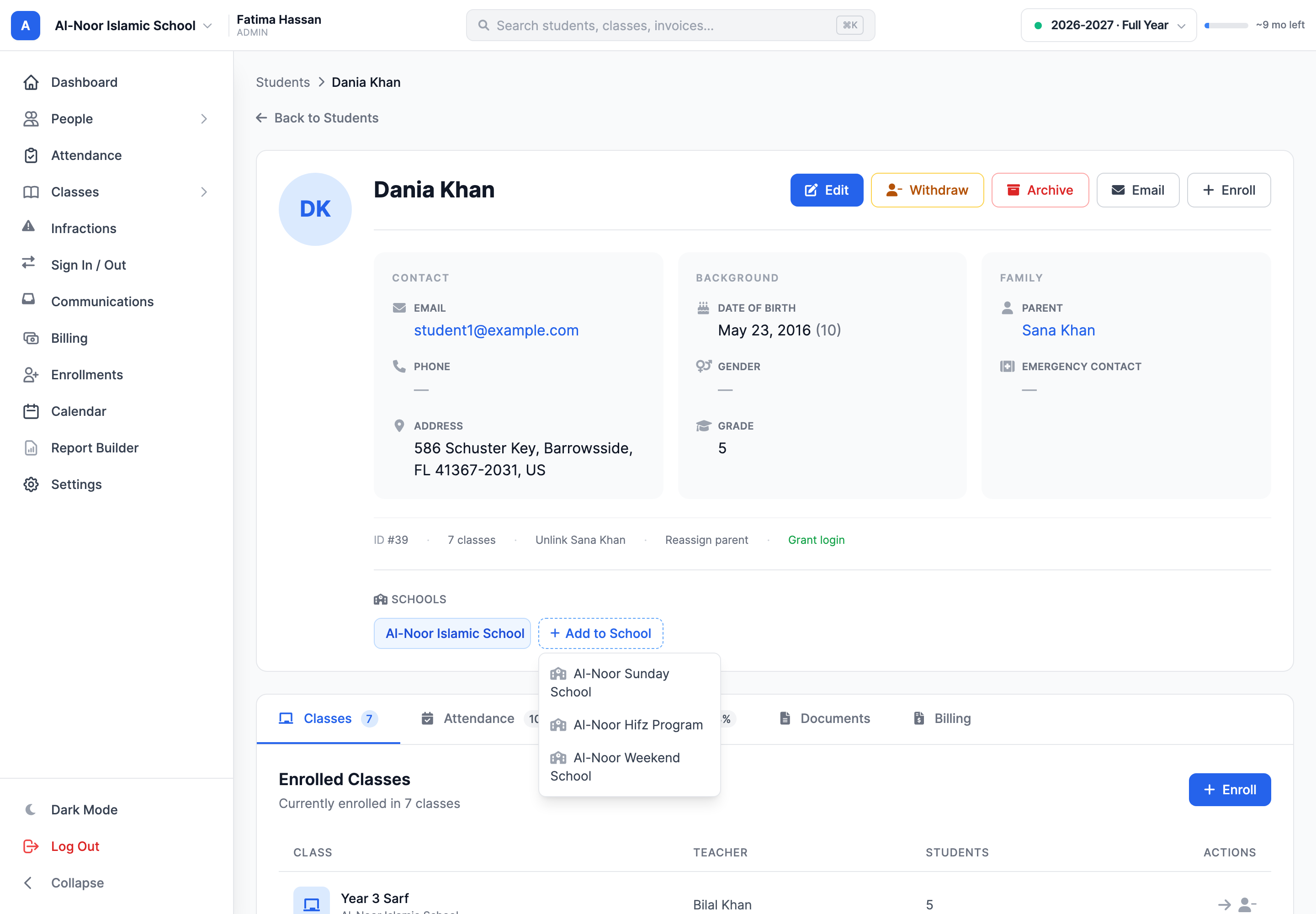
- Open her profile. If the destination school is not listed in Schools, choose Add to School and select it.
- Keep her existing email and account. Do not send a second invitation or create another parent record.
If you add Dania to the school in the next step, MarkTrack also adds her linked parent or parents to that school automatically. You can check the parent profile's Schools section afterward.
3. Add a child or reuse the existing student
If Dania does not have a student record yet, first switch to the destination school after adding Sana there. Open People → Students → Actions → Add Student. Leave Student is a child checked, enter Dania's name, and select Sana in Parent/Guardian. Create the student while the destination school is selected. On a phone, the Students page also has an Add Student button in its bottom action bar.
If Dania already has a student profile, keep the school she currently belongs to selected and open that profile from People → Students. In the Schools section, choose Add to School and select the destination school. This reuses her existing record, preserves her other school memberships, and adds her linked parent automatically. If Sana is not yet linked to Dania, use the parent's Children tab to link the existing student in a school both belong to rather than creating another student.
4. Enroll the student in a class
- Switch to the destination school and select the intended academic year, then open Dania's student profile.
- In the Classes tab, choose Enroll.
- Select the class or classes in that school and submit. If a class is at capacity, MarkTrack reports that separately from the school membership.
On a phone, open Dania's profile and use the Classes tab and its enrollment action. If you cannot find the student or class, check that you selected the intended school in the switcher.
For the school-membership rules and what removal does, see Attach and remove students and teachers from a school. For parent linking, see Add and link parents.
More in Users & Accounts
Still stuck?
Our team is happy to walk you through it.