
Attach and remove students and teachers from a school
When you run more than one school, you'll often need to move people between them: add a student to a second program, put a teacher in two schools, or remove someone who has left. In MarkTrack, belonging to a school is a membership — one account can be a member of several schools at once. This guide shows how to add and remove students and teachers from a school, and explains the side effects so nothing surprises you, especially when removing someone.
The school-membership controls only appear when your organization has more than one school. With a single school there is nothing to move people between, so the controls are hidden.
You can only manage schools you can access
As an admin you can add or remove a person only for schools you yourself belong to. Trying to act on a school you can't access shows "School not found." Super admins can act on every school in the organization.
Add or remove a student from a school
A student is automatically added to a school in several ways — when you create them while that school is selected, when you accept their enrollment application, or through a CSV import. To change a student's schools by hand:
- Open the student's profile (from People → Students, click the student).
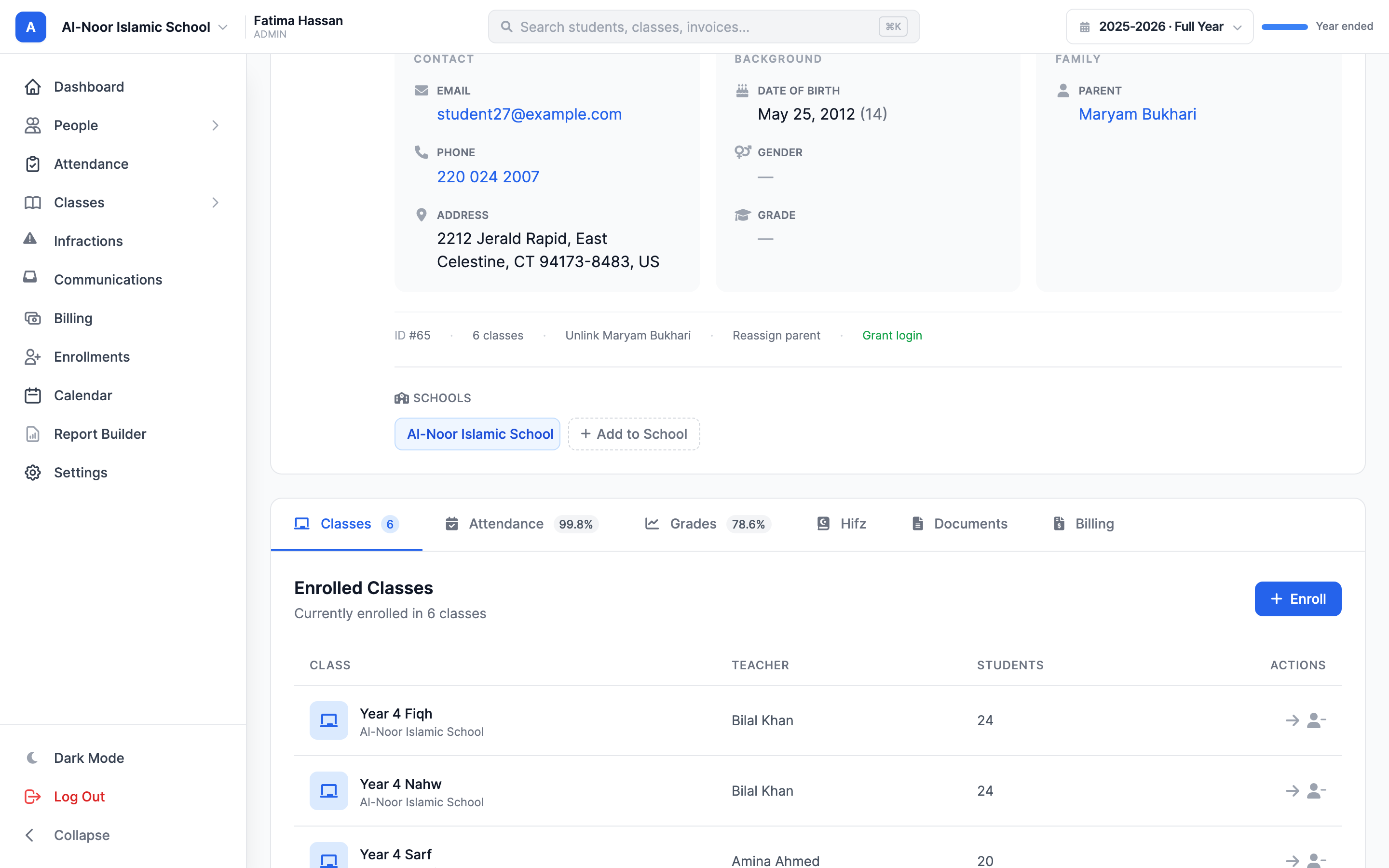
- Find the Schools section. Each school the student belongs to shows as a chip.
- To add: click the dashed + Add to School button and pick a school from the dropdown.
- To remove: click the small x on the school's chip and confirm.
Adding a student silently adds their parents too
When you add a child student to a school, MarkTrack automatically adds both of their linked parents to that same school. This keeps the family together so parents can see their child's new program. If a parent shows up "unexpectedly" in a school's roster, it's almost always because one of their children is enrolled there.
What removing a student actually does
Removing a student from a school is the one action with real side effects. When you confirm the removal (the prompt reads "Remove from [school]? This will also unenroll from any classes in that school."), MarkTrack does all of this for that school only:
- Unenrolls the student from every class in that school.
- Deletes the student's term/report-card grades for those classes.
- Marks the student's active enrollments in that school as withdrawn.
The following is kept and is not touched: past attendance, infractions, billing history, and Hifz records. Removal only affects the one school you chose — the student stays in any other schools they belong to.
Term grades are deleted — and you can't remove the last school
Removing a student from a school permanently deletes their term/report-card grades for that school's classes. If you only need to move them, add the new school first. Also, a student must always belong to at least one school: trying to remove their last school is blocked with "Cannot remove from last school."
Parents and schools
Parents have the same Schools chips on their own profile, and you can add or remove a parent the same way. But parents are tied to their children:
- A parent automatically follows their children's schools — adding a child to a school adds the parent too.
- You cannot remove a parent from a school while any of their children are still enrolled there. The error names the children: "parent still has children enrolled there." Unlink or remove those children from the school first.
- As with students, you can't remove a parent from their last school.
Add or remove a teacher from schools
Teachers work a little differently from students. There are no add/remove chips on a teacher profile. Instead, a teacher's set of schools is set on the teacher form using school checkboxes.
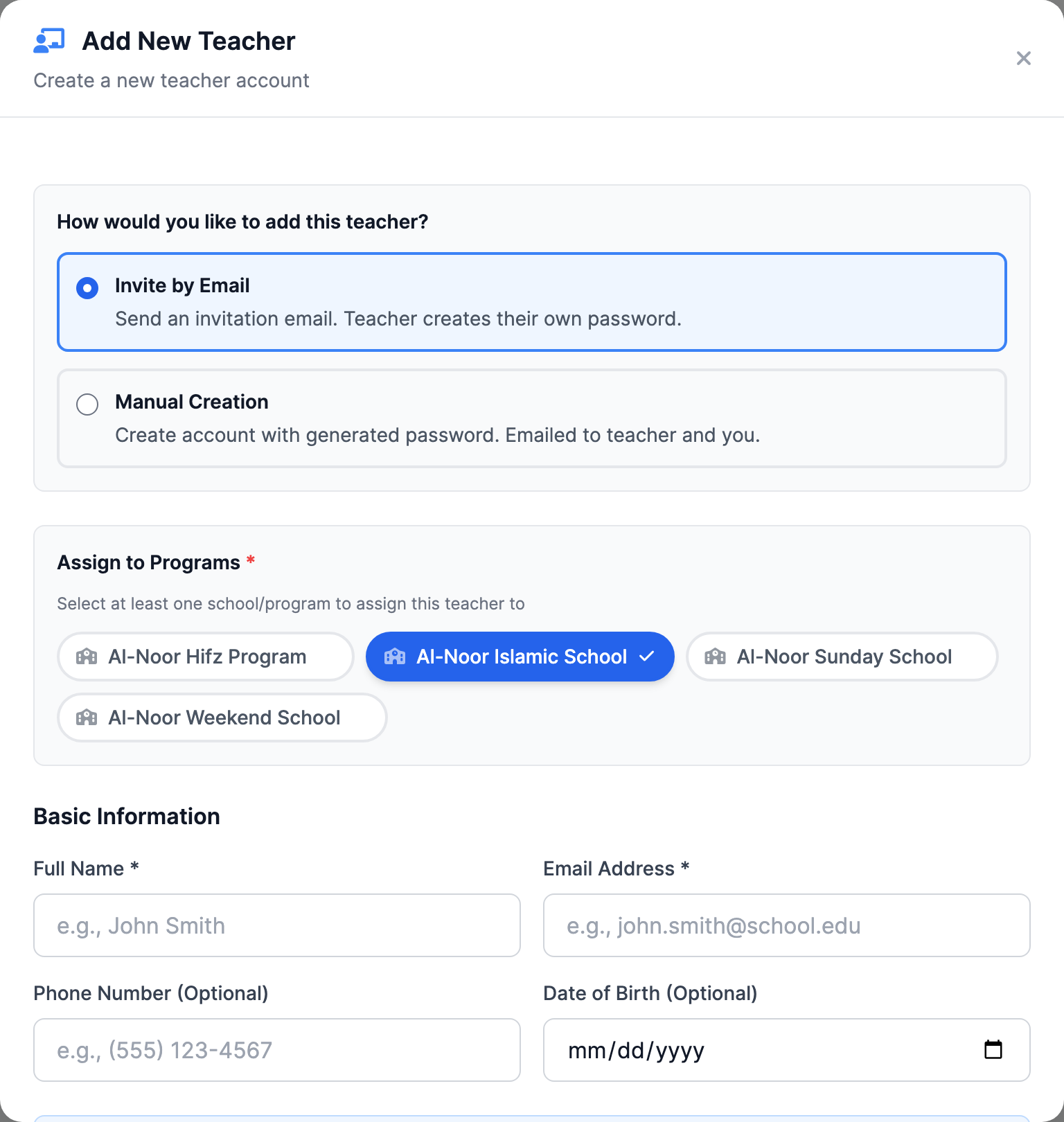
- When creating a teacher (People → Teachers → Add Teacher), tick the checkbox for each school the teacher should work in. At least one is required — leaving them all unchecked shows "Please select at least one school/program."
- To change a teacher's schools later, edit the teacher and adjust the same checkboxes, then save.
Editing a teacher replaces their whole school set
The teacher checkboxes don't add one school at a time — when you save, the boxes you've ticked become the teacher's complete list of schools. Unticking a box on save removes that school membership. Always confirm every school the teacher should keep is still checked before saving.
Adding an existing person to another school
If you add a teacher using an email that already belongs to someone in your organization, MarkTrack doesn't create a duplicate — it simply adds that existing person to the schools you selected ("[name] has been added to [schools]!"). The same is true for admins added by an existing email.
Admins and invites
- Admins are added scoped to the school you're currently in. Adding an existing admin email puts that person in the current school; a duplicate shows "is already an admin in [school]."
- Invites each belong to one school. When the person accepts, they join that one school.
For the bigger picture of how schools and shared data fit together, read Understand multiple schools and what's shared, or browse all guides in Settings.
More in Settings
Still stuck?
Our team is happy to walk you through it.