
Offer programs and add-ons on an enrollment form
Some schools charge one registration fee. Others offer a menu: a class at $100, an intensive program at $500, housing for $350 more. With Programs & pricing, families pick what each child takes right on your enrollment form, see every price, and the form adds it up for them. You decide whether they pay when they submit or are invoiced after you accept them.
The words you'll see
A program is anything a family can pick, with its own price — a single class, a course, a whole intensive. An add-on is an optional extra charged per student, such as housing, meals or books. Programs & pricing is available on enrollment forms (not on re-registration or information forms).
Prefer short clips?
One-step tours, under a minute each: Offer programs and add-ons on a form, Pick programs for each child (what families do), and Accept a child who picked programs.
Step 1 — Open Programs & pricing
- Go to Enrollments and click Manage Forms.
- Open the form families will use, then click Edit Form.
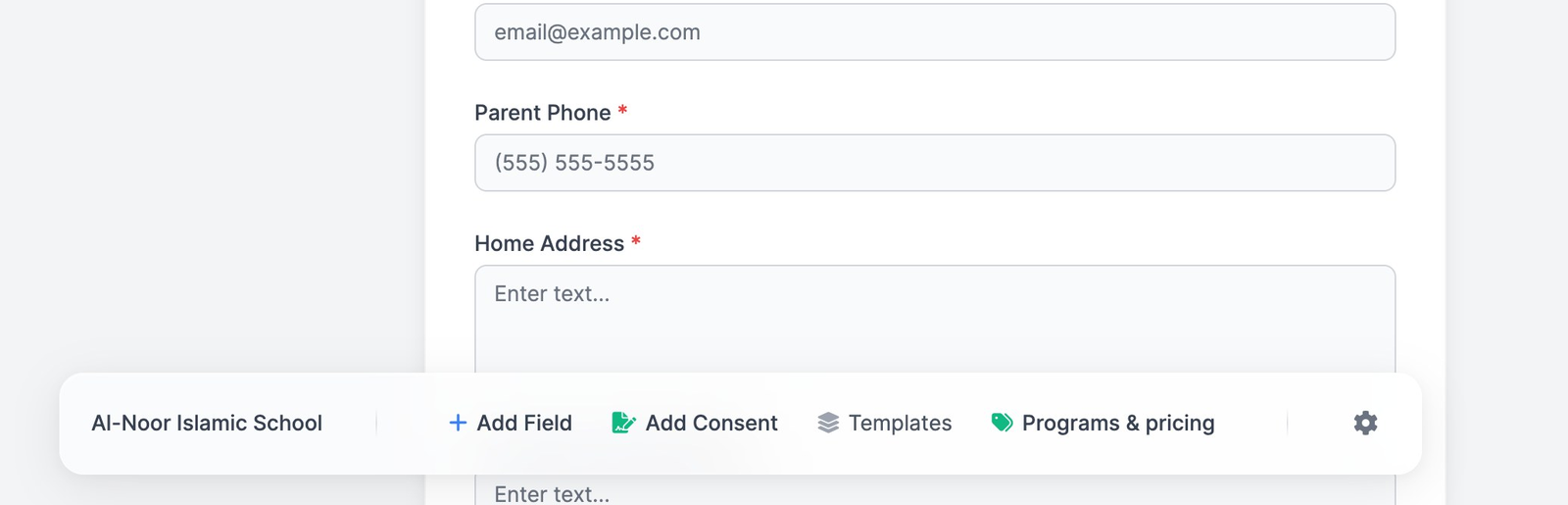
- In the toolbar at the bottom of the form, click Programs & pricing. (Once the form has programs, they also show as a green block on the form itself, with an Edit button.)
Step 2 — Add your programs
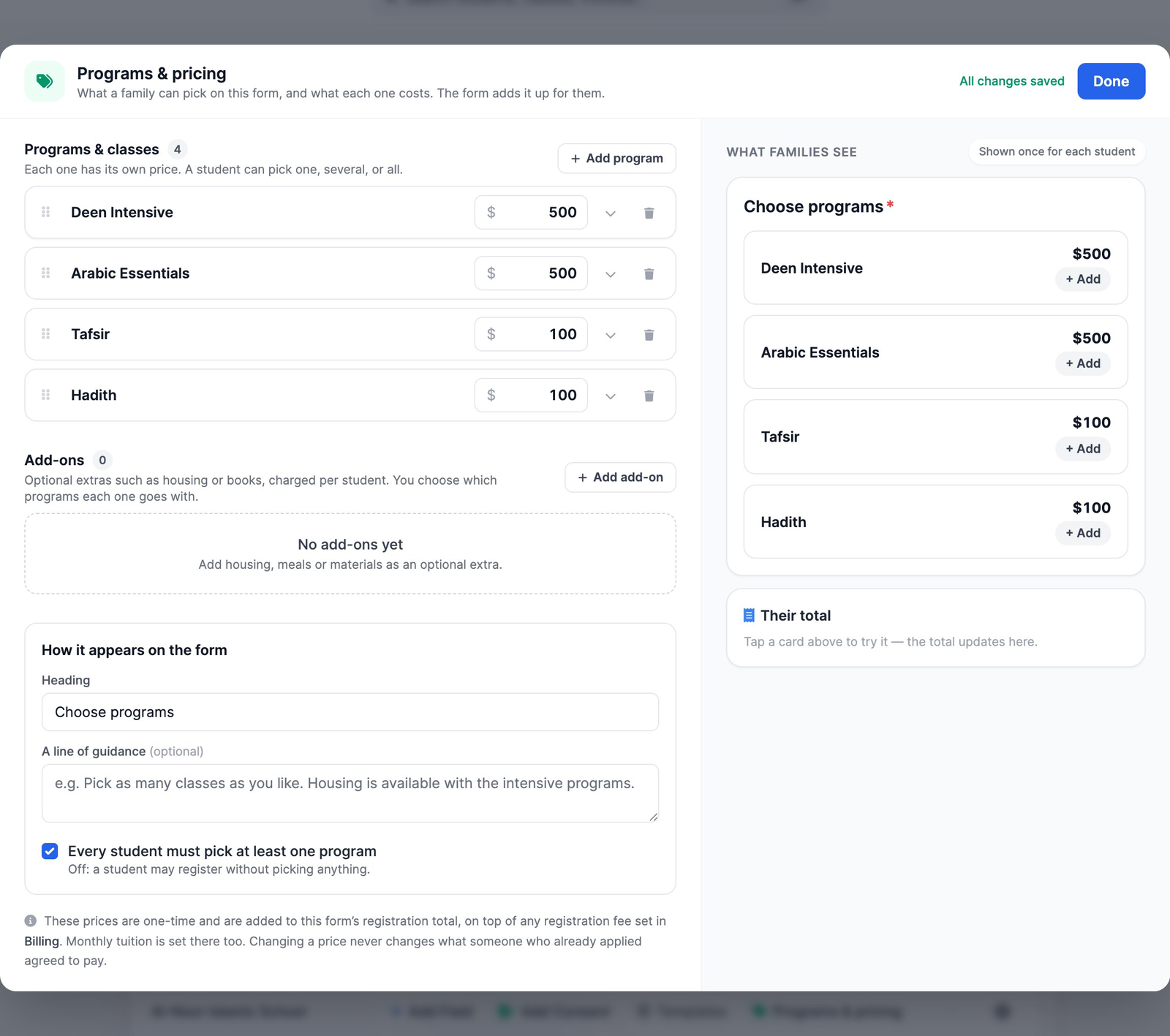
- Click Add program (on an empty form, Add your first program or class).
- Type its name, then its price in dollars. A price of 0 shows to families as Free.
- Add the rest the same way. Each one is priced on its own, and a student can pick one, several, or all of them.
The right side of the window, What families see, is a live copy of the picker exactly as it will look on the form. Tap a card there to try it — Their total updates as you go. There is no Save button: changes save as you type, and the top of the window says All changes saved. Click Done when you're finished.
More options for each program
Click the arrow on a row to open its options:
- Short description — dates, times, who it's for. Families see it under the name.
- Show under the heading — group programs under headings such as “Tafhim Program” or “Intensive Programs”. Programs with the same heading are shown together.
- Adds the student to these classes when accepted — click Choose classes and pick the classes this program puts a student into. When you accept the child, MarkTrack adds them to those classes at the campus their family chose.
- Order — move a program up or down. You can also drag rows by their handle.
When a program's classes can't take students
If every class linked to a program has ended, or belongs to a different school year from the form, families can no longer pick that program — it disappears from the form, and its row in Programs & pricing shows an amber note explaining why. Link it to a current class, or remove it. If a program's classes only run at some of your campuses, a family who chose another campus is told where it runs and asked to switch campus or remove it.
Step 3 — Add extras (add-ons)
- Under Add-ons, click Add add-on.
- Type its name and its price. Add-ons are charged per student.
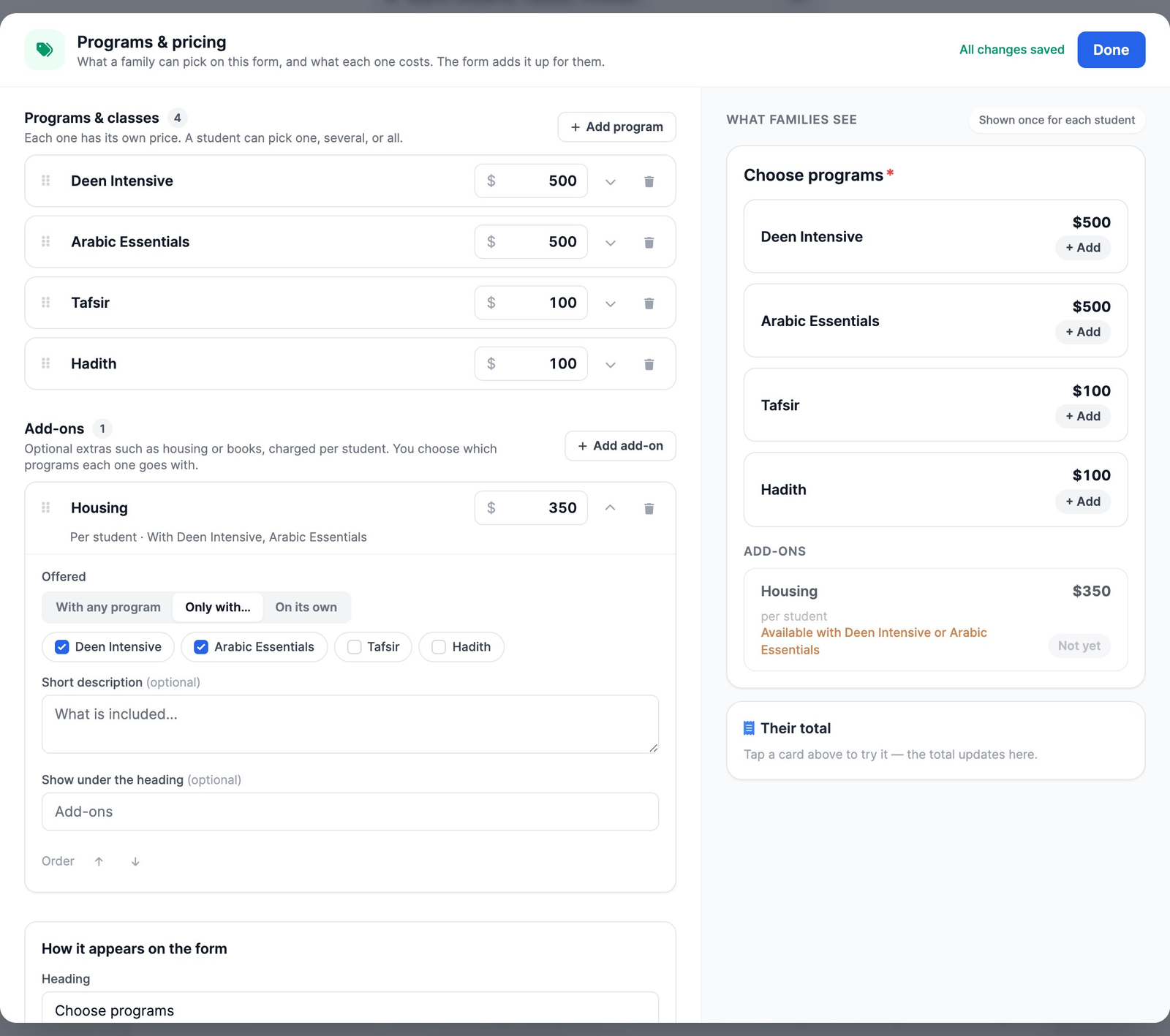
- Click the arrow to choose when it's Offered:
- With any program — a child can add it once they've picked any program.
- Only with… — tick the programs it goes with. Housing that is only for the intensive programs is the classic example.
- On its own — a child can add it without picking a program.
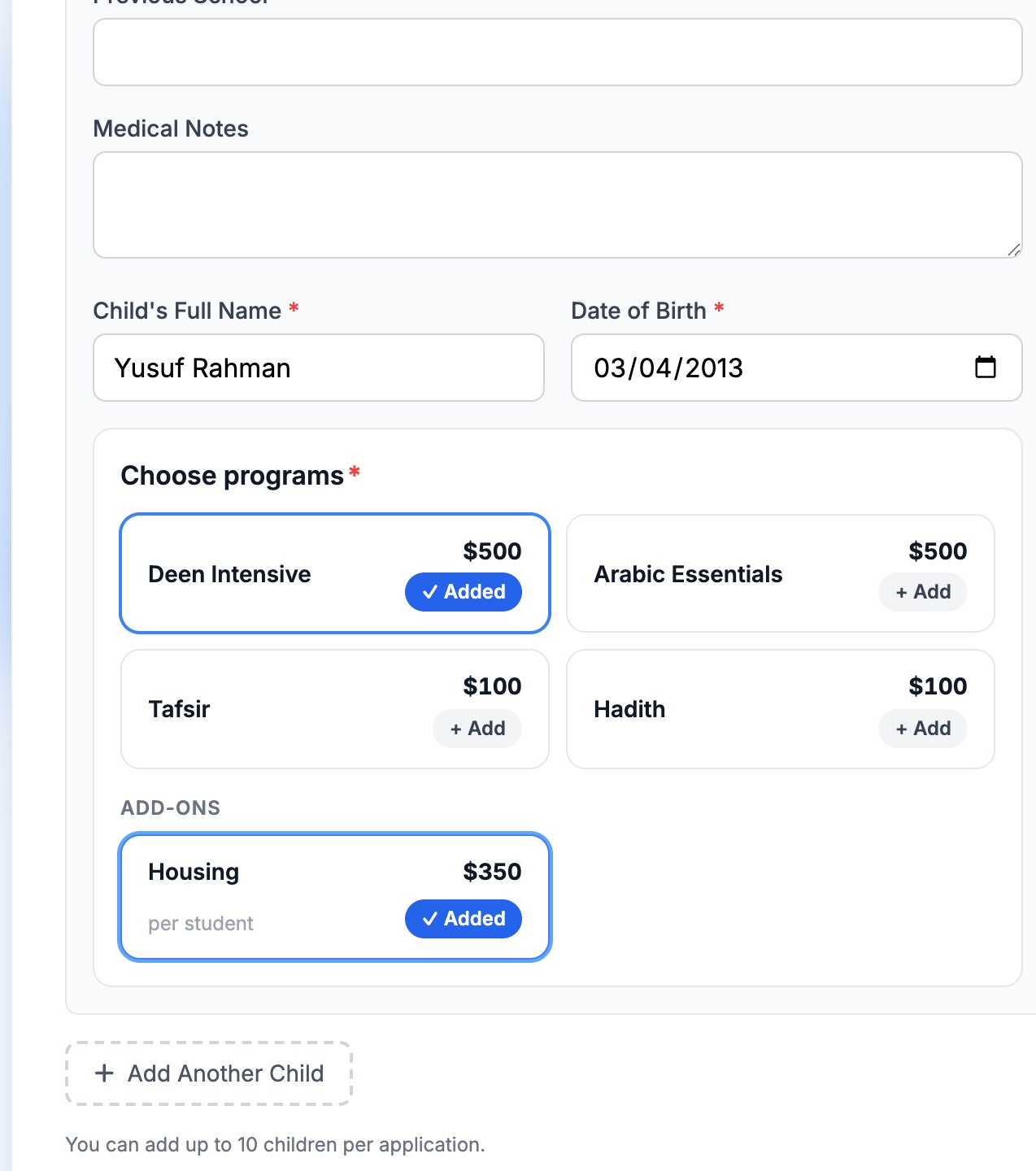
Until a child picks a program the add-on goes with, families see it marked Not yet, with a note such as “Available with Deen Intensive or Arabic Essentials”. It becomes available the moment they pick one.
Step 4 — How it appears on the form
At the bottom of the left side, under How it appears on the form:
- Heading — the title above the picker, for example “Choose programs”.
- A line of guidance (optional) — one sentence for families, such as “Pick as many classes as you like. Housing is available with the intensive programs.”
- Every student must pick at least one program — tick it to stop a child being registered with nothing picked. Leave it off if registering without a program is fine.
On a form for several children, the picker is shown once for each child, and each child picks their own programs.
Prices: what they add up to, and what happens when you change one
- Program and add-on prices are one-time. They are added to the form's registration total, on top of any registration fee you set in the Billing tab (see Add a registration fee to an enrollment form). A form can also be priced by its programs alone, with no registration fee.
- Monthly tuition is set separately, in the Billing tab. Picks are never part of a monthly bill.
- Changing a price only affects families who apply afterwards. Anyone who already applied keeps the prices they saw and agreed to.
Step 5 — Choose when families pay
- In the form builder, open the settings with the gear icon and click the Billing tab.
- Tick Require registration payment on the form to have families pay their whole total when they submit. Leave it unticked to charge nothing at submit and invoice each child when you accept them.
- Click Save Changes.
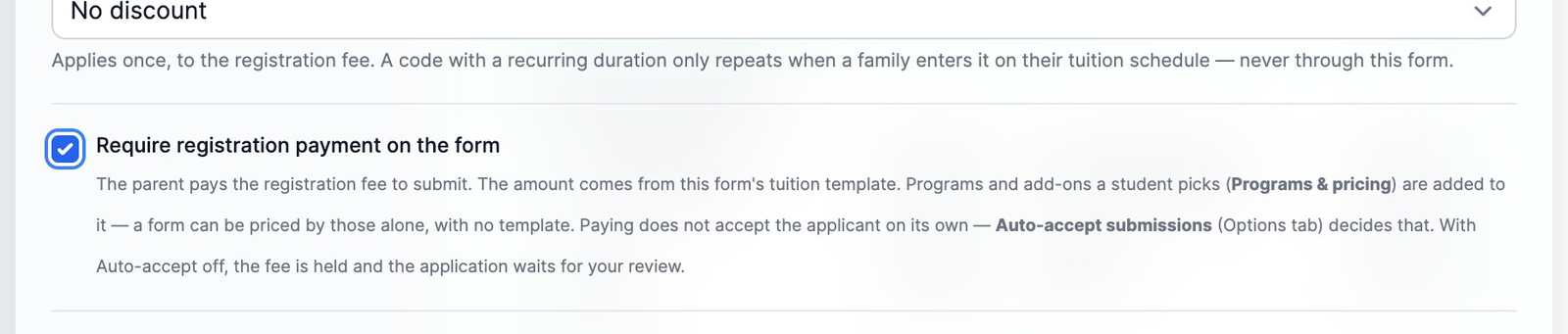
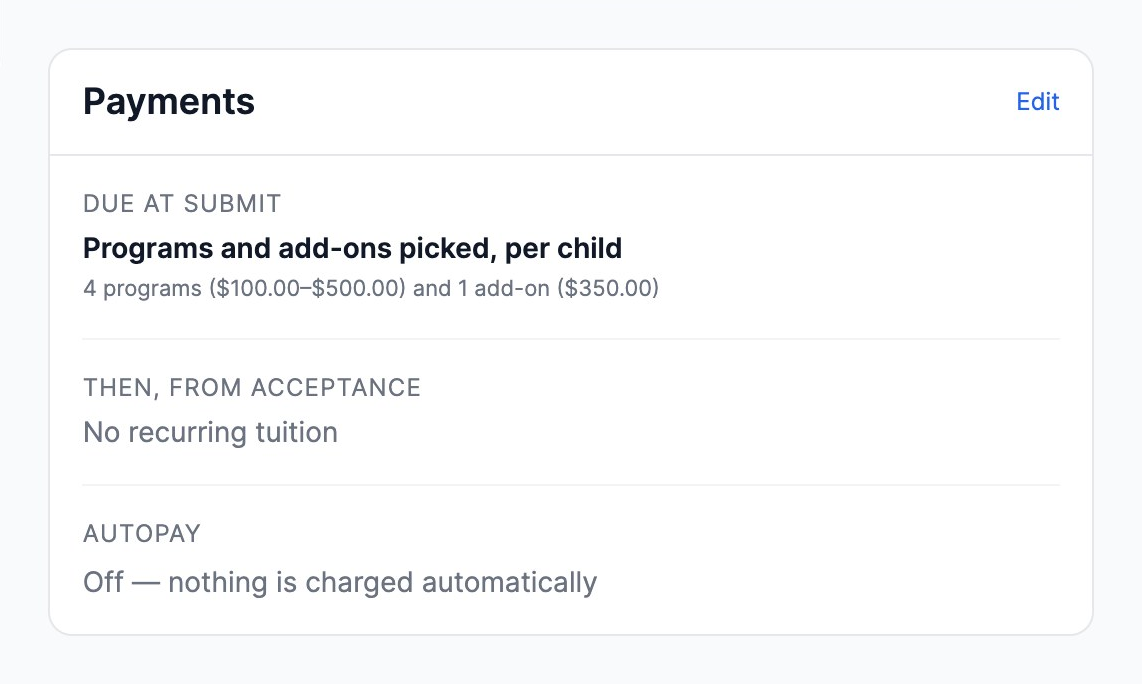
The form's page then sums up the money under Payments — for example “Due at submit: Programs and add-ons picked, per child” with how many programs and add-ons you offer and their price range. Everything about how the money moves after that — held payments, accepting each child, invoices, bank payments and refunds — is in How program payments work.
What families see
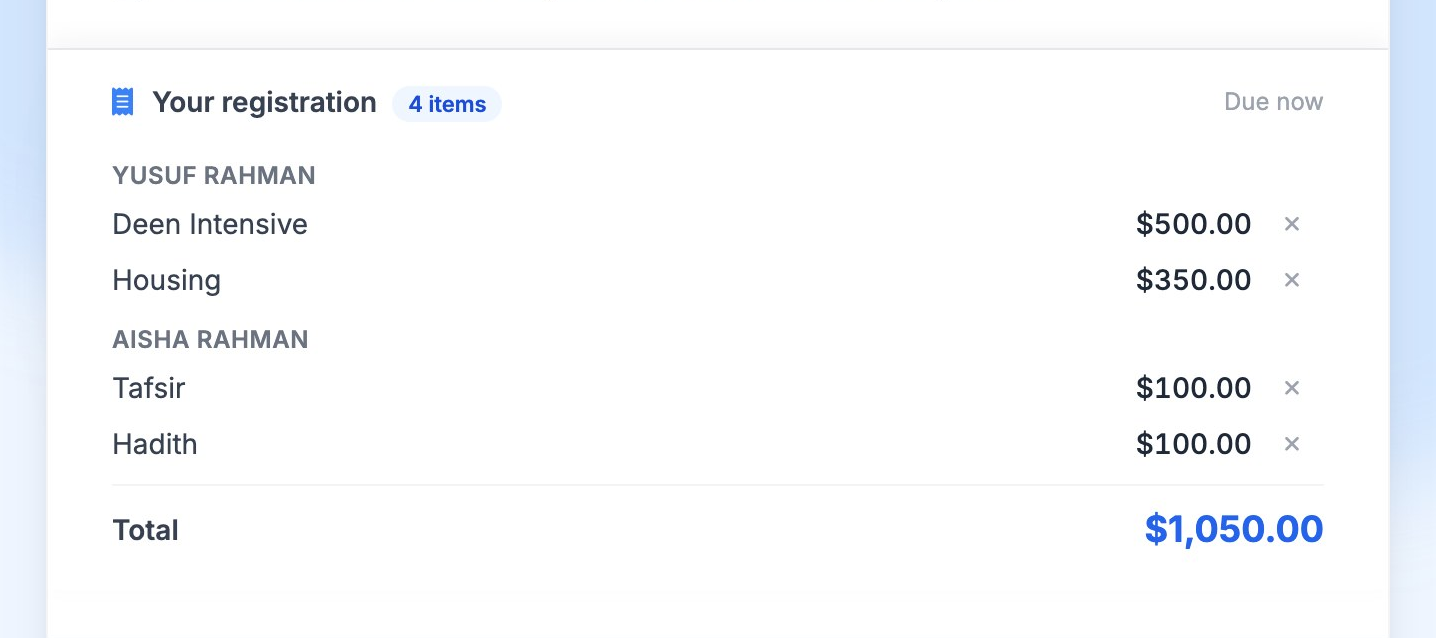
Each child gets their own list. Families click Add on a program to pick it (it then reads Added), and an add-on unlocks as soon as a program it goes with is picked. The summary — Your registration — lists every item under each child's name, with the total; on a phone it also stays at the bottom of the screen. On a pay-on-the-form form they then click Pay & Submit. The parents' guide walks through it from their side.
Common questions
- Do sibling discounts and discount codes apply to programs?
- Yes — a discount code applies to the family's whole total, programs included. Automatic sibling discounts apply to forms that invoice after acceptance. See How program payments work.
- Does “family pays the card fee” cover programs?
- No. If a form passes the card fee to families, it applies to the registration fee only. Programs and add-ons are charged at exactly the price you set.
- Can I remove a program after families have applied?
- Yes. New families won't see it, and a family part-way through the form who had picked it is asked to remove it before they can pay. Applications already submitted keep it, at the price the family saw.
- Can families pick programs in the MarkTrack mobile app?
- Not yet. The application form is a web page that works on any phone or computer browser — share its link as usual.
More in Enrollments
Still stuck?
Our team is happy to walk you through it.