
Collect and update info with information forms
An information collection form is a short questionnaire you send to people who are already in MarkTrack — your current parents, students, and teachers — to collect or refresh details you keep about them. Think emergency contacts, allergies and medications, a new phone number, or an address change. Each recipient gets a private link by email, opens a clean web form, and submits their answers. You watch who has finished and who hasn't, all from one page.
This is a different tool from an enrollment form. Enrollment forms are for new applicants — people who don't have an account yet and are applying to join. Information collection forms are for the families and staff who are already enrolled. Because the system already knows who each recipient is, it can do two things an enrollment form can't: pre-fill the form with what's already on file, and write the answers back onto the person's profile when they submit — so a parent updating their phone number actually updates their record, not just a pile of survey results you'd have to re-type.
Where to find it
Information forms live in the same list as your other forms: Enrollments › Manage Forms, marked with an Info Collection badge. Everything is scoped to one school — a form you build in your main school is only sent to that school's people and never bleeds into another school in your organization.
Step 1 — Open your forms
- Go to Enrollments for your school and open Manage Forms.
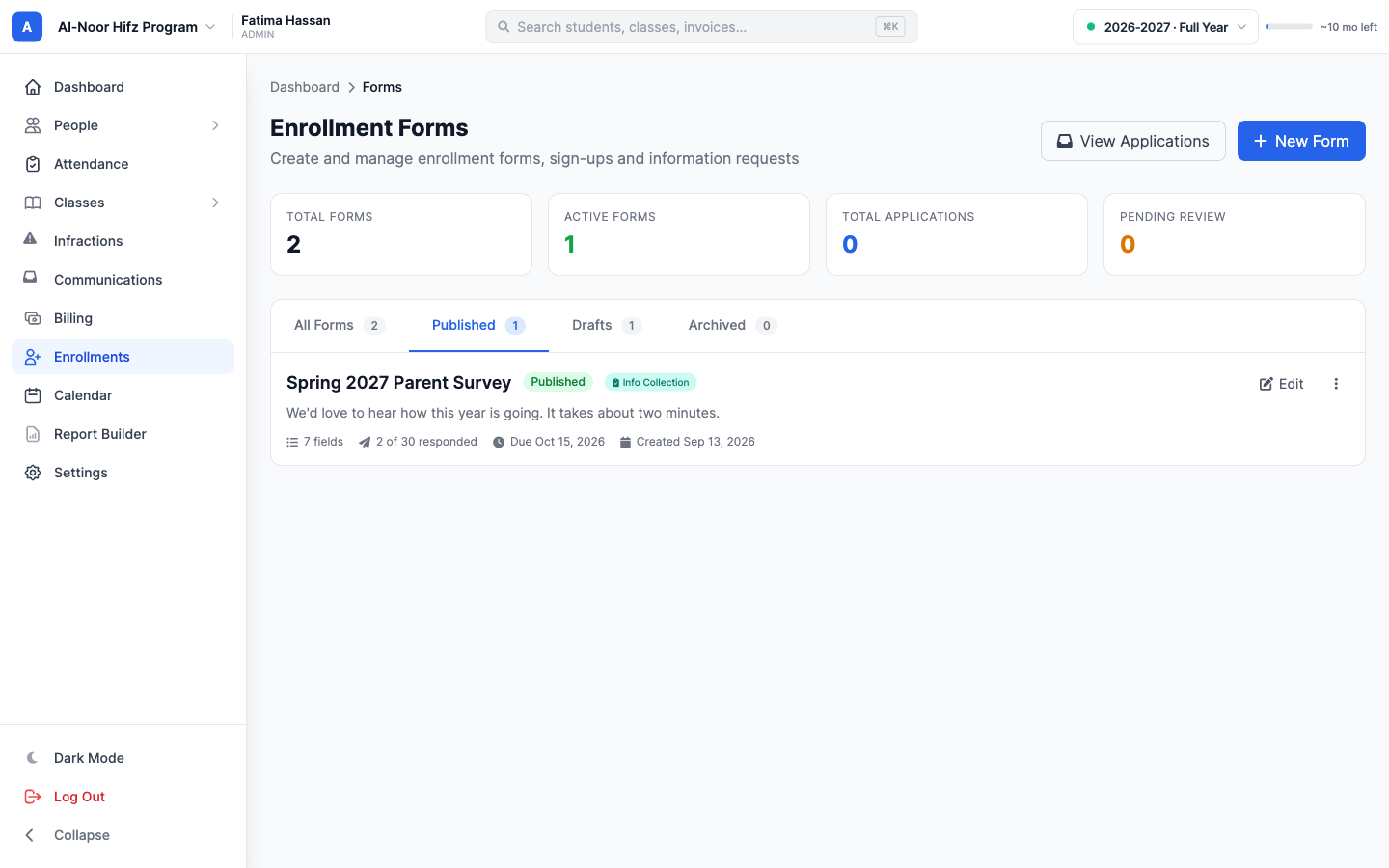
- Information forms are listed with your enrollment forms, each marked Info Collection. They sit in the same tabs: Published (families can answer), Drafts, and Archived (no longer accepting answers).
- Each information form row shows how many people have responded out of how many were sent it, the number of questions, and the date you asked families to respond by.
Step 2 — Start a new form from a template (or blank)
- Click New Form, then Info Form.
- Pick a ready-made starting point, or pick Blank to start with one question.
- Give the form a name and click Create Form. It opens in the form builder as a draft.
The built-in templates already include the right fields — and where it makes sense, they're already wired to update the person's record:
- Contact Update — phone and home address (both write back to the record).
- Emergency Contact — name, phone, and relationship of an emergency contact (stored as answers only).
- Medical Info — allergies, medications, doctor, and insurance (stored as answers only).
- Transportation — pickup address (writes back), authorized pickup people, and pickup method.
- Communication Preferences — preferred language and contact method.
- Permission Slip — a trip permission families sign, plus an optional photo release.
- Parent Survey — satisfaction ratings, a would-you-recommend question, what matters most for next year, and a comment box. Its answers are summarised for you on the form's Results tab.
- Blank Survey — three empty fields you fill in yourself.
A template is just a starting point
Picking a template never sends anything. It only drops some fields onto the builder. You can rename, delete, reorder, and add fields freely before you save.
Step 3 — Build the form
The builder is the same one you use for enrollment forms: the form card shows exactly what families will see, and you edit it right there. Click the title to rename it and add an optional description that explains what you need and why. Then add questions from the toolbar at the bottom of the screen.
- Click Add Field to add a question, or Add Consent for a policy or permission families tick (and optionally sign).
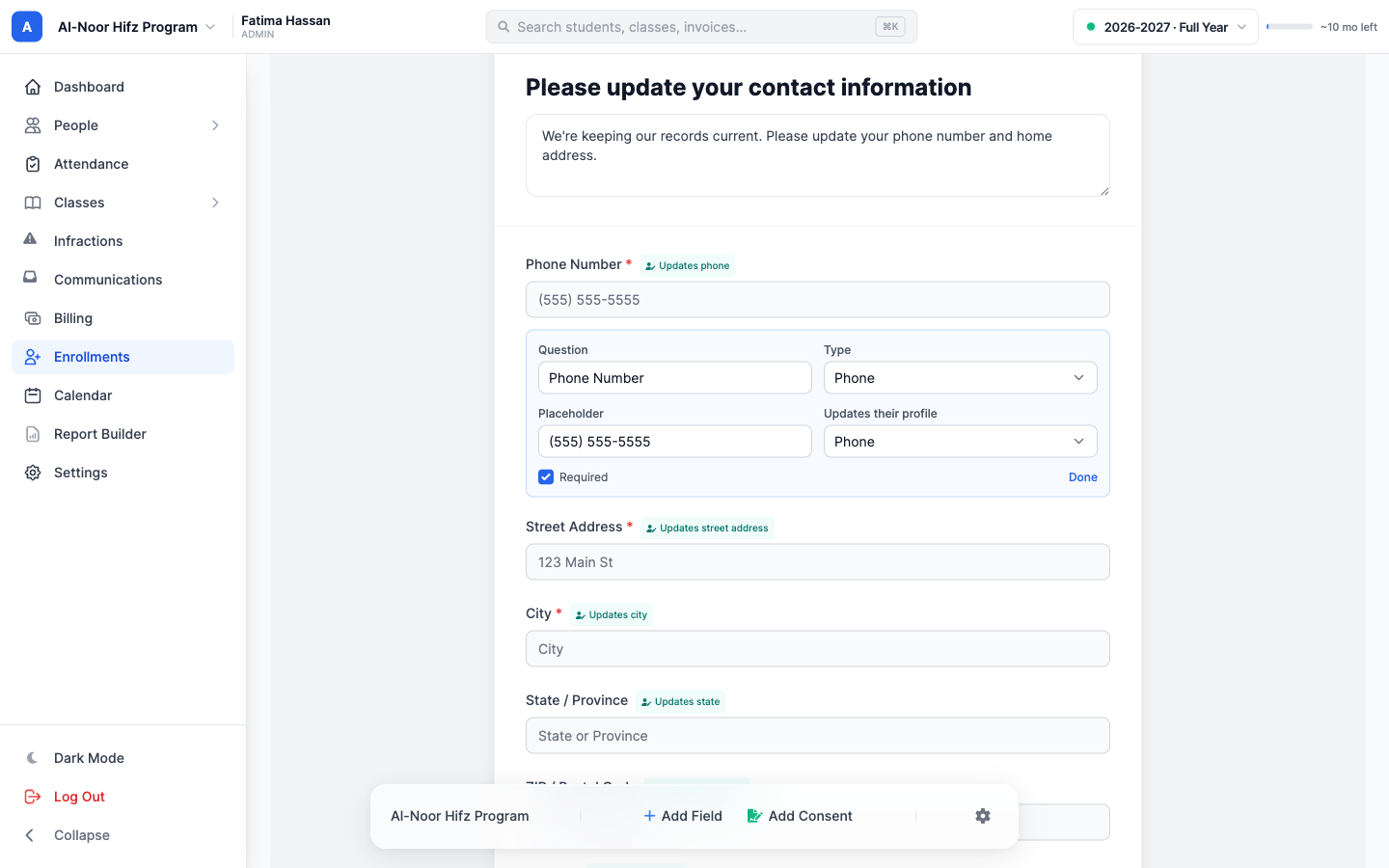
- In the question's edit panel, write the Question and pick its Type: Short Answer, Paragraph, Email, Phone, Date, Number, Dropdown, Single Choice, Multiple Choice, or Rating (1–5).
- For Dropdown, Single Choice and Multiple Choice, type each option on its own line in the Options box.
- Tick Required if the question must be answered, then click Done.
- Hover a question to move it up or down, reopen it with the pencil, or remove it with the trash icon.
- Open the gear at the end of the toolbar to set a Respond by date. Families see it at the top of the form.
"Updates their profile" — write answers back to the record
This is the feature that makes information forms more than a survey. In the edit panel of a text, email, phone, date, number or dropdown question there's a dropdown labelled Updates their profile. Leave it on "No — just keep the answer" and the answer is simply saved with the submission (perfect for emergency contacts, allergies, anything you just want recorded). Choose a profile field instead, and when the person submits, their answer is written straight onto their MarkTrack record. Survey questions (single choice, multiple choice and ratings) and consent blocks never change a profile.
Only a fixed, safety-checked list of profile fields can be written back:
- Name
- Phone
- Dob (date of birth)
- Gender
- Grade
- Address and the structured parts: Street address, City, State, Zip code
Email is deliberately not in the list
You can't map an answer to a person's email address. Email is the login identity for an account, so it's locked out of form write-back on purpose. To change someone's email, edit their user account directly.
Two fields must use the right type
If you map a question to Gender, its type must be Dropdown (set the options, typically "male" and "female"). If you map to Dob, the type must be Date. The builder switches the type for you when you pick one of these, because a free-text birthday or gender can't be saved reliably onto the record.
Step 4 — Save as draft or publish
- Click Save as Draft to keep working on it later — a draft is not sendable yet.
- Click Save & Publish to publish the form so you can send invitations.
You can come back and click Edit Form at any time. A form's Actions menu also has Archive (which stops it accepting any new submissions) and, on an archived form, Reactivate. A form must be published for recipients to submit — if you archive it, existing links stop accepting answers, and it can't be sent until you reactivate it. Delete appears only on a form nobody has been sent yet; once invitations exist, archive it instead so the answers and signed consents stay on record.
If a save is refused — for example a choice question with no options on a form you're publishing — the builder shows what to fix and keeps everything as you left it: the form stays a draft, questions you deleted stay deleted, and questions you moved stay where you put them.
Step 5 — Send invitations to an audience
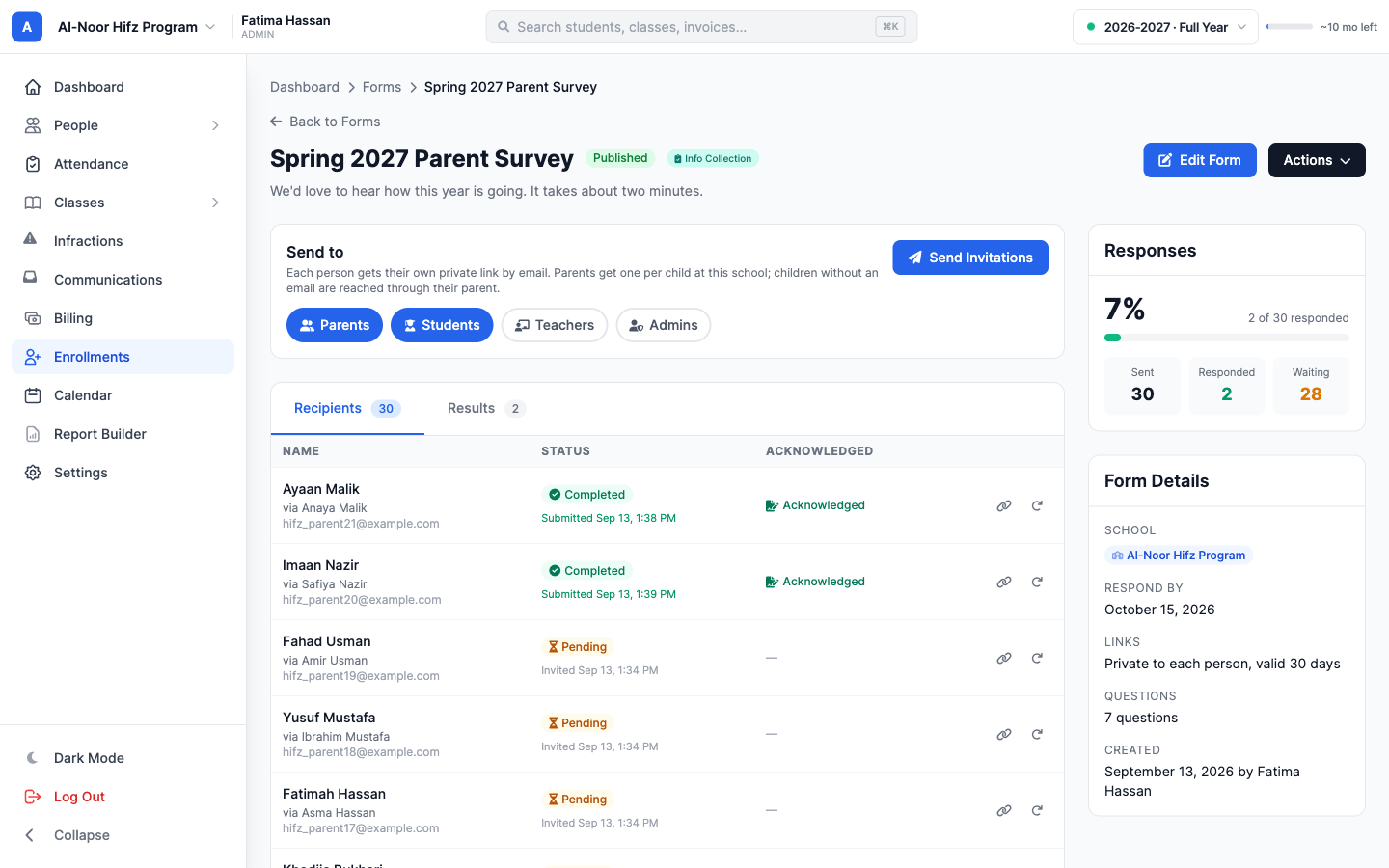
Open the form and use the Send to panel. Pick the audiences who should receive a link, then click Send Invitations.
- Choose any of Parents, Students, Teachers, and Admins. Parents and Students are selected by default; click one to turn it off.
- Click Send Invitations. MarkTrack creates one submission per recipient and emails each person their own secure link.
- If the form is still a draft, sending publishes it first.
Parents get one link per child — or one per family
When you invite Parents, MarkTrack normally creates a separate submission for each of the parent's children in this school — so a parent with three children gets three emails, each link pre-filled for one child and writing back to that child's record. A parent with no children in the school gets a single link about themselves. Children don't get their own email (they usually have none); you reach them through their parent.
For questions about the whole family, open the builder's settings (the gear in the toolbar) and set Parents with more than one child to Fill it in once for the whole family. Each parent then gets one link, and any answer that updates a profile updates the parent's own. The Parent Survey template starts this way; a permission slip, which needs each child, does not.
Who gets skipped
Anyone without an email on file is skipped — they can't receive a link. Anyone who already has an active, unexpired link for this form, or who has already responded, is skipped too; the confirmation message tells you how many were skipped for each reason. So it's safe to click Send again to catch newly added people without emailing everyone twice. To ask people who already answered to fill it in again, tick Also send a new link to people who already responded before sending.
Step 6 — What the recipient sees
Each link points at a public page (no login needed — the secret token in the link is the credential). The recipient sees your form title and description, a badge naming whose information it's about, and the questions.
- Any field you mapped to a profile attribute arrives pre-filled with what's currently on file — so the person just confirms or corrects it rather than typing from scratch.
- When a parent fills out a child's form, the page shows it's about the child, "filling out as" the parent.
- Required questions are enforced on submit. If something is missing, the form comes back with a message naming the question — and everything they already answered is still filled in.
Step 7 — What happens on submit
When the recipient clicks Submit, MarkTrack saves all their answers to the submission and, for every mapped field, writes the new value onto the right person's record (the child's record when a parent filled it out, otherwise the recipient's own). It records exactly what changed — old value to new value — so there's an audit trail. After that, the link becomes read-only: reopening it shows their submitted answers but they can't change them.
Write-back is cleaned and validated
Mapped answers are sanitised before they touch a record. A phone needs at least 10 digits or it's ignored. Gender only accepts "male" or "female". A date of birth must be a real past date within the last 120 years. If an answer can't be saved, the rest of the form still goes through and the person sees a friendly message about what couldn't be saved — nothing silently corrupts the record.
Step 8 — Track who's done, and resend
The form's page is your tracking dashboard. The Responses card shows how many people were Sent it, how many have Responded, how many are still Waiting on a link that works, and the completion percentage. These count people, not links: sending someone a new link doesn't make them count twice, and a link that ran out without an answer isn't counted as waiting. The Recipients tab lists every link with a status pill — Completed, Pending, Expired, or Replaced (a newer link was sent) — and when it was sent or submitted.
- Click a row to open that person's response and see the answers they gave.
- Use the link icon on a row to copy someone's private link (handy if you need to text it to a family that didn't get the email). The link lets whoever holds it answer as that family, so the link and resend icons only appear for admins who can edit enrollments.
- Use the resend icon on a row to email a fresh link. This invalidates the old pending link and creates a new submission, so the previous link stops working.
See the results at a glance
The Results tab summarises every submitted response, question by question: how many people picked each option (with a percentage bar), the average for each rating and how many gave each score, how many acknowledged each consent, and the latest written answers. Only submitted responses count — someone who hasn't opened their link doesn't affect the numbers — and each person counts once, with their latest answers, even if they were sent a new link and answered again. On a form sent one link per child, a parent answers once for each child, so a family with more than one child counts more than once; use Fill it in once for the whole family for questions about the family.
Links expire after 30 days
Every invitation link is good for 30 days. After that it shows an "expired" page and the recipient is told to ask you for a new one — just hit Resend to issue a fresh link. Completed submissions are never lost; resending only ever replaces a link that hasn't been used yet.
See everything one person has filled out
On any information form, Actions › Responses by person lets you search any person by name or email and see every information form they've ever completed across your school — useful when a family asks "what did we already send you?"
Information forms vs. enrollment forms — a quick reminder
- Use an enrollment form when you're collecting applications from new families who don't have accounts yet.
- Use an information collection form when you need to gather or refresh details from people who are already in MarkTrack — and especially when you want their answers to update their records automatically.
That's the whole loop: build a form, optionally map fields to records, send links to the right audience, and watch completions roll in. If a recipient is stuck on an expired or invalid link, resend them a new one, or reach out to us through the contact page.
More in Enrollments
Still stuck?
Our team is happy to walk you through it.