
Re-registration for returning families and students
Re-registration is the easy way for families who are already with you to confirm their children for the next school year. Instead of filling out a brand-new application, the parent signs in, sees each of their children already listed, and marks each one returning or not returning. This guide explains how it works, how it differs from new enrollment, and how you review and accept it.
How re-registration is different from new enrollment
A re-registration form is a special form type with a few important differences:
- Pre-filled — the parent's name, email, phone, and address come from their existing account, and every child they already have appears as a card. They don't retype anything.
- Per-child returning / not-returning — for each child, the parent picks whether they're coming back. An optional reason can be given for a child who isn't.
- Login-gated — the parent must be signed in. The form knows who they are from their session; it never trusts typed-in identity, and it won't let anyone change the account email.
- No school or class pickers, and no auto-accept — these aren't allowed on re-registration forms. Acceptance always goes through admin review.
Step 1 — Create the re-registration form
- Open Enrollments → Forms and click New Form.
- Choose the Re-Registration template ("Returning families & students confirm next year — pre-filled, per-child").
- Name it (for example, "Returning Families — Fall 2026"), pick the school(s), and create it.
MarkTrack seeds the form for you: locked parent fields (Your Full Name, Your Email, Your Phone, Home Address), a Students section, and per-child fields (Student Name, Date of Birth, Gender, Grade, Medical Notes). Family Application is turned on automatically.
Pick an active academic year
A re-registration form must point at an academic year that's still active (not concluded). It can't auto-accept, and you can't add school or class selectors — MarkTrack blocks those at publish time with a flash message.
Step 2 — Who can use it
Re-registration is for people already connected to your school. Eligibility is automatic: parents of current students and adult students who are currently enrolled at the form's linked school(s). An adult student uses it the same way a parent does — they sign in and confirm themselves for next year.
Each child can only be answered once per family, and only one live submission exists per family (either parent can fill it out — it counts as the same family's answer).
Step 3 — The dashboard banner and how families find it
Eligible families don't have to hunt for the form. When a re-registration form is open for them, a banner appears on their dashboard nudging them to re-register. They click it, sign in if needed, and land on the pre-filled form.
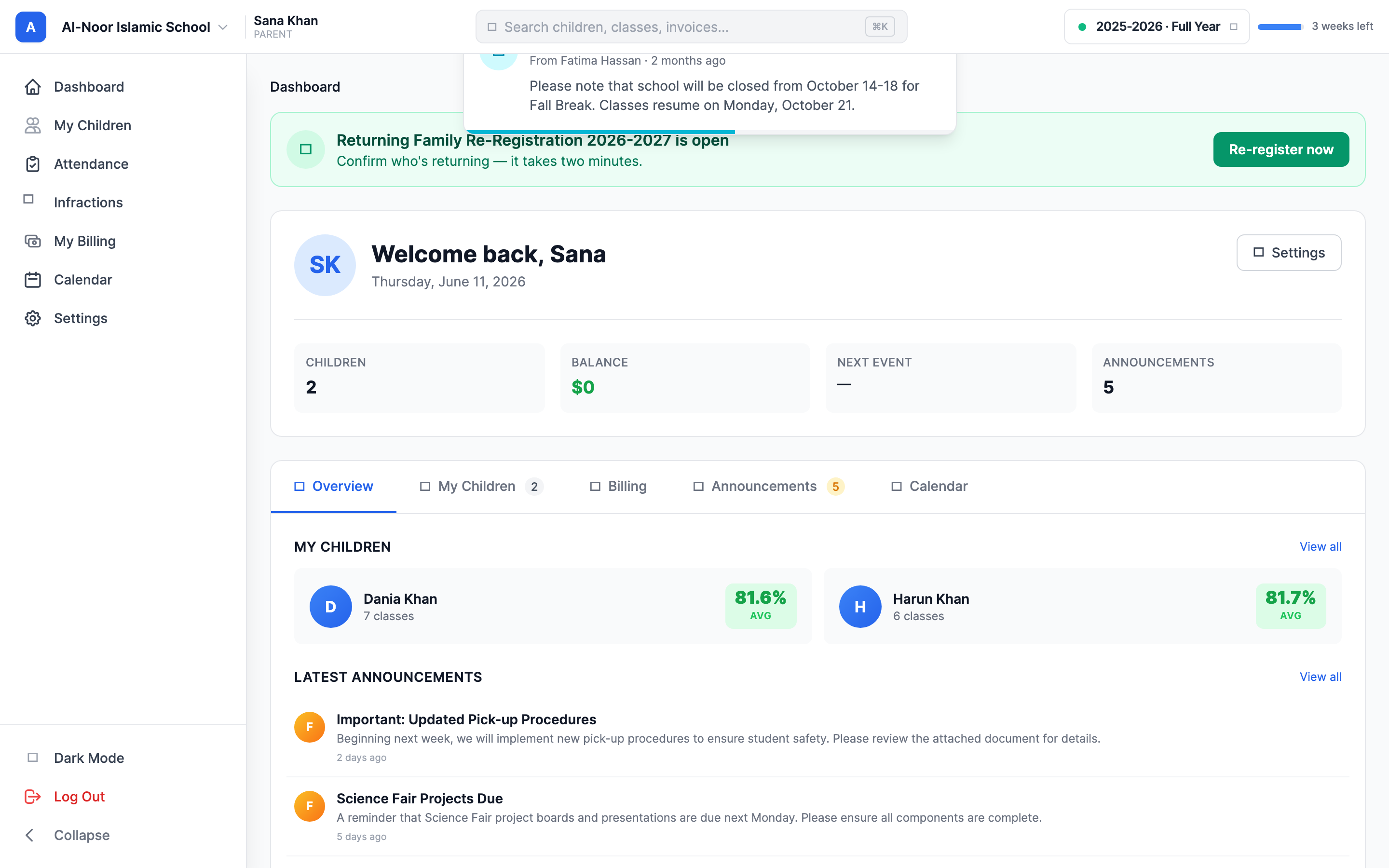
Step 4 — What the family does
- The parent (or adult student) signs in and opens the form. Their details are already filled in.
- For each child, they choose returning or not returning. A reason for not returning is optional.
- Every eligible child must be answered — the form won't submit until each one has a choice.
- If a fee applies, they pay (or get an invoice, depending on the form's billing settings) and submit.
Fees are charged for returning children only
A re-registration fee is calculated per returning child, using that child's school's fee. Children marked not returning aren't billed. Re-registration supports both collection methods — pay when submitting, or an invoice afterward — just like a regular enrollment form.
Step 5 — Review and accept (this is what creates next-year enrollments)
Unlike pay-on-form new enrollment, a re-registration submission always comes to you for review — even when the family already paid. Acceptance is the step that actually enrolls the children for the new year.
- Open the re-registration form's applications and review the family's answers.
- Click Accept. MarkTrack enrolls each returning child for the next year by their exact student record (no name-guessing — these are existing students).
- It also writes back any updated details the family changed (name, date of birth, gender, grade; parent name, phone, address), and — for the invoice-later method — issues the family's fee invoice.
Children marked not returning are recorded as a signal for your planning; they aren't enrolled. There's no admission magic link on re-registration — acceptance does everything in one step.
The stats strip
Each re-registration form shows a stats strip so you can see your returning-family picture at a glance: how many students are eligible, how many are returning, how many are declining, and how many haven't responded yet (no response). Use it to chase the families who still need to answer.
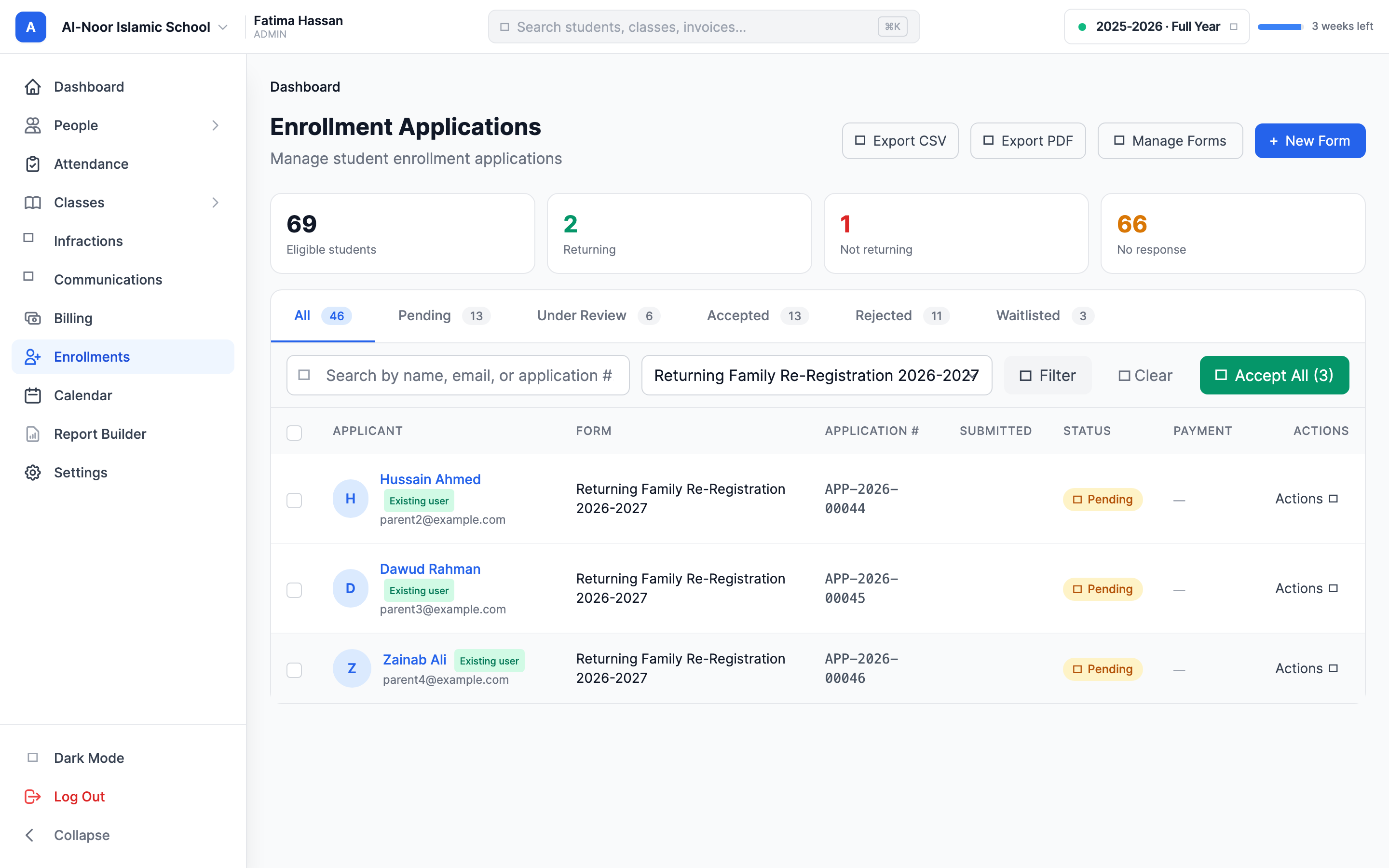
Revoking is clean
If you revoke an accepted re-registration, MarkTrack undoes exactly what acceptance created — it removes the new-year enrollments it made and re-withdraws any rows it reactivated, while leaving untouched anything that already existed. Any invoice that actually collected money is kept.
New to enrollment forms in general? Start with Build an enrollment form, or browse all guides in Enrollments.
More in Enrollments
Still stuck?
Our team is happy to walk you through it.