
Review and accept applications
Every application a family submits lands in your review queue. From there you decide who gets in: accept, reject, or waitlist. This guide explains the application statuses, the buttons on each application, the Accept All bulk button, the admission confirmation link, and exactly how MarkTrack matches a returning parent or child to an existing account.
Step 1 — Open the applications queue
- In the sidebar, open Enrollments, then click Applications. The page is titled Enrollment Applications.
- Tabs across the top filter by status. There are also Export CSV and Export PDF buttons.
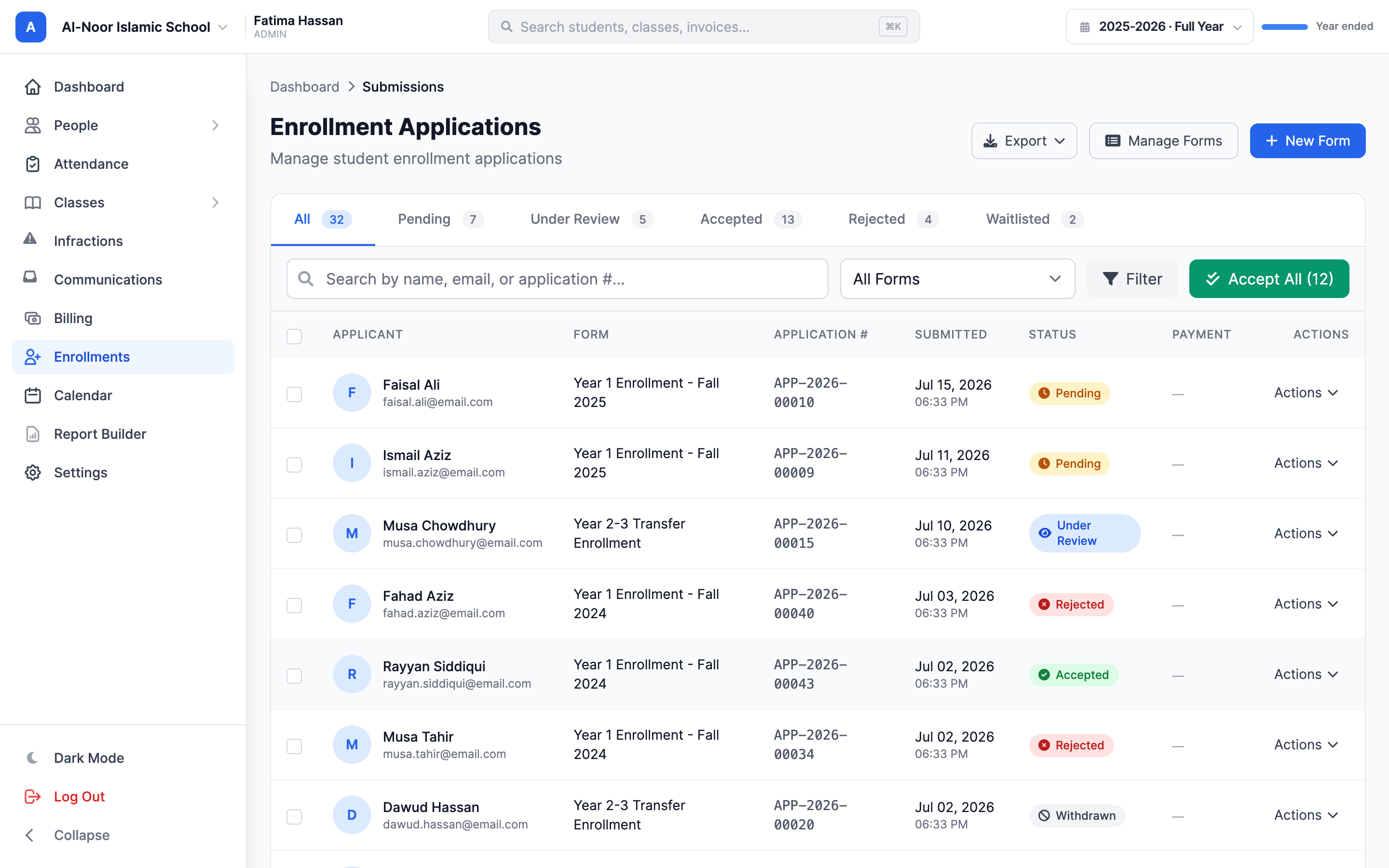
The application statuses, explained
- Pending — just submitted, not yet looked at.
- Under review — you've started evaluating it.
- Accepted — admitted. An admission offer has been created.
- Rejected — turned down.
- Waitlisted — held for a possible spot later.
- Withdrawn — the applicant pulled out.
On forms that collect a registration fee, some people fill in the whole form, reach the payment step, and never finish paying. Those aren't applications and they never appear in your queue: MarkTrack keeps them out of sight while they're still in progress, and if no payment arrives within a day it cancels the attempt and marks it Abandoned. Nothing is charged, and nothing lands in your list for you to action.
Each application also has an application number like APP-2025-00012
so you can refer to it precisely.
Step 2 — Review a single application
Click an applicant to open their detail page. The Actions dropdown gives you:
- Accept — admits them (you'll confirm "Accept this application?").
- Reject — opens a modal where you can add an optional reason. If a refundable registration payment exists, a "Refund the registration fee ($X)" checkbox appears.
- Waitlist — moves them to the waitlist.
You can also Send Email to the applicant and leave internal notes only your staff can see.
Refunds are never automatic
Rejecting or revoking a paid application does not refund the fee unless you tick the Refund the registration fee ($X) box in the modal. And the rejection stands even if the refund itself fails — so check the payment afterwards if you intended to give the money back.
You can't reject an already-enrolled applicant
Once someone is accepted and enrolled, you can't quietly flip them to rejected or waitlisted. MarkTrack blocks it: "This applicant is already enrolled. Revoke the admission before changing the application." Use Revoke Admission first — that cleans up the enrollments (and all siblings) and returns the application to pending.
Step 3 — Accept many at once with Accept All
When you've filtered the list (by tab, search, or form), the Accept All (n) button in the header accepts everything in the current view in one go.
- Filter the queue to the applicants you want — for example, the Pending tab.
- Click Accept All. The button shows the count it's about to accept and asks you to confirm first.
- MarkTrack accepts each one and reports "N applications accepted," along with any failures.
Generic forms are excluded from Accept All. You can also tick individual rows and use the bulk actions to accept, reject, waitlist, or mark under review — bulk reject/waitlist automatically skip anyone already enrolled.
Accepting is not the same as creating accounts
On a normal review form, accepting creates an admission offer and emails a confirmation link — the accounts are created when the family confirms. If you'd rather create the accounts yourself, use the Create Student button on the application, or the bulk "Create accounts for N applicants" button on the Accepted tab. See Add students for the full breakdown.
What happens when you accept: the admission confirmation link
Accepting creates an admission and emails the family a message titled "Congratulations! Your Application Has Been Accepted." That email contains a magic link. When the parent clicks Confirm:
- MarkTrack creates the parent account (and a second parent if the form captured one), the student accounts, and the enrollments — all in one safe step.
- The admission is marked confirmed and, if the form is set to auto-invoice, the registration invoice is created and emailed.
- The family gets an "Enrollment Confirmed" email.
If the parent clicks Decline instead, they see a declined page and you get a decline email. Double-clicking the link is safe — accounts are never created twice.
The offer expires after 14 days
An admission offer is good for 14 days by default. A parent who clicks the magic link after that sees an "expired" page. To give them a fresh offer, Revoke Admission and then Accept again.
How MarkTrack matches families to existing accounts
When accounts are created from an application, MarkTrack is careful not to make duplicates. Here's exactly how it decides whether someone already exists:
- Parents are matched by email (case-insensitive, within your organization). If a parent with that email already exists, MarkTrack reuses that account instead of creating a new one. An archived parent is restored and reused.
- Children are matched by name + date of birth under the same parent. If a child with that name and birthday already exists for that parent, MarkTrack links to the existing student rather than creating a duplicate.
- If two children in the same application share a name, they're treated as two different students.
An email that belongs to a teacher or admin will fail
Email matching only reuses parent accounts. If a parent's email already belongs to a teacher or admin account, account creation fails with "Email X already belongs to a {Type} account." Have the family apply with a different email, or sort out the duplicate first.
Revoking an admission
Revoke Admission (on an accepted application) undoes the acceptance: it can refund the fee if you tick the box, cancels the uncollected registration invoice, removes the enrollments created by this admission (including all family siblings and class placements), and returns the application to pending so you can decide again.
That covers reviewing and accepting. For returning families, see Re-registration for returning families and students, or browse all guides in Enrollments.
More in Enrollments
Still stuck?
Our team is happy to walk you through it.