
Standards on the report card: the complete guide
A grade, like 92, tells a family how well their child did overall. Standards tell them what their child can actually do: one short line for each skill, such as "Explains the conditions and steps of wudu", with a mark every quarter, such as ME for Meets Expectations. MarkTrack lets a class that is graded with numbers report standards too, and prints both on the report card, side by side.
This guide goes from switching standards on to a printed card. Admins do steps 1, 4 and 5. Teachers do steps 2 and 3, and there's a shorter guide just for teachers.
Before you start
Standards are marked once per marking period, so set up your quarters (or whatever periods you report) first: see Report cards from scratch, step 1. You'll also want a report card your school already prints. This is for classes graded with numbers. A class graded with Skills already marks skills in its own gradebook and doesn't need this.
Step 1 — Turn standards on for a class
An admin does this once for each class that reports standards.
- In the menu on the left, open Classes and click Gradebooks. Find the class and click it.
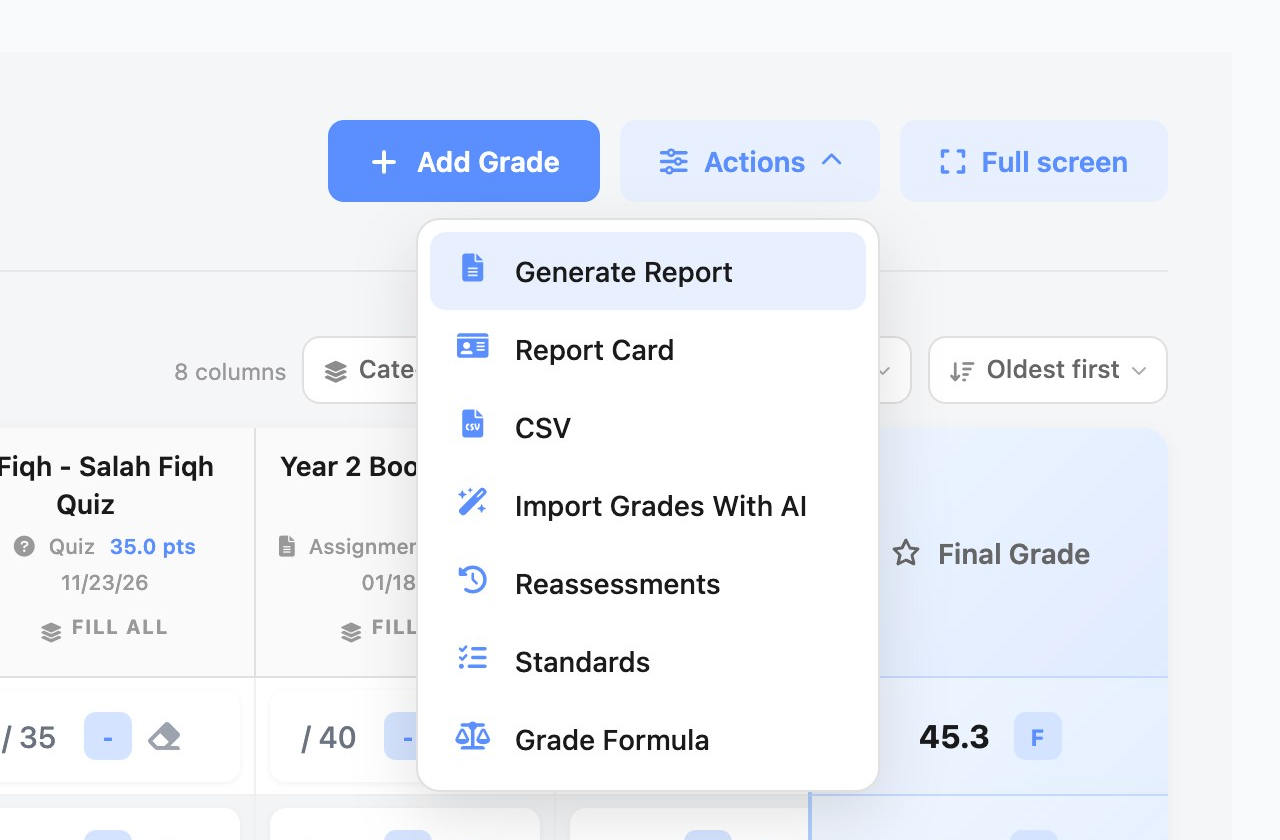
- At the top right of the gradebook, click Actions, then Grade Formula.
- Click the Grading Mode tab. At the top is Report standards alongside the grade. Click Turn on.
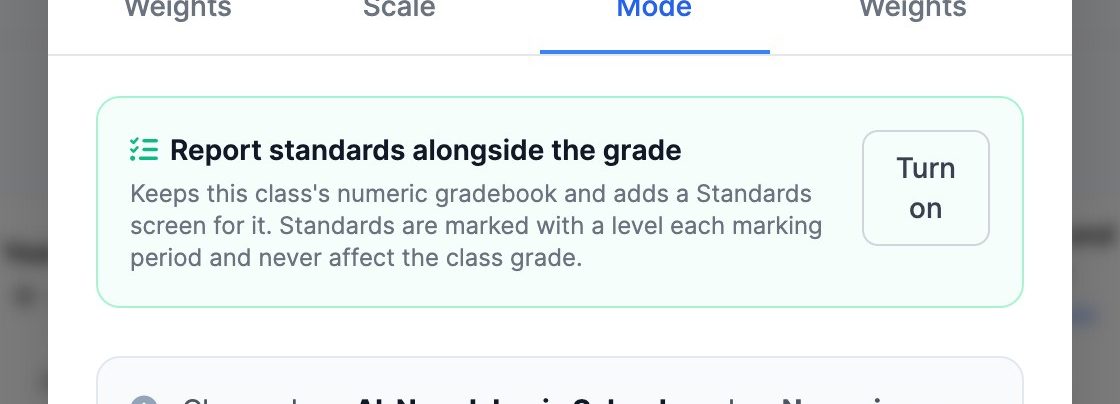
A green message confirms it, for example "Year 2 Fiqh now reports standards alongside its grade". Nothing in the gradebook changes: every column and every grade stays exactly where it was. The class's Actions menu now has a Standards item.
Your school's levels and their short codes
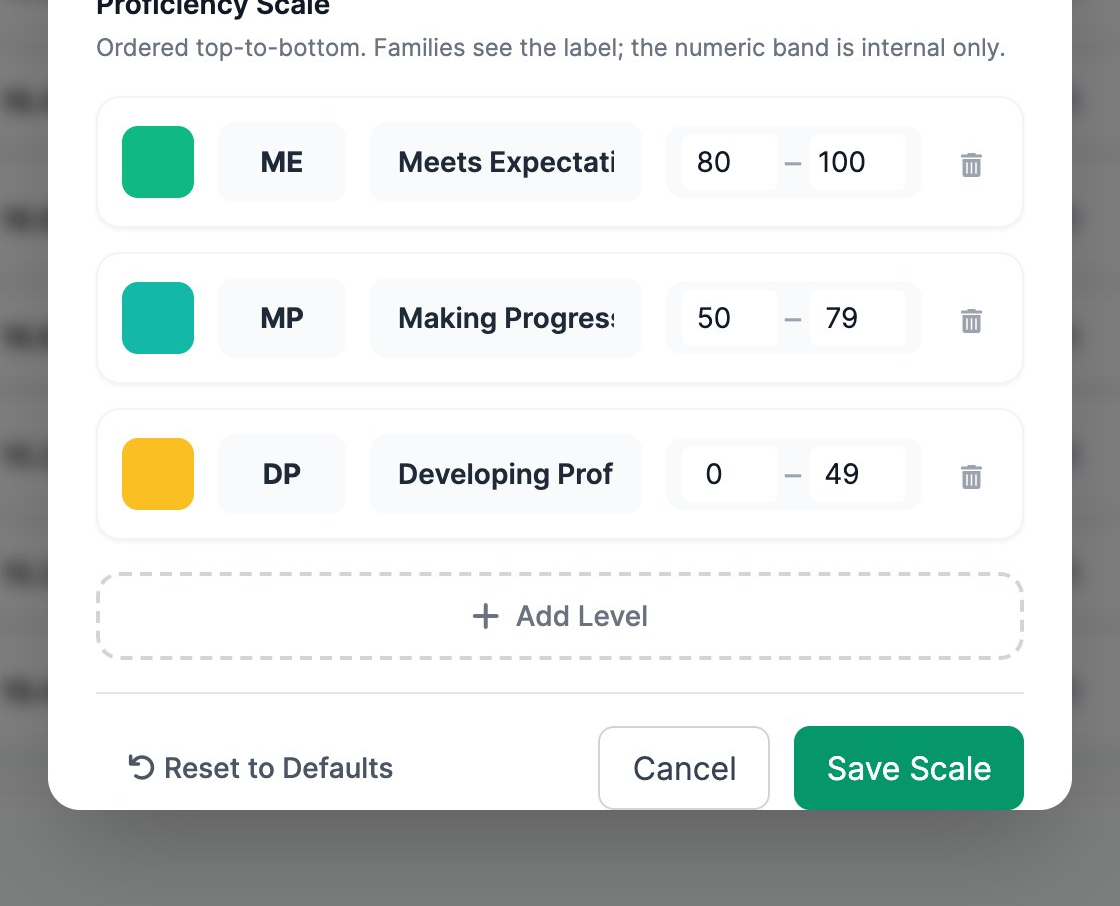
Further down the same tab is the Proficiency Scale: the levels a standard can be marked with. Each level has a colour, a short code and a name. The short code (ME, MP, DP) is what prints in each quarter's column on the report card, because a full name like "Developing Proficiency" doesn't fit. Change any of them and click Save Scale.
The scale is school-wide
Every class in the school marks standards with the same levels. You can rename a level or its code at any time and every card prints the new wording, but a level that marks already use can't be deleted.
Step 2 — Add the standards
The class's teacher (or an admin) adds the standards on the class's Standards screen.
- Open the class's gradebook, click Actions, then Standards. (It's also on the grade-level page, next to each class's Gradebook button.)
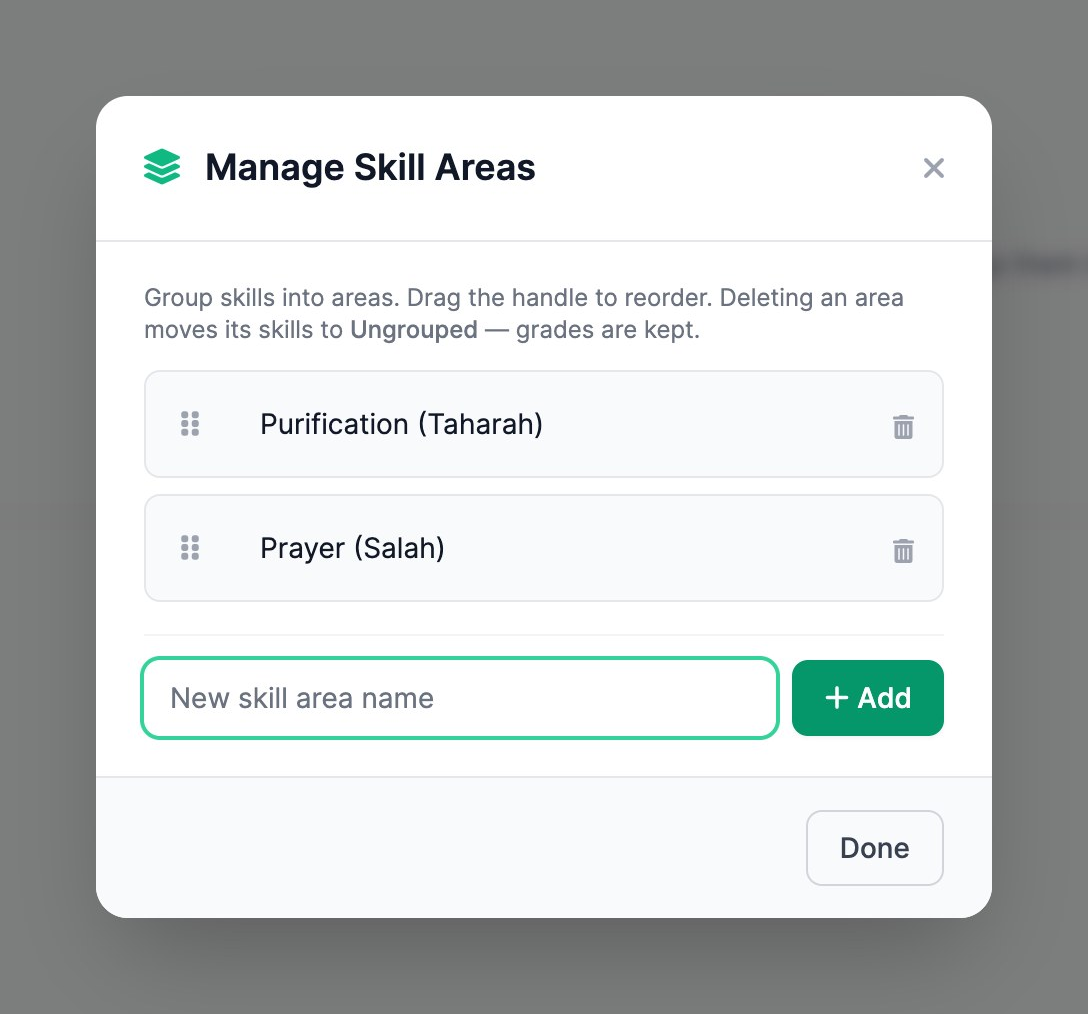
Standards are grouped into areas (strands), like chapters in a book. Make the areas first:
- Click Manage Areas. Type an area's name, such as "Purification (Taharah)", and press Enter. Add as many as you need, then click Done.
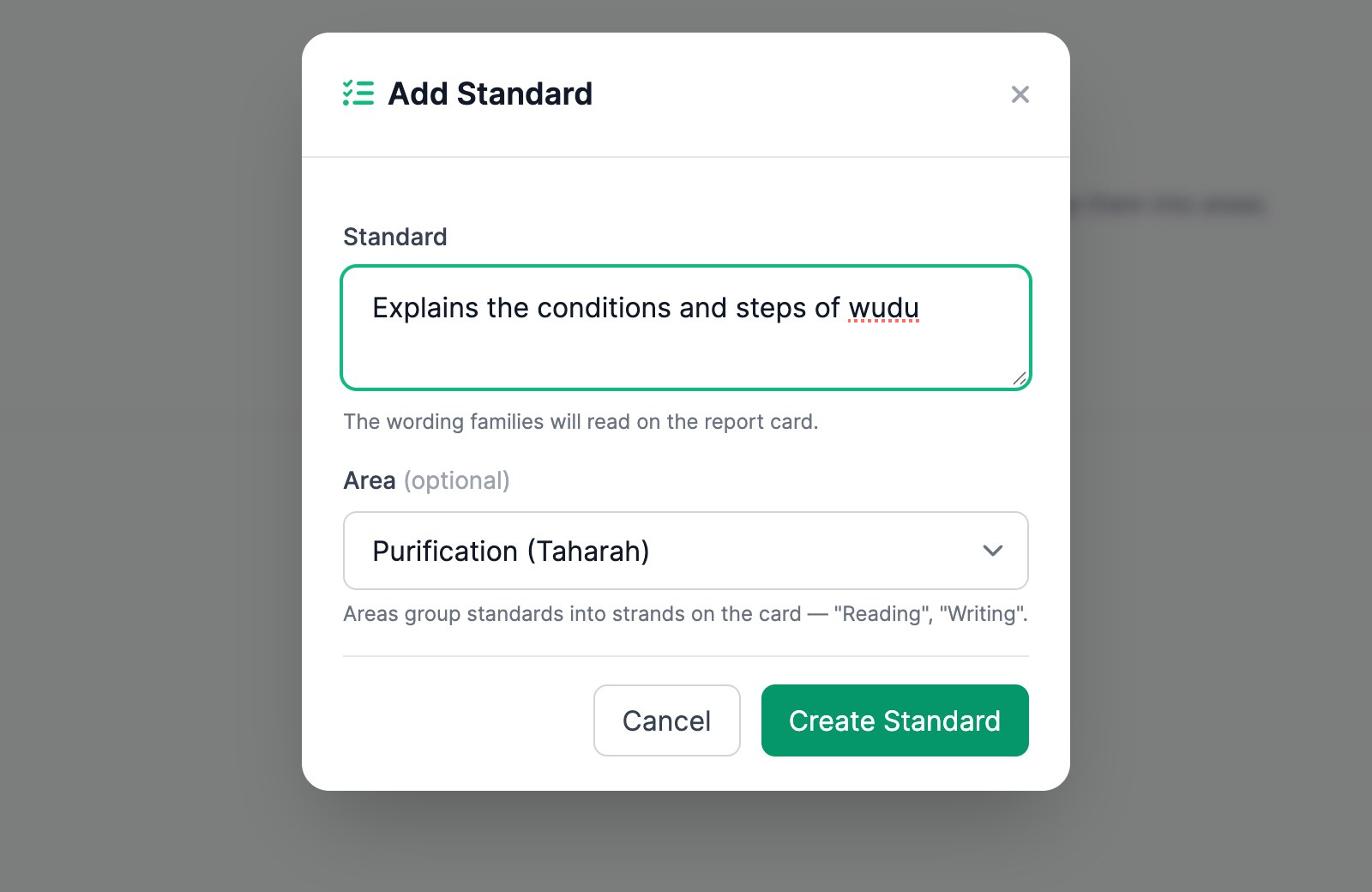
- Click Add Standard. Type the standard exactly as families should read it on the report card, choose its Area, and click Create Standard. Repeat for each standard.
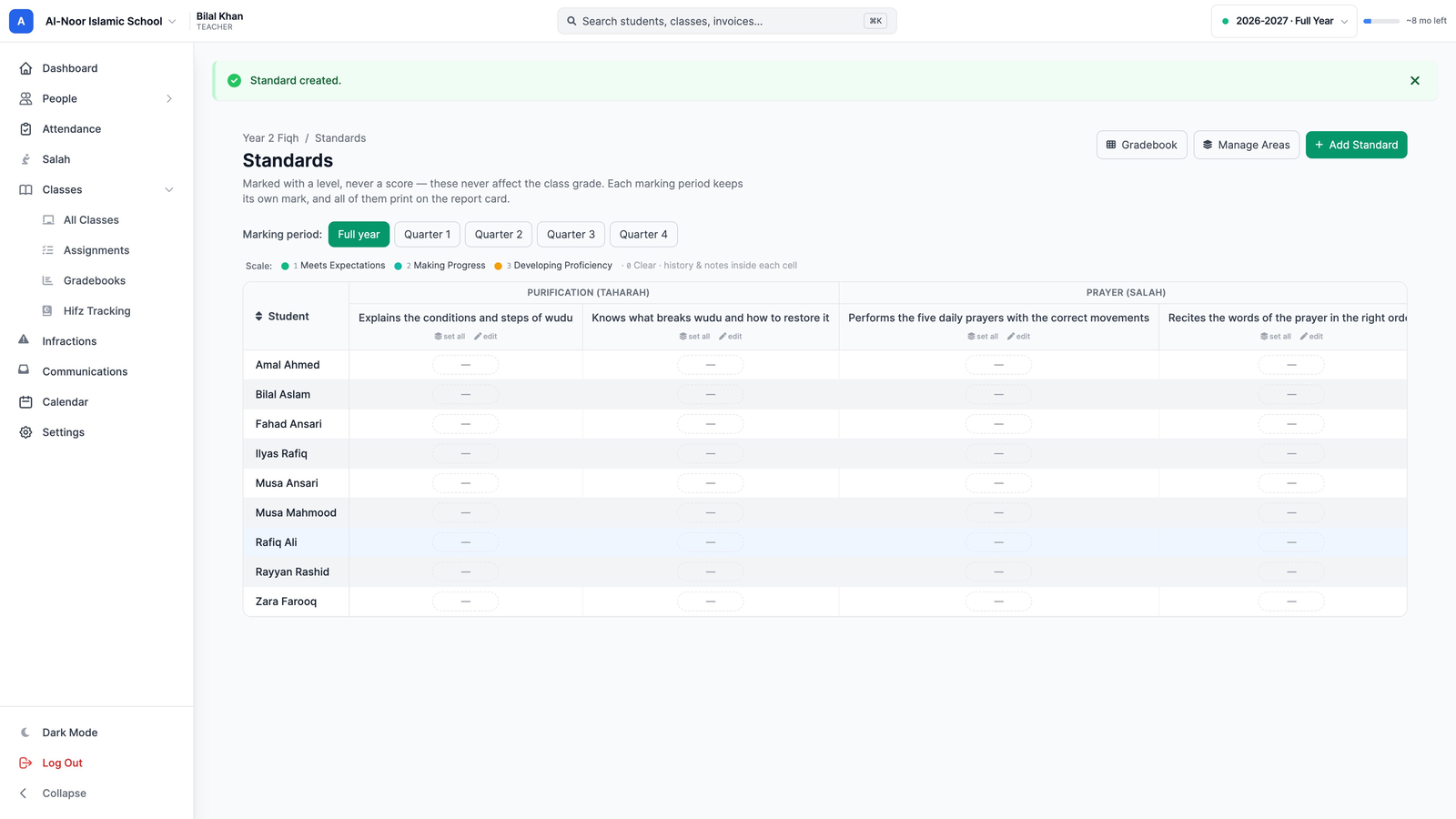
Each standard becomes a column, grouped under its area, with a row for every student. To fix a typo, move a standard to another area, or delete it, click edit under its name. Deleting a standard removes it, and its marks, from every report card.
Step 3 — Mark them each quarter
Each quarter, give every student one mark on each standard. Every quarter keeps its own marks.
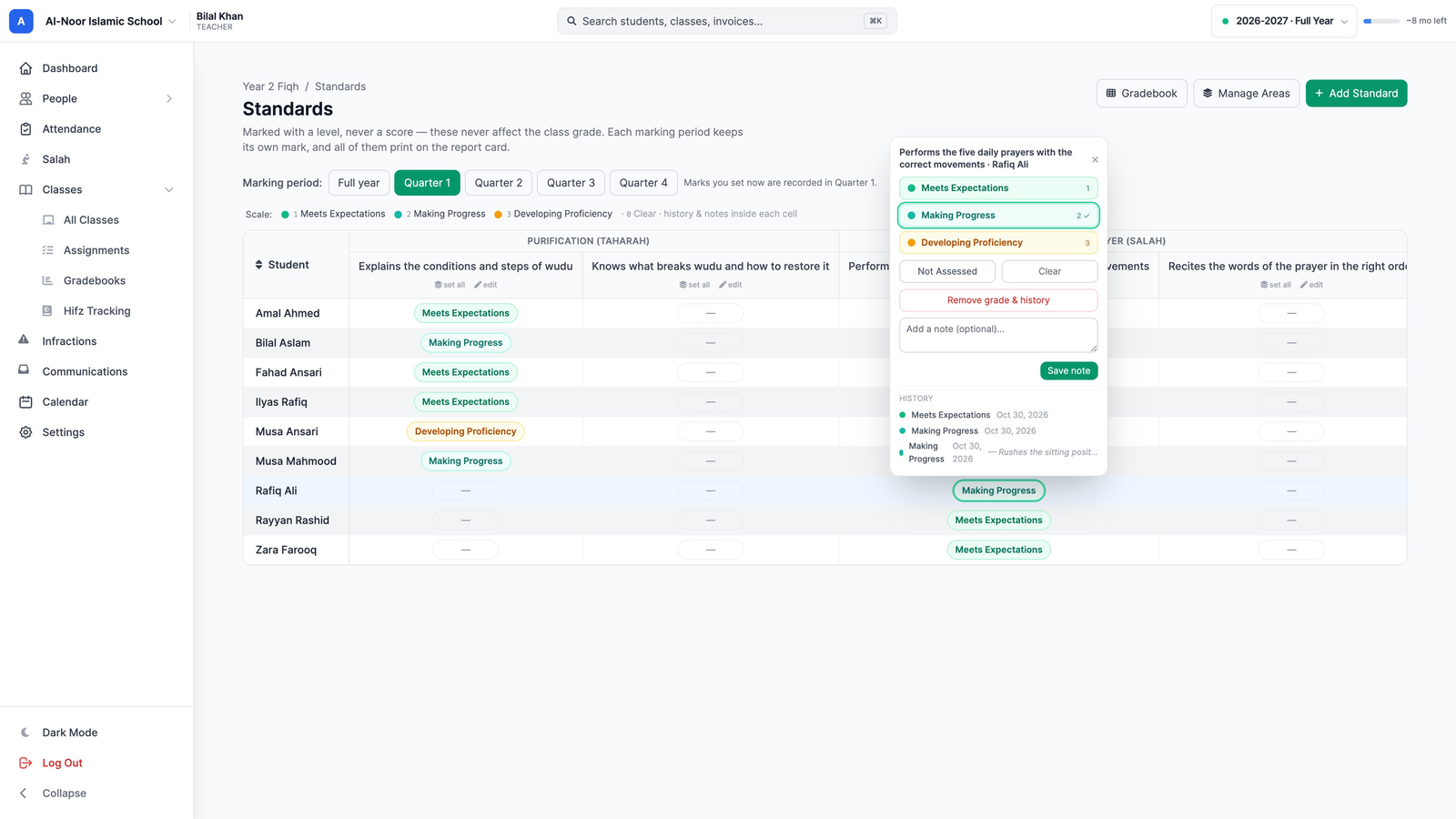
- At the top, under Marking period, click the quarter you're marking. The note beside it confirms where your marks go: "Marks you set now are recorded in Quarter 1".

- Click a student's box under a standard and pick a level. It saves straight away; there's no Save button.
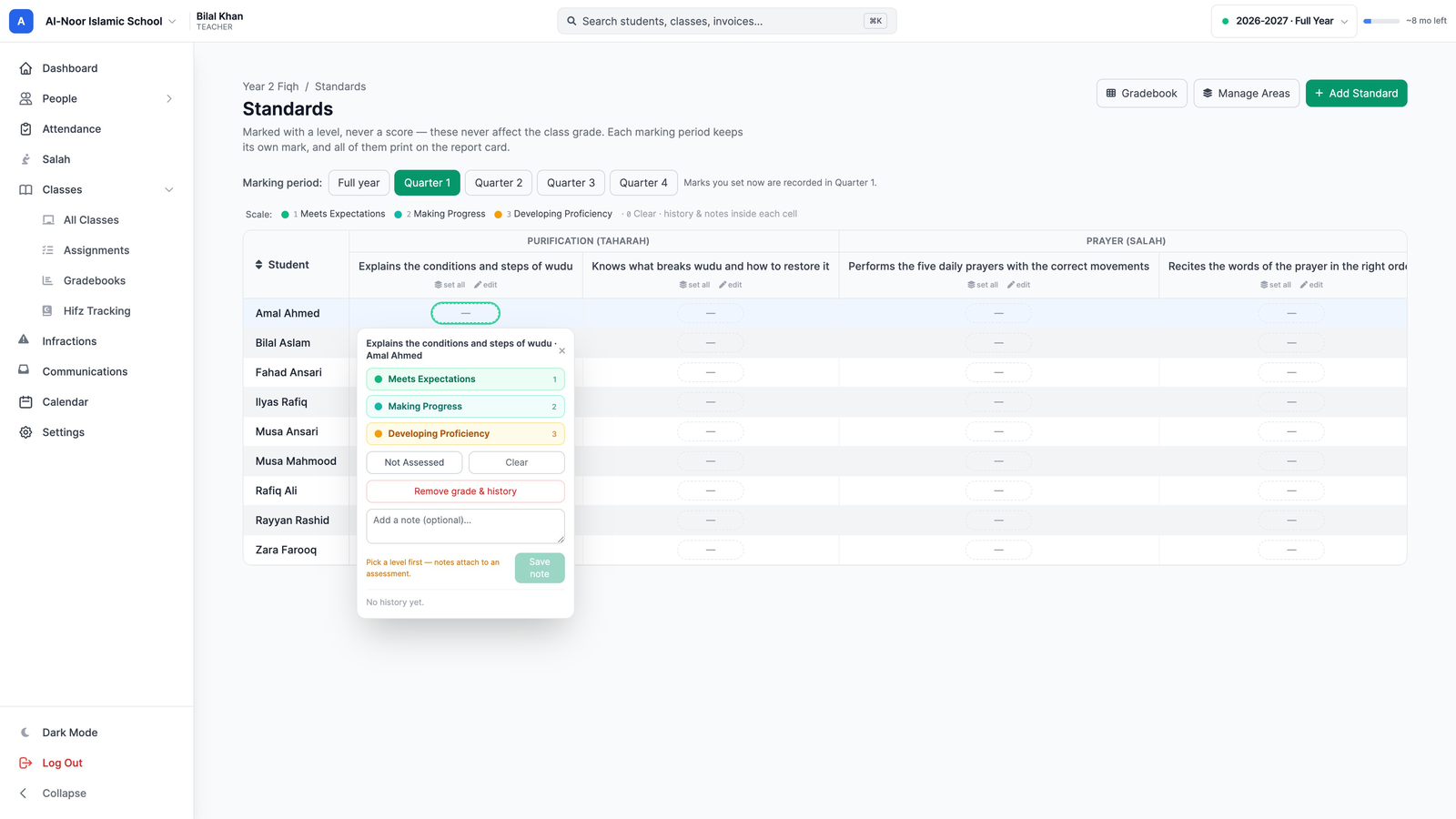
- Faster with the keyboard: click into a box and type 1, 2 or 3 for the first, second or third level. 0 clears the box, and the arrow keys move to the next student or standard.
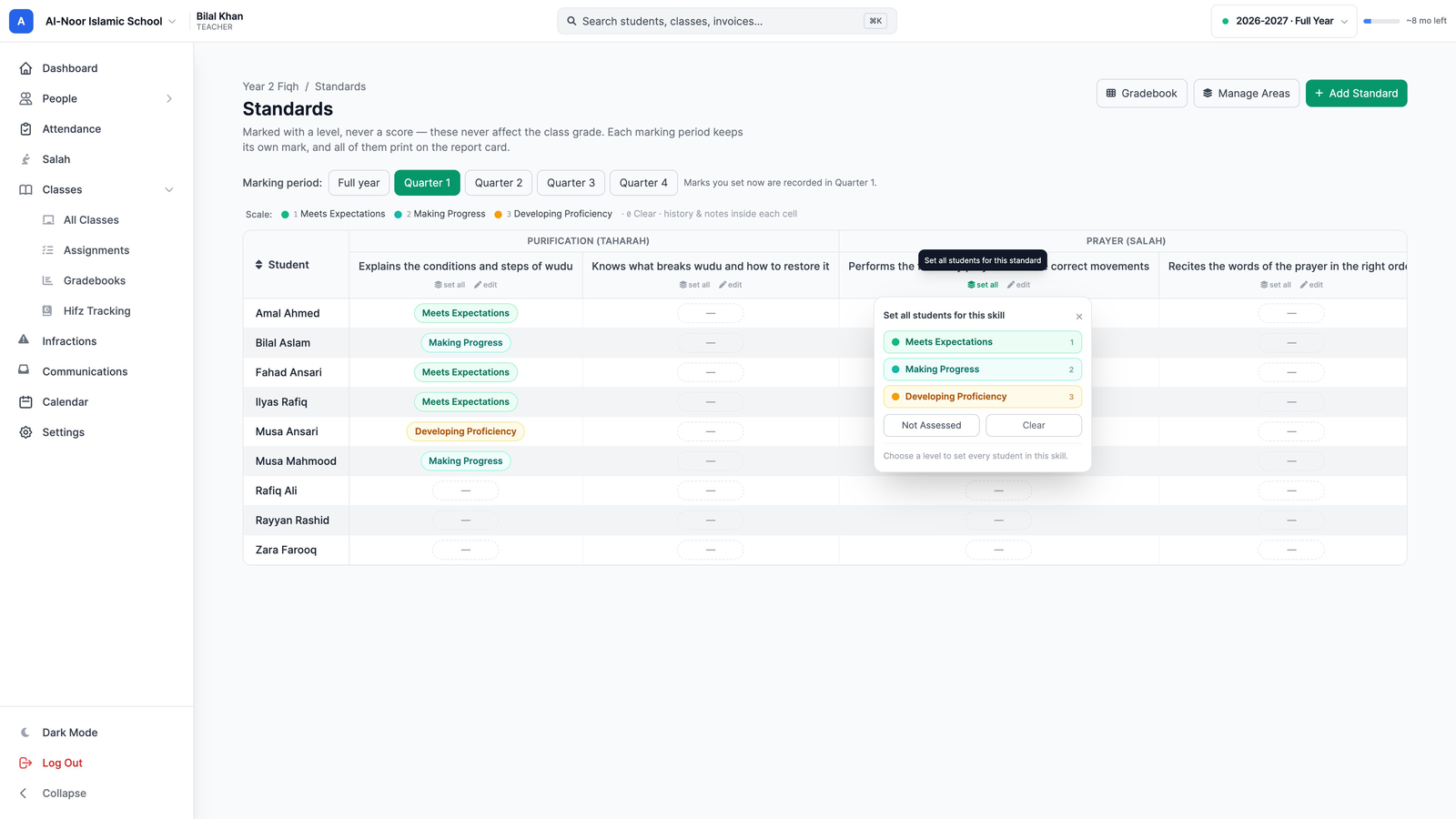
- The same level for everyone: click set all under a standard's name and pick a level. Every student gets it, and you change the few who are different.
- Not Assessed records that you didn't assess a student this quarter, which is different from not having marked them yet. It prints as NA.
Notes and history
Every box can hold a note for you or another teacher: open the box, type in Add a note, and click Save note. Underneath is the box's history: every mark it has had, when, and its notes. Changing a mark never erases the old one from the history.
The next quarter
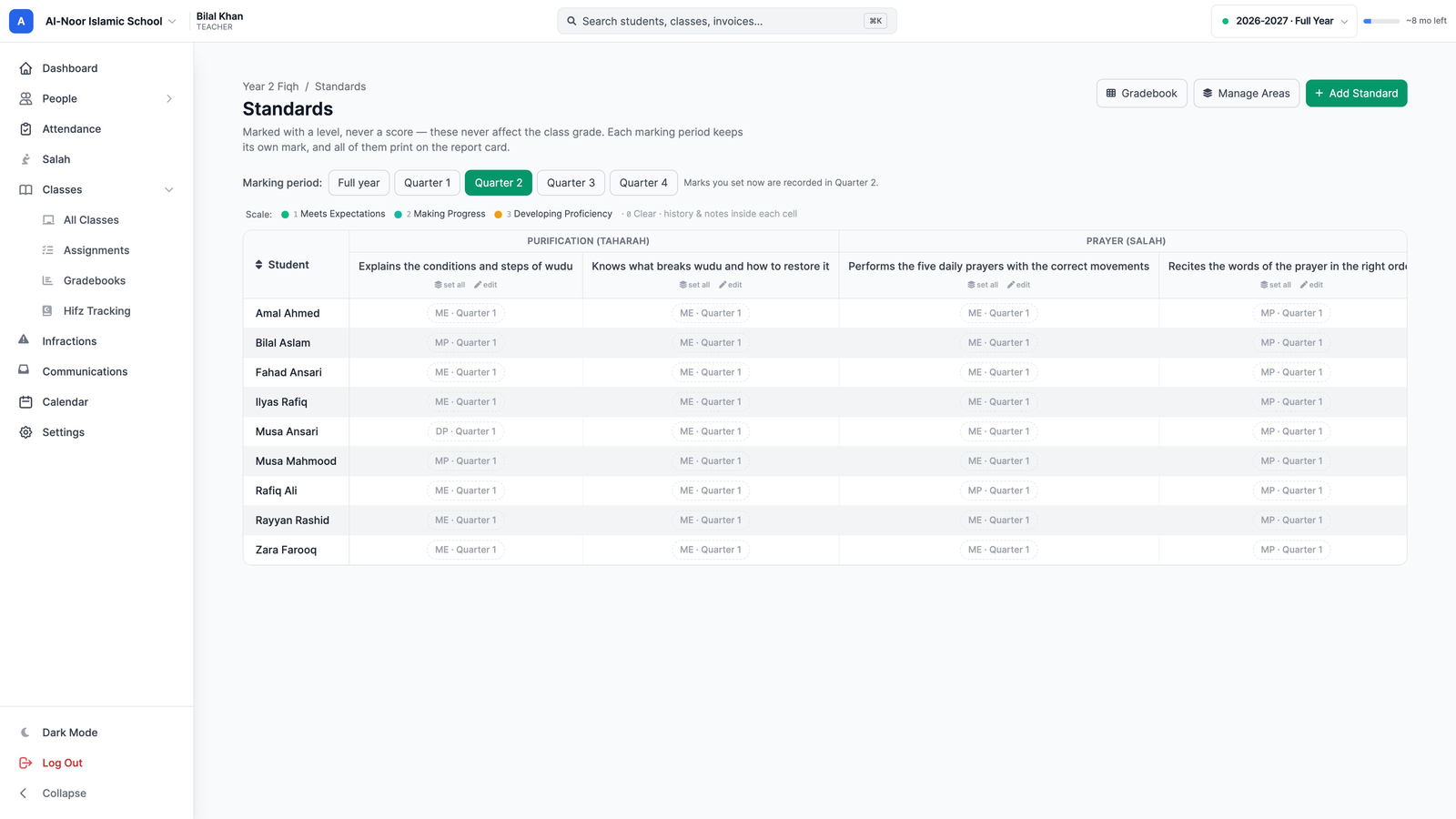
Click the next quarter, such as Quarter 2. It starts empty. The grey text in each box, such as ME · Quarter 1, is a reminder of last quarter's mark, not a mark for this quarter, and nothing prints in the Quarter 2 column until you mark it. Once you do, the box shows the real Quarter 2 level, and the card shows the student's progress from one quarter to the next.
When marks are locked
Once a term has closed (its end date plus your school's grace period) its marks are read-only, and the screen says so with a lock. A quarter follows its semester: Quarter 1 marks can be changed until the semester they belong to has closed, just like the grades for Quarter 1's quizzes and tests. When the year is concluded, every standard is read-only.
Step 4 — Put standards on the report card
An admin adds a Skills table to the card your school prints.
- In the menu on the left, click Report Builder, then Report Cards at the top. On your card, click Design.
- At the top of the designer, pick a student under Values shown are, so the card shows real marks.
- New things go under whatever part of the card is selected. Click the part the standards should follow, such as the grades table.
- On the left, under Add to the card, click Skills table.
- Click Save & keep published (or Save & publish for a card that isn't published yet).
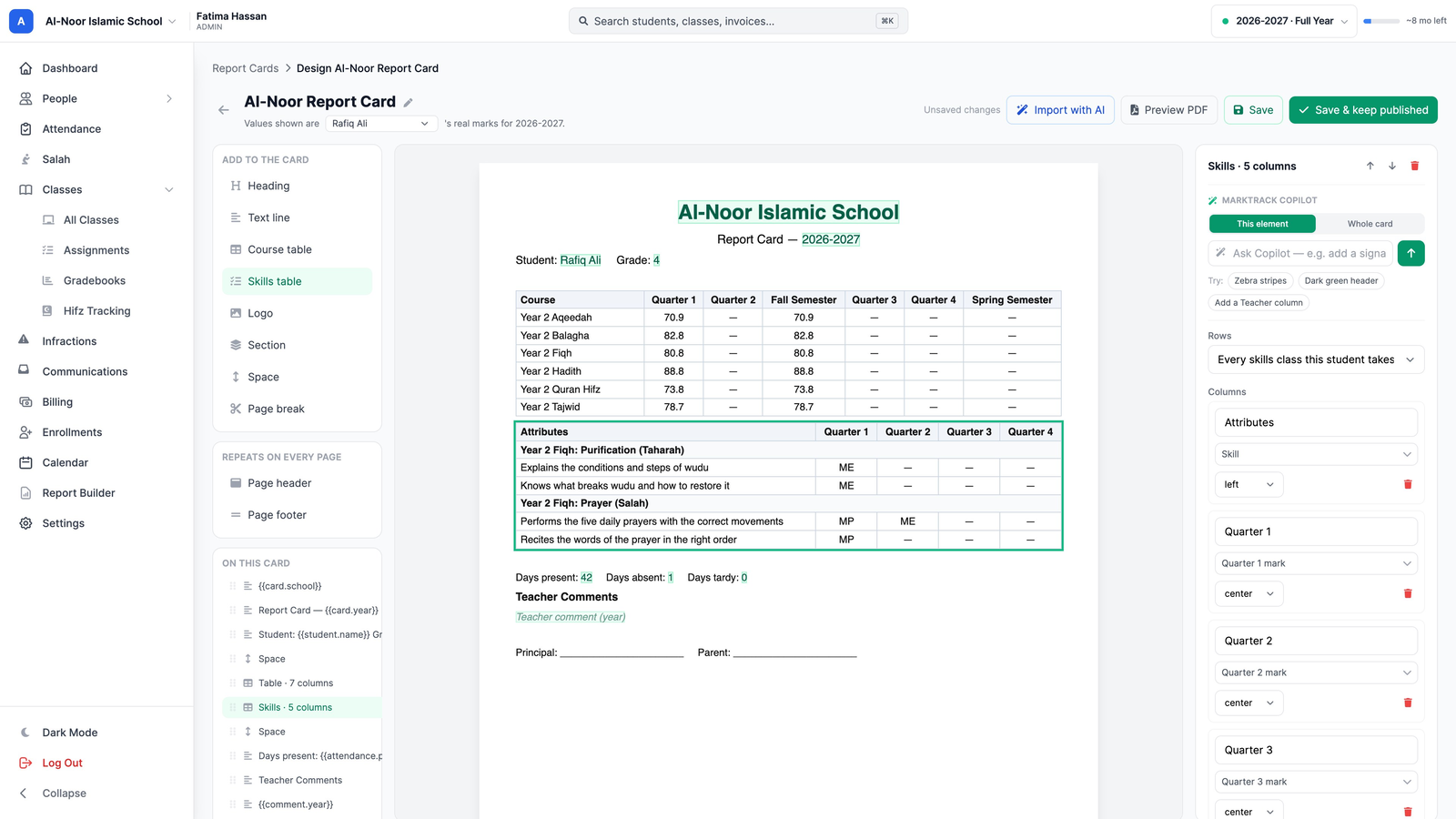
The table lists every standard the student has, grouped by class and area, with the school's short code under each marking period and a dash where there's no mark. Its settings on the right let you rename the headings, remove a column (for example, keep only the quarters), or move the table up or down. The marks always come from the Standards screen; you never type them on the card.
Starting a new card?
If any class already reports standards, a card started with New Template includes the standards table for you.
Step 5 — Print & send
A card with standards prints and sends exactly like any other report card.
- On the Report Cards page, use Download cards: choose the card, then One student, A whole class or Everyone this year, and click Download PDF or Download zip.
- When it's ready, click Download what we built. A whole school can take several minutes; keep the page open.
- To email cards to families, click Send report cards. You'll see who each card goes to before anything is sent. Generate and email report cards covers every step.
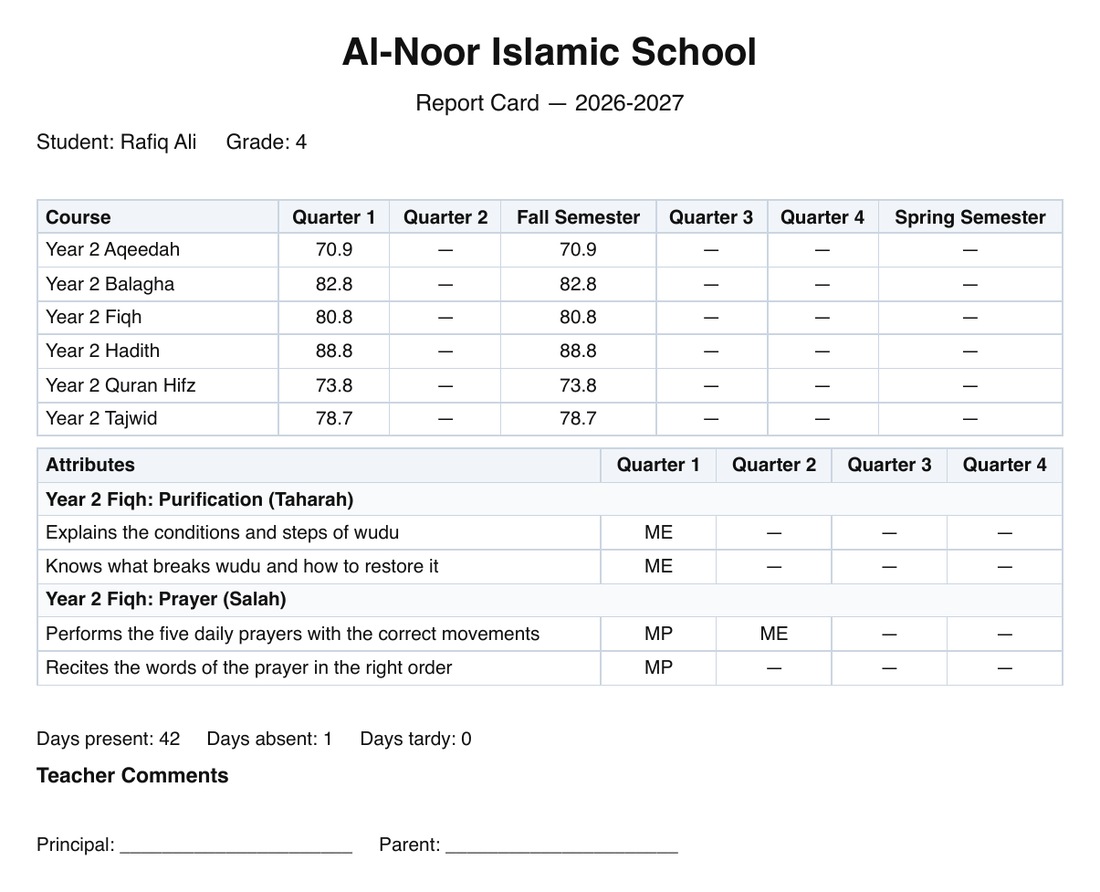
The Report Card button on a student's profile (under Grades) prints MarkTrack's built-in card, which also lists each standard with its mark for each quarter.
What families see
- Their child's classes and grades, exactly as before. Standards never change a grade or an average.
- Standards never appear as homework or assignments, on the website or in the app.
- No email or alert when a teacher marks a standard. Families see standards on the report card.
Questions
I can't find Standards in the Actions menu
Standards aren't on for that class yet. An admin turns them on in step 1.
What happens if we turn standards off?
The Standards screen and its menu item disappear and the class's standards stop printing, but every standard and mark is kept. Turn them back on and everything returns.
Can we change "ME" to something else after teachers have marked?
Yes. Rename the code in the Proficiency Scale and every card prints the new code, including for marks already made.
Why does the grey "ME · Quarter 1" not print in Quarter 2?
Because nobody has marked Quarter 2 yet. The grey text is a reminder of the last mark, so a teacher can see where a student was. Only a real Quarter 2 mark prints in the Quarter 2 column.
More in Reports
Still stuck?
Our team is happy to walk you through it.