
Generate and email report cards
A report card is the formal grade summary you send home to a family at the end of a term or year. In MarkTrack you build a reusable report card template (which sections show, how columns are labeled), then generate cards for one student, a whole class, or the entire year — and either download them or email them straight to parents. This guide walks both halves: setting up a template, and producing and sending the cards.
Report cards are per school and tied to an academic year. MarkTrack always uses your current academic year unless you choose another, and it pulls each student's grades from that year's terms. To understand how the grades on the card are calculated, read How grades and report cards are calculated.
Before you start
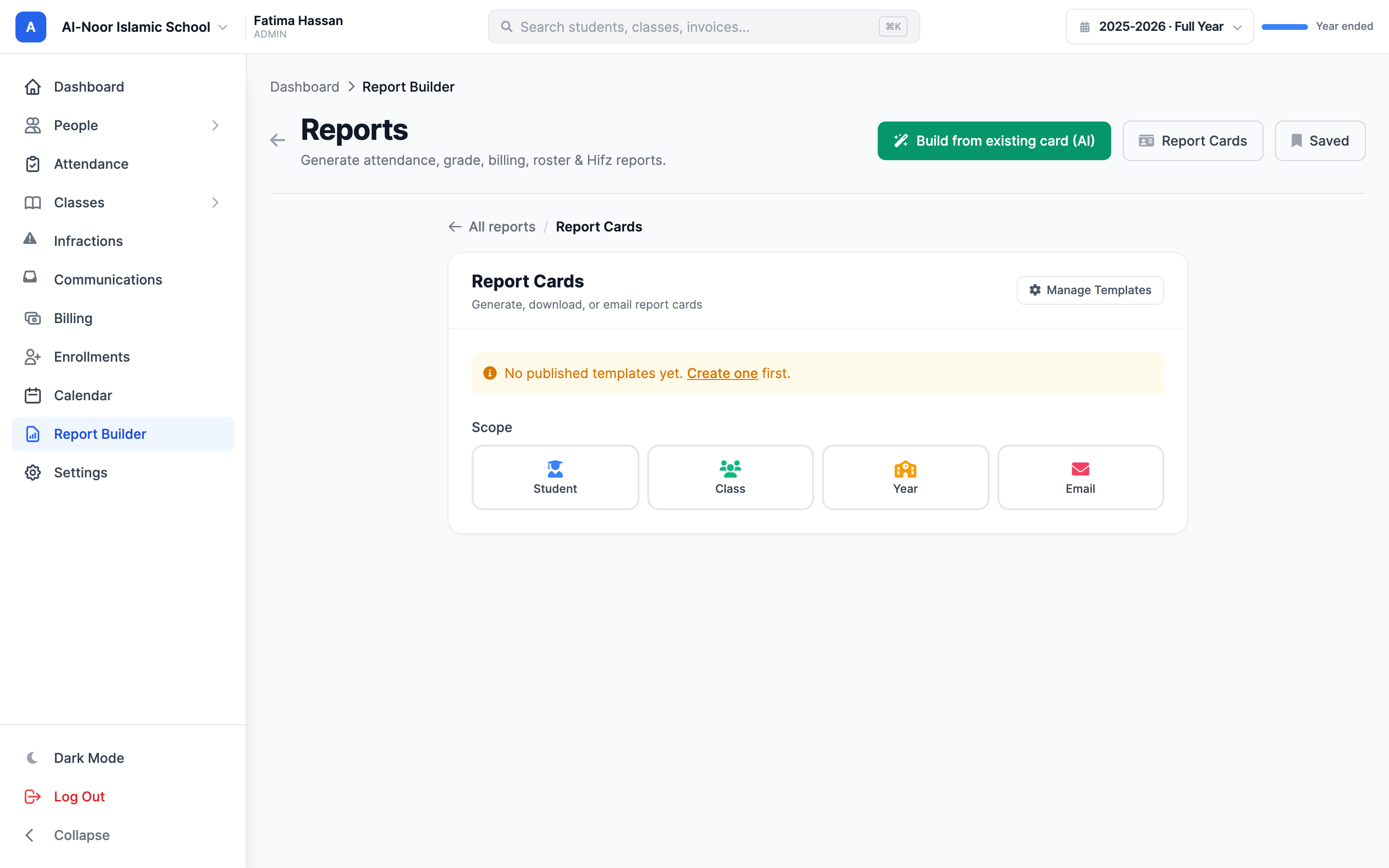
You need at least one published report card template before you can generate cards. If you have none, MarkTrack prompts you to create one first. Templates live under Reports → Report Cards → Manage Templates.
Step 1 — Build a report card template
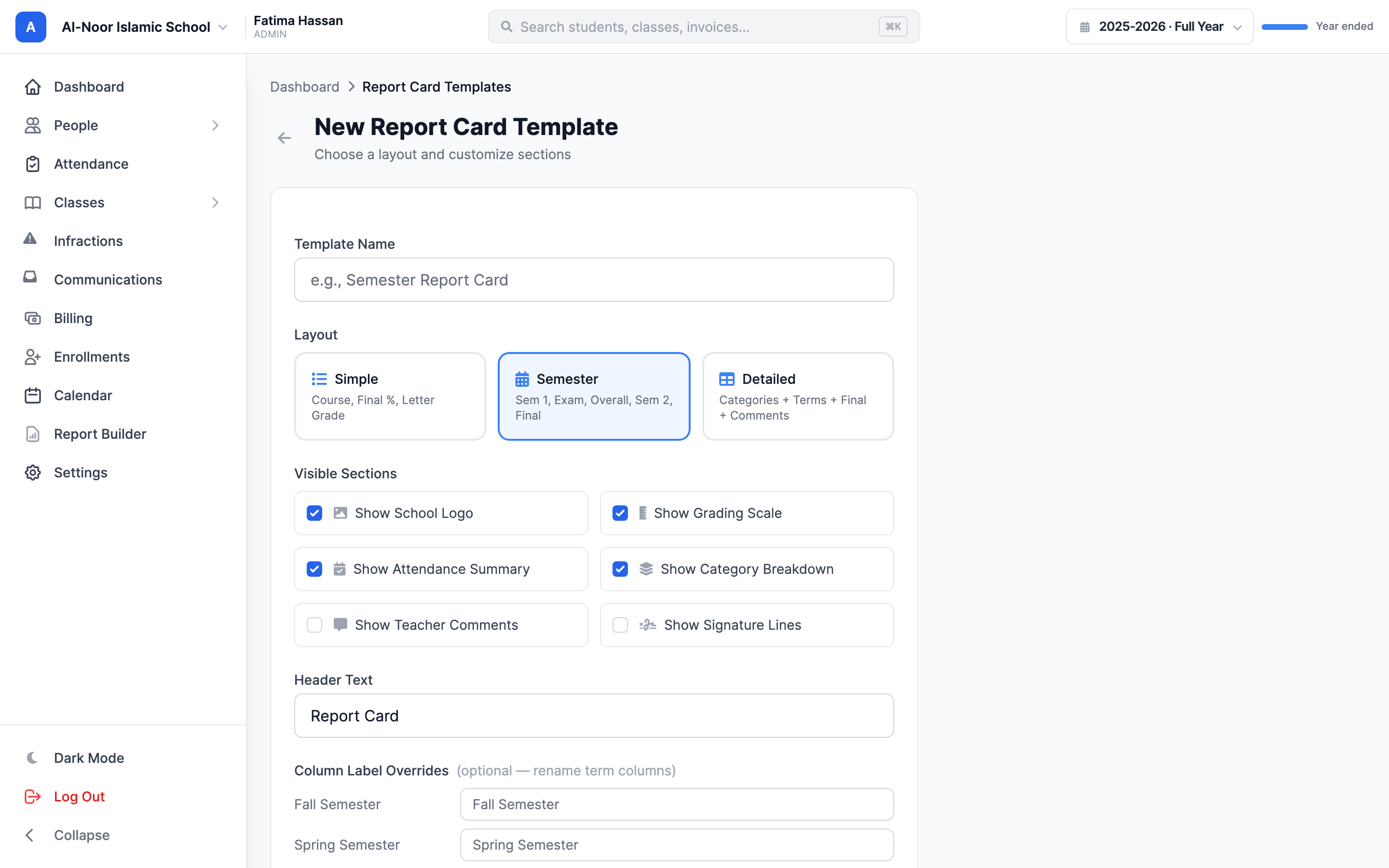
A template decides what every card looks like. Go to Reports in the sidebar, open the Report Cards tab, and click Manage Templates (or use the Report Cards button in the page header). Then click New Template.
- Give it a Template Name (e.g. "Semester Report Card").
- Pick a Layout:
- Simple — Course, Final %, Letter Grade.
- Semester — Semester 1, Exam, Overall, Semester 2, Final.
- Detailed — categories plus terms, final, and comments.
- Tick the Visible Sections you want on the card: Show School Logo, Show Grading Scale, Show Attendance Summary, Show Category Breakdown, Show Teacher Comments, and Show Signature Lines.
- Set the Header Text (defaults to "Report Card").
- Optionally rename term columns under Column Label Overrides — for example, label a term "Fall Semester" instead of its system name.
- Turn on Publish this template so it can actually be used to generate cards, then click Create Template.
Draft templates can't generate cards
If Publish this template is left off, the template stays a draft and won't appear in the generator's template dropdown. The generator only lists published templates. Leave a template unpublished while you're still working on it, and publish it when it's ready.
Preview before you commit
From the templates list (or the edit form), click Preview to open a real PDF of the card using one of your students' actual grades. This is the fastest way to check the layout and section choices before generating cards for everyone. On the list, each template shows its layout type, a Published badge when live, and Edit, Preview, and delete actions.
Step 2 — Choose a scope and generate
Back on Reports → Report Cards, pick your Template from the dropdown (only published templates appear), then choose a Scope:
- Student — one student. Pick them from the Select Student list. You get a single PDF.
- Class — every student in one class. Pick the class. You get a ZIP of PDFs, one per student.
- Year — every student in the school for the current academic year. You get a ZIP of all their cards.
- Email — sends cards to a class's parents instead of downloading (covered in Step 4).
- Click the scope tile, fill in the picker that appears, then click the action button — Download PDF for a single student, or Download ZIP for a class or year.
Step 3 — Wait for the job, then download
Generating cards is a background job, so the page doesn't freeze while it works. After you click generate, a status line appears:
- You'll see "Generating report cards..." with a spinner. A class or full-year ZIP can take a little while because it renders one PDF per student.
- When it finishes, a green "Report cards ready!" message appears with a Download button. Click it to get your PDF or ZIP.
- If something goes wrong, a red error message explains what happened.
One bad card won't sink the batch
In a class or year ZIP, if a single student's card fails to render, MarkTrack skips that one student and keeps building the rest. You still get the ZIP with everyone else's cards. Only if every card fails does the whole job report an error.
Step 4 — Email report cards to parents in bulk
Instead of downloading and forwarding cards yourself, MarkTrack can email them straight to families. There are two ways in:
- By class — on the Report Cards panel, choose the Email scope, pick the class, and click Email to Parents. You'll be asked to confirm. Every parent of every student in that class is emailed their child's card.
- For the whole year — on the Manage Templates page, the Email to Parents button (shown when you have a published template) emails cards for every student in the current academic year after a confirmation.
Each student's card is generated once and sent to all their listed parents. When the batch finishes, MarkTrack sends you a notification summarizing how many recipients were emailed and naming any students it couldn't process — so a partial failure is never silent.
Parents need an email on file
A card is only emailed to a parent who has an email address on record. Students with no parent linked, or parents with no email, are skipped — they'll show up in the summary notification. Make sure parent contacts are complete before a big send. The Directory reports' Missing Information report is a quick way to spot gaps.
Step 5 — Understand the concluded-year lock
When you conclude an academic year, MarkTrack freezes that year's report-card grades so the cards stay exactly as they were the day the year closed. Re-generating a concluded year's report card reproduces the same numbers even if a class is later edited — the card is a permanent record, not a live recalculation.
- Concluding a year also flips its classes to read-only, so grades can't be changed after the fact.
- If you genuinely need to change a concluded year's grades, an owner can reopen the year, which unfreezes the grades again. See Set up academic years and terms for how concluding and reopening work.
You're ready to send report cards
Build a published template, generate by student, class, or year, then download or email to families. For the ad-hoc data reports — attendance, balances, rosters — see Use the AI report builder and templates. Need a hand with a send? Contact support.
More in Reports
Still stuck?
Our team is happy to walk you through it.