
Introducing Communications by MarkTrack
Collaborative email, built into your LMS.
A parent asks about reading practice. The office needs the teacher’s advice. The teacher knows the child, but has not seen the email. A simple question becomes a forwarded thread, a separate staff message, and a search through student records.
Communications brings that work into MarkTrack. Read and reply to family emails, invite a colleague into the conversation, discuss the answer privately, and open the relevant family profiles from the same screen.
Families continue using email. Staff get a shared place to work through the response, with clear control over who can see the conversation and who can reply.
A familiar inbox for the school day
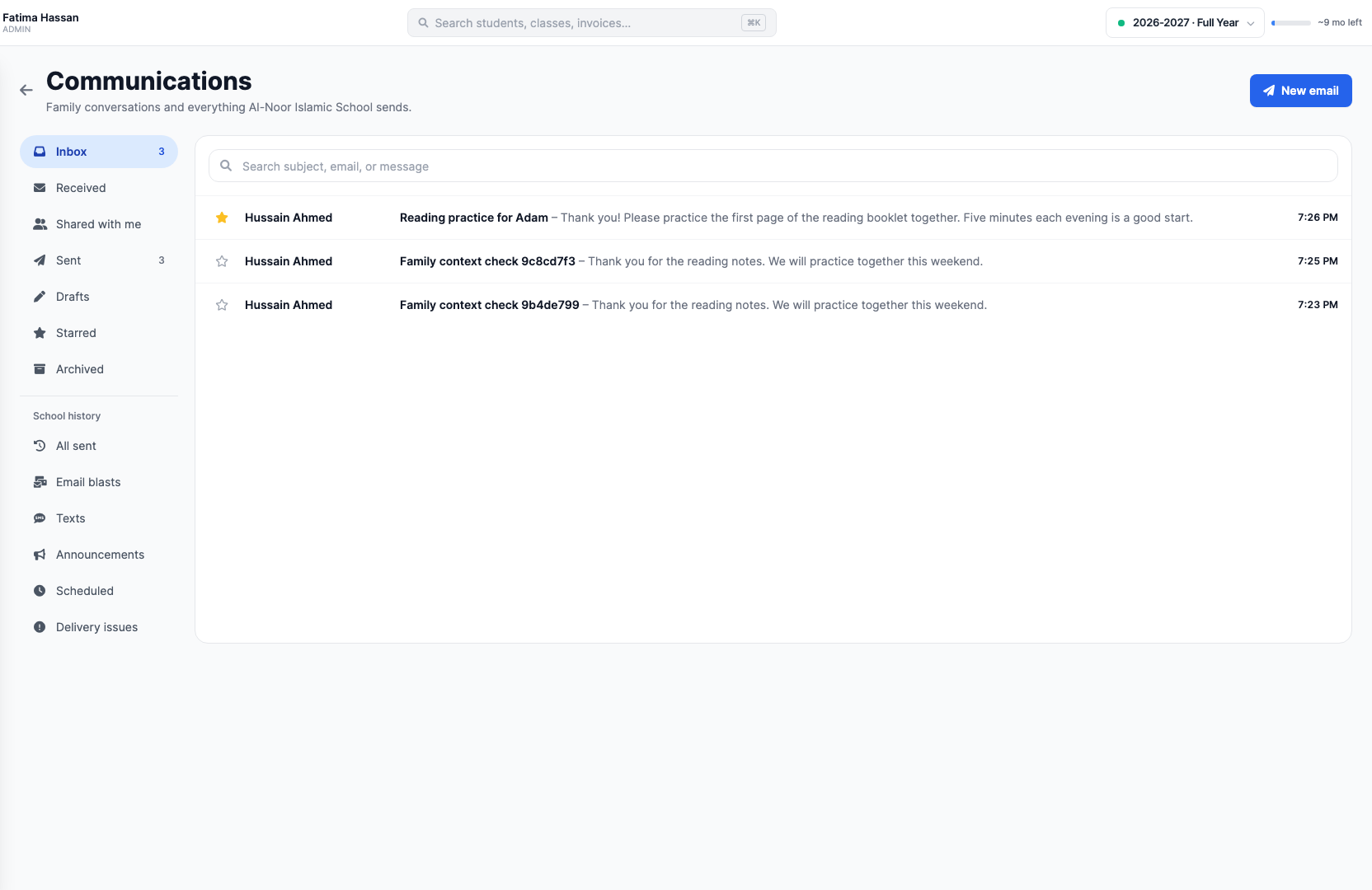
Open Communications from the sidebar. Your folders help separate incoming conversations, sent messages, drafts, starred threads, and conversations shared with you. Search when you need to find an earlier exchange.
Open a conversation to see its messages in order. Older emails can be expanded when you need the history. The reply editor sits below the thread, while private staff comments have their own clearly marked section.
The family behind the email
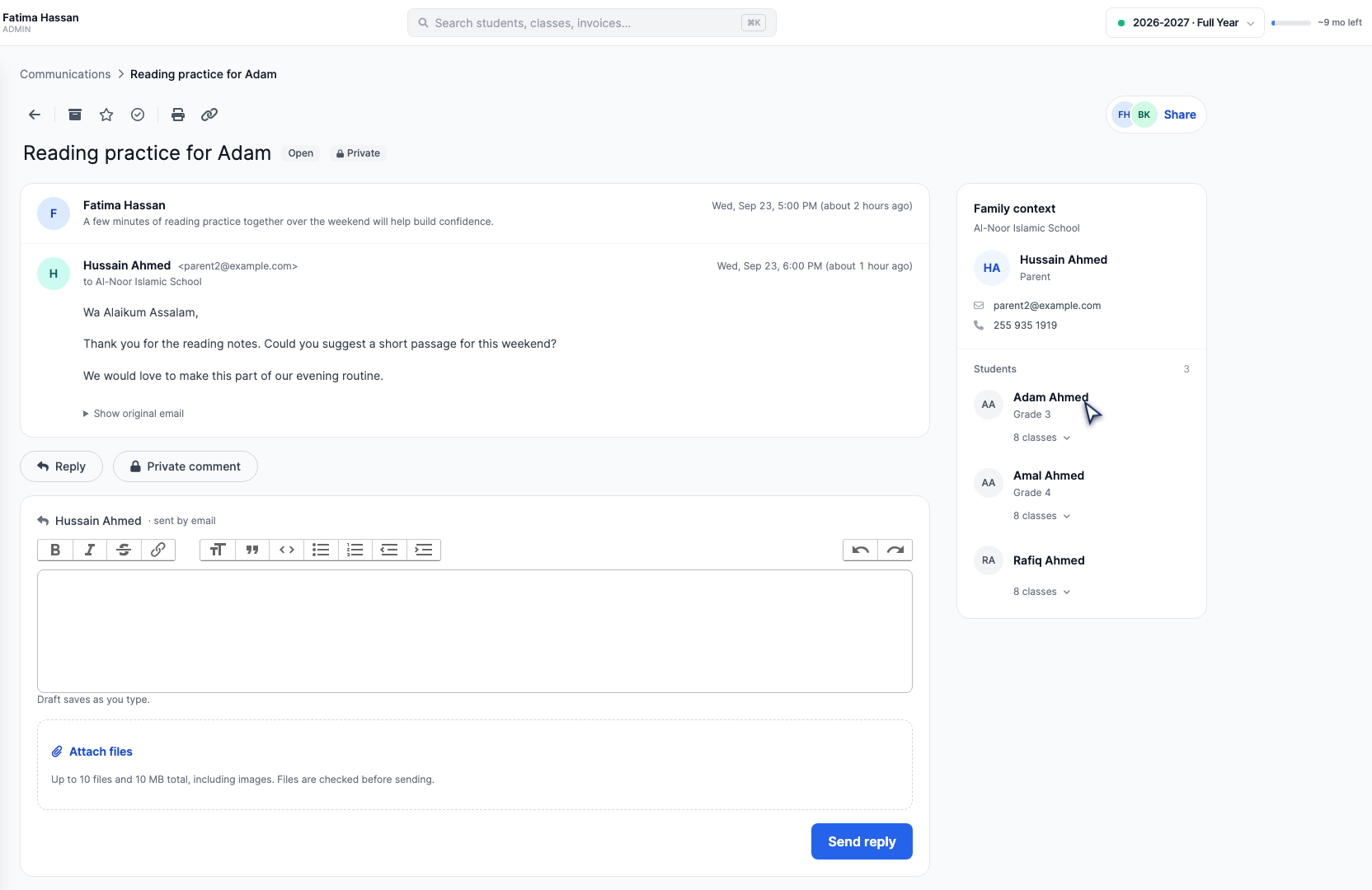
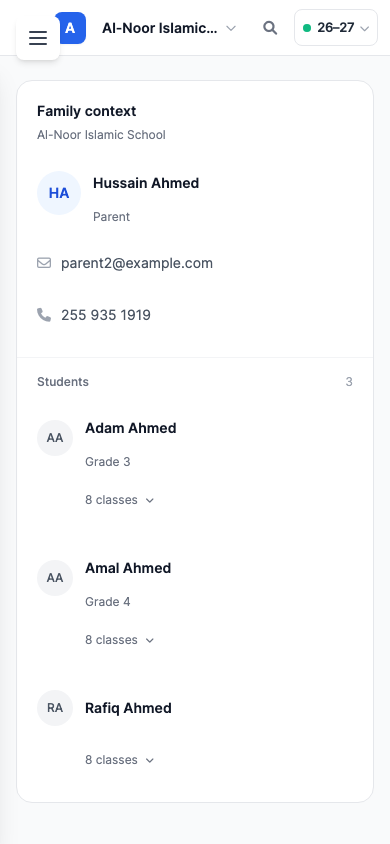
The most useful detail is often the one you would otherwise have to leave the inbox to find. Family context matches the conversation’s email address with parent and student records available to you at the current school.
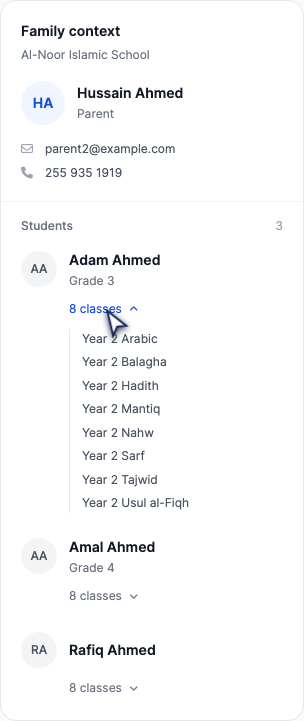
Beside the thread, you can see the parent’s name and contact details, their linked children, grades where recorded, and classes. Expand a child’s class list for a little more context, or click the parent or student’s name to open their profile.
For example, an email from Hussain Ahmed can show Adam and his siblings alongside the conversation. A teacher’s view respects the students they are allowed to see. Sharing an email does not grant access to additional student records.
When the address has no matching profile you can view, the panel says so. It does not guess which family a message belongs to.
Bring the right colleague into the conversation
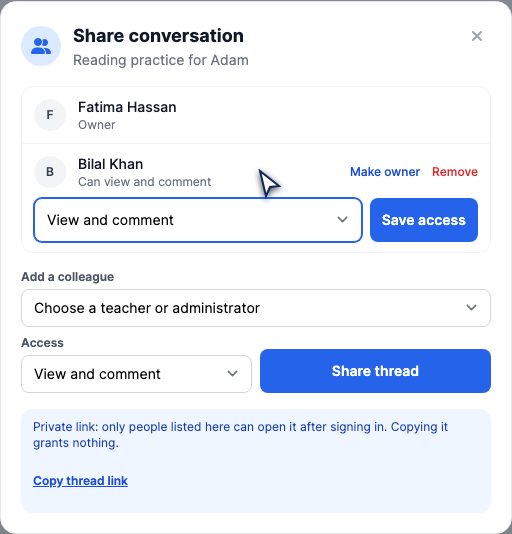
Click Share to add a teacher or administrator. Choose View and comment when you need their advice, or View, comment and reply when they should be able to respond to the family.
The access list shows everyone who has been invited and what they can do. The owner can change a colleague’s access, remove them, or hand over ownership. A private thread link makes an already-shared conversation easy to find; copying the link does not give anyone new access.
Ask a question privately with @mentions
In Private staff comments, type @ followed by a first name, surname, or full name. Choose a teammate from the suggestions, or use the arrow keys and Enter. The picker only offers people who already have access to the conversation.
You might write, “@Bilal Khan could you recommend a short passage?” Bilal can read the parent’s original question and answer in the same private discussion. There is no need to forward the email or paste the family’s message into a separate chat.
The selected person appears as a small removable chip below the comment. If you picked the wrong colleague, remove the chip and choose again. An optional checkbox sends mentioned colleagues an email with a link to the thread; the mention also creates an in-app notification.
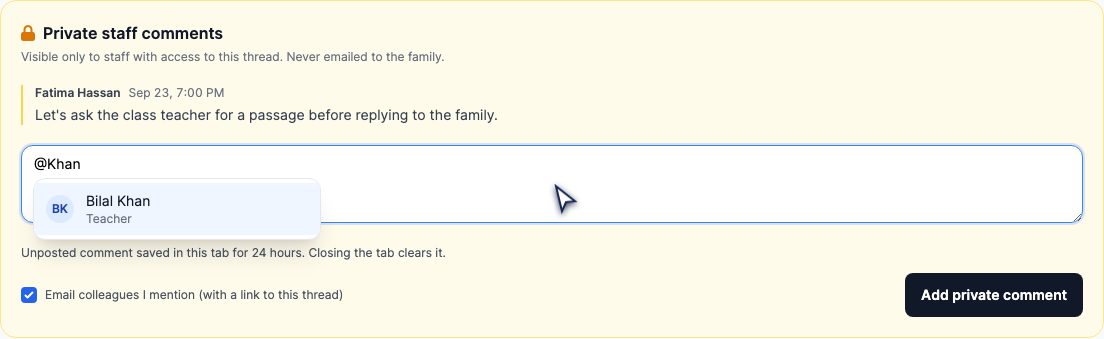
Private comments and family replies have separate editors and separate submit buttons. Use Add private comment for the staff discussion and Send reply for the answer the family should receive.
Write and respond without starting over
Choose New email to search for recipients and write a message. Add a clear subject, format the body, and attach the files you need. When you email several recipients, each receives their own message rather than a shared reply-all conversation.
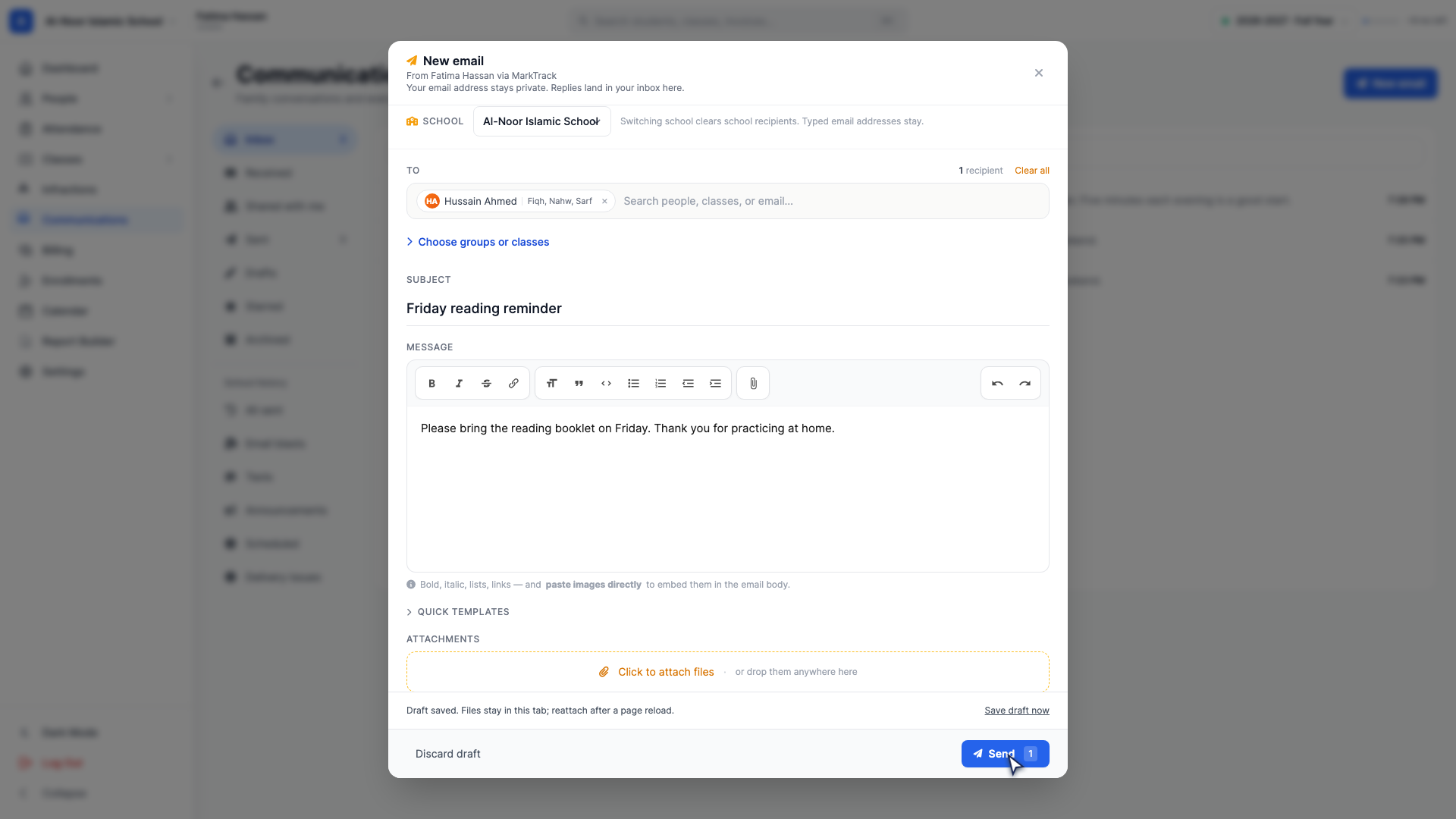
The new-email composer also tells you whether replies will arrive in MarkTrack. If it says Replies are not monitored, contact MarkTrack support to get reply routing set up before relying on the inbox for family responses.
For an existing conversation, write in the reply editor and wait for Draft saved. You can open a student profile, visit another MarkTrack screen, and return to Communications with your conversation and unfinished reply restored.
New-email drafts also save as you write. Unposted private comments are kept separately in the current browser tab for up to 24 hours; closing the tab clears them. Selected files in a new email can stay with you during navigation in the same tab, but a full reload may require you to attach them again. The composer tells you when that is needed.
After you send, check the message’s status. Queued means it is waiting to send; it is not a delivery confirmation. If sending fails, the conversation shows the problem and the available next step.
Keep the inbox useful after the reply
Star a conversation you will need again. Mark it resolved when the work is finished, and reopen it if the discussion continues. Archive moves it out of your inbox while keeping the history available.
When you need a copy, choose Export and prepare a PDF. Private staff comments are excluded by default. If you choose to include them, check who will receive the exported document.
On a phone, the thread uses the available width and Family context sits below it. The Family context shortcut takes you straight to the panel. Sharing, replies and private comments remain available without squeezing a desktop layout onto a small screen.
Watch the complete walkthrough
These short video chapters use the real interface. Each has captions and step-by-step instructions, so you can watch the whole sequence or go straight to the task you need.
- Write and send a new email
- Read family context and reply
- Share a conversation and @mention a colleague
- Leave and return to your saved drafts
- Star, resolve, archive and export a conversation
Start with a family conversation that needs a colleague’s input. Open the family context, invite the colleague, agree on the answer privately, and send the reply. The next person who opens the thread will have the discussion and the family’s message together.
New to MarkTrack? Talk to us about your school.
Interested in trying out MarkTrack for free?
Get in touch