
Who picked up this child? A QR code on the door, and an answer you can defend
Most schools already have a sign-out system. It is a clipboard on a table by the door, and it works right up until the afternoon you actually need it. Then someone asks a question the clipboard cannot answer — who took Aaliyah at 3:40, and are we sure? — and you are squinting at a signature that could be anyone's, on a line someone may have filled in from memory, next to a time somebody rounded.
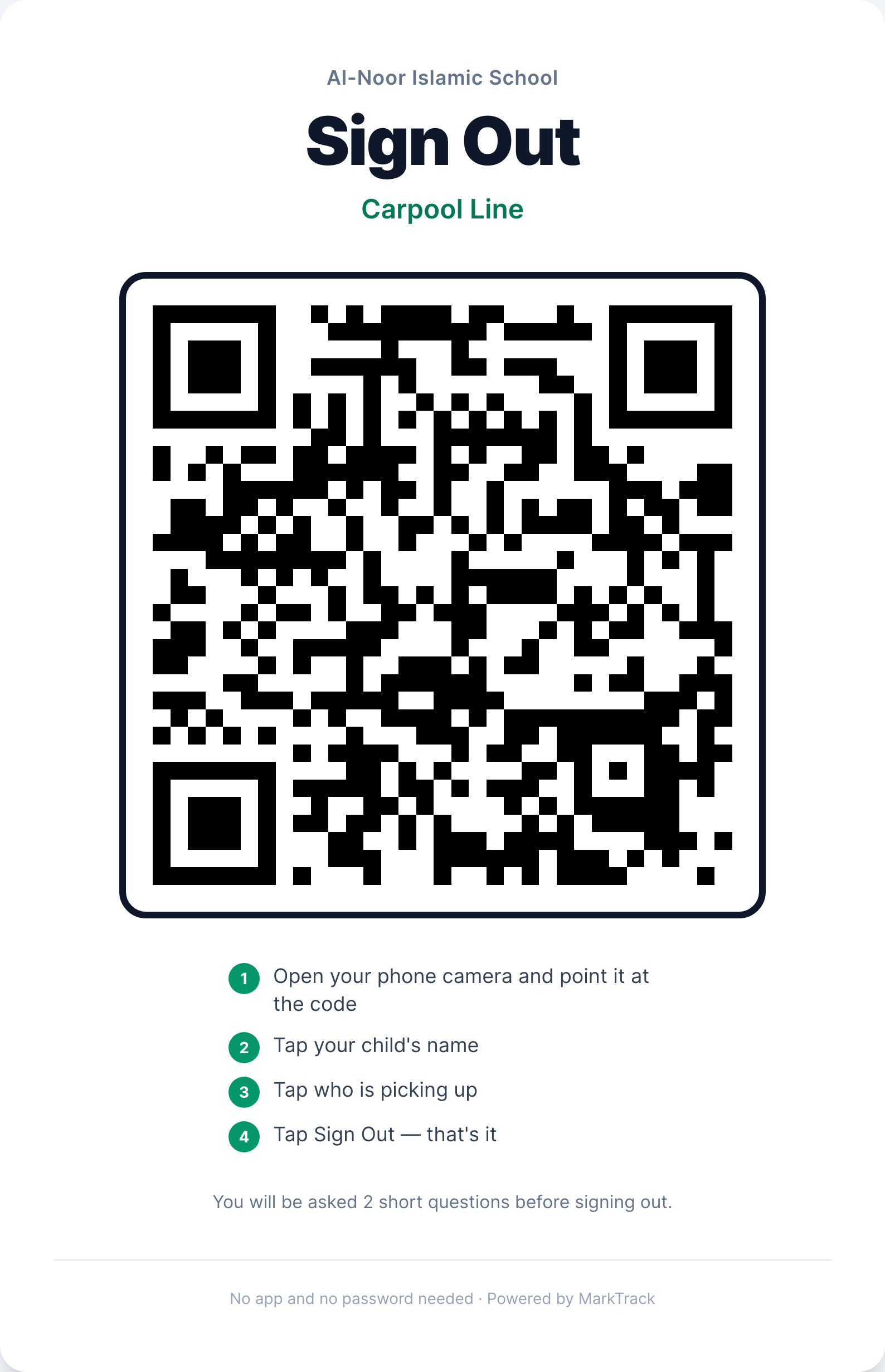
MarkTrack's Sign In / Sign Out replaces the clipboard with a printed QR code taped to the door. A parent points their phone at it, taps their child, taps who is collecting, and taps once more. There is no app and no password — a camera and a browser is the whole requirement. What you get back is not a signature. It is a timestamped record that names a specific person, quotes the exact sentence they agreed to, and cannot be quietly edited later.
The record is an attestation, not a checkbox
This is the part that matters, and it is the reason we did not just log a row and move on. When a parent taps the button, MarkTrack stores the full sentence they were shown at that moment — "I confirm that I am collecting Dania Khan from Al-Noor Islamic School and that they are leaving campus in my care" — alongside the time and the address the tap came from.
That text is frozen. If you later rename the school, or archive the parent's account, or edit the station, the sentence on the record does not move. It keeps saying what the person actually agreed to on the day. An attestation that rewrites itself to match today's configuration is worth nothing in the one conversation where you need it, so ours does not.
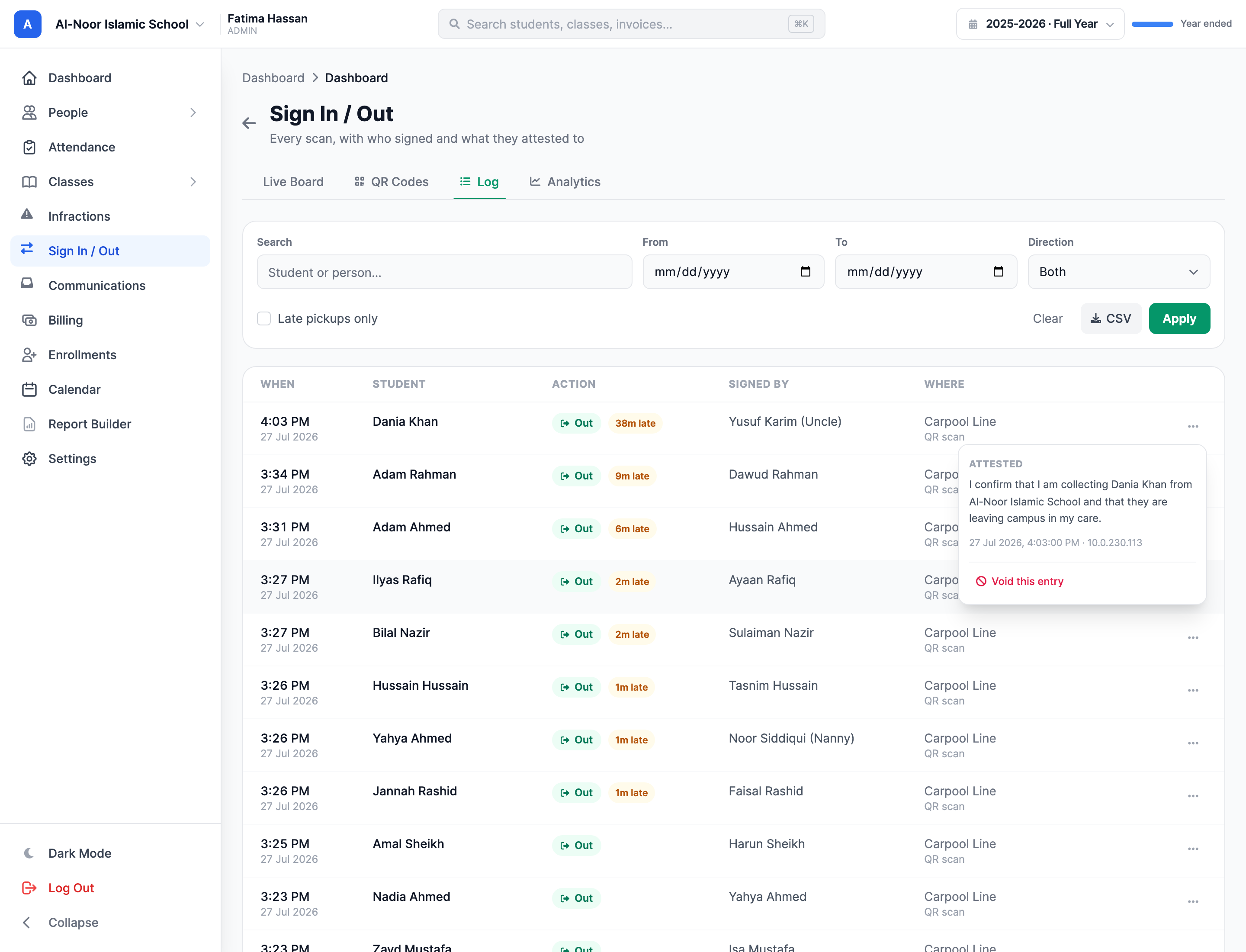
Records are never destroyed, either. A mistake gets voided — it stays in the log, visibly struck, with the correction beside it. A log you can delete from is a log that proves nothing.
What the parent actually does
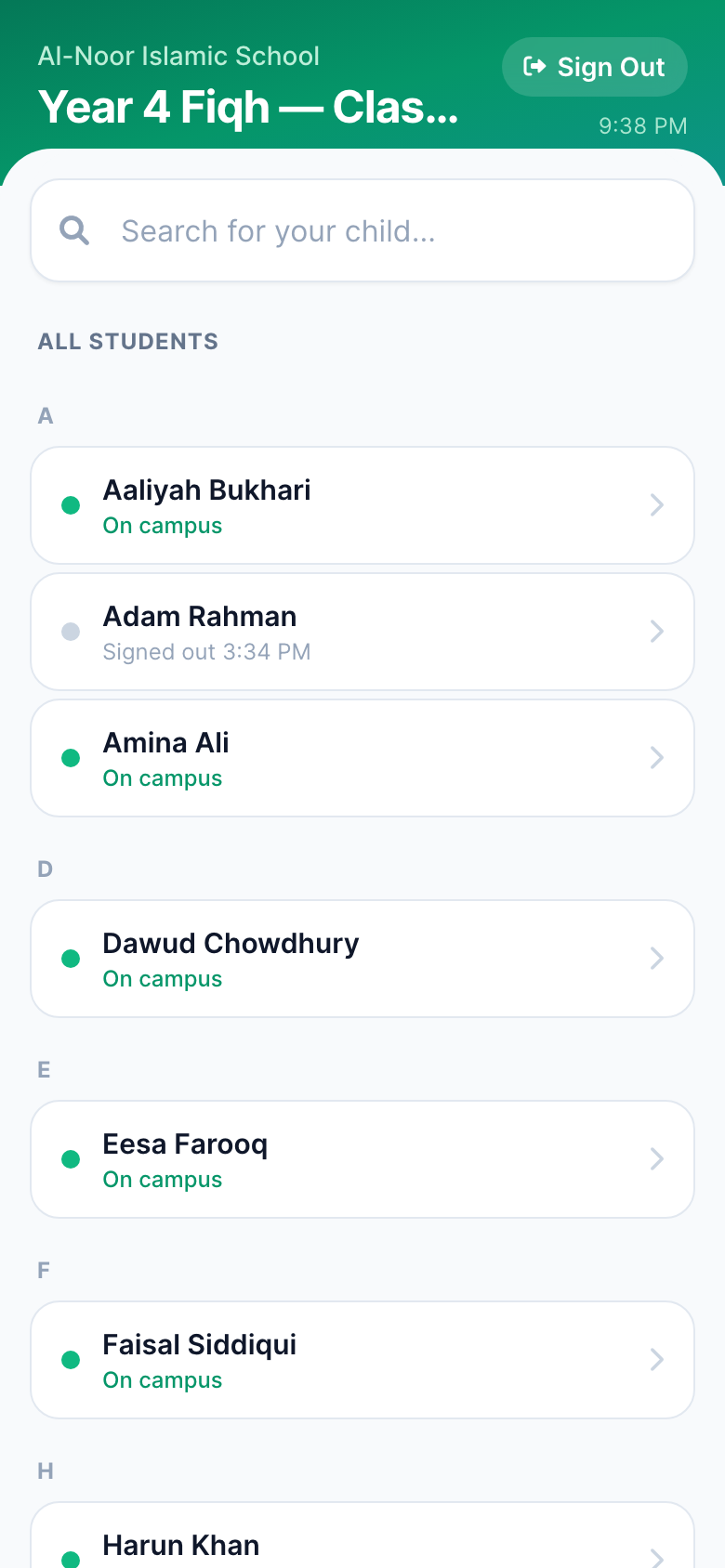
The scan lands on a roster. Not a search box demanding a student ID — a list of names with a live dot next to each one, so a parent can see at a glance that their daughter is still on campus before they even tap.
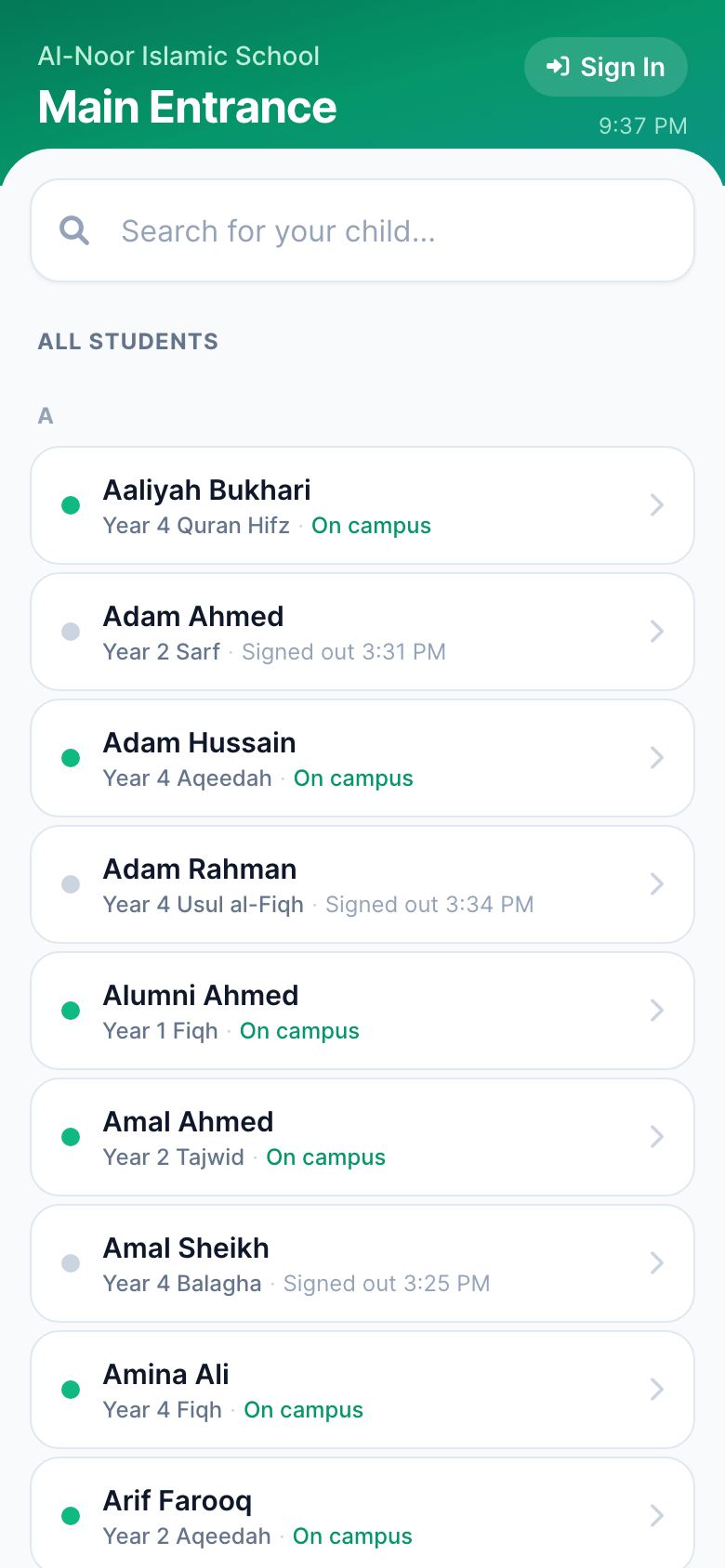
Tapping a name opens a sheet that does three things at once. It asks who is collecting — the child's registered parents as one-tap cards, plus a "Someone else" option for the grandparent, the carpool driver, or the nanny, which asks for a name and a relationship and records both. It notices siblings and offers to sign them out in the same tap. And it asks whatever your school wants asked, which you configure per station.
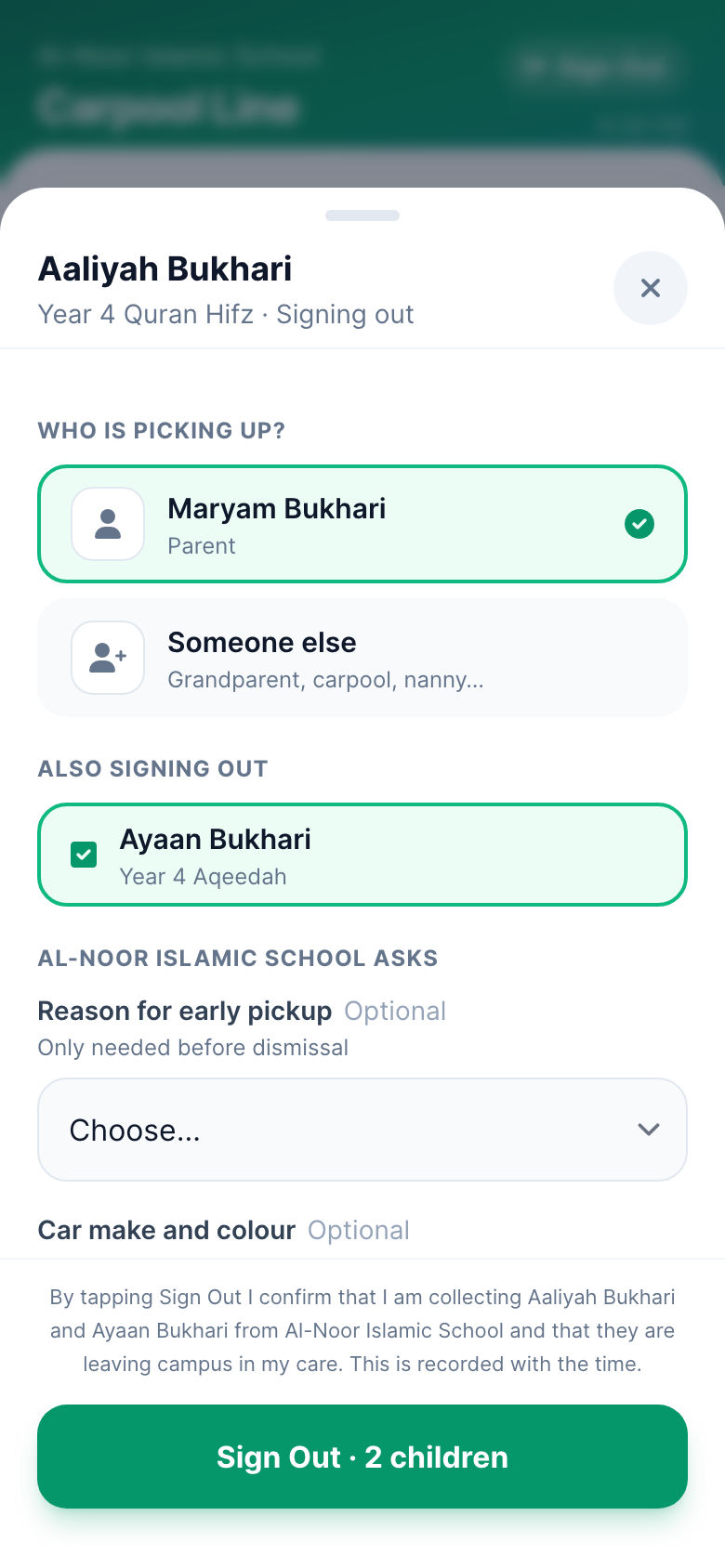
A parent with two children in different classes signs both out in a single tap, and gets two separate records — each naming them, each with its own attestation. The sibling shortcut is a convenience for the family; it is not a shortcut in the ledger.
The board the front desk actually watches
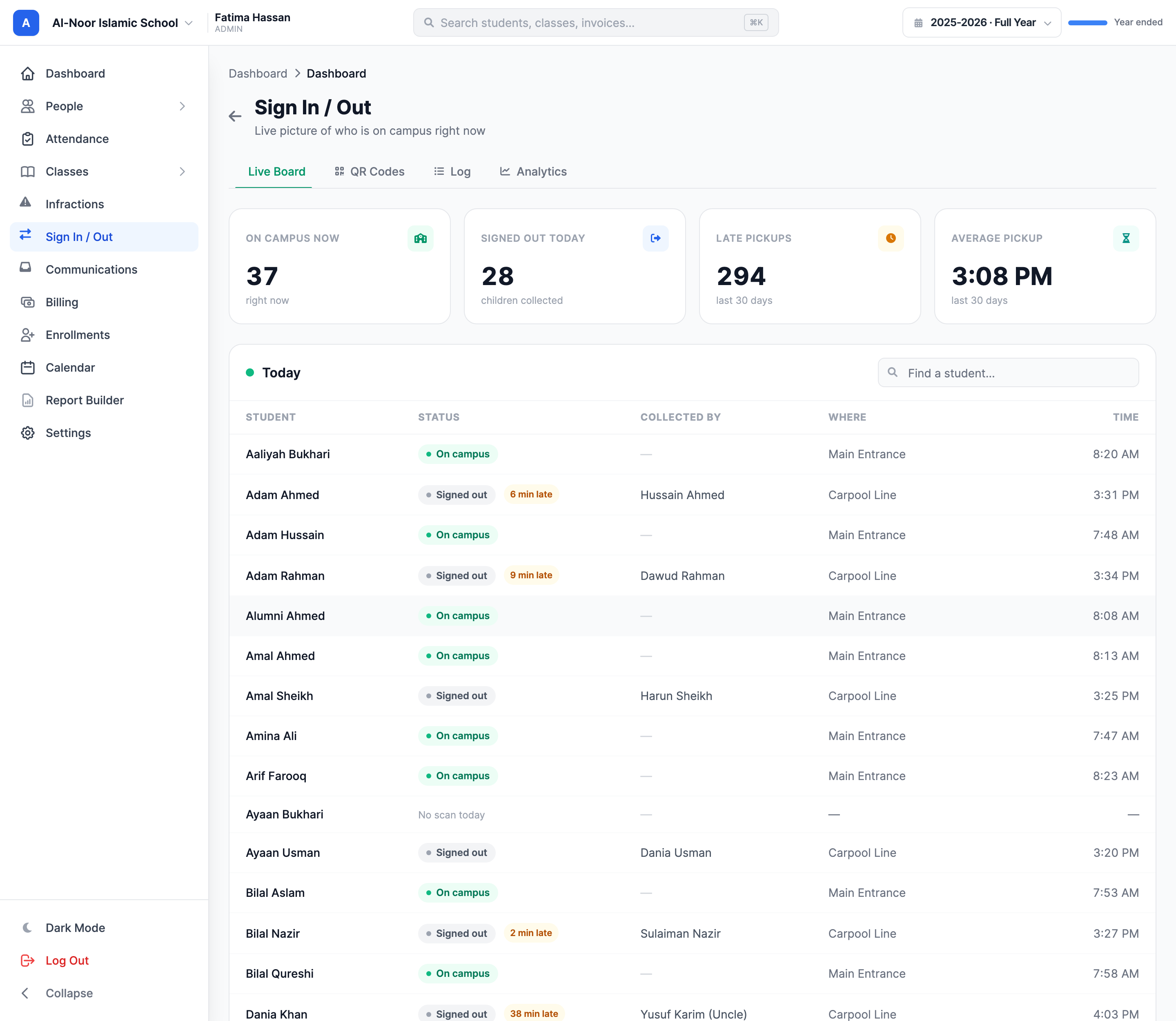
The live board is the answer to "where is everyone right now". It refreshes on its own, counts who is on campus versus signed out, and shows every departure with the name of the person who collected — including "Yusuf Karim (Uncle)" when it was not a registered parent.
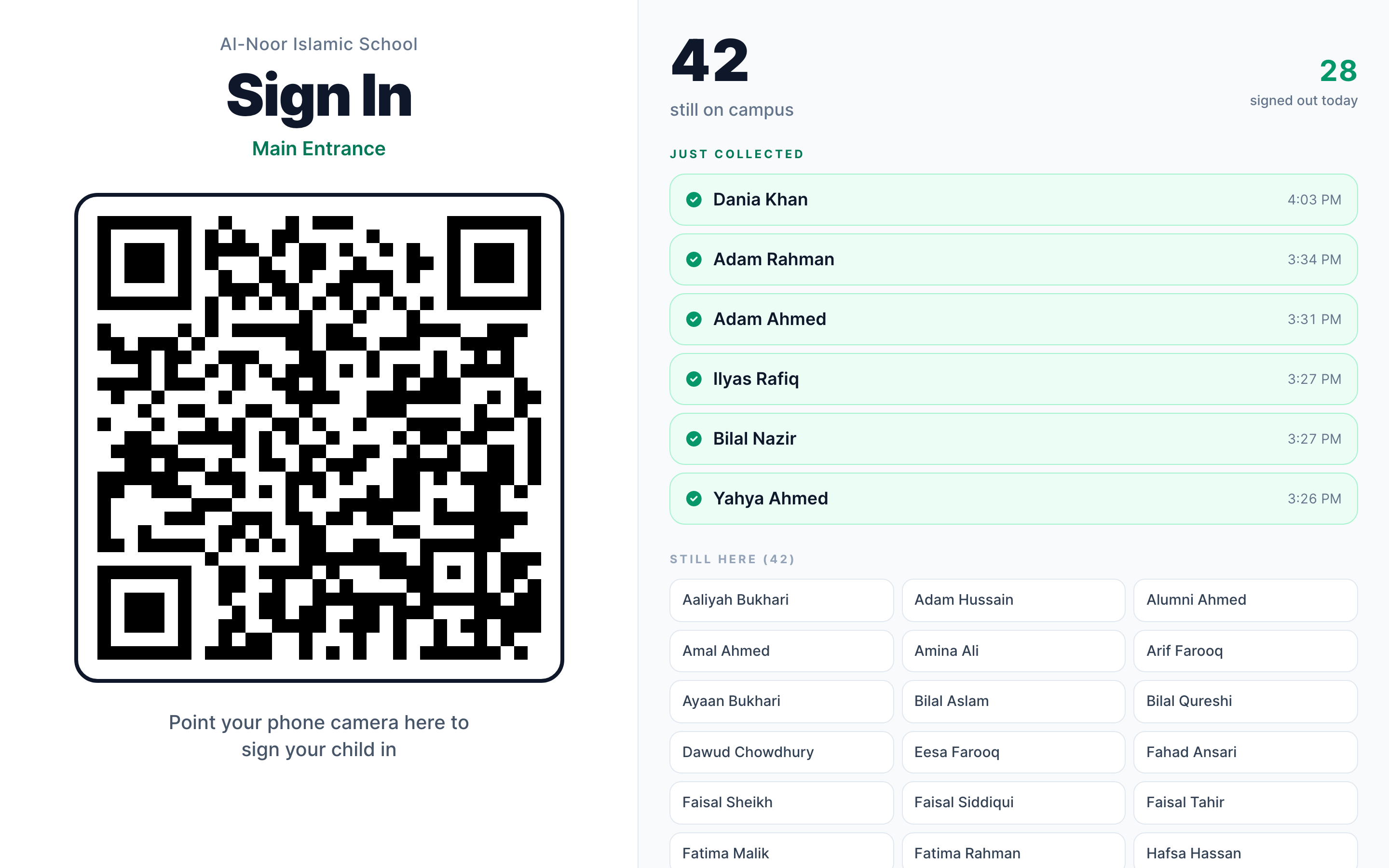
The same QR code can also be cast to a spare iPad or a TV instead of printed. The kiosk view shows the code big enough to scan from a queue, with a live "just collected" feed beside it so the parents waiting can see the line moving.
Stations, and the door code that only knows one class
A station is one QR code with one job. Point it at arrivals, at departures, or let it decide automatically from whether the child is currently signed in. Give it its own questions. Print it, or cast it.
A station can also be class-scoped. Tape that code to a single classroom door and the roster it opens contains that class and nothing else — thirteen names, not the whole school's six hundred. It is a smaller list for the parent, and a much smaller disclosure: a code on the Year 4 Fiqh door cannot be used to enumerate Year 1.
We took that scoping seriously enough to chase the ways it could quietly break. Archiving a class at the end of a year, for instance, used to widen its door poster from thirteen students to the entire school — the printed page on the wall would not have changed, but what it opened would have. A poster whose meaning drifts after you print it is worse than no poster, so a station whose class has gone away now stops working rather than falling back to everyone.
Chronic lateness, finally with a number
Once every departure carries a real timestamp, the pickup conversation stops being a matter of impressions. Set your dismissal time and a grace window, and MarkTrack counts what happens after it: how many late pickups, whose, by how many minutes on average, and the worst single instance.
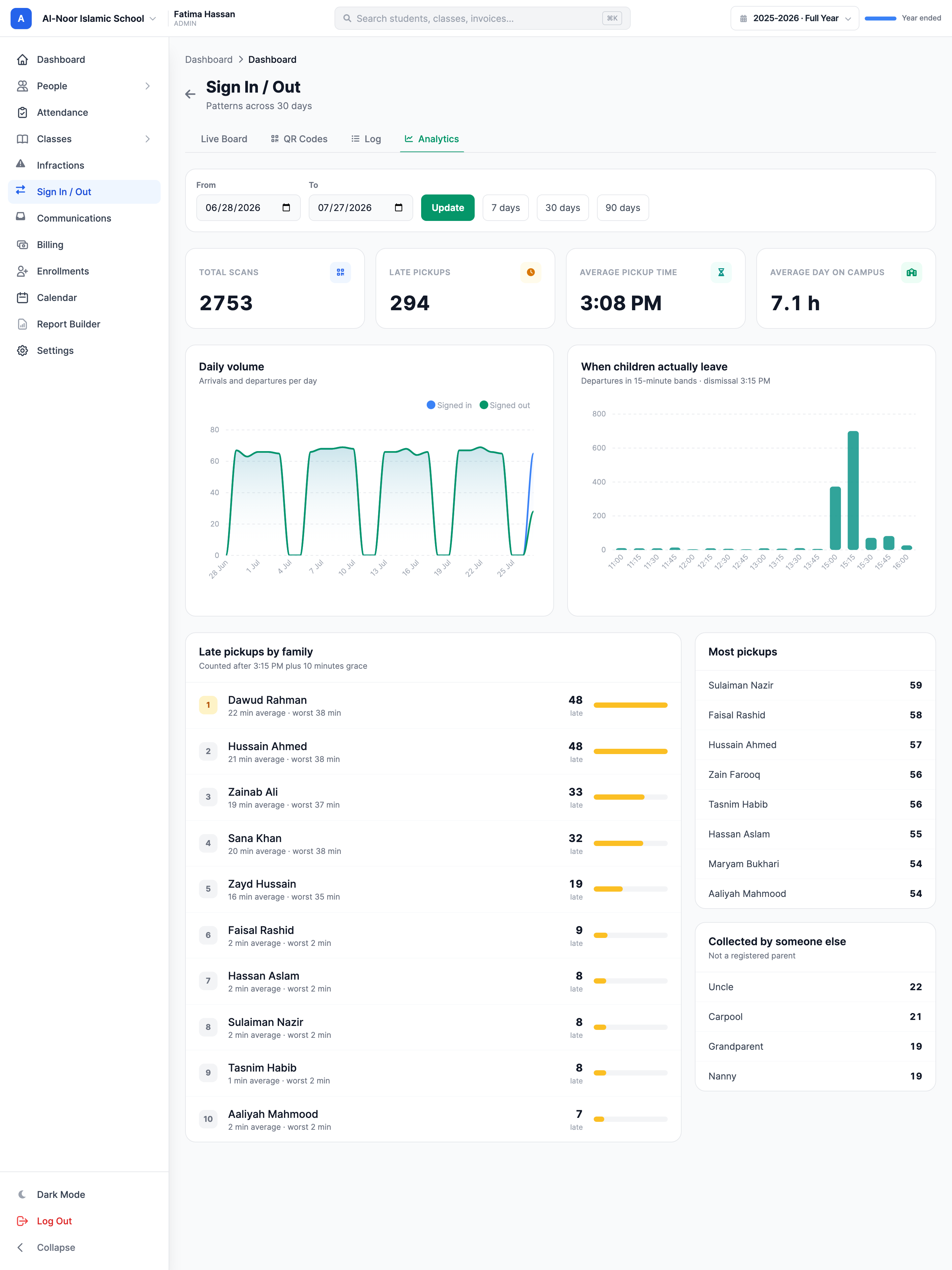
The departure histogram is usually the one that changes a policy. Schools tend to discover that their real dismissal peak sits fifteen or twenty minutes after the official one, which is a staffing fact rather than a discipline problem. And the "collected by someone else" breakdown — how often it is an uncle, a carpool, a grandparent, a nanny — is the number most schools have never had at all.
It is off by default, and that is deliberate
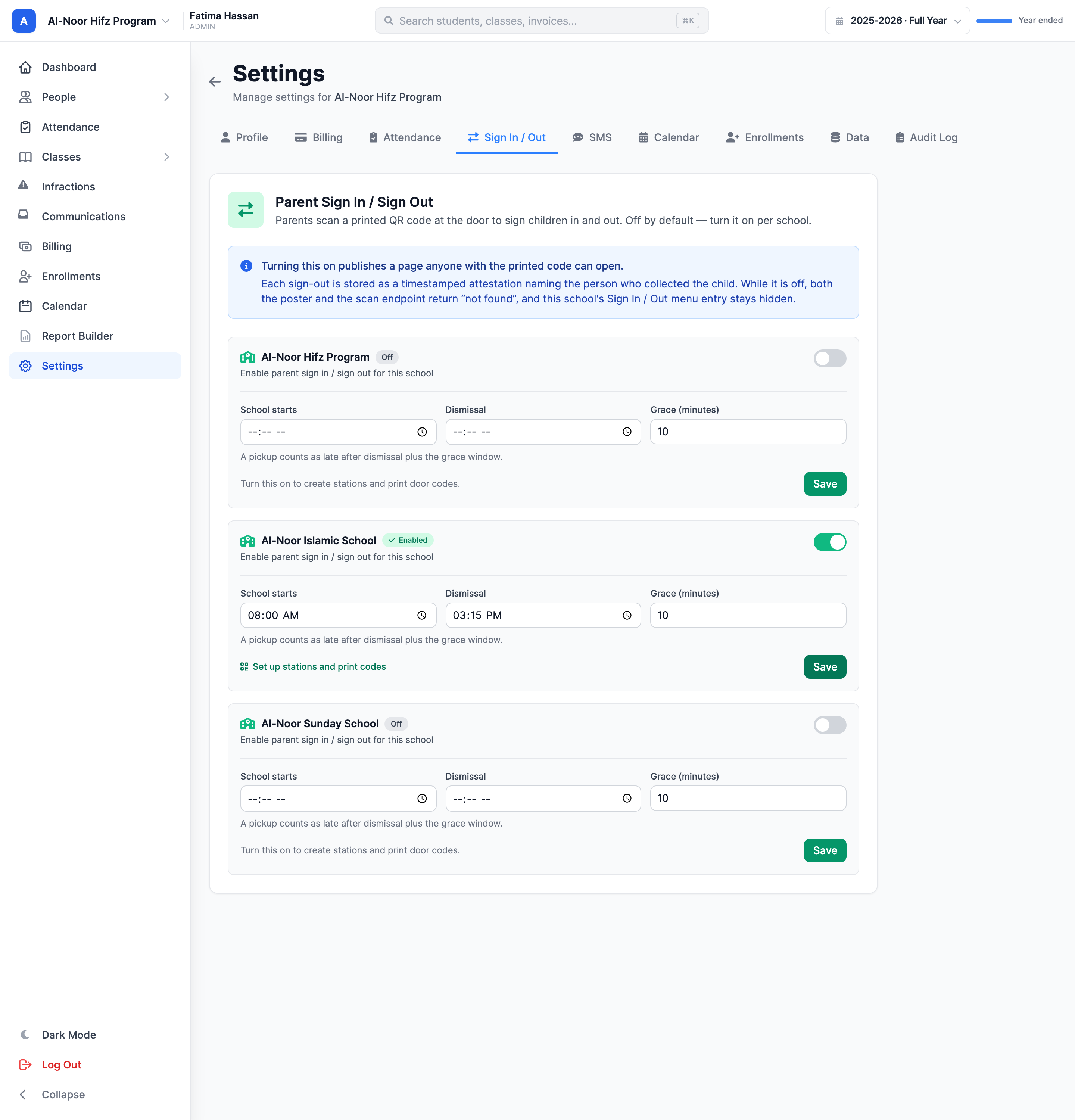
Turning this on publishes a page that anyone holding the printed code can open, without logging in. That is the entire point — a parent in a carpool queue is not going to type a password — but it is not something a school should end up with by accident.
So the feature is off by default on every school. Until an admin turns it on, in Settings, for that specific school, the poster URL and the scan endpoint both return "not found" and the menu entry does not appear. A multi-school organization can run it for the weekday school and leave the Sunday school untouched.
A few other decisions in the same spirit. The public page never reveals whether a code is merely paused or was never real — both return the same 404, so a wrong guess tells an outsider nothing. Rotating a station's code kills the old one immediately, which is what you do when a poster walks off. A kiosk token cannot be used as a scan token, or the reverse. And every CSV export is escaped against spreadsheet formula injection, because a field a stranger can type into eventually lands in somebody's Excel.
Getting started
Open Settings → Sign In / Out, turn it on for one school, and set your dismissal time so lateness means something. Create one station for the door you care most about, print the poster, and tape it up. You can add the carpool line, the front office, and per-classroom codes once you have watched a single dismissal go through.
The step-by-step guides are in the docs: set up your QR codes, what parents see when they scan, and the live board, the log, and the analytics. If you'd like a walkthrough on your own roster, talk to us.
Related reading
Interested in trying out MarkTrack for free?
Get in touch